
Seeing the "Unfortunately, the keyboard has stopped" error pop up on your Tecno Spark 30 Pro can really stop you in your tracks. This is a common hiccup on Android phones, but the good news is you can almost always fix it yourself without much fuss.
I'd start with the simplest fix first, which is just restarting the keyboard app itself. A quick force stop can clear out a temporary glitch and get you typing again in seconds.
Force Stop and Restart the Keyboard
Head into your phone's settings and find the app manager. On your Spark 30 Pro, open Settings and tap on Apps.
You'll see a list of your installed apps. Look for your current keyboard. If you're using the default one, it might be listed as TouchPal or HiOS Keyboard.
Tap on the keyboard app's name, then tap the Force Stop button. Confirm if asked. Once it's stopped, just back out of settings and try opening any app that uses the keyboard, like your messages or Chrome.
Give Your Phone a Quick Reboot
If force stopping didn't do the trick, a full restart of your phone is the next logical step. This clears the phone's working memory and can resolve a lot of minor software conflicts.
Just press and hold the power button until the power menu appears, then tap Restart. If your screen is unresponsive, you can force a restart by holding the Power button and the Volume Down button together for about ten seconds until the phone powers off and comes back on.
Clear the Keyboard's Cache and Data
Corrupted temporary files are a frequent culprit for app crashes. Clearing the cache is safe and won't delete your personal info, but clearing the data will reset the keyboard to its default settings.
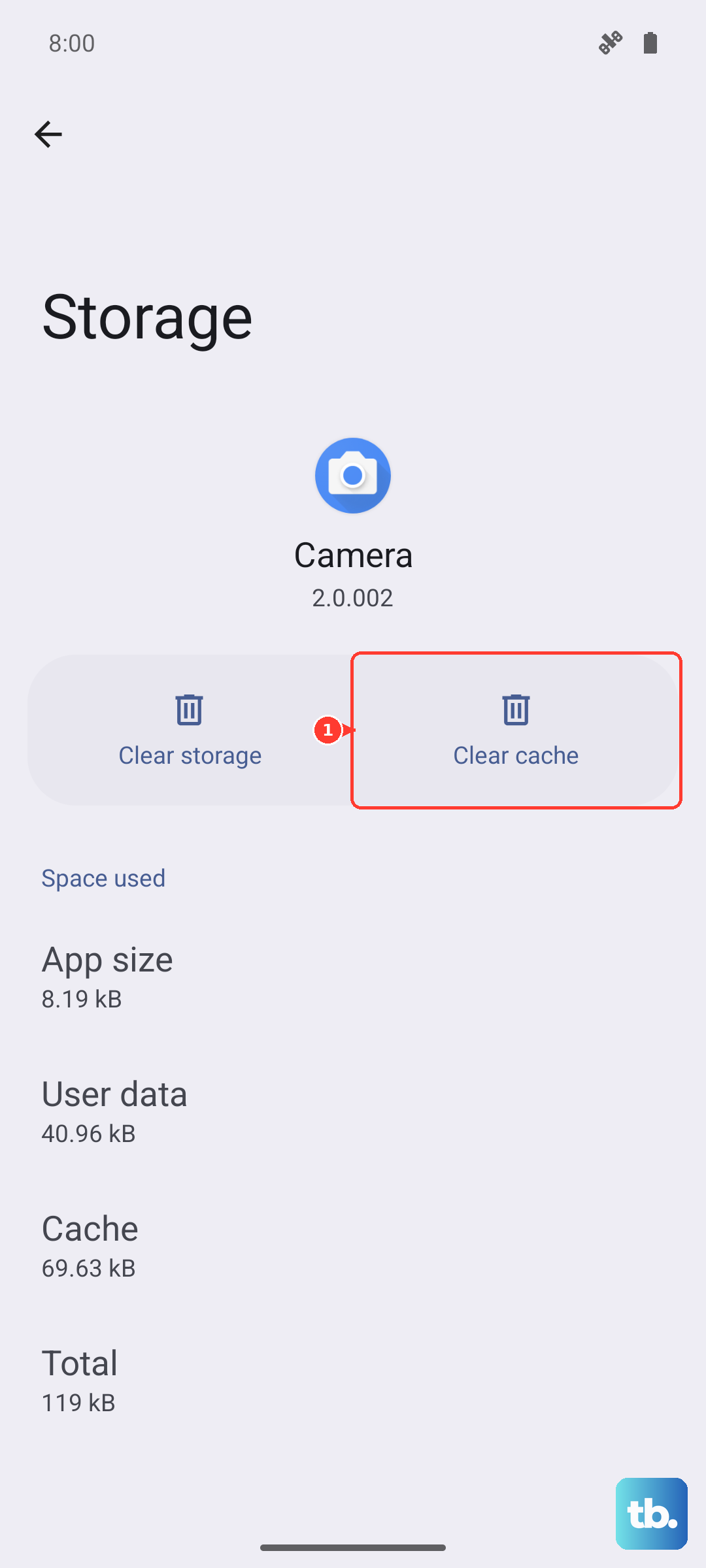
You'll lose any custom dictionaries or personalized preferences if you clear data, so keep that in mind. Go back to Settings > Apps, find your keyboard app, and tap on Storage.
Tap Clear Cache first and test the keyboard. If it's still failing, come back here and tap Clear Data. After clearing data, you'll likely need to go into your language settings to reselect it as your default keyboard.
Update Your Keyboard App
An outdated app can have bugs that newer versions fix. Open the Google Play Store and tap your profile icon in the top right.
Select Manage apps & device. Under the "Updates available" section, see if your keyboard app is listed. If it is, tap Update next to it.
If you're using the pre-installed HiOS keyboard, its updates might come through the system software updates, not the Play Store.
Check for a System Software Update
Since the Spark 30 Pro runs Android 14 with HiOS 14, a system update could contain a fix for keyboard stability. Tecno isn't known for a huge number of updates, but it's always worth checking.
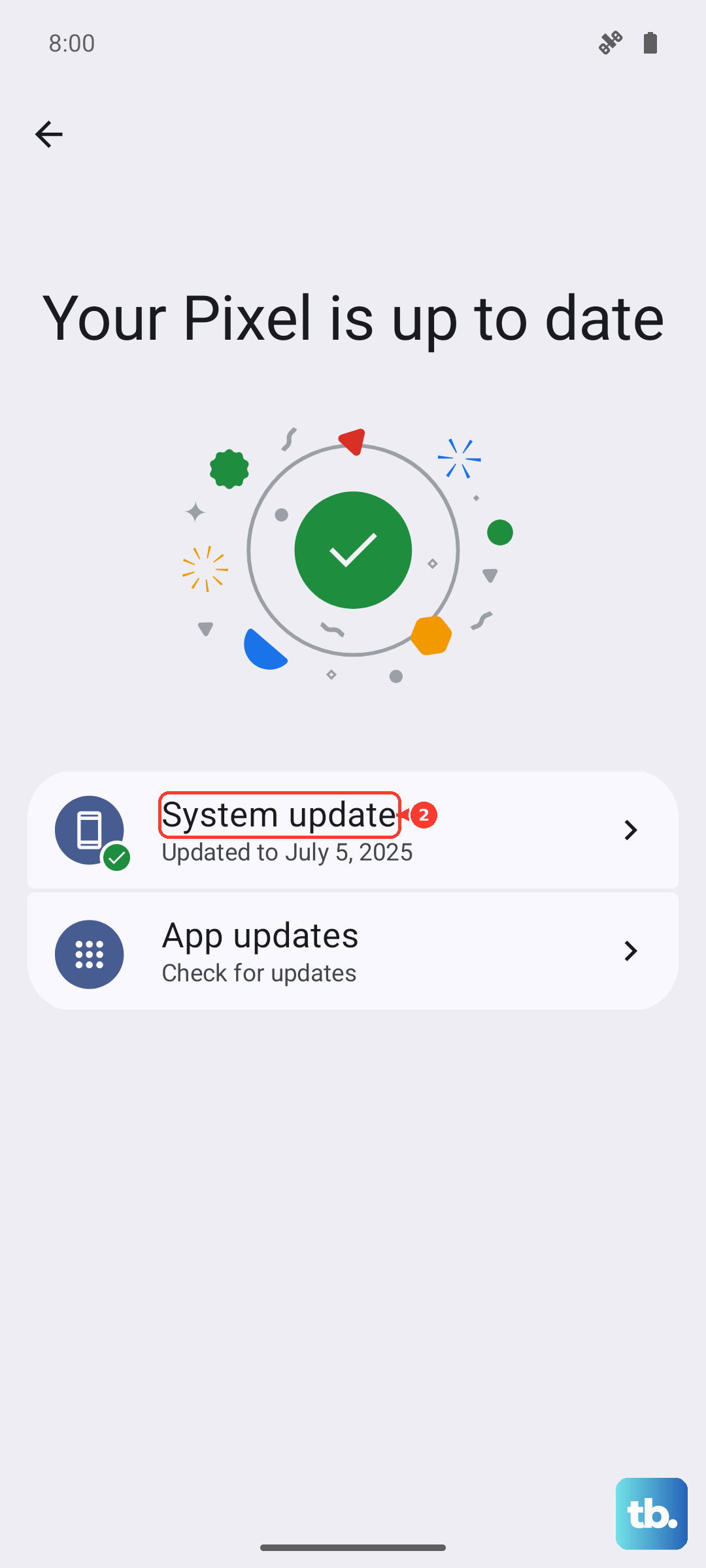
Go to Settings > About phone > System update. Tap "Check for updates." If one is available, I'd recommend connecting to Wi-Fi and plugging in your 33W charger before installing it.
Boot Into Safe Mode
This is a great way to check if a recently downloaded third-party app is causing the conflict. Safe mode temporarily disables all apps you installed yourself.
Press and hold the power button until the power off menu appears. Then, press and hold the "Power off" option on your screen. A prompt will ask if you want to reboot to safe mode, tap OK.
If the keyboard works perfectly in safe mode, you know the problem is with an app you installed. Start by uninstalling any recent apps, especially other keyboards, launchers, or cleaning tools.
Reset Your Keyboard Settings
If you've messed with a lot of keyboard settings, something might have gotten misconfigured. You can reset just the input settings without affecting the rest of your phone.
Navigate to Settings > Additional settings > Languages & input. Tap on Virtual keyboard or On-screen keyboard.
Select your default keyboard from the list. Look for a menu (often three dots) or a button that says Reset settings or Reset keyboard. Tapping this will wipe its preferences back to factory defaults.
Try a Different Keyboard App
Sometimes the simplest solution is to just switch. Installing a popular third-party keyboard like Gboard (Google Keyboard) or SwiftKey from the Play Store gives you an immediate workaround.
Once installed, go to Settings > Additional settings > Languages & input > Virtual keyboard. Tap on "Manage keyboards" and enable your new one, then set it as the default.
This can help you immediately while you figure out what's wrong with the original one. Given the Helio G100 processor is a budget chip, a lighter keyboard app might even feel a bit snappier.
Reset All System Settings
This is a more significant step, but it doesn't delete your photos, apps, or personal files. It will reset all your system settings, like Wi-Fi passwords, Bluetooth pairings, and display preferences, back to default.
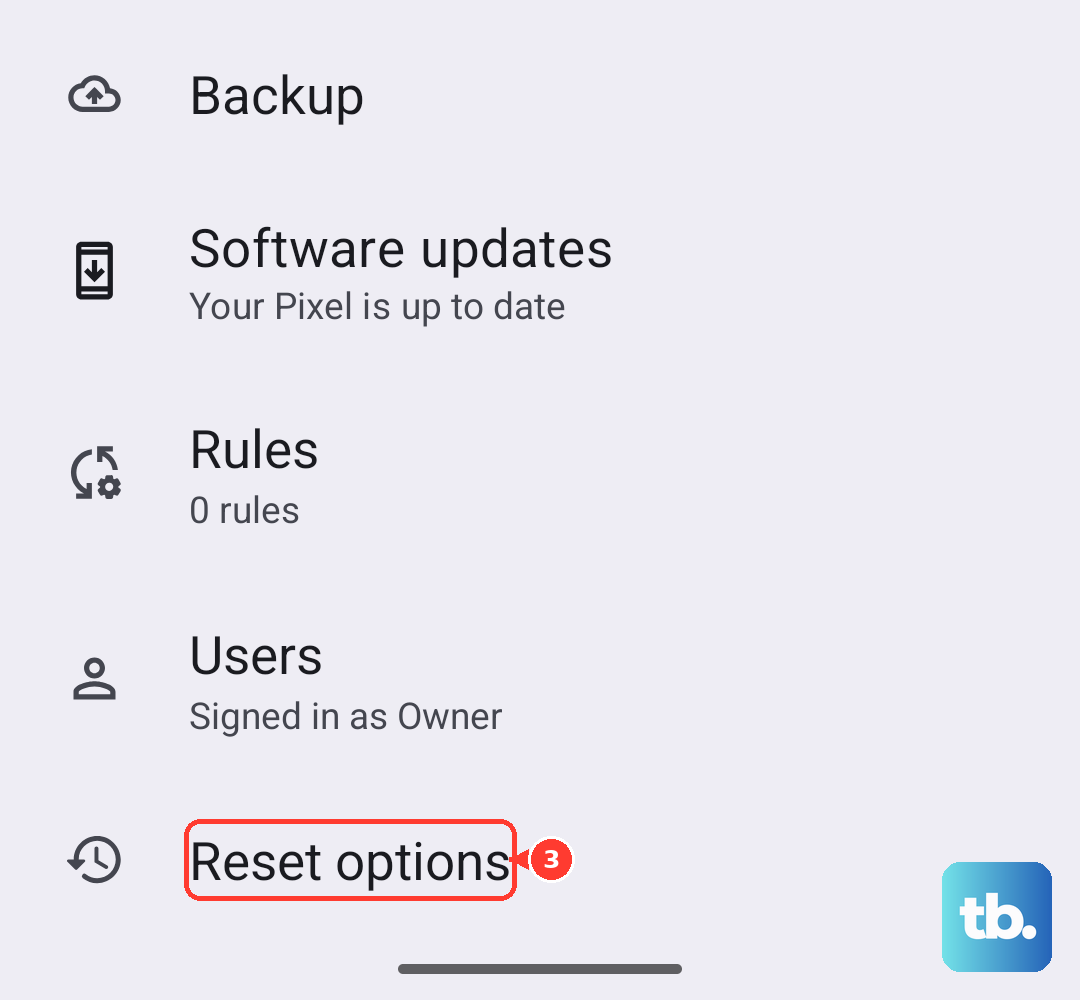
On your Tecno, go to Settings > System > Reset options. Tap on Reset all settings and enter your PIN or password if prompted.
After the phone reboots, you'll need to reconfigure your connections and preferences, but your keyboard should be back to a clean slate. This often resolves deeper configuration conflicts that simpler clears don't fix.