
When your Tecno Spark 30 Pro won't install apps, it can stop you from doing the things you need. The Google Play Store might show a spinning circle forever, an error code, or just do nothing when you tap install. I've found that on phones like the Spark 30 Pro, the issue is often a simple setting or a cache that needs clearing.
Let's go through the fixes, starting with the quick ones you can try right now.
Check Your Internet Connection First
This sounds obvious, but it's the most common reason downloads get stuck. The Spark 30 Pro needs a stable connection, whether on Wi-Fi or mobile data. Pull down the notification shade from the top of your screen and make sure the Wi-Fi or data icon is active.
If you're on Wi-Fi, try switching to mobile data for a moment. Some public or restricted Wi-Fi networks can block the ports the Play Store uses. Toggle Wi-Fi off and mobile data on, then try the download again.
Restart Your Phone
A quick restart can clear out temporary glitches in HiOS or the Play Store app itself. Just press and hold the power button until the menu appears, then tap "Restart."
If the phone is completely unresponsive, you can force a restart. Press and hold the Power button and the Volume Down button together for about 10 seconds until you feel a vibration and see the Tecno logo.
Verify Date and Time Settings
Google's servers are very picky about time synchronization. If your phone's clock is off, it can silently block downloads. Go to Settings > Additional settings > Date & time.
Make sure "Automatic date & time" is switched on. If it's already on and you're still having trouble, try turning it off briefly, manually setting the correct date and time, and then turning automatic mode back on.
Clear the Google Play Store Cache
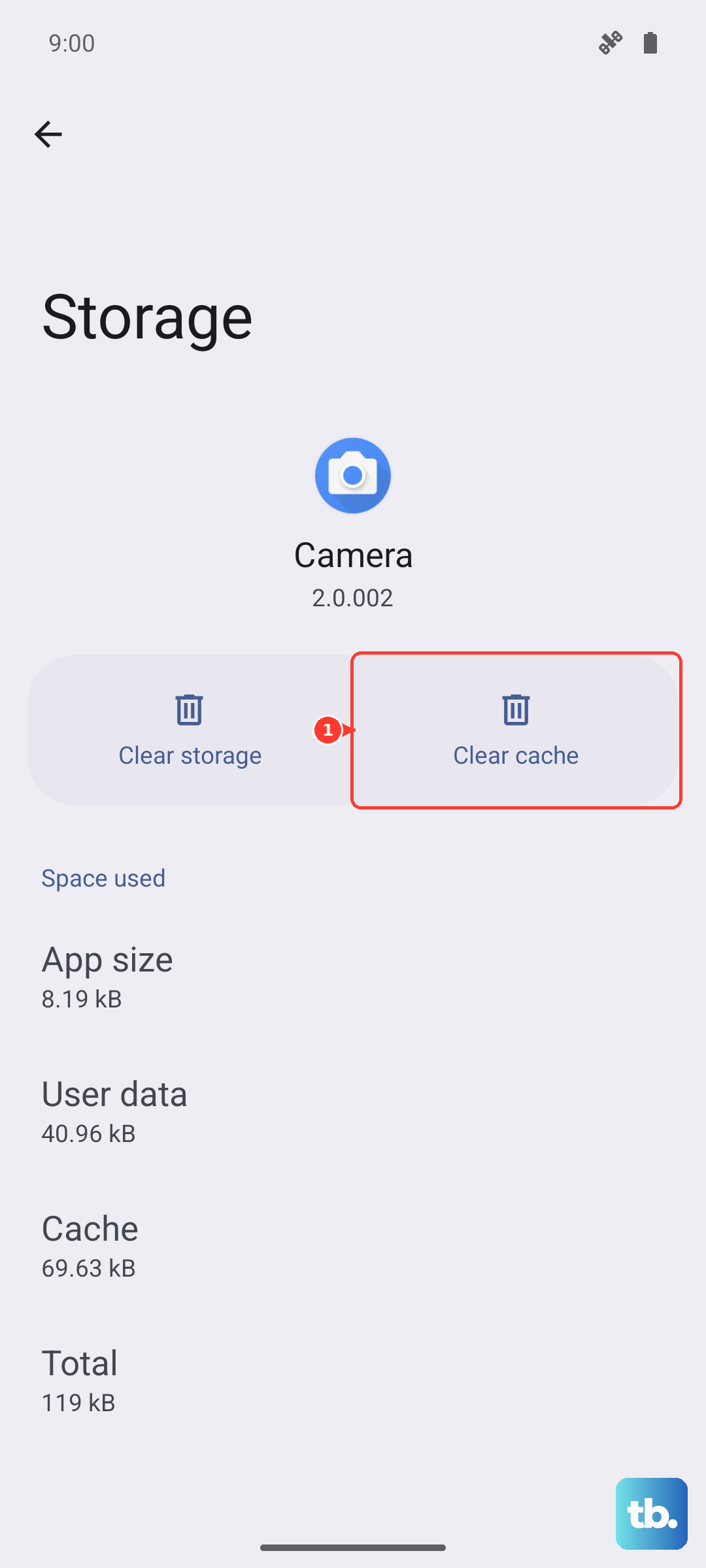
The Play Store stores temporary data that can sometimes become corrupted. Clearing this cache is a safe first step that doesn't delete your account or apps. Go to Settings > Apps > App management.
Find and tap "Google Play Store." Tap on "Storage usage," then hit "Clear cache." Go back and try your download. If that doesn't work, you can also tap "Clear data" on the same screen. This will reset the Play Store app to its default state, so you may need to sign in again.
Clear Google Play Services Data
This service runs in the background and handles communication for app downloads. Problems here are a frequent culprit. Head back to Settings > Apps > App management and find "Google Play Services."
Tap on it, go to "Storage usage," and tap "Manage storage." Here, tap "Clear all data." Confirm the prompt. This action is safe, but it may cause other Google apps to need a moment to reconnect.
Check for Sufficient Storage Space
The Tecno Spark 30 Pro comes with 256GB of storage, which is generous, but it can still fill up. The Play Store will fail with an "Insufficient storage" error if there's not enough room.
Go to Settings > Storage to see how much space is free. If you're running low, consider removing some pre-installed apps you don't use. You can also clear cached data for multiple apps at once from this storage menu to free up space quickly.
Review Download Manager Settings
Your phone has a system app called Download Manager that handles all downloads. It needs to be enabled and functioning. In Settings > Apps > App management, tap the three-dot menu and select "Show system."
Scroll to find "Download Manager." If the "Disable" button is showing, it's already enabled. If you see "Enable," tap it. You can also tap into it and select "Storage usage" to clear its cache and data, which can help if a download is stuck.
Update Your Phone's Software
Running an outdated version of HiOS or Android can cause compatibility issues with the latest Play Store services. Tecno releases updates to fix bugs. Connect to Wi-Fi and go to Settings > My Phone > Version.
Tap on "Check for updates." If an update is available, download and install it. Your phone will restart. This process can sometimes resolve underlying system glitches affecting app installations.
Remove and Re-add Your Google Account
This refreshes the connection between your phone and Google's servers. Go to Settings > Accounts & sync and select your Google account. Tap "Remove account" at the bottom.
Don't worry, this doesn't delete your account from Google. Restart your phone, then go back to Settings > Accounts & sync > Add account and log back in with your Google credentials. Try installing an app afterward.
Check for Problematic Apps or Settings
If you've installed any apps that manage permissions, battery saving, or data usage aggressively, they might be blocking the Play Store. Go to Settings > Apps > App management and find the Play Store again.
Tap on "Battery saver" and make sure it's not set to "Restricted." Also, go to Settings > Additional settings > App permissions and find "Google Play Services." Ensure it has all necessary permissions, especially storage.
Reset All App Preferences
This is a broader fix that resets permissions, background data restrictions, and default app assignments without deleting any personal data. It can clear up conflicts. Go to Settings > Additional settings > Backup & reset.
Tap on "Reset settings" and then select "Reset app preferences." Confirm. You'll need to re-grant permissions to apps when you use them next, but it often resolves stubborn installation issues.