You hit play on Spotify and nothing happens. Maybe the song sits there with the progress bar frozen, maybe a track is grayed out, or maybe the app looks like it's playing but no sound comes through.
The good news: most playback failures come down to a handful of fixable causes, usually a stale cache, a lost connection, Offline Mode left on, or audio quietly routed somewhere else. Below are the verified fixes, ordered quickest and most common first.
Work down the list and stop when your music comes back.
Restart the App First
Before anything else, fully close Spotify and reopen it. On mobile, swipe it away in the app switcher; on desktop, quit it completely rather than just minimizing.
A restart clears a wedged playback session and is the single fastest fix. If nothing plays after reopening, move on.
Check Your Internet Connection
Spotify needs a stable connection to stream anything you haven't downloaded. A weak or dropped signal is one of the most common reasons playback stalls.
Confirm other apps can reach the internet, then toggle Wi-Fi off and on or switch between Wi-Fi and mobile data. Note that some school, work, and public networks restrict access to certain services; if you suspect that, try a different network.
Turn Off Offline Mode
If most of your library is grayed out, Offline Mode is the likely culprit. It limits you to downloaded tracks only and leaves everything else unplayable.
Open Spotify's settings, look under the Playback section, and switch Offline off. On the desktop app, the Offline Mode toggle lives in the app's own menu.
Grayed-out tracks usually aren't a bug. It means Offline Mode is on, you're disconnected, or the song isn't licensed in your market.
Make Sure the Sound Isn't Playing Elsewhere
If Spotify looks like it's playing but you hear nothing, the audio may be routed to another device. Spotify Connect, Bluetooth, or another wireless connection can quietly send sound to a speaker, TV, or set of headphones somewhere else.
Check the device or output indicator in Spotify and select the device you're actually using. Then confirm the correct output is chosen in your operating system's sound settings, for example your laptop's built-in speakers.
On a phone, also raise the media volume specifically. There can be separate settings for different sounds, such as media versus calls, so the song can be silent even when your ringer is loud.
Clear the Cache
A corrupted cache can stop playback cold. Clearing it is safe and keeps your settings and downloads intact.
On Android, go to your device Settings, then Apps, Spotify, Storage, and tap Clear Cache. Only clear app data as a last resort, since that resets your settings and removes downloads.
On iOS there's no way to clear the cache from the iOS Settings app; you have to do it inside Spotify. Open the app, go to its settings, find the Storage section, and clear the cache.
Free Up Storage Space
Spotify needs at least 1GB of free memory to work. When storage is full, the app can't write cache or offline files, and playback breaks.
Delete unused files or apps to open up space, then relaunch Spotify. On Android specifically, if the app is caching to a failing SD card and crashing, remove the card, restart the device, and reinstall without it.
Update the App and Your Device
An outdated app or operating system causes playback bugs that newer versions have already fixed.
- 1.Update Spotify to the latest version from your device's app store.
- 2.Update your device's operating system.
- 3.Confirm your device is supported and has at least 1GB of free memory.
- 4.Close unused background apps so Spotify has the resources it needs.
Resolve Windows Audio Conflicts
On Windows, if Spotify reports it can't play the current track, the cause is often an audio setting fighting with Spotify. Work through these in your Windows sound settings, which you reach from Start > Settings > System > Sound.
- 1.In the Sound Control Panel, on the Communications tab, set Windows to do nothing when it detects communications activity, so it stops lowering other audio.
- 2.On the Playback tab, right-click your output device and choose Properties.
- 3.On the Advanced tab, turn off Exclusive Mode and any audio enhancements.
- 4.On the Spatial sound tab, turn Spatial sound off.
- 5.Disable any third-party sound enhancers, equalizers, or Dolby Atmos software, then restart Spotify.
- 6.Make sure your audio output device drivers are up to date.
If you use Bluetooth headphones and the error appears when resuming after a long pause, restart the app and update your headset firmware rather than just reconnecting.
Disable Hardware Acceleration on Desktop
On some computers, often older ones, hardware acceleration causes playback and stability problems. Turning it off can make the app slightly slower but more reliable.
On Windows, open Spotify's settings and look for the hardware acceleration option in the advanced or compatibility section, then switch it off. On Mac, you can toggle Hardware Acceleration from the Spotify menu in the menu bar. Restart the app afterward.
Fix the Web Player in Your Browser
The web player relies on protected-content (DRM) support that a browser update, ad blocker, or network policy can switch off.
- 1.Make sure your browser is up to date, then check and update it in your browser's Help section.
- 2.Try opening the web player in a private or incognito window.
- 3.If you see a message that playback of protected content is not enabled, turn on protected content (the Widevine plugin) in your browser's settings. Enabling it requires no download and doesn't compromise your online security.
If a shared or office network still blocks playback, use the desktop app instead.
Sign Out of Other Devices
A single Spotify account plays on one device at a time. If playback keeps pausing on its own, another device may be grabbing the account.
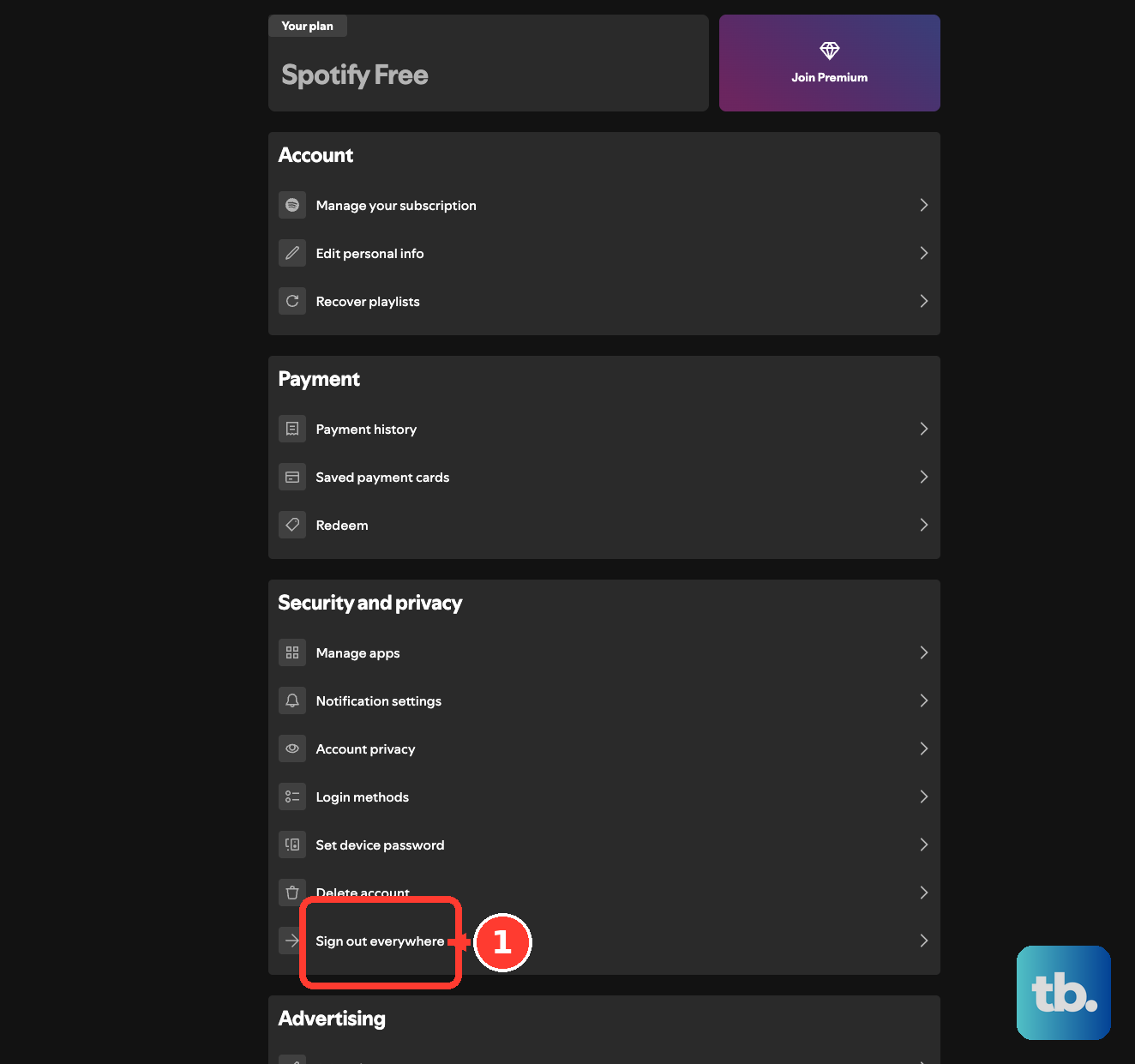
Open your Spotify account page and select Sign out everywhere, then sign back in only on the device you want to use. For extra safety, you can also reset your password.
For genuinely simultaneous listening, Premium Duo or Premium Family give each person a separate account. As a workaround, you can download a playlist to a second device and put it in Offline Mode so it stops competing for the online stream.
Turn Off Crossfade
Crossfade overlaps two tracks by fading out of one while fading in the next, but it can itself create apparent skips or dropouts between songs.
Open Settings, look under the Playback section, and switch Crossfade off to rule it out. While you're there, check that Gapless Playback is set how you want and, on mobile, that Data Saver isn't capping your streaming quality on cellular. Data Saver doesn't affect Wi-Fi.
Reinstall Spotify as a Last Resort
If everything above fails, a clean reinstall clears deeply corrupted data and guarantees you're on the latest version.
Uninstall Spotify, reinstall it from your app store, and sign back in. Reinstalling deletes downloaded content, so re-download your offline songs and podcasts afterward. Before going this deep, it's worth checking @SpotifyStatus on X and the official Ongoing Issues board, since the problem may be on Spotify's end.
Frequently Asked Questions
Why are some songs grayed out and unplayable?
A grayed-out track usually isn't a bug. It means Offline Mode is on, your device is disconnected, or the song isn't licensed in your market. Switch off Offline Mode, check your connection, and confirm the track is available in your region.
Spotify says it's playing but I hear no sound. What's wrong?
The audio is most likely going somewhere else. Check that sound isn't routed to another device via Spotify Connect, Bluetooth, or another wireless connection, confirm the right output is selected in your sound settings, and on mobile raise the media volume, which can be separate from your ringer.
Will I lose my downloads if I clear the cache or reinstall?
Clearing the cache keeps your downloads and settings. Clearing app data (Android) or reinstalling the app does remove downloaded content, so you'll need to re-download your offline songs and podcasts afterward.
Why does Spotify keep pausing on its own?
A single account plays on one device at a time, so starting playback elsewhere can pause your current device. Sign out everywhere from your account page, or use Premium Duo or Family for simultaneous listening.
I went on a trip and now Spotify won't play. Why?
On a free account, if you spend more than 14 days abroad, you won't be able to play anything until you update your account settings to reflect your country or region. Premium plans aren't subject to this 14-day limit.
How do I know if the problem is on Spotify's side?
Before deep troubleshooting, check @SpotifyStatus on X and the official Ongoing Issues board. If there's a known outage, the fix is simply to wait.