Your PC slows to a crawl, the fan starts working overtime, and when you finally check what is going on you spot something called "Spooler SubSystem App" sitting near the top of the list. That entry is the Windows Print Spooler service (the spoolsv.exe process), and when it gets stuck it can hold your CPU, disk, or memory hostage until the whole machine feels sluggish. The good news is that this is almost always a stuck print job or a misbehaving printer driver, and you can clear it without any special software.
The fixes below apply to both Windows 11 and Windows 10, and they are ordered from the quickest and safest to the more thorough. Work through them in order and stop as soon as your CPU usage settles back down. Note that Microsoft ended support for Windows 10 on October 14, 2025, so Windows 11 users will have the smoothest experience.
Confirm the Print Spooler Is Really the Problem
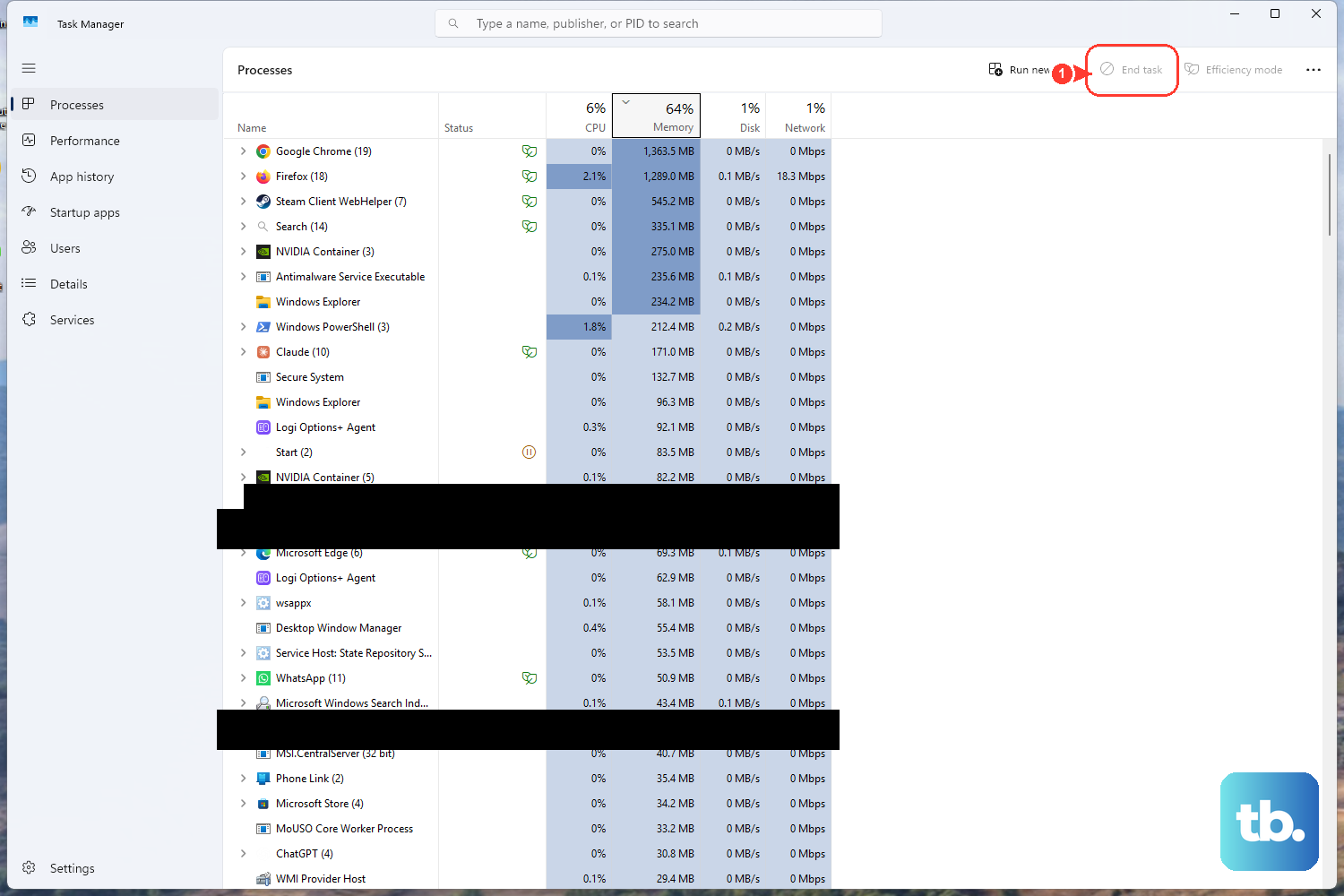
Before changing anything, make sure the spooler is actually what is eating your resources. Press Ctrl + Shift + Esc to open Task Manager, which is the keyboard shortcut Microsoft documents for jumping straight to it.
On the Processes tab, select the CPU column header so the arrow points down; this sorts the list from highest CPU usage to lowest.
Do the same with the Disk or Memory column if those feel maxed out instead.
If you see "Spooler SubSystem App" (or spoolsv.exe / "Print Spooler") high in the list, the print spooler is your culprit and the steps that follow apply directly.
If a process can be stopped or its service disabled, Microsoft notes you can stop it and check whether that mitigates the problem. That is exactly what the next fix does for the spooler.
Restart the Print Spooler Service
Restarting the service clears a runaway spooler instantly and resolves most Spooler SubSystem App issues on its own. This is Microsoft's documented fix for Print Spooler service errors.
Press the Windows key + R, type services.msc, and press Enter.
Next, scroll down and locate Print Spooler in the list of services.
Right-click Print Spooler and select Restart.
Give your PC a few seconds, then check Task Manager again. If the CPU has calmed down, you are done. If it climbs back up, a stuck job or corrupted spool file is feeding the problem, which the next two fixes handle.
Clear Stuck Print Jobs From the Queue
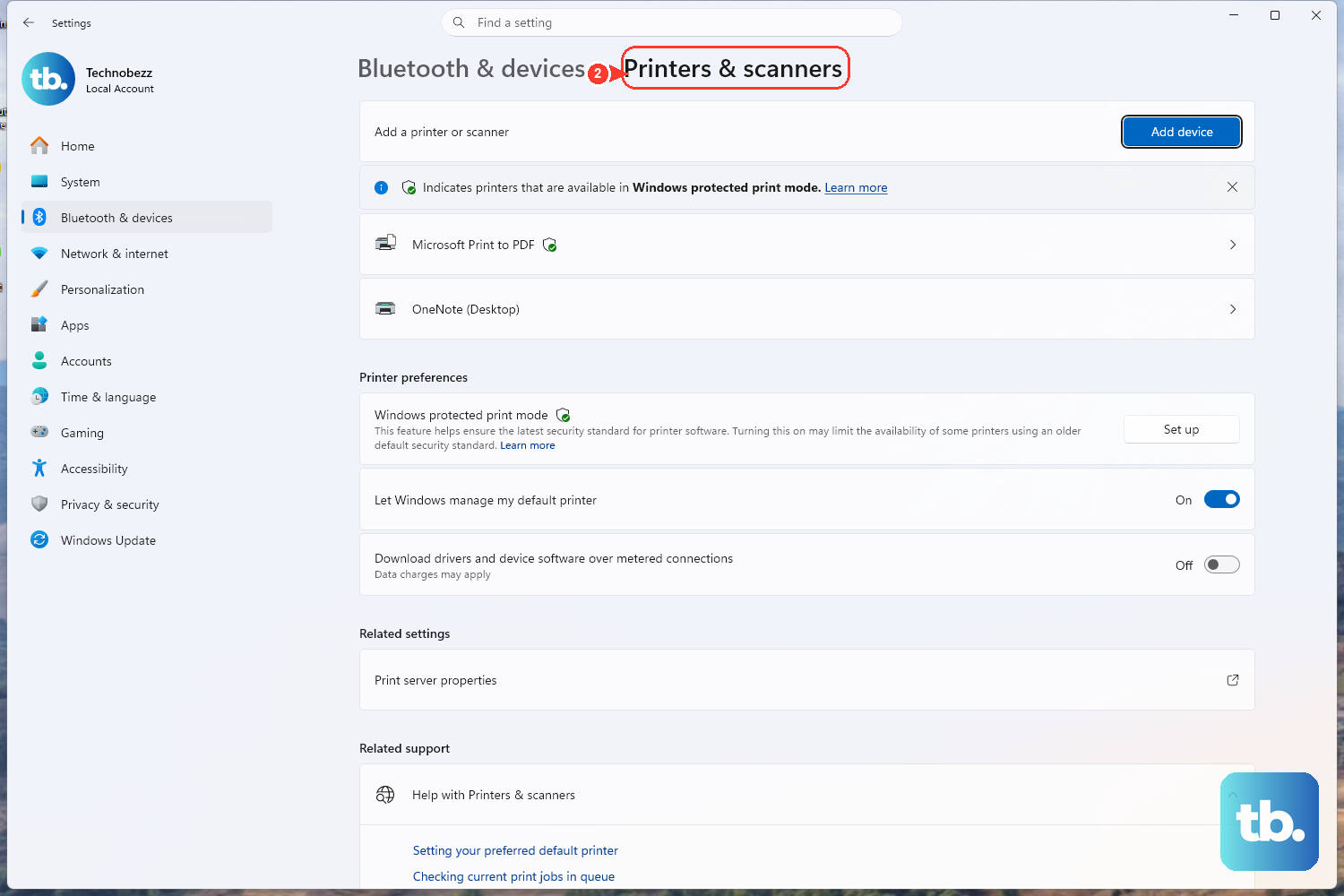
A single jammed print job is one of the most common reasons the spooler pegs your CPU. Emptying the queue often stops the loop immediately.
On Windows 11, go to Settings > Bluetooth & devices > Printers & scanners, choose your printer, and select Open print queue.
On Windows 10, go to Settings > Devices > Printers & scanners, choose your printer, and select Open queue.
In the queue window, right-click each pending job and select Cancel.
Once the queue is empty, watch your CPU usage settle.
If jobs refuse to cancel, that is a sign of corrupted spool data, so move on to the full reset below.
Reset the Spooler by Deleting Its Spool Files
When a print job will not clear, the spool files on disk are likely corrupted and the spooler keeps churning on them. This is Microsoft's documented full reset: you stop the service, delete the stuck files, then start it again.
- 1.In the taskbar search box, type services and select Services.
- 2.Double-click Print Spooler, select Stop, then select OK.
- 3.Open File Explorer and navigate to %WINDIR%\system32\spool\PRINTERS, then delete all of the files inside that folder.
- 4.Return to Services, double-click Print Spooler again, and select Start.
- 5.Set the Startup Type to Automatic, then select OK.
Delete only the contents of the PRINTERS folder, not the folder itself, and make sure the service is stopped first so nothing is locking the files. This clears the corrupted spool data that was keeping the spooler busy and is the most reliable cure for a persistent high-CPU spooler.
Let the Automated Printer Troubleshooter Do the Work
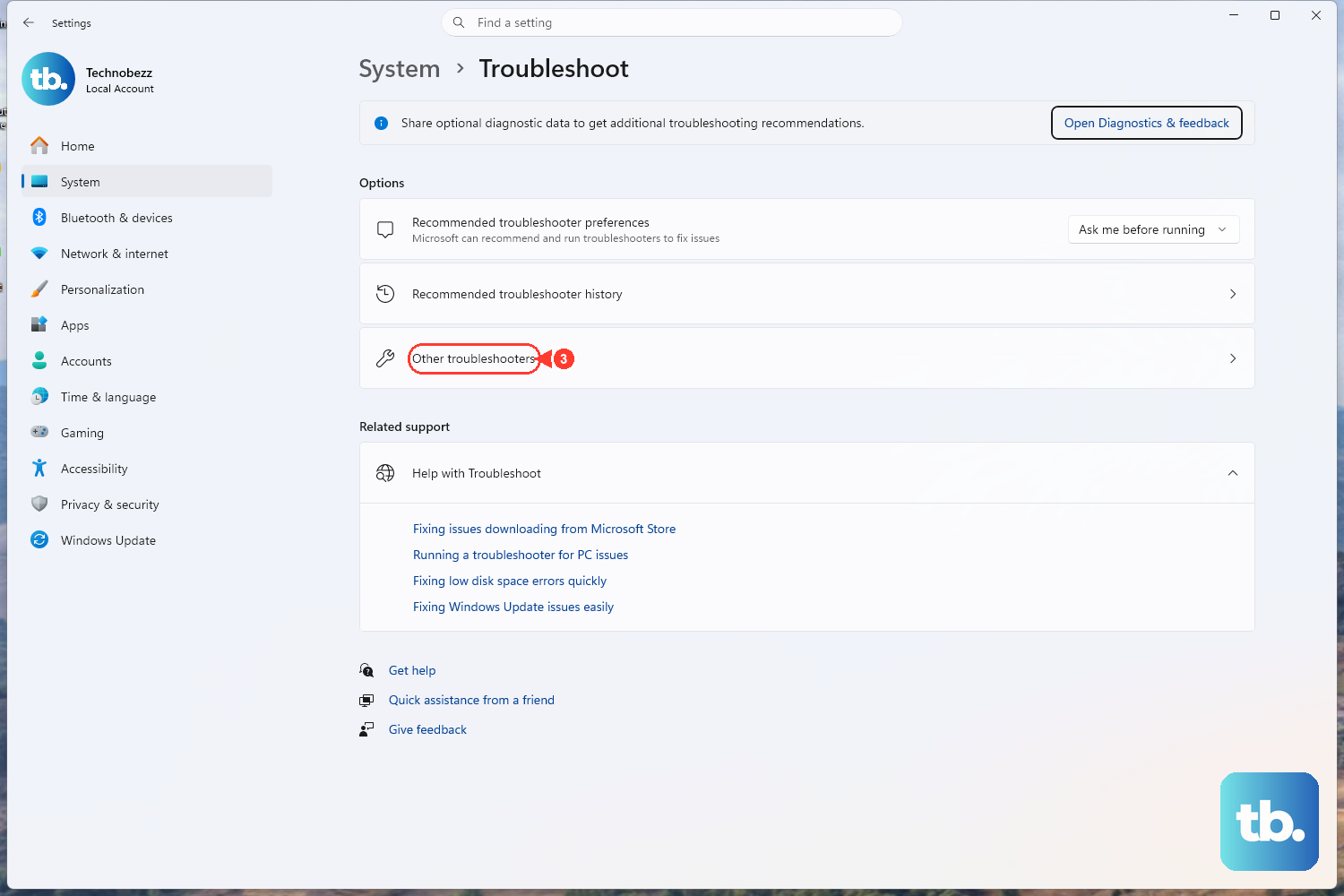
If you would rather have Windows diagnose and repair the spooler for you, Microsoft provides an automated tool. As Microsoft puts it, run the automated printer troubleshooter in the Get Help app and "it will automatically run diagnostics and attempt to fix most printer problems."
This troubleshooter is available on both Windows 10 and Windows 11 and can repair spooler-related faults without manual steps. It is a sensible thing to run after a reset if the spooler still acts up, since it can catch configuration issues you would otherwise have to hunt down yourself.
Update or Reinstall the Printer Driver
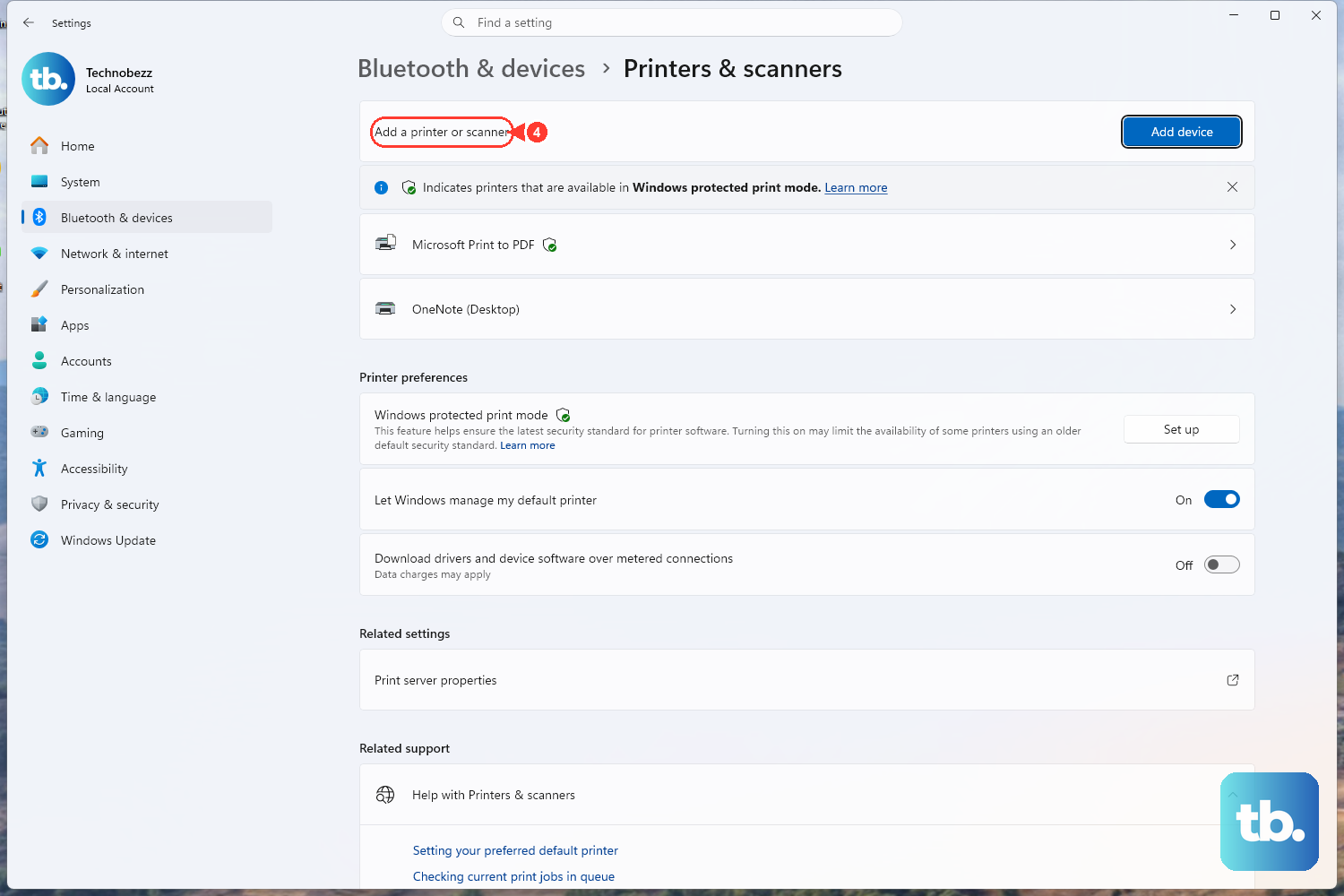
Microsoft lists conflicting or outdated drivers as a direct cause of spooler problems, and a bad driver can crash spoolsv.exe repeatedly. Refreshing the driver removes that conflict.
Open Device Manager and expand Print queues (or Printers).
After that, uninstall any unnecessary or outdated printer drivers listed there.
Install the latest driver for your printer.
For the new driver, Microsoft's recommended sources are Windows Update, which it calls "the recommended method to download, install, and update printer drivers," or downloading directly from your printer manufacturer's official Support or Drivers page using your exact model number. Avoid third-party driver bundles and stick to those two sources to prevent another conflict.
Rule Out Malware Disguised as a System Process
Malware can masquerade as a legitimate system process and push your CPU and disk to 100 percent, which can look just like a spooler problem. A scan rules this out.
Go to Start > Settings > Privacy & security > Windows Security > Virus & threat protection.
Select Quick scan for a fast check, or select Scan options to choose a Full scan, a Custom scan, or a Microsoft Defender Offline scan.
If you suspect something stubborn, the Microsoft Defender Offline scan is the most thorough option because it runs after a restart, before Windows fully loads, where hidden threats have nowhere to hide. Plan for a reboot when you pick it.
Install Every Pending Windows Update
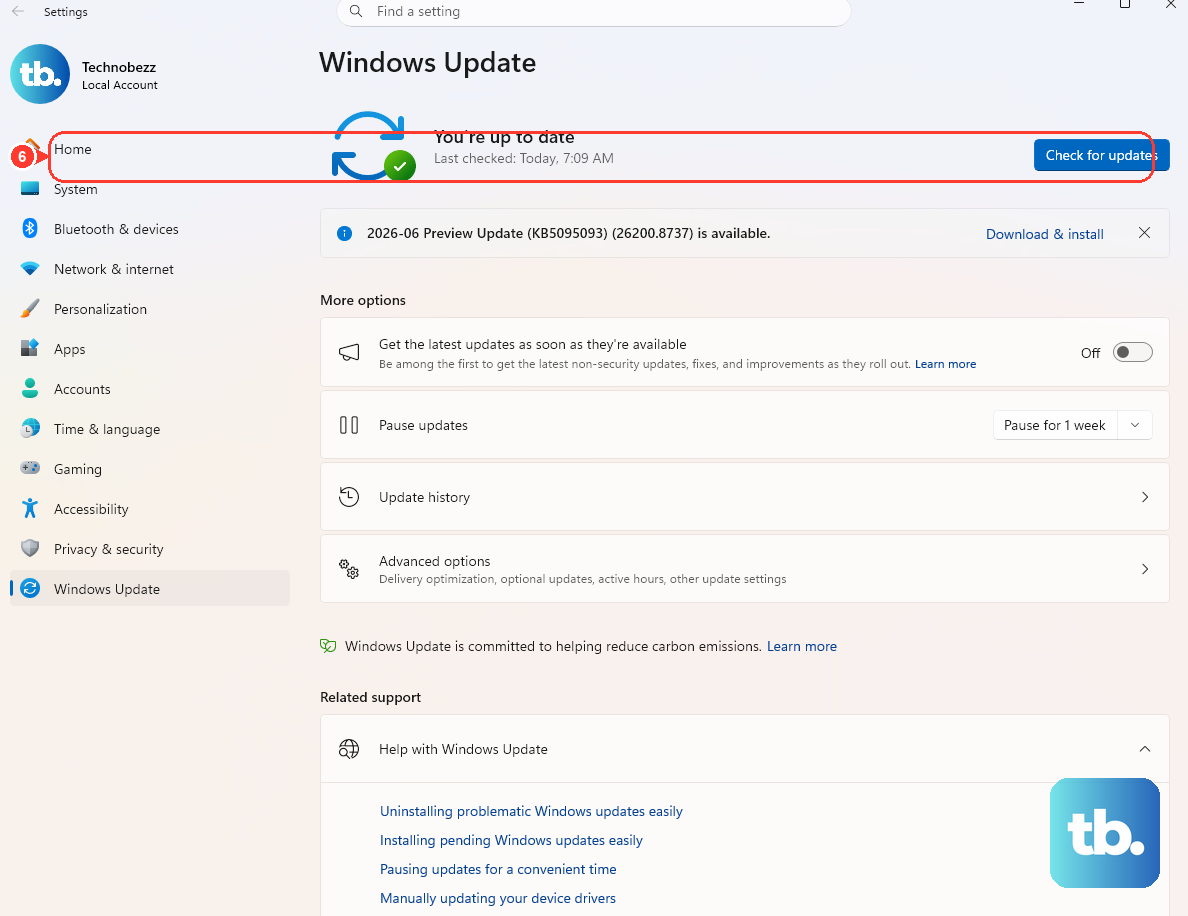
Windows updates frequently deliver fixes for the exact driver and service bugs that cause high CPU and slowdowns, so getting current can quietly solve the issue.
On Windows 11, go to Start > Settings > Windows Update and select Check for Windows updates.
On Windows 10, go to Start > Settings > Update & Security > Windows Update and select Check for Windows updates.
If updates are offered, select Download & install, and restart if you are prompted to. Installing a backlog of updates also tends to clear up unrelated sluggishness in one pass.
Switch Your Power Mode to Best Performance
If the PC still feels throttled even after the spooler is under control, your power mode may be limiting it. Microsoft documents a quick change.
Select Start > Settings > System > Power & battery, and under Power mode choose Best performance (the other options are Balanced and Best power efficiency).
On a laptop, you can also select the battery icon on the taskbar and drag the slider.
This setting applies to Windows 11 and to Windows 10 version 1703 or later, and it is not available on every Windows 10 PC. If you do not see the Power mode option, your hardware does not expose it, so simply skip this step.
Dig Deeper With Resource Monitor
For more detail than Task Manager offers, Resource Monitor lets you confirm exactly which process is consuming the CPU before you take any action. This is optional, but useful when the culprit is not obvious.
Select Start, enter resmon, and select Resource Monitor.
Then, on the CPU tab, select the Average CPU column header so the arrow points down, sorting processes from highest to lowest.
If the spooler still tops the list here, repeat the restart and spool-file reset above. If a different process is the real load, you now know precisely where to focus instead of chasing the wrong service.
Frequently Asked Questions
What exactly is the Spooler SubSystem App?
It is the friendly name Task Manager shows for the Windows Print Spooler service, which runs as the spoolsv.exe process. It manages print jobs in the background, and when a job or driver goes wrong it can consume an unusual amount of CPU, disk, or memory.
Is it safe to restart the Print Spooler service?
Yes. Restarting Print Spooler from services.msc is Microsoft's documented fix for spooler errors. It simply clears the running service and starts it fresh; any active print jobs are reset, so you may need to resend a document you were printing.
Why does deleting files in the PRINTERS folder fix high CPU?
Those files are the queued print data the spooler is processing. When one is corrupted, the spooler keeps churning on it and never finishes, which drives CPU usage up. Stopping the service, deleting the contents of %WINDIR%\system32\spool\PRINTERS, and starting it again removes the bad data so the spooler can rest.
Could malware be behind the high CPU instead of the spooler?
It is possible, because some malware disguises itself as a system process and pushes CPU or disk to 100 percent. Run a scan through Windows Security under Virus & threat protection, and use the Microsoft Defender Offline scan if you want the most thorough check, since it runs before Windows loads.
Do these fixes work on both Windows 10 and Windows 11?
Yes, every fix here is documented by Microsoft for both versions, with only minor menu-path differences noted in each step. Keep in mind that Microsoft ended support for Windows 10 on October 14, 2025, so Windows 11 users will have the most current experience.