You want to lock down your AOL account so that your password alone is not the only thing standing between a stranger and your inbox. Two-step verification (2-step verification, or 2SV) adds a second check at sign-in, so even if someone learns your password, they still cannot get in without your second factor.
AOL gives you three ways to do this: a code sent to your phone by text, a code from an authenticator app, or a physical security key. All three are set up from the same place, your AOL Account Security page.
Below you will find the quickest method first, then the more secure options, plus the one extra step almost everyone forgets: once 2SV is on, your phone's Mail app and desktop email clients will need an app password instead of your normal password. Let's get it set up.
Before You Start: Add Recovery Options
Take two minutes for this first; it can save you from being locked out later. To turn on 2-step verification at all, you must be able to sign in with your current AOL username and password to reach the Account Security page.
Add and verify a recovery phone number and an alternate email address before you enable 2SV. If you lose your second factor and have no working recovery method, regaining access depends on account eligibility, and you may be locked out.
Two prerequisites are method-specific. The authenticator-app option requires at least two recovery methods already on the account. The security-key option requires a FIDO Universal 2nd Factor (U2F) compatible key plus the latest version of Chrome, Edge, Firefox, Safari, or Opera.
Open the AOL Account Security Page
Everything starts here, and you use the same page on a computer or a phone browser.
Go to login.aol.com/myaccount/security/ and sign in with your AOL username and password.
Alternatively, sign in to your AOL inbox, click the account icon, and select Account info, then open the Account security tab in the left-hand menu.
From this page you can turn on any of the three methods and, later, generate app passwords for your mail apps.
Method 1: Turn On Phone Number (Text Message) Verification
This is the fastest option and the one most people choose. You will need a mobile number that can receive SMS codes.
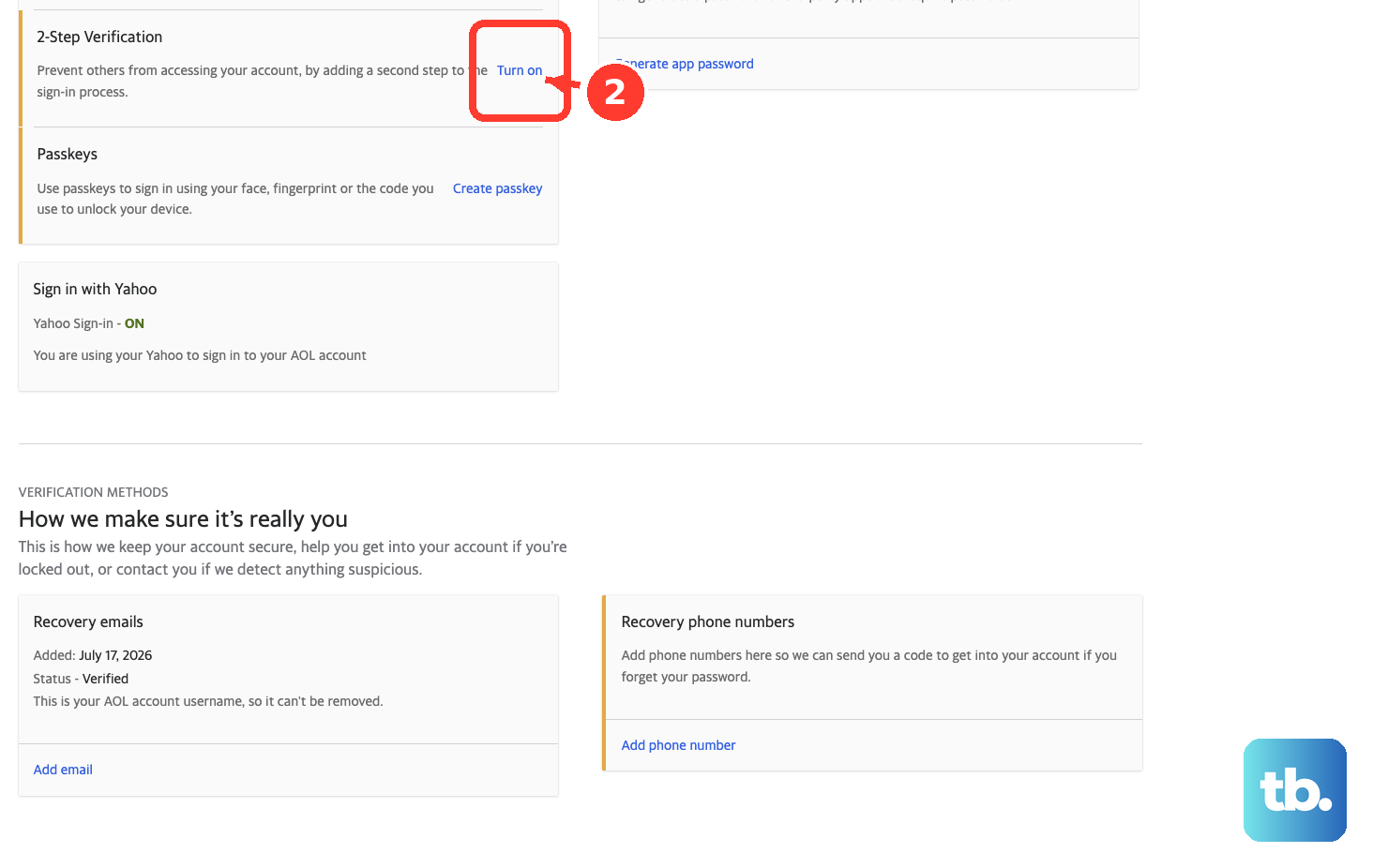
On the Account Security page, next to 2-Step Verification, click Turn on.
Select Phone number as your method.
Follow the on-screen prompts, which include entering and confirming the phone number that will receive your codes.
From now on, when you sign in at login.aol.com, you will enter your password, then enter the verification code sent to your phone, and click Verify.
Method 2: Turn On Authenticator App Verification
An authenticator app generates time-based codes on your device, so it works even with no signal. Make sure your account already has at least two recovery methods, or this option will not be available. Supported apps include Google Authenticator, Microsoft Authenticator, LastPass Authenticator, and Authy.
On the Account Security page, next to 2-Step Verification, click Turn on 2SV.
Click Get started.
Select Authenticator app, then click Continue.
Open your authenticator app and scan the on-screen QR code, then click Continue.
Enter the code currently shown in your authenticator app.
Click Done.
After this, signing in means entering your password, then the current code from your authenticator app, then clicking Verify. Because codes refresh every few seconds, enter the one showing at that moment.
Method 3: Turn On a Hardware Security Key
A physical security key is the strongest option. You need a FIDO U2F compatible key and one of the latest browsers listed above; the key can connect by USB, USB-C, lightning port, Bluetooth, or NFC.
On the Account Security page, in the 2-Step Verification section, click Turn on.
Choose Security Key.
Follow the on-screen prompts to register the key, inserting or tapping it when asked.
Add additional recovery methods in case the key is lost.
At sign-in afterward, you enter your password, connect your security key, and tap it when the browser prompts you to activate it. Registering a backup recovery method here is not optional in practice: if you lose the key with nothing else set up, you cannot sign in.
Generate an App Password for Mail Apps
This is the step that trips people up. Once 2-step verification is on, native and older email apps that do not support AOL's secure sign-in will stop accepting your normal password; you will see your password rejected over and over. The fix is an app password, a randomly generated code that gives one app permission to access your account.
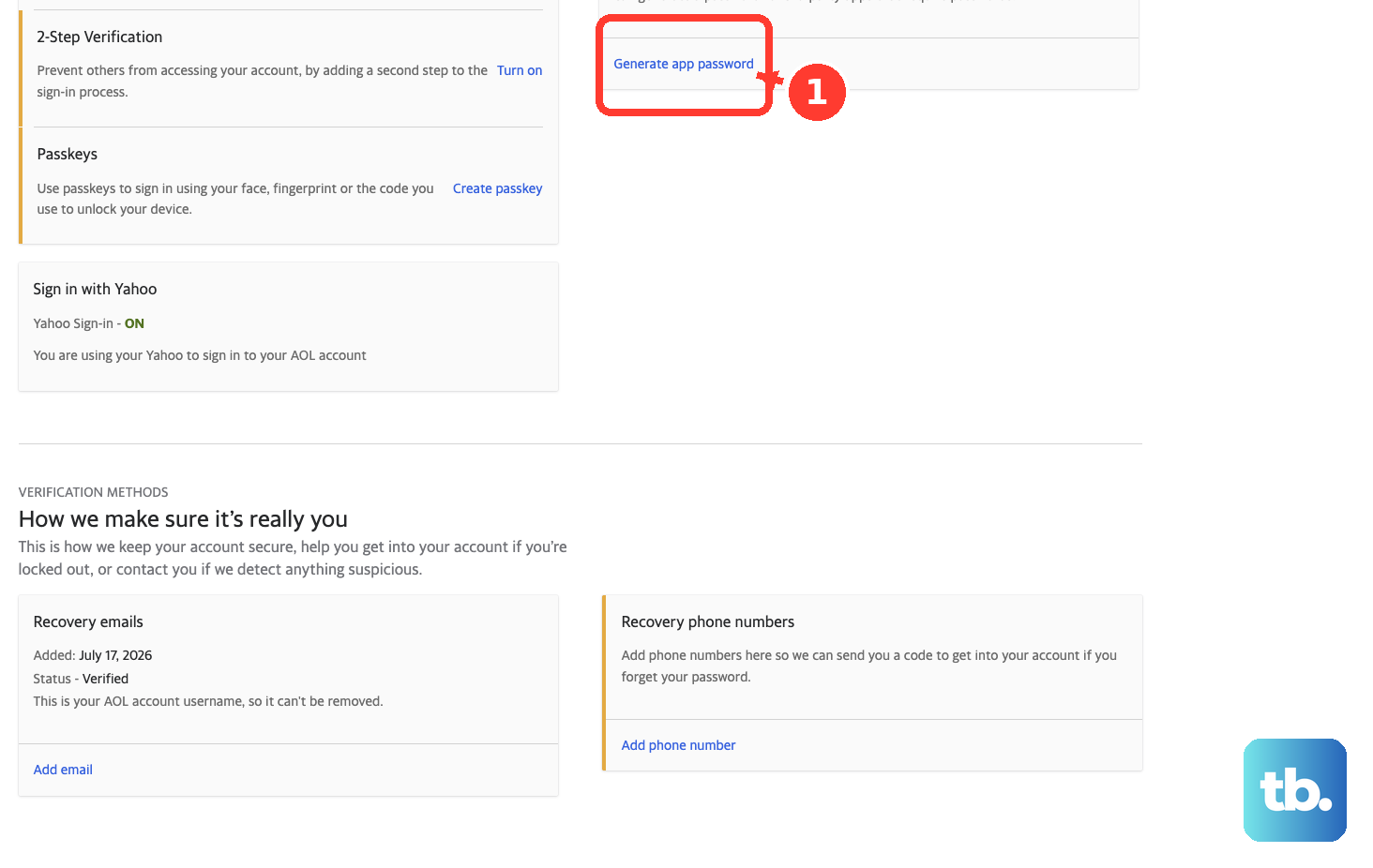
On the Account Security page, click Generate app password (or Generate and manage app passwords).
Click Get Started.
Enter a name for the app you are setting up.
Click Generate password.
Copy the code and enter it as the password in your third-party app.
Click Done.
A few things to know. The code is shown only once and cannot be retrieved later; if you lose it, generate a new one. It works only inside the app it was made for, never to sign in to AOL.com directly.
Generate it in a browser you have been signed into AOL Mail with for several days, and do not use Incognito or Private mode, or generation can fail.
Set Up AOL Mail on iPhone, Android, and Desktop Clients
With 2SV active, how you reconnect a mail app depends on the app.
For iOS Mail, Samsung Mail, and Thunderbird: remove your AOL account, then re-add it, watching for the AOL provider logo so the secure (OAuth2) sign-in is triggered. Simply editing the saved password may not switch it to secure sign-in.
For Outlook (desktop and Mac) and the Gmail app: these do not support OAuth2 for AOL, so generate and use an app password instead.
If you prefer manual server setup, use AOL's official settings: incoming IMAP imap.aol.com port 993 (SSL), or incoming POP pop.aol.com port 995 (SSL); outgoing SMTP smtp.aol.com port 465 (SSL). Use your full address including @aol.com as the username, and your app password as the password once 2SV is on. Make sure SSL is enabled for both incoming and outgoing mail.
Turn Off or Manage 2-Step Verification
If you need to disable it, the path is short.
On the Account Security page, next to 2-Step Verification, click Manage.
Click Turn off.
If you use a security key and lose it, use the Sign-in Helper, go to the Account Security page, temporarily disable 2-Step Verification, then re-enable it after you have a replacement key.
Frequently Asked Questions
Why does AOL sometimes ask for a code even though I never turned on 2-step verification?
That is a separate, one-time account verification, not 2SV. AOL triggers it when it notices something unusual: suspicious activity, an unfamiliar browser or device, signing in away from your usual location, a VPN or proxy, a private or incognito window, many failed password attempts, a first-time sign-in from a device, or sign-in after you cleared cookies. When prompted, get a code at your recovery phone or email and enter it.
I turned on 2SV but it never asks me for a code. Is it broken?
Probably not. Codes are typically requested only the first time you sign in from a new device, browser, or location. On a device you already use, you may not be re-prompted, which can make 2SV look inactive when it is working as designed.
Will my app passwords stop working when I change my main AOL password?
No, and this surprises people. App passwords do not auto-revoke when you change your account password. To invalidate one, go to Generate and manage app passwords on the Account Security page, click Delete next to it, and confirm.
Can I use an app password to sign in to AOL.com webmail?
No. An app password only works inside the specific third-party app it was created for. For AOL.com or webmail, use your normal password plus your second factor.
What happens if I lose my phone or security key?
This is why recovery methods matter. If you still have a recovery phone or email, use it to verify and sign in. For a lost security key, use the Sign-in Helper, temporarily disable 2SV from the Account Security page, then re-enable it with a replacement. If your recovery phone and email are wrong or inaccessible, regaining access depends on account eligibility, so keep them current.
Which authenticator apps does AOL support?
You can use Google Authenticator, Microsoft Authenticator, LastPass Authenticator, or Authy. Any of them will scan AOL's QR code and produce the time-based codes you enter at sign-in.











