

You want a second layer of protection on your Yahoo Mail account, so that knowing your password alone isn't enough for anyone to sign in. That second layer is Yahoo's 2-step verification, and you set it up from the same Yahoo Account Security page whether you read your mail on the web, an iPhone, or an Android phone.
This guide walks through every verified method Yahoo offers, ordered quickest and most common first. You'll also learn how to set up app passwords for native Mail and Outlook (which can't enter a 2FA code), how to turn the feature off, and how to recover access if you lose a security key.
Before you start, a few things must be in place. You need a real password on the account already.
If you sign in with Yahoo Account Key, you have to disable Account Key first.
The authenticator-app method specifically requires at least two recovery methods already on file. Sort those out, then pick a method below.
Open the Yahoo Account Security Page
Every method starts in the same place, and on mobile the app sends you here too.
Sign in to the Yahoo Account Security page at login.yahoo.com/account/security.
Find the Ways of signing in section.
Click 2-step verification.
Choose one of the available methods (Push notification, Your phone number, Authenticator app, or Security key) and follow the on-screen prompts.
That's the whole entry path. The four methods below differ only in what you set up after this point.
The capitalization may show as "2-step verification" or "2-Step Verification" depending on the screen; it's the same setting.
Method 1: Approve a Push Notification
This is the fastest day-to-day option if you already have a Yahoo app on your phone, since you just tap to approve instead of typing a code.
On the 2-step verification screen, select Push notification.
Follow the on-screen prompts to finish setup.
From then on, when you sign in: enter your password, click Approve from phone, click Yes, send me a notification, then open the Yahoo app on your phone and tap Yes to approve.
This method needs a Yahoo app installed on your device to receive and approve the prompt.
Method 2: Get a Code by Text or Call
The phone-number method works on any mobile that can receive an SMS or a voice call, with no extra app required.
On the 2-step verification screen, select Your phone number.
Follow the prompts to enter and confirm your mobile number.
At each later sign-in: enter your password, enter the code Yahoo sends by text or call, then click Verify.
One thing to expect; the phone number Yahoo contacts you from may be different each time, so don't be thrown off by an unfamiliar sender.
Method 3: Use an Authenticator App
An authenticator app generates a fresh code every few seconds on your phone, even with no signal. Yahoo names Google Authenticator, Microsoft Authenticator, LastPass Authenticator, and Authy as supported options.
Remember this method requires at least two recovery methods already on the account.
- 1.On the 2-step verification screen, select Authenticator app.
- 2.Click Continue.
- 3.Scan the displayed QR code with your authenticator app.
- 4.Click Continue.
- 5.Enter the code your authenticator app generates, then click Done.
- 6.Store the emergency recovery code shown during setup somewhere safe (print or write it down).
After this, sign-in is: enter your password, enter the code from the authenticator app, then click Verify.
Method 4: Register a Security Key
A hardware security key is the strongest option. You need a FIDO Universal 2nd Factor (U2F) compatible key, a device with a USB, USB-C, or Lightning port (or Bluetooth/NFC), and a current version of Chrome, Edge, Firefox, Safari, or Opera.
On the Account Security page, under Ways of signing in, click 2-step verification.
Select Security key as your method and follow the prompts to register the key.
During registration you receive an Emergency recovery code; print or write it down and keep it safe.
To sign in later: enter your password at the Yahoo login page, then connect your security key to the device's USB or Lightning port (or via Bluetooth/NFC), and when prompted, plug in and tap your key.
Set It Up on iPhone or Android
There is no separate app-native toggle to learn. Yahoo's official help routes mobile users to the same web-based Account Security page regardless of device, and the four methods and their sign-in steps are identical to the desktop versions above.
The simplest approach on a phone is to open login.yahoo.com/account/security in your browser, find 2-step verification under Ways of signing in, and follow any method above.
Create an App Password for Outlook and Native Mail
Once 2-step verification is on, third-party email clients that can't prompt you for a one-time code (Outlook, the built-in Mail apps on iOS and Android, and similar) won't accept your normal password. An app password is a randomly generated code that gives one of those apps permission to access your account instead.
Sign in to the Yahoo Account Security page.
Find the External connections section.
Select Create app password.
Enter a name for the app in the text field.
Select Generate password.
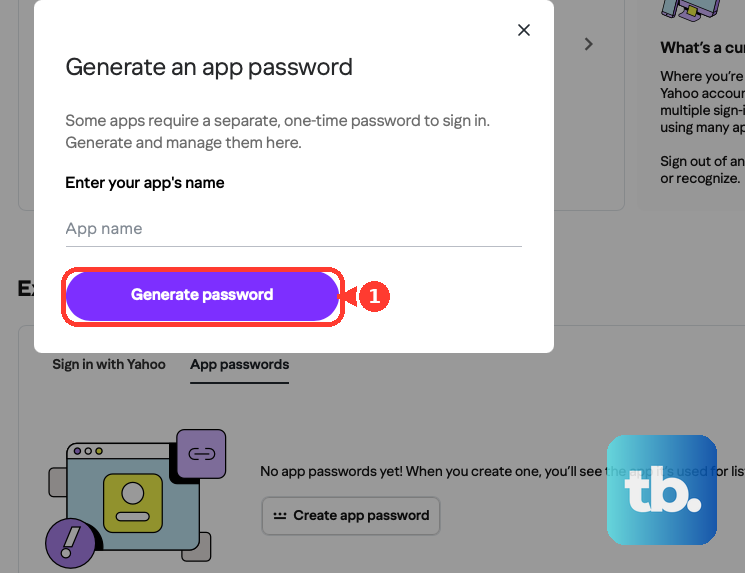
Use the generated one-time password to sign in to your third-party app (you enter it there just once).
Select Done.
If generation fails, use a browser you've been signed in to Yahoo with for several days in a row, avoid Incognito or private mode, and if it still fails, switch to webmail or the official Yahoo app to create it.
To remove an app password later, open External connections, select Delete next to the one you want gone, then select Delete again to confirm.
Turn 2-Step Verification Off
If you ever need to disable it, the path mirrors the setup.
Sign in to the Yahoo Account Security page.
Under Ways of signing in, click 2-Step Verification.
Toggle it to Off.
Click Turn off to confirm.
Things That Trip People Up
App passwords stay active even after you change your main account password. The only way to revoke one is to delete it on the Account Security page.
Save the emergency recovery code shown during both Authenticator-app setup and Security-key setup. Losing it can lock you out.
Security keys are managed and removed under Passkeys on the Account Security page during recovery, not under the 2-step verification toggle.
The push-notification method only works if a Yahoo app is installed on your phone to receive the approval prompt.
Frequently Asked Questions
What do I need before I can turn on 2-step verification?
A password must already be set on your Yahoo account. If you use Yahoo Account Key to sign in, disable it first. For the authenticator-app method specifically, your account must already have at least two recovery methods on file.
Why won't Outlook or my phone's Mail app accept my password after I enabled 2FA?
Apps that can't prompt for a one-time code need a separately generated app password instead of your account password. Create one under External connections on the Account Security page and enter that code in the app.
I changed my Yahoo password. Are my old app passwords still active?
Yes. App passwords remain active even after you change your main account password. To invalidate one, you must delete it on the Account Security page.
I lost my security key. How do I get back in?
Go to Yahoo's Sign-in Helper, enter your email or phone number plus your emergency recovery code, then open Passkeys on the Account Security page, select the lost key, and click Remove. Re-enable 2-step verification once you have a replacement key.
Do I set this up differently on Android than on iPhone?
No. Yahoo's help routes mobile users to the same web-based Account Security page no matter the device, so you open that page and follow the same four methods and sign-in steps whether you're on Android, iPhone, or the web.
The code came from a phone number I don't recognize. Is that normal?
Yes. With the phone-number method, the number Yahoo contacts you from may be different each time, so an unfamiliar sender on the verification text or call is expected.