When your Samsung TV powers on but the screen stays black, the cause is usually a wrong input, a loose cable, or a software glitch rather than a dead panel. A few minutes of methodical testing will tell you whether this is a free five minute fix or a sign of a hardware fault.
The fixes below run from the fastest checks to the deeper resets, and they include the one test most guides skip: the flashlight backlight test, which tells you in seconds whether the display itself has failed. Work through them in order and stop as soon as the picture returns.
Match Your Symptom to the Likely Cause
The exact way your TV misbehaves points to a likely culprit. Use this table to spot your symptom and jump to the fix that matches it.
| What you see or hear | Most likely cause | Where to start |
|---|---|---|
| No glow at all, screen totally black | No power, wrong source, or power board fault | Power cycle and source check (fixes 1 to 3) |
| Sound plays but screen is black | Backlight failure or signal or settings issue | Flashlight backlight test (fix 11) |
| Very faint image visible at an angle | Backlight has failed, panel still works | Flashlight backlight test (fix 11) |
| Black screen only on one input | Cable, port, or source device | HDMI checks (fixes 4 and 5) |
| Red standby light blinking | Internal error detected by the TV | Power drain, then service (fixes 2 and 13) |
| Screen goes black after a few seconds | Software or power issue | Firmware update and reset (fixes 9 and 12) |
If sound plays normally but the screen is dark, skip ahead to the backlight test, since that is the fastest way to confirm a panel versus backlight problem.
Confirm the TV Is Actually Powered On
First, make sure the set is on and not just in standby. Press the Home or Menu button on your remote, and if the Samsung menu appears, the TV is powered and the problem is the picture source or settings, not power.
Check the standby indicator light, usually on the lower front or bottom edge. On most models the red light is on when the TV is in standby and off when the TV is in use, so a dark light with no menu can mean the set is not getting power.
If pressing Home does nothing, change the remote batteries or use the physical button on the TV body to rule out a dead remote.
Power Cycle the TV
A full power drain clears most temporary software glitches and is the single most effective first step. Unplug the TV from the wall outlet and leave it unplugged for 30 to 60 seconds.
While it is unplugged, press and hold the physical power button on the TV itself for about 15 to 30 seconds to discharge any residual power left in the capacitors. Then plug it back in and turn it on.
Plug the TV into a wall outlet you know works rather than a power strip for this test. Surge protectors can wear out over time and stop supplying steady voltage, so an aging strip can mimic a TV fault.
Select the Correct Input Source
One of the most common reasons for a black screen is simply being on the wrong input. The TV shows nothing if you are on HDMI 2 while your device is connected to HDMI 1.
Press the Source button on your remote and cycle through every input, pausing a few seconds on each. Make sure the device you want to watch, such as a cable box, console, or streaming stick, is powered on while you do this.
If you reach the TV's own Smart Hub or app screen on any input, the panel works and the issue is isolated to one external source.
Reseat and Test Every HDMI Connection
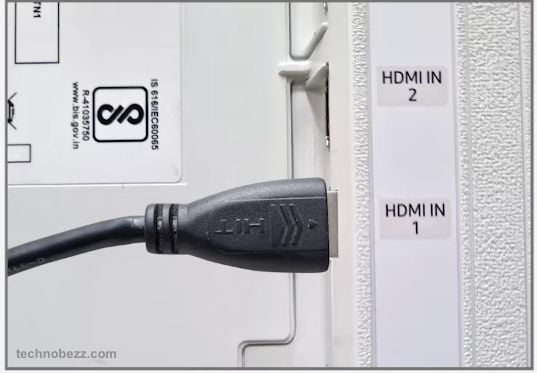
A loose or damaged HDMI cable is a frequent cause of a no signal black screen. Unplug and firmly reconnect each cable at both ends, the TV side and the device side, one at a time.
Then isolate the fault with a few swaps:
- 1.Move the device to a different HDMI port on the TV.
- 2.Swap in a different HDMI cable to rule out a bad cable.
- 3.Test the same input with a different device, such as a phone charger block plus a streaming stick.
If the picture returns on another port, cable, or device, you have found the weak link.
Run the Built In HDMI Cable Test
Many Samsung TVs can test an HDMI cable directly. With the source still set to the HDMI input you are checking, go to:
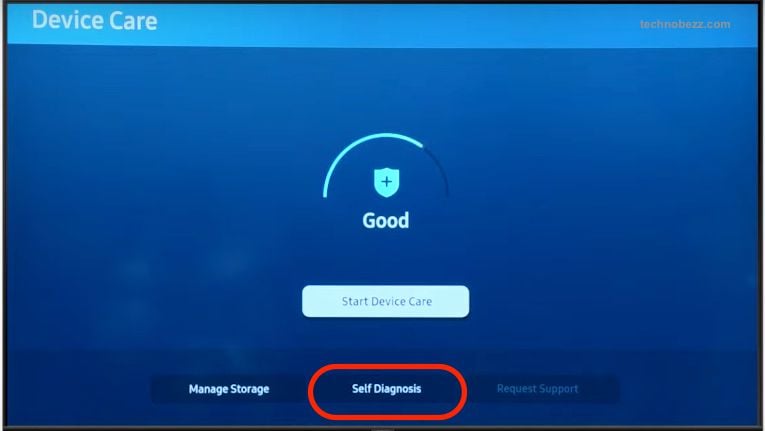
> Settings > Support > Device Care > Self Diagnosis > Signal Information > HDMI Cable Test
On some models this option is labeled HDMI Troubleshooting and sits directly under Self Diagnosis. Samsung notes the test is designed for cables under about 6 feet, or 2 meters, so use a short cable if you can.
A failed result points to the cable, while a pass shifts suspicion to the source device or the TV settings.
Run the Picture Test
The built in Picture Test shows a reference image generated by the TV itself, which separates a panel problem from a source problem. Navigate to:
> Settings > Support > Device Care > Self Diagnosis > Picture Test
On newer Tizen models the path may read Settings > All Settings > Support > Device Care > Self Diagnosis. Select Start Picture Test and inspect the image for defects.
If the test image looks correct, your panel and backlight are fine and the fault lies with your source, cable, or settings. If the test image is also black or distorted, the problem is likely inside the TV.
Turn Off Eco and Ambient Modes
Power saving and ambient features can dim the screen so far that it looks black, especially in a dark room. Open your picture or general settings and look for Brightness Optimization, Energy Saving, Power Saving Mode, or an Eco solution feature, then switch them off.
Also check Ambient Mode and Art Mode on Frame and QLED models, since these can leave the screen looking blank rather than showing live content. Exit Ambient or Art Mode and return to a normal input, and turn off Night Mode if the artwork keeps going dark.
After disabling these, manually raise the Brightness and Backlight or Brightness sliders in the picture menu to confirm the panel responds.
Check the One Connect Box on QLED and Frame Models
Many QLED, Neo QLED, and Frame TVs route power and video through a separate One Connect box, and a loose One Connect cable causes a black screen on those sets. Disconnect and firmly reconnect the One Connect cable at both ends.
Inspect the cable along its length for bends, kinks, pinches, or breaks, since this thin cable is easily damaged behind a wall mount. A visibly damaged One Connect cable needs replacement.
If reconnecting the cable restores the image, route it more loosely to avoid future strain.
Update the TV Software
A buggy or outdated Tizen firmware build can cause intermittent black screens, and an update may fix it if you can reach the menus. Connect the TV to the internet, then go to:
> Settings > All Settings > Support > Software Update > Update Now
Let the update finish completely and do not unplug the TV while it installs, as the set will restart on its own. You can confirm your current version under Settings > Support > About This TV.
If you cannot see the menus at all, skip this step and come back to it after another fix restores the picture.
Reset the Picture Settings
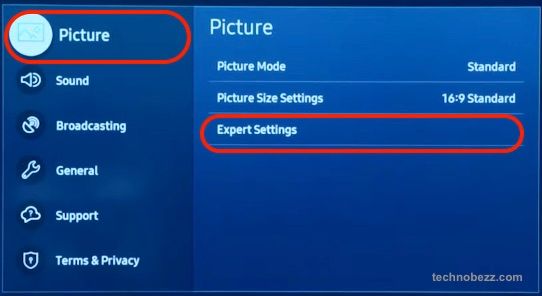
Corrupted picture settings can blank the display, and resetting them clears any bad configuration without touching your apps or accounts. Navigate to:
> Settings > Picture > Expert Settings > Reset Picture
Confirm Yes to restore the default picture values. This only affects the picture configuration, so your installed apps, sign ins, and network settings stay intact.
If the menu is hard to read because the screen is dark, do this immediately after the Picture Test, which brightens the display while it runs.
Do the Flashlight Backlight Test
This is the test that confirms a backlight failure, and it is the one most guides leave out. It is the fastest way to know whether the panel is dead or just unlit, especially when you have sound but no picture.
Turn the TV on and play something with motion, then darken the room completely. Hold a bright flashlight, even a phone light, at a slight angle close to the screen and look for a faint image behind the glass.
If you can make out a dim moving picture under the light, the backlight has failed but the panel and main board still work, which is a repairable hardware fault. If you see nothing at all even with the light, the issue points to the panel, T-Con, or main board instead.
Perform a Factory Reset
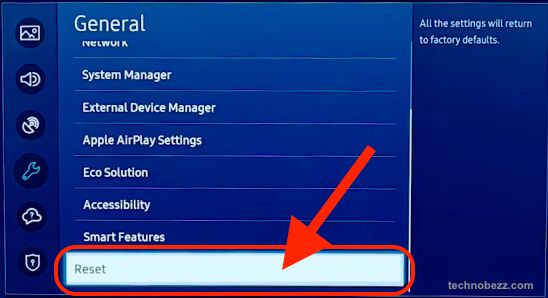
If software fixes have not worked and you can still reach the menus, a factory reset clears deeper software faults. Go to:
> Settings > General & Privacy > Reset
On older models the path is Settings > General > Reset, and a backup route is Settings > Support > Self Diagnosis > Reset. Enter your PIN, which is 0000 by default, then confirm the reset.
The reset is not available while a streaming app is open, so return to the home screen first. This erases your settings, apps, and sign ins, so use it only after the steps above.
When to Contact Samsung Support
If you have worked through every step and the screen stays black, the fault is most likely internal hardware such as the backlight, power board, or panel. Contact Samsung Support or a qualified repair shop if the Picture Test fails, no HDMI port produces an image on any device, you have sound but no picture and the flashlight test shows only a faint image, or the standby light blinks repeatedly.
A blinking standby light usually means the TV has detected an internal error, so note how many times it blinks before it repeats and share that with the technician. Out of warranty board or backlight repairs commonly run in the low hundreds of dollars, so weigh the quote against the cost of a new set.
For more Samsung TV power and screen issues, see our guide on a Samsung TV that keeps turning on and off by itself and how to fix a Samsung TV that will not turn on.
Frequently Asked Questions
Why does my Samsung TV have sound but no picture?
Sound with a black screen usually points to a backlight failure, a signal problem, or a picture setting that has dimmed the screen to black. Run the flashlight backlight test in a dark room first, and if a faint image appears the backlight has failed while the panel still works.
Is a black screen a backlight problem or a dead panel?
The flashlight test tells them apart in seconds. Shine a bright light close to the screen at an angle, and a faint visible image means the backlight failed but the panel is fine, while seeing nothing at all suggests a panel, T-Con, or main board fault.
Can I fix a Samsung TV black screen myself?
Often yes. Power cycling, checking the input and HDMI cables, disabling Eco and Ambient modes, updating the firmware, and resetting picture settings resolve most black screen cases without any tools.
What does a blinking red standby light mean?
A blinking standby light usually means the TV has detected an internal error rather than a simple glitch. Unplug the TV for 30 to 60 seconds and hold the power button to drain residual charge, and if it keeps blinking, count the blinks and report that pattern to a technician.
How much does it cost to repair a Samsung TV with no picture?
If the fault is internal, out of warranty backlight or power board repairs commonly run in the low hundreds of dollars depending on the model and parts. Get a quote first and compare it against the price of a replacement before committing.
How do I reset my Samsung TV picture without a factory reset?
Go to Settings > Picture > Expert Settings > Reset Picture and confirm Yes. This restores only the default picture values and leaves your apps, accounts, and network settings untouched.
First published October 15, 2025. Last updated June 4, 2026.