
It's annoying when your Samsung Galaxy Z Fold 7 won't send pictures. You tap send, the message sits there with a loading indicator, or you get a "Not sent" error. Let's get those photos moving again.
Check your mobile data or Wi-Fi connection
Pictures need a solid data connection to go through. If you're on mobile data, make sure you have a decent signal and that data is enabled. Swipe down twice from the top of the screen and check that the mobile data icon is highlighted.
If you're on Wi-Fi, confirm you're actually connected and the signal is strong. A quick test is to open a website in Chrome to see if it loads. If the Wi-Fi is acting up, toggle it off and back on, or restart your router by unplugging it for 30 seconds.
Make sure MMS is enabled in your messaging app
On Android, pictures are sent as MMS (Multimedia Messaging Service). If MMS is disabled, your phone will keep failing to send them. Open your default messaging app (Samsung Messages or Google Messages).
In Samsung Messages, tap the three dots in the corner, go to Settings, then More settings, and make sure MMS is turned on. In Google Messages, tap your profile picture, go to Messages settings > Advanced, and check Auto-download MMS is enabled. Also, ensure Group messaging is turned on if you're sending to multiple people.
Toggle RCS chat features
The Galaxy Z Fold 7 supports RCS (Rich Communication Services) for better messaging with other Android users. But RCS can sometimes glitch and block picture sending. Open Google Messages, tap your profile picture, go to Messages settings > RCS chats. Toggle Turn on RCS chats off, wait a few seconds, then turn it back on.
If the problem started after you switched phones or carriers, go to the same RCS settings and tap Automatically resend messages as text (SMS/MMS). This lets messages fall back to regular MMS if RCS is acting up.
Check your date and time settings
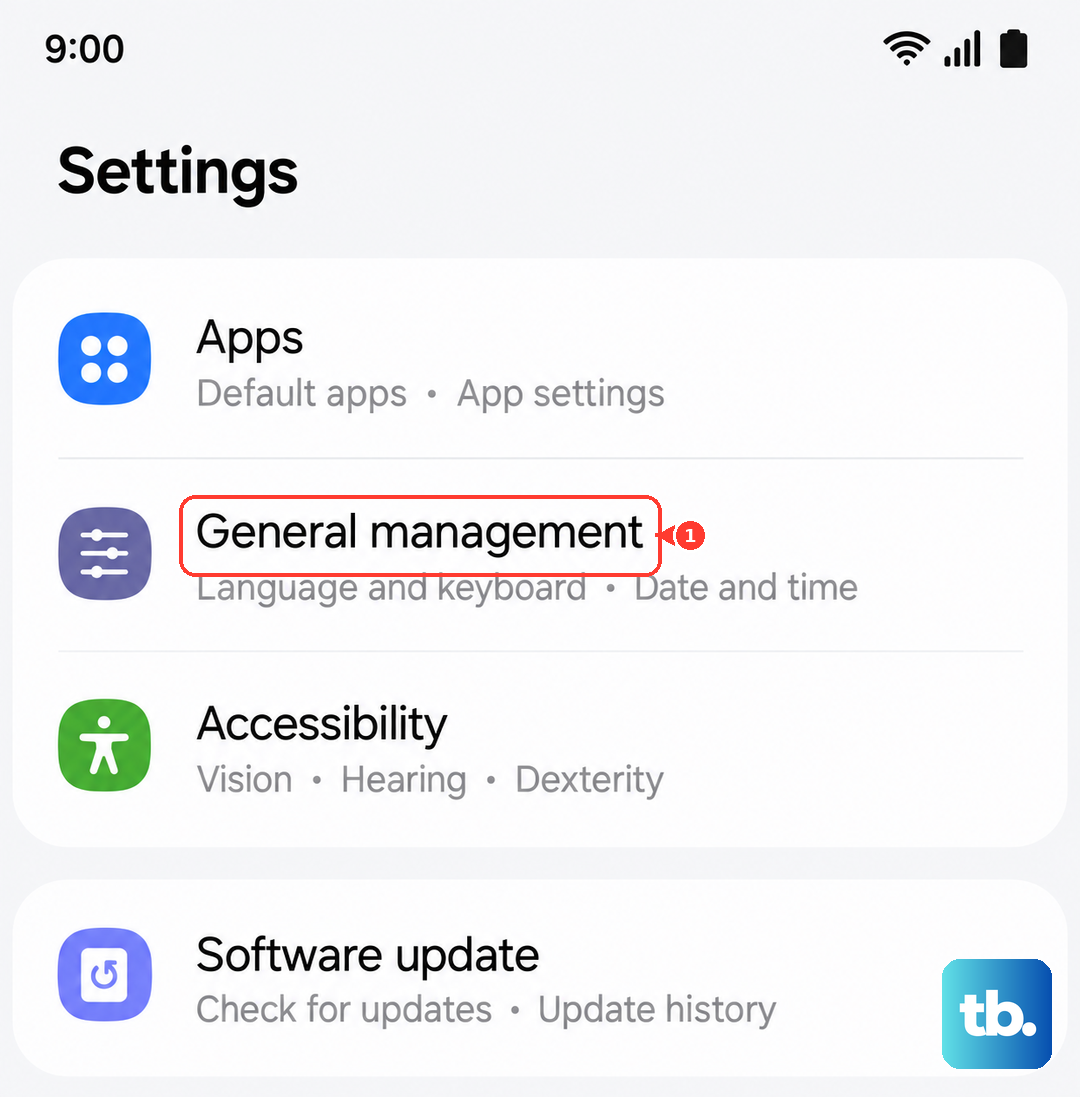
Incorrect date and time can mess up encrypted messaging and MMS delivery. Open Settings > General management > Date and time. Make sure Automatic date and time is turned on. If it's already on but the time looks wrong, toggle it off, set it manually, then toggle it back on to force a refresh.
Clear the messaging app's cache
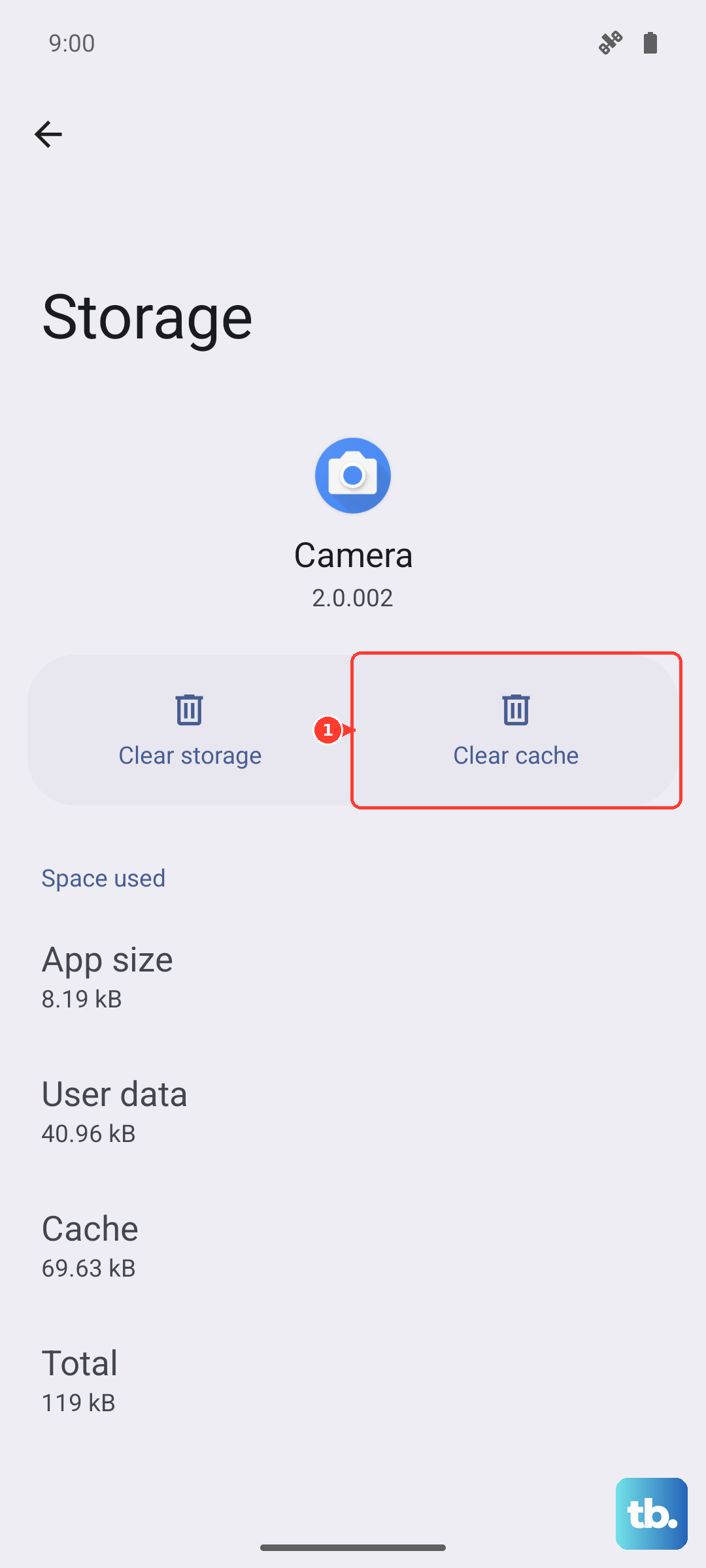
Sometimes the messaging app just needs a clean slate. Go to Settings > Apps > find your messaging app (Samsung Messages or Google Messages). Tap Storage, then tap Clear cache. Don't tap "Clear data" unless you're okay with losing your message history. After clearing the cache, try sending a picture again.
Restart your Galaxy Z Fold 7
A simple restart often fixes temporary software hiccups. Press and hold the Side button and Volume down together until the power menu appears. Tap Restart. If the screen is unresponsive, perform a forced restart: press and hold Volume down and Side buttons simultaneously for 10 seconds until the device restarts.
Disable low data mode or data saver
Android's Data Saver feature can block background data for messaging apps, which prevents MMS from downloading or sending. Go to Settings > Connections > Data usage > Data saver. If it's on, turn it off. If you need to keep it on for other apps, tap Unrestricted data and add your messaging app to the list.
Check if the recipient can receive MMS
Sometimes the problem isn't your phone. If the person you're sending to has an old phone or a prepaid carrier that doesn't support MMS well, your pictures might never get through. Ask them if they can receive pictures from other people. Also, if they recently switched from an iPhone, make sure they've deregistered from iMessage. Apple has a page at selfsolve.apple.com for that.
Update your Galaxy Z Fold 7 software
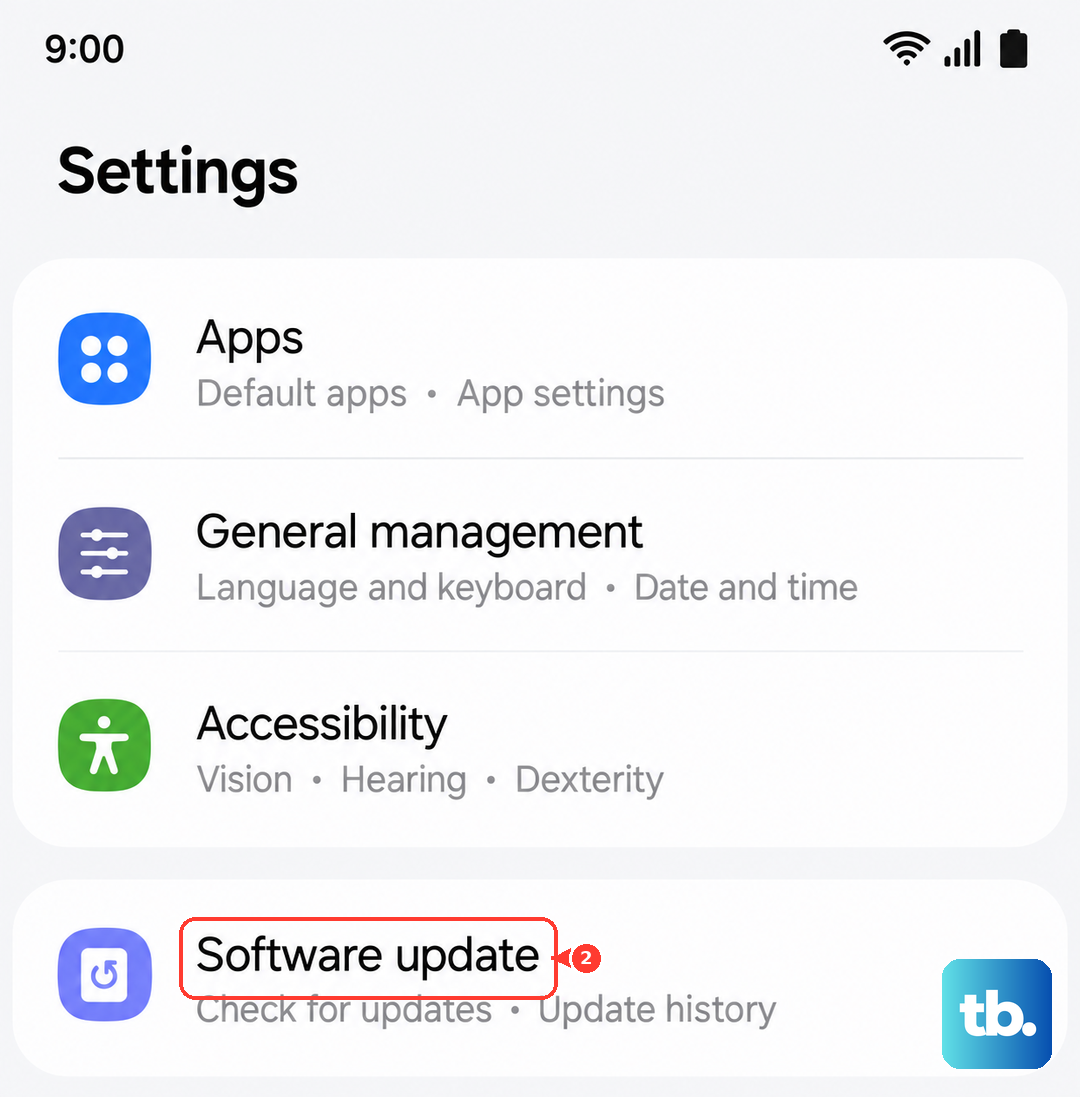
Samsung and Google regularly push updates that fix messaging bugs. Open Settings > Software update > Download and install. If there's an update available, install it. Also, check for carrier updates: go to Settings > Connections > Mobile networks > Carrier settings and tap Update if the option appears.
Reset network settings
This is a more aggressive step but often works when nothing else does. Go to Settings > General management > Reset > Reset mobile network settings. This will erase saved Wi-Fi passwords, Bluetooth pairings, and cellular settings, but won't delete your photos or messages. After the reset, reconnect to Wi-Fi and try sending a picture.
If you're still stuck, switch to a different messaging app temporarily to see if the issue is app-specific. Google Messages and Samsung Messages both handle MMS differently. One might work when the other doesn't. And always make sure the picture isn't too large, the Fold 7's camera takes high-res shots that can be large files. Some carriers limit MMS to 1MB or so; try sending a smaller photo or use a link via Google Photos instead.











