
When your Samsung Galaxy Z Fold 7 voice assistant stops responding to "Hey Google" or "Hi Bixby," it can throw off your whole routine. The assistant is supposed to be hands-free, and when it goes silent, it's time to troubleshoot. Let's work through the most common fixes for the Z Fold 7.
Check That Voice Activation Is Actually On
Start with the basics. It sounds obvious, but it's easy to accidentally turn off voice activation during a software update or while digging through settings.
For Google Assistant:
Open the Google app, tap your profile picture in the top right, then go to Settings > Google Assistant > Hey Google & Voice Match. Make sure the toggle for "Hey Google" is on. You'll also need to have Voice Match enabled for it to recognize your voice.
For Bixby:
Go to Settings > Advanced features > Bixby. Check that "Bixby voice wake-up" is turned on. If it's off, the assistant won't listen for its wake word.
Turn Off Interfering Modes
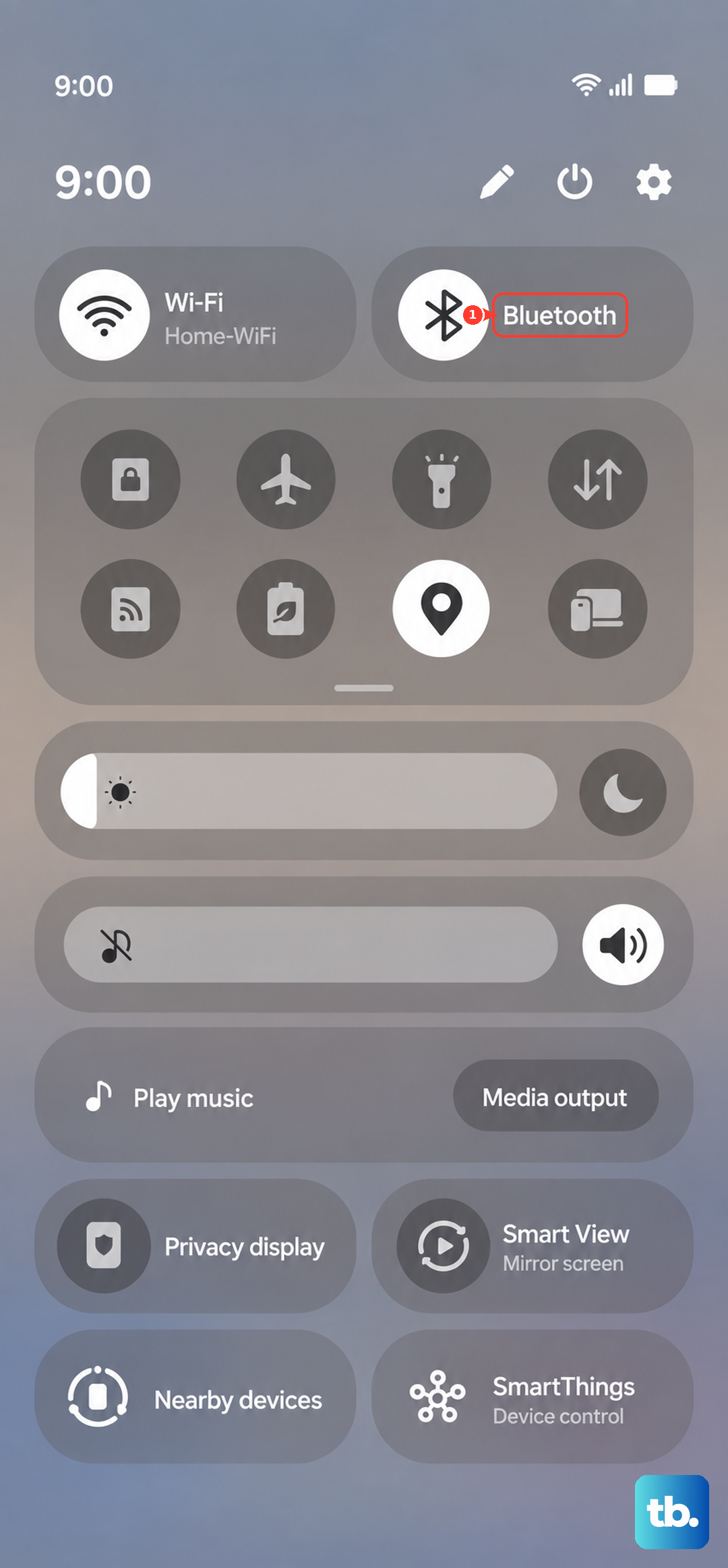
Do Not Disturb is the most common culprit. When it's active, it can block voice activation by design. Swipe down from the top of the screen to open the quick settings panel, and check if Do Not Disturb is highlighted. If it is, tap it to turn it off.
Also look at the "Restrictions" inside Do Not Disturb. Go to Settings > Modes and Routines > Do Not Disturb. Under "Who can interrupt," make sure you haven't accidentally excluded voice assistants.
Disconnect Bluetooth Devices Temporarily
Sometimes a connected Bluetooth headset or speaker can confuse the microphone routing. The Z Fold 7 might try to listen through the Bluetooth device instead of its built-in mics. Swipe down the quick panel and tap the Bluetooth icon to disconnect everything, then test the voice assistant again.
Check the Volume and Audio Settings
If the assistant hears you but doesn't respond, the media volume might be all the way down. Press the volume rocker while the assistant is active, and make sure the media slider is turned up.
For Bixby, check its response settings: Open Bixby, tap the three dots (or your profile), go to Settings > Voice > Voice wake-up. Make sure "Use while phone is locked" and "Use with minimal volume" aren't set too restrictively.
For Google Assistant, you can set it to "Respond when spoken to" even if the phone is in silent mode. Open the Google Assistant settings and under "General," look for "Respond without unlocking" make sure it's on.
Clear Microphone Obstructions
The Z Fold 7 has multiple microphones one at the top, one at the bottom, and one in the crease area. If any of these are blocked by a case, dust, or a screen protector that's too thick, the assistant won't hear you. Check that your case doesn't cover the mic holes. If you see dust or lint, clean them gently with a dry toothbrush or compressed air. Avoid using anything sharp that could damage the mesh.
Retrain the Voice Model
If the assistant has been mishearing you or not picking up your voice at all, retraining the voice model can help. Both Google Assistant and Bixby let you re-record your wake word phrase.
Google Assistant: Go to the Google app > Profile > Settings > Google Assistant > Hey Google & Voice Match. Tap "Voice Match" and then "Retrain voice model." Follow the prompts to say "Hey Google" a few times.
Bixby: Open Bixby, go to Settings > Voice wake-up > "Retrain voice." You'll repeat "Hi Bixby" several times. Make sure you're in a quiet room when you do this.
Force Restart the Z Fold 7
A simple restart can clear up temporary glitches that block voice recognition. On the Z Fold 7, a force restart is a bit different from a normal reboot. Press and hold the Volume down and Side buttons simultaneously for about 10 seconds until the Samsung logo appears. That's a full hard restart that won't erase any data.
Update the Software and App
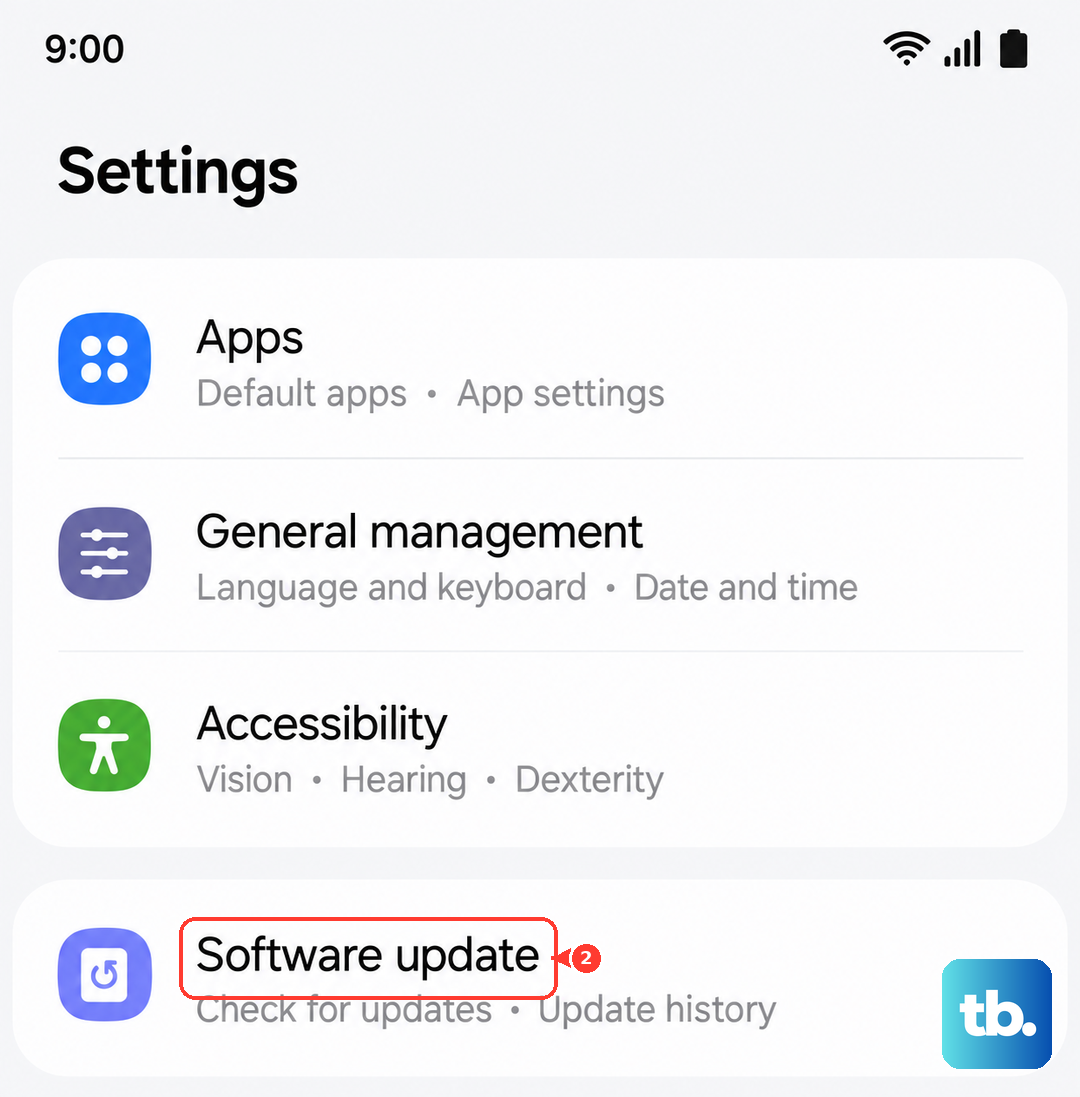
Samsung pushes updates that can fix voice assistant bugs. Go to Settings > Software update > Download and install. Also check for updates to the Google app and Bixby itself, because those are updated through the Galaxy Store or Play Store independently.
Open the Galaxy Store, tap Menu > Updates, and see if Bixby or any related voice services need updating. Similarly, check the Play Store for Google app updates.
Reset App Preferences or Settings
If nothing else has worked, you can reset settings without wiping your personal data. Go to Settings > General management > Reset > Reset settings. This will revert Wi-Fi networks, Bluetooth pairings, and other system settings to default, but it won't delete your photos, messages, or apps. You'll have to set up voice activation again after this.
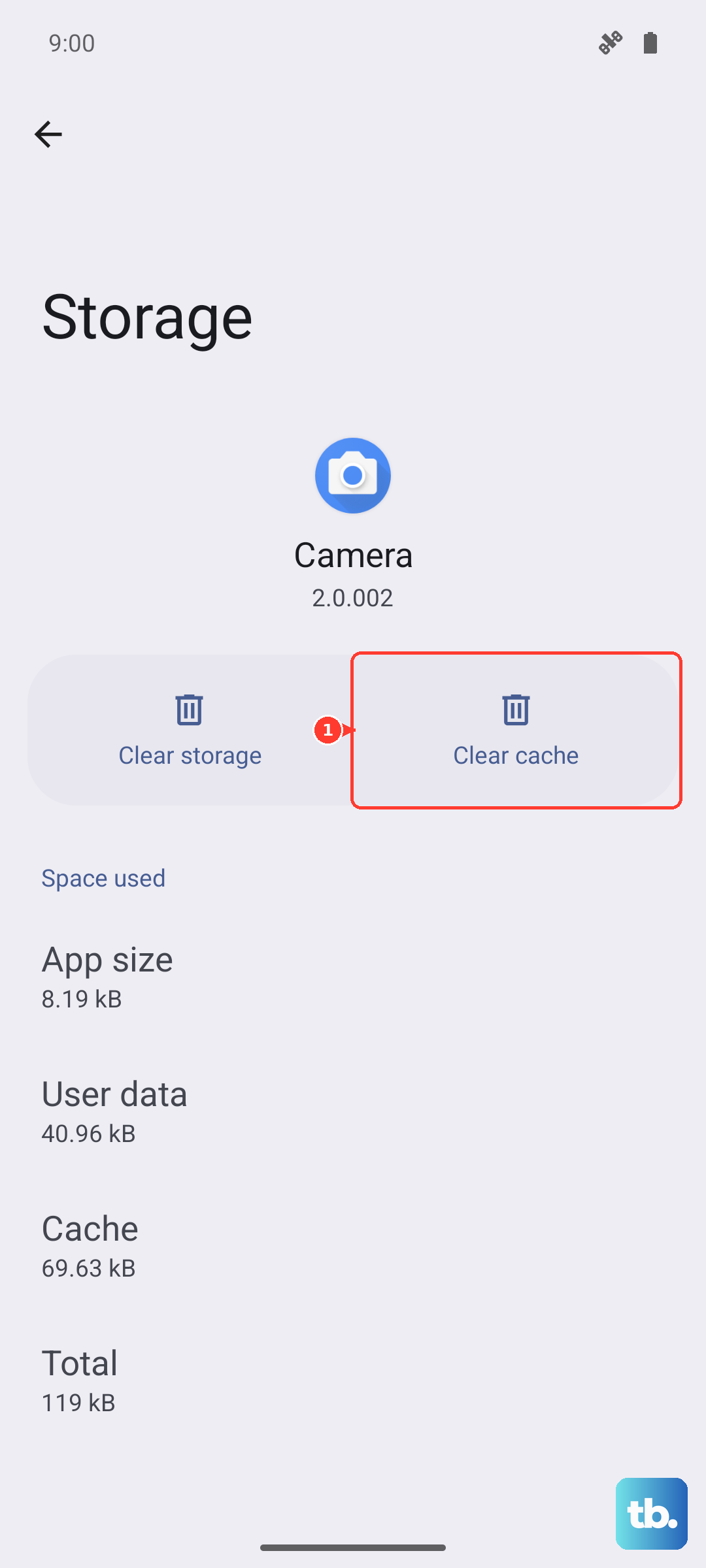
For a less drastic step, you can also try clearing the cache of the Google app or Bixby. Go to Settings > Apps, find the app, tap Storage, then tap Clear cache. This can fix corrupted temporary data that breaks voice detection.
Verify Your Internet Connection
Both Google Assistant and Bixby need an internet connection for most commands anything that involves searching, weather, or smart home controls. Even if voice recognition works offline for basic tasks, a bad connection can make the assistant seem unresponsive. Toggle Airplane Mode on and off, or switch between Wi-Fi and mobile data to test if that's the issue.
Most Z Fold 7 voice assistant problems boil down to settings that got changed, a blocked microphone, or a simple software glitch. Start at the top of this list and work through until you hear that familiar "I'm listening" chime again.