
Your Samsung Galaxy Z Fold 7 is one of the most powerful foldable phones out there, so it’s frustrating when it starts lagging or stuttering. The good news is that most slowdowns come from simple, fixable causes: low storage, too many background apps, or a glitchy battery calibration. Here are 10 fixes to try in order.
Force Restart the Phone
When the interface feels stuck or the touchscreen isn't responding well, a forced restart clears temporary glitches without deleting anything. This should be your first move.
Press and hold Volume down and Side buttons simultaneously for 10 seconds until the device restarts. Let it boot up fully and see if the lag is gone. I’d start here every time.
Close Background Apps
Having a dozen apps open can choke the system memory, especially on a phone that runs two screens. Swipe up from the bottom and hold to open the Recents menu. Swipe left or right to find apps and swipe them away.
Don’t forget about apps running in the background that you don’t use often. You can also tap the Close All button to clear everything at once.
Free Up Storage Space
When your internal storage gets close to full, Android starts slowing down to manage space. Go to Settings > Device care > Storage to see what’s taking up room. Aim for at least 5GB free.
Delete old downloads, clear out large video files, and move photos to Google Photos or a cloud service. You can also use the Device Care tool to find and remove junk files in one tap.
Clear App Cache
Apps like Chrome, Samsung Internet, and even the launcher accumulate cached data that can slow things down. Go to Settings > Apps > tap the app you use most > Storage > Clear cache.
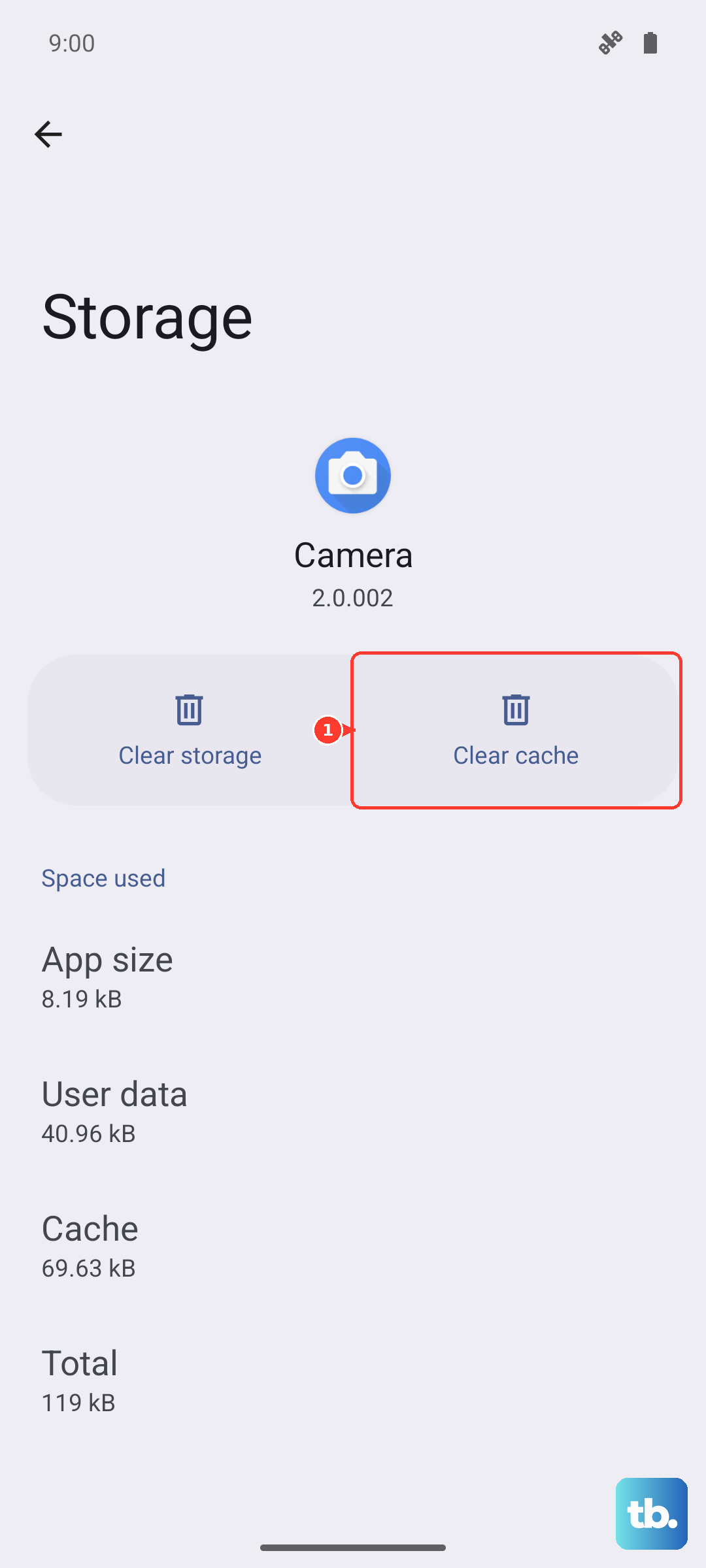
For a broader clean, open Device Care and tap Optimize now. That wipes temporary system files and refreshes memory management.
Update Software and Apps
An outdated operating system or app can have bugs that cause lag. Check for a system update at Settings > Software update > Download and install.
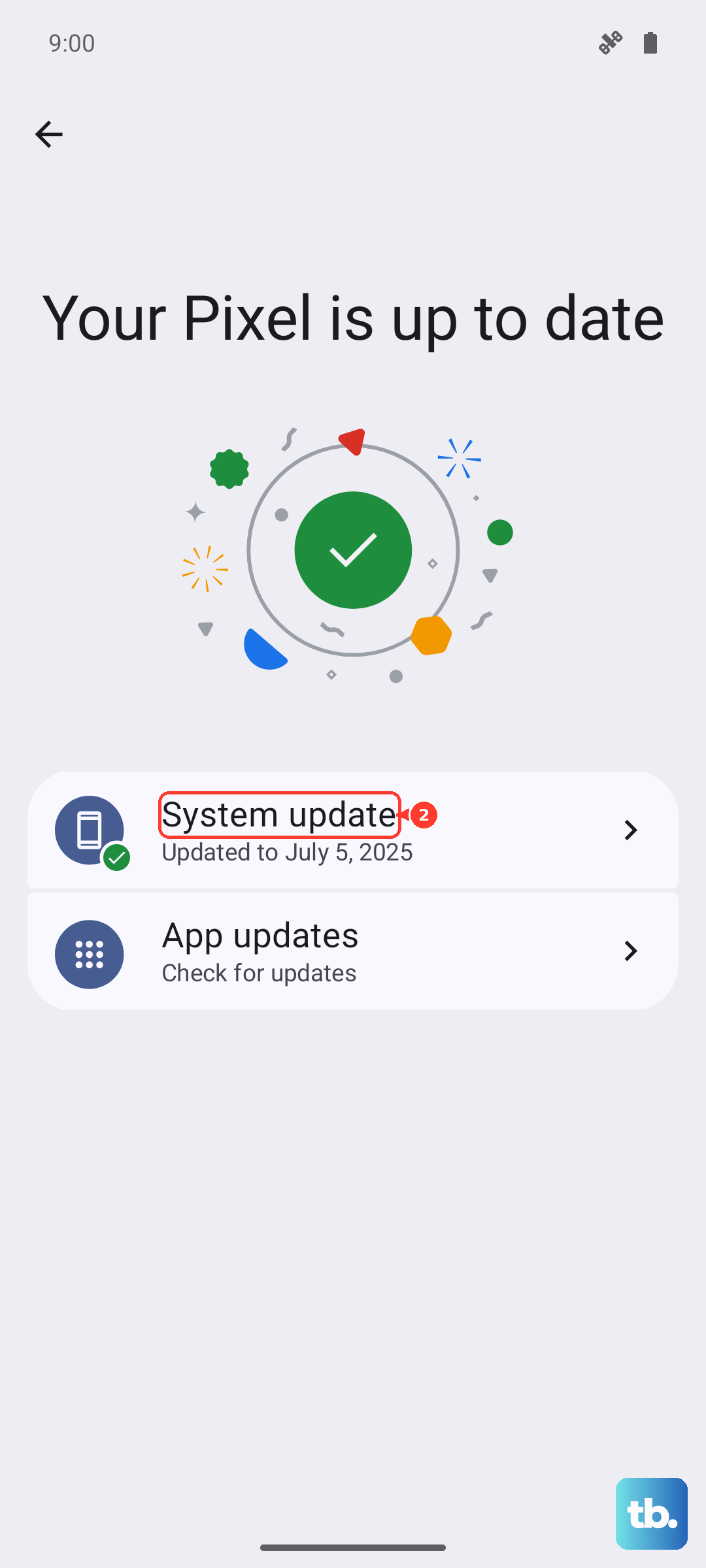
Open the Galaxy Store and Google Play Store to update your apps. Samsung regularly pushes One UI updates that improve performance on the Z Fold 7.
Reduce Animations and Visual Effects
Smooth transitions look nice, but they also eat CPU cycles. Go to Settings > Accessibility > Visibility enhancements and turn on Remove animations.
If you want even more control, enable Developer Options (go to Settings > About phone > tap Software information > tap Build number seven times). Then under Developer Options, set Window animation scale and Transition animation scale to 0.5x or off.
Check Battery Health and Charging Issues
Some Z Fold 7 units have a known issue where charging stops at around 45%, which can lead to battery calibration problems. If your battery is deeply discharged, the system may throttle performance to protect internal components. Go to Settings > Battery > Battery health (if available) or check with Samsung Members app.
Try a full charge cycle: let the phone drain completely, then charge it uninterrupted to 100% using a certified 25W USB PD PPS charger. Avoid using uncertified wireless pads, as some have been reported to not work properly on the Fold 7.
Turn Off Background App Activity
Many apps refresh in the background even when you aren’t using them. Go to Settings > Battery > Background usage limits. Put apps you rarely need into Sleeping apps or Deep sleeping apps.
You can also go to Settings > Apps > tap an app > Battery and select Restricted to stop it from running in the background entirely.
Use Performance Optimization in Device Care
Samsung’s built-in Device Care tool does more than just clean junk. Open it and tap Optimize now to close background apps, free up RAM, and check for overheating. Overheating is a common cause of sudden lag, especially when using the inner screen for gaming or multitasking.
If you notice the phone getting warm, take a break and let it cool down. The Fold 7’s cooling system is decent, but sustained heavy use can trigger thermal throttling.
Reset All Settings
If you’ve tried everything and the phone still stutters, resetting the settings can fix deeper configuration issues without wiping your data. Go to Settings > General management > Reset > Reset all settings. Enter your PIN or password and confirm.
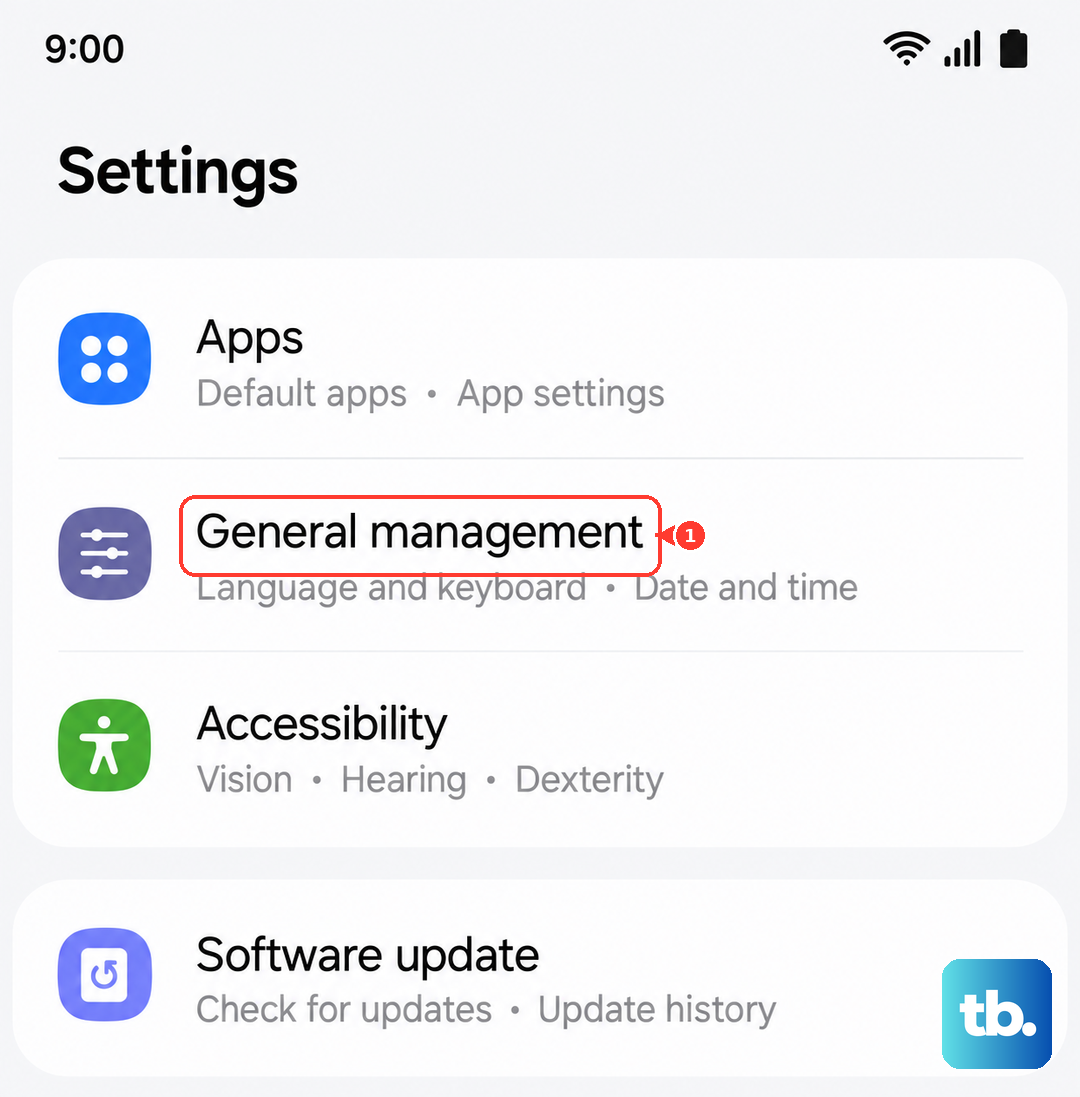
This won’t delete your photos, apps, or accounts, but it will revert Wi‑Fi passwords, display preferences, and keyboard settings to default. It’s a solid last step before a full factory reset.











