
Your Galaxy Z Fold 7 is a powerhouse, but a broken personal hotspot can kill your workflow. When other devices won't connect, drop immediately, or the hotspot option is grayed out, you need targeted fixes for this specific device. Let's get it working.
Toggle Mobile Hotspot Off and On
Go to Settings > Connections > Mobile Hotspot and Tethering and switch it off. Wait about 15 seconds, then tap it back on. This clears out minor software hiccups that often stop the hotspot from broadcasting properly.
Force Restart the Phone
If a simple toggle doesn't do it, a full restart is your next step. On the Z Fold 7, press and hold the Volume down and Side buttons together for about 10 seconds. The device will restart, clearing any temporary network glitches holding the hotspot back.
Check Your Mobile Data and Plan
Your hotspot is only as good as your cellular connection. Swipe down to open the quick panel and confirm Mobile Data is on. If you're in a low-signal area, the hotspot might show up but won't let devices actually load anything. Also verify with your carrier that tethering isn't blocked on your plan.
Reset the Network Settings
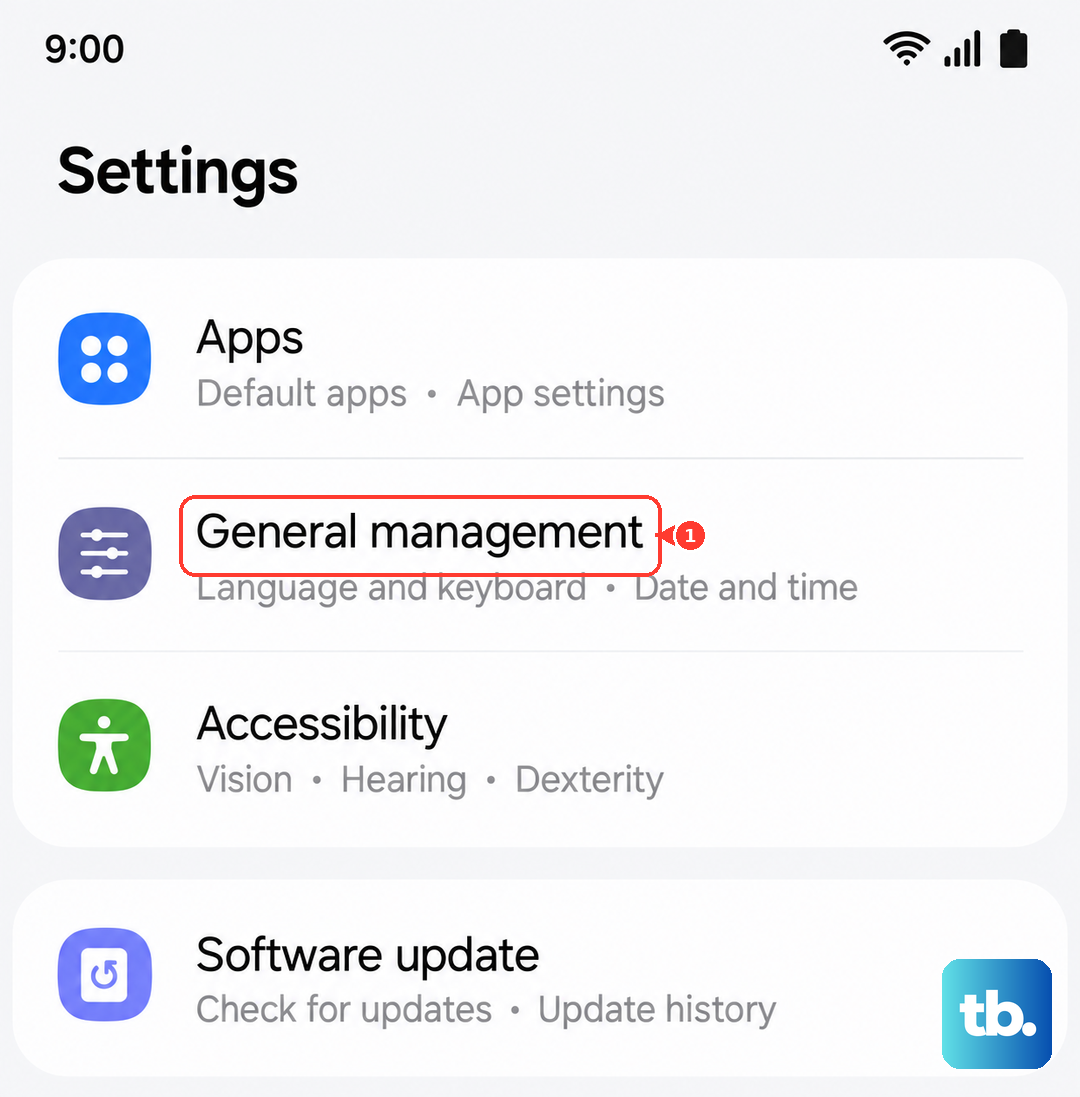
Go to Settings > General Management > Reset > Reset Network Settings. This will wipe saved Wi-Fi networks, Bluetooth pairings, and cellular settings. You'll need to set up your Wi-Fi again, but it often fixes deep software conflicts that prevent the hotspot from working.
Forget and Rejoin From the Other Device
Sometimes the issue isn't your phone, it's the device trying to connect. On your laptop or tablet, go to its Wi-Fi settings, forget your Fold 7's hotspot network, and reconnect using the password. This forces a clean handshake between the two devices.
Change the Hotspot Password
Head to Settings > Connections > Mobile Hotspot and Tethering > Mobile Hotspot and tap the three dots to manage settings. Change the password to something simple like "password123" just to test. If it connects, the original password was causing an authentication error and you can set a new one afterward.
Try USB or Bluetooth Tethering Instead
Wi-Fi hotspot can sometimes fail due to radio interference or driver issues. Plug your Z Fold 7 into your computer with a USB-C cable and you should see a prompt to allow tethering. If that doesn't work, inspect the USB-C port for dust or lint and clean it gently with compressed air. You can also try Bluetooth tethering after pairing the devices, which bypasses the Wi-Fi radio entirely.
Install Software and Carrier Updates
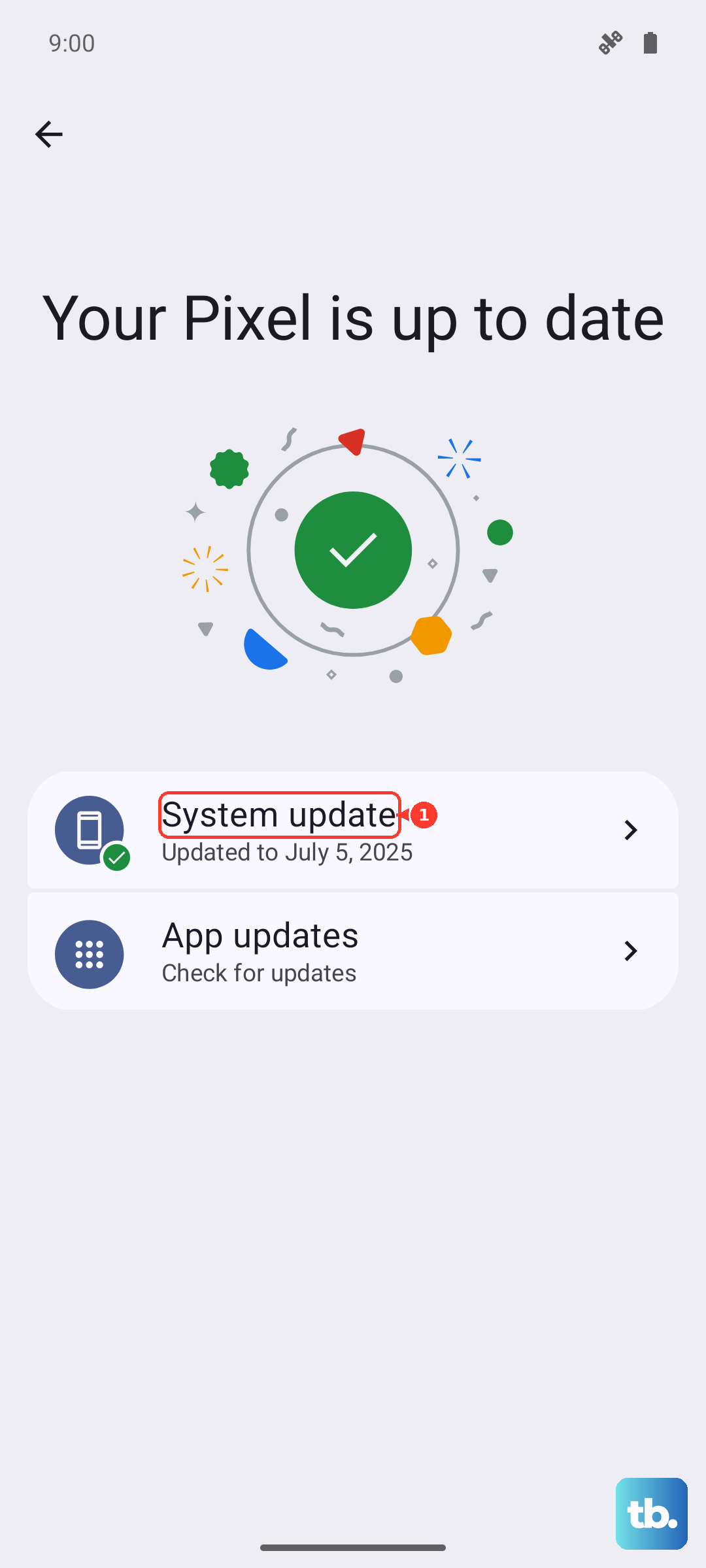
Go to Settings > Software Update to download and install any available system updates. Then head to Settings > Connections > Mobile Hotspot and Tethering and check if a Carrier Settings update is available by tapping the three-dot menu. These updates often include specific fixes for mobile data and tethering stability on the Z Fold 7.
Turn Off Power Saving Mode
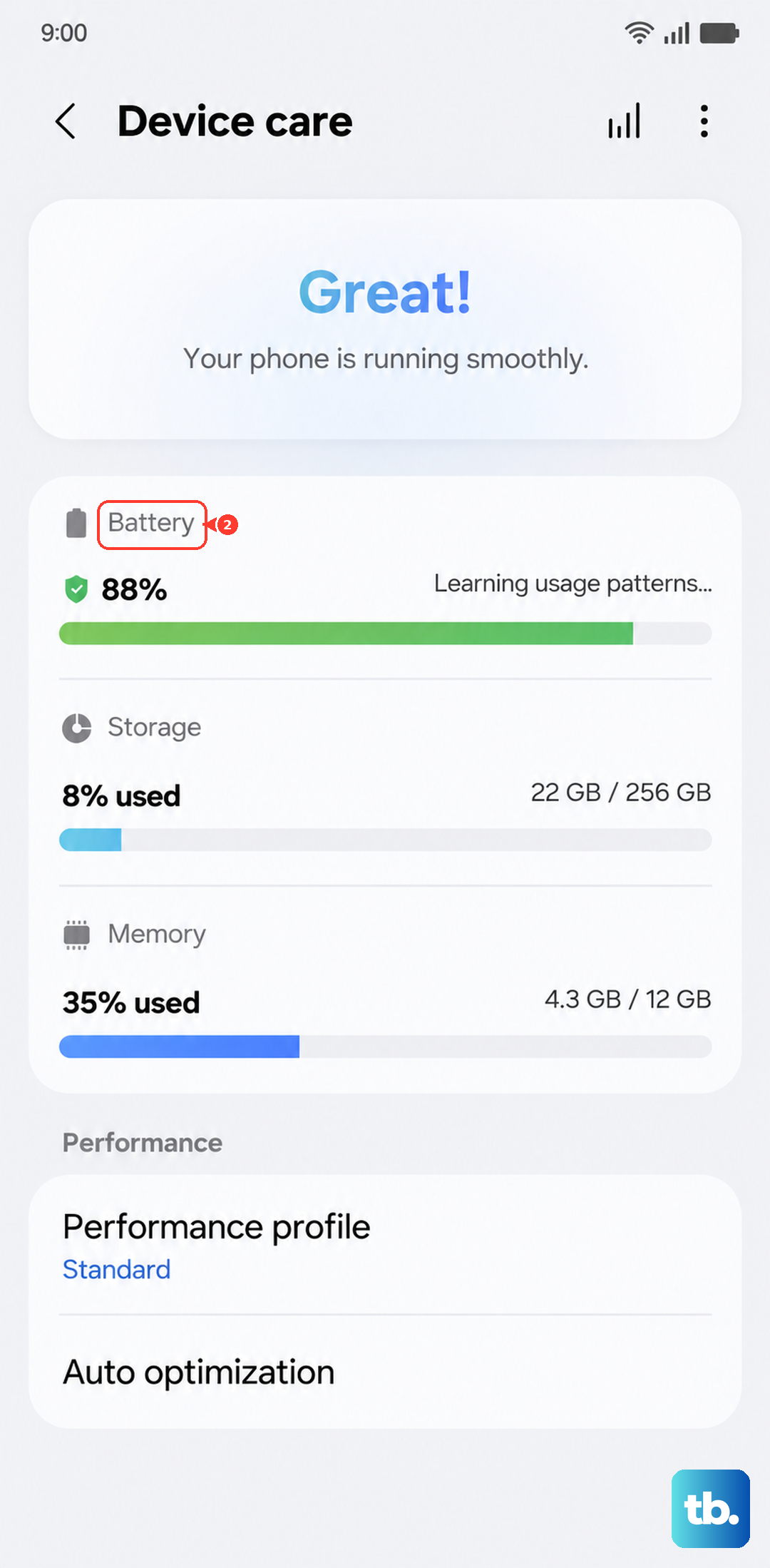
The Z Fold 7's power saving features can aggressively cut background processes, which sometimes shuts down the hotspot radio to save battery. Open Settings > Battery and Device Care > Battery and turn off Power Saving mode if it's enabled. Your hotspot needs the phone to be fully awake to maintain a stable connection.
Verify Your Carrier Allows Tethering
This is less a fix and more a check. Some prepaid or older unlimited plans restrict personal hotspot use. If you've tried everything above, log into your carrier's account portal or give them a call to make sure tethering is active on your line. Sometimes they need to push a network settings refresh to your Fold 7.











