If your Samsung Galaxy Z Fold 7 is charging slower than it should, you're not alone. The phone supports up to 25W wired charging and 15W wirelessly, but getting those speeds requires the right gear and conditions. Here are ten fixes to try, starting with the most common culprits.
Use a Certified 25W Charger
The Z Fold 7 needs a USB PD PPS (Programmable Power Supply) charger to reach its full 25W speed. Most generic USB-C chargers top out at 18W or 15W, which will slow things way down. Look for a Samsung-branded adapter or any third-party one that specifically lists 25W PD PPS support.
The charger that came in the box with other Samsung phones usually works, but if you're using an old 15W charger from a previous device, it'll be noticeably slower. Check the fine print on the adapter itself for wattage and PPS compatibility.
Make Sure You're Using the Right Cable
Not all USB-C cables are created equal. A cheap or older USB-C cable might not support the higher power delivery the Z Fold 7 needs. Stick with the cable that came with the phone or a certified USB-C to USB-C cable rated for 60W or higher.
If your cable is frayed, bent, or just feeling loose, replace it. Damaged cables can't deliver the full 25W reliably and can even cause intermittent charging.
Don't Use the Phone While It's Charging
Playing games, streaming video, or running GPS navigation while charging generates heat. The Z Fold 7's thermal management will throttle charging speed to protect the battery. For the fastest charge, set the phone down and leave it alone. Airplane Mode or turning off the screen helps too.
Remove Thick Cases
The Z Fold 7 already runs warm during fast charging, and a thick case traps heat even more. This triggers the phone to slow down charging to keep temperatures safe. Pop the case off, especially if you're using wireless charging, which generates extra heat on its own.
Check the USB-C Port for Debris
Lint and dust love to collect in the bottom USB-C port, especially if you carry the phone in a pocket. A dirty port creates a poor connection that limits power delivery. Shine a flashlight in there and look for any gunk.
Use a can of compressed air to blow it out, or gently pick out debris with a wooden toothpick. Don't use anything metal. A clean port can make a surprising difference in charging speed.
If the Phone Stops Charging at 45%
This is a known issue on the Z Fold 7. If your phone gets stuck around 45% and won't charge further, it's likely a battery calibration problem. You can fix this by completely draining the battery until the phone shuts off, then charging it uninterrupted to 100%.
Doing a full discharge and recharge cycle once can reset the battery gauge. If it keeps happening, try the force restart first (hold Volume down and Side together for 10 seconds) before draining the battery.
When Wireless Charging Is Slow or Not Working
Wireless charging on the Z Fold 7 tops out at 15W, but that requires a compatible Qi charger that supports fast wireless charging. Many older or cheap pads only deliver 5W or 10W. Check your wireless charger's specs to make sure it can handle 15W charging for Samsung devices.
Also check the placement. The Z Fold 7's wireless charging coil is centered near the middle of the phone. If the pad is off-center, the phone might charge very slowly or not at all. And a thick case can also block the connection remove it for wireless charging.
Perform a Force Restart
If the phone seems unresponsive or charging is behaving oddly, a forced restart can clear temporary software glitches. Press and hold the Volume down and Side buttons simultaneously for 10 seconds until the device restarts. That's it no data loss, just a fresh boot.
Adjust the Protect Battery Setting
Samsung includes a feature called Protect Battery that stops charging at 85% to extend battery lifespan. If you need a full charge right now, go to Settings > Battery > Battery Protection and toggle it off. Remember to turn it back on later for daily use.
This is separate from the 45% issue Protect Battery caps at 85%, not 45%. If you're stuck lower, the calibration fix is the right approach.
Update Your Phone's Software
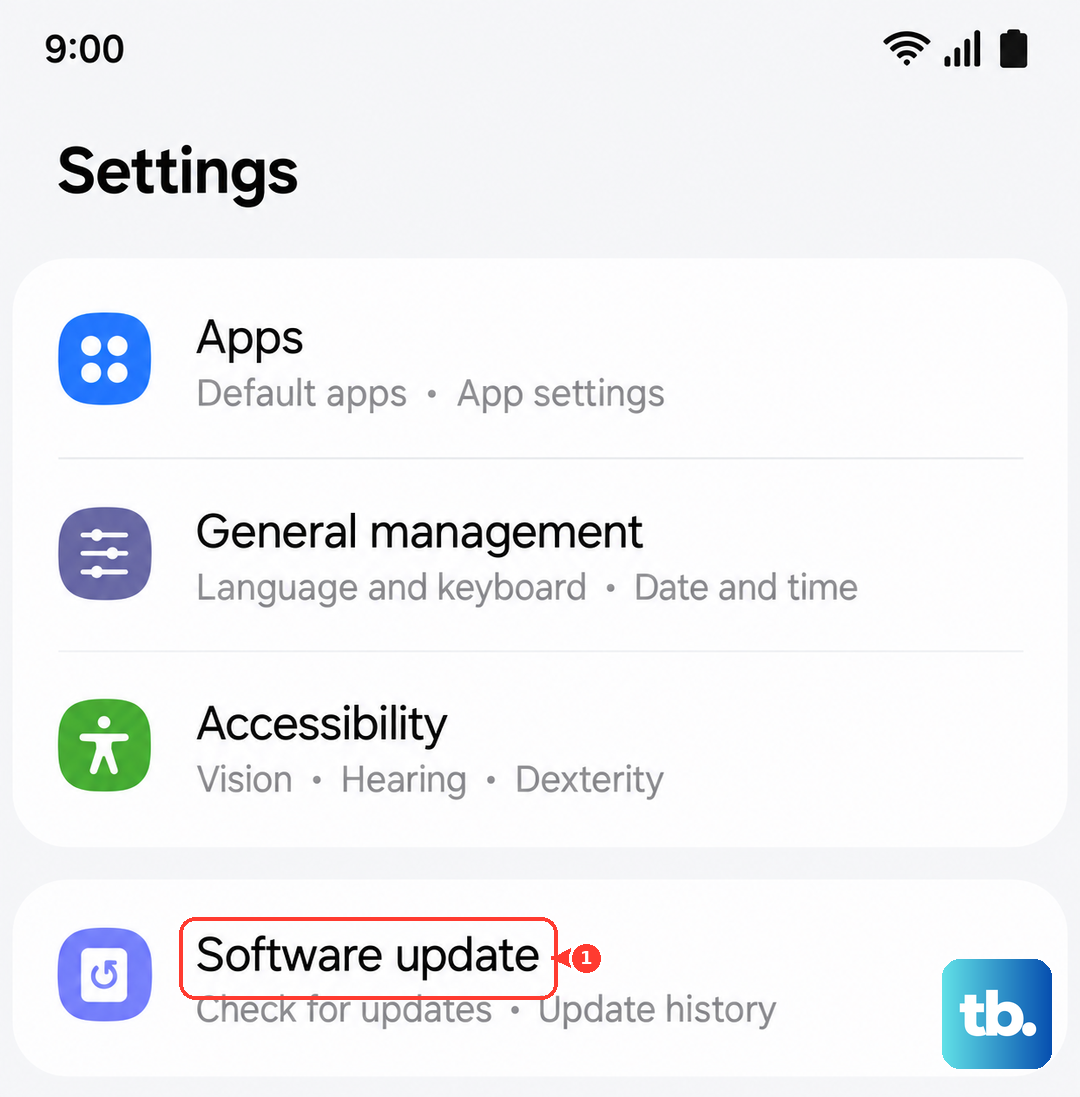
Samsung occasionally releases updates that tweak charging behavior and fix bugs. Open Settings > Software Update > Download and Install. Keeping the Z Fold 7 on the latest version ensures you have the best charging algorithms and any known fixes for the 45% issue.