
When your Samsung Galaxy Z Fold 7 stops sending or receiving email, it can throw your whole day off. You're not alone, email glitches are common on foldables, especially with the Samsung Email app or Gmail. Most of these issues have quick fixes, and I'll walk you through them.
Before anything else, run through the basics. Make sure you have an active internet connection (WiFi or mobile data). Check if your email provider is having an outage, a quick visit to their status page or a search on X usually confirms it. And double-check you're using the right email address and password. If you can log in from a browser, the app should work too.
Check Your Account Sync Settings
Email apps on Android rely on sync settings to pull in new messages. If syncing is off, you won't see anything.
Open the Samsung Email or Gmail app, tap your profile picture or the menu icon in the top left, then tap Settings. Select your email account and make sure Sync is turned on. For Samsung Email, look for Sync schedule and set it to Auto or a short interval like every 15 minutes.
If you use Gmail, go to your account under Settings, then tap Data usage and make sure Sync Gmail is enabled.
Switch Between WiFi and Mobile Data
Sometimes the network itself is the culprit. Try flipping between WiFi and mobile data to see which one works.
Pull down the notification shade twice to open the quick settings panel. Tap the WiFi icon to turn it off, then test your email over mobile data. If that works, your WiFi router might need a restart. Conversely, if email only works on WiFi, check your mobile data settings for the mail app.
To be thorough, toggle Airplane Mode on for about 30 seconds, then off. This forces your phone to re-establish all network connections. You can do that from the quick settings panel, tap the airplane icon.
Force-Restart the Mail App
A stuck app can cause all kinds of weird behavior. Close it completely and reopen it.
Swipe up from the bottom of the screen and hold to open the recent apps view. Swipe left or right to find your mail app, then swipe it away. Wait a few seconds, then tap the app icon to relaunch it.
If you're using a third-party app like Outlook or Spark, try force-stopping it first: go to Settings > Apps, tap the app, then tap Force stop. Open it again afterward.
Allow Background Data for the Mail App
Android can restrict background data to save battery, which might prevent your email app from syncing when you're not actively using it.
Go to Settings > Connections > Data usage > App data usage. Find your mail app and tap it. Make sure Allow background data usage is turned on. If you see Allow app while Data saver is on, toggle that too.
For Samsung Email, you can also check battery optimization: go to Settings > Apps > tap the mail app > Battery > Battery optimization > select Don't optimize. This prevents Android from putting the app to sleep.
Verify Your Email Credentials
It's easy to mistype a password or have it changed without updating the phone. Try logging into your email from a web browser on your Z Fold 7. If you can't log in, reset your password through the provider's website, then update it in the mail app.
If you use two-factor authentication, you might need an app-specific password. Check your email provider's support page for instructions.
Set Date and Time to Automatic
Incorrect date and time can break the encrypted connection between your phone and the mail server.
Go to Settings > General management > Date and time. Turn on Automatic date and time. If it's already on, toggle it off and back on to refresh the sync. You'll want to be connected to the internet for this to work.
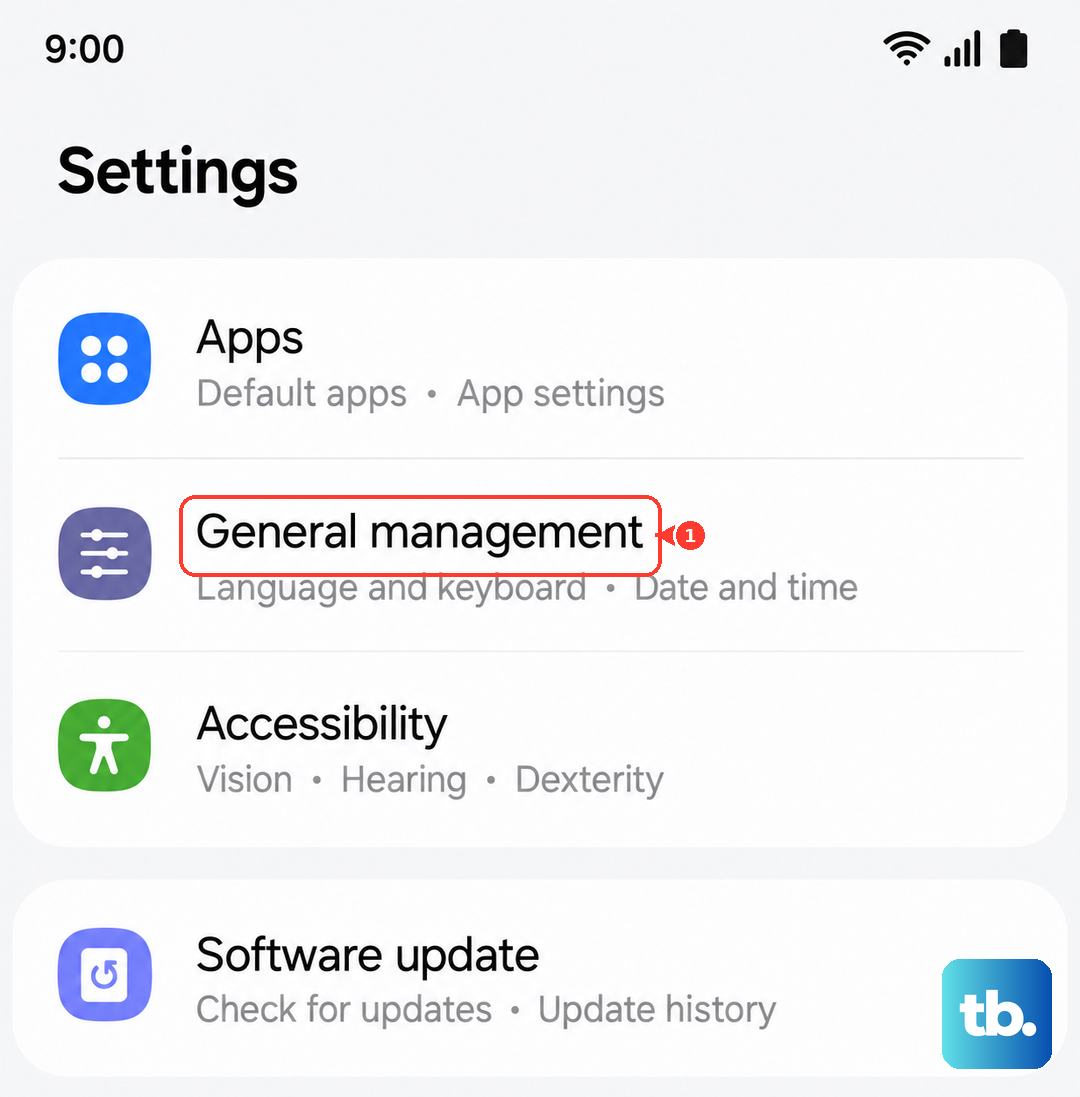
Once you do that, try refreshing your inbox.
Disable Any Active VPN
VPNs can interfere with email ports and protocols, especially if the VPN service blocks certain traffic.
Go to Settings > Connections > More connection settings > VPN. Tap the gear icon next to your active VPN and toggle it off. Alternatively, you can remove the VPN profile temporarily. Try your email again without it.
If email works with VPN off, check your VPN provider's documentation, they may need an exception rule for your mail app.
Update the Mail App
Outdated apps can have bugs that newer versions fix. Open the Galaxy Store or Google Play Store, tap your profile icon, then Manage apps and device. Look for your email app and tap Update if available.
If you use Samsung Email, check for updates in the Galaxy Store specifically, that's where Samsung apps are updated. For Gmail or third-party clients, the Play Store is fine.
After updating, restart the app and test.
Delete and Re-Add Your Email Account
Sometimes the mail app's configuration gets corrupted. Removing the account and adding it fresh often clears up stubborn sync issues.
Go to Settings > Accounts and backup > Manage accounts. Tap the email account you're having trouble with, then tap Remove account. Confirm the removal.
Now re-add it: go back to Settings > Accounts and backup > Add account. Choose your email provider (Samsung Account, Google, Exchange, etc.) and follow the on-screen prompts to sign in. Make sure you allow all the sync options during setup.
Check Notification Settings
If emails are arriving but you're not getting alerts, it's a notification issue, not a sync problem.
Go to Settings > Notifications > App notifications. Find your mail app and tap it. Make sure Show notifications is turned on. Under Notification categories, enable Email or New messages and set the sound, pop-up, and lock screen options to your preference.
For Gmail, you may also need to go into the app's settings (tap the hamburger menu > Settings > your account > Notifications) and pick an alert sound.
Restart Your Galaxy Z Fold 7
A quick restart clears temporary glitches in the system that might affect email.
Press and hold the Side button and Volume Down together for a couple of seconds. The power menu will appear. Tap Power off, wait about 30 seconds, then press and hold the Side button again to turn it back on.
If your phone is unresponsive, do a forced restart: press and hold Volume Down and Side simultaneously for about 10 seconds until the Samsung logo appears, this is safe and won't erase any data.
Install the Latest Software Update
Samsung regularly pushes updates that fix known bugs, including email-related ones.
Go to Settings > Software update > Download and install. If an update is available, follow the prompts to install it. Make sure you're on WiFi and have at least 50% battery before starting.
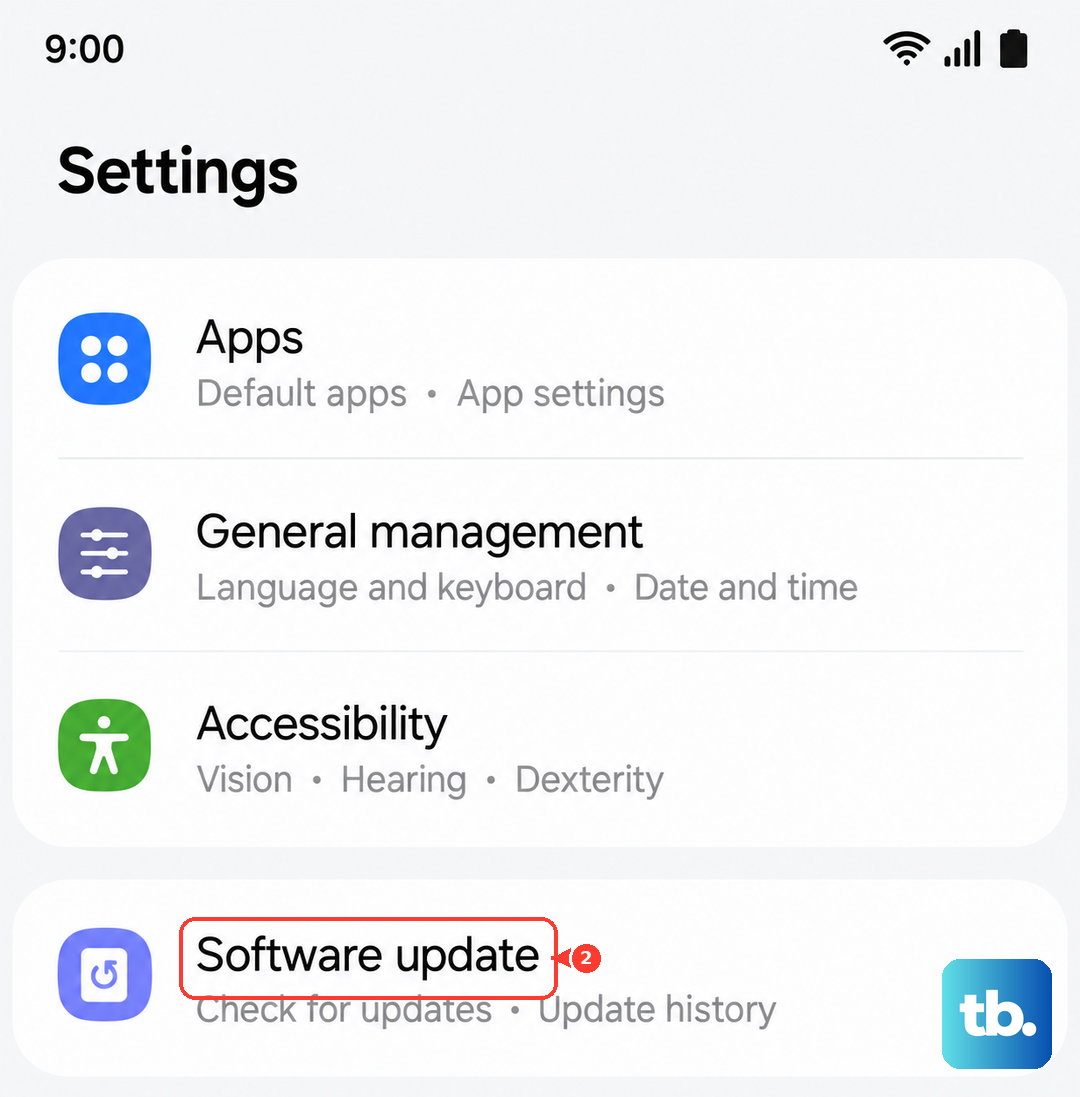
After the update, your phone will restart. Open your mail app and check if email is working.
Reset All Settings
If you've tried everything and email still doesn't work, resetting all settings can resolve deeper configuration problems without wiping your data.
Go to Settings > General management > Reset > Reset settings. You'll need to confirm with your PIN or password. This resets network settings, display settings, and other preferences back to defaults, but your apps, photos, and files stay intact.
You'll need to re-enter WiFi passwords and adjust any custom settings afterward, but it's worth it if it fixes the email problem.
One more thing: if you use the Samsung Email app and it came pre-installed, try switching to Gmail or Outlook for a few days. Sometimes the native app has quirks that third-party apps don't. But the steps above cover almost every common cause, so start from the top and work through them.