
A blurry camera on your Samsung Galaxy Z Fold 7 can turn every photo into a disappointment. Whether the blur is across the whole image, only in certain modes, or just on one lens, these fixes cover the most likely causes.
Clean the Camera Lens
This sounds too simple to mention, but it’s the number one reason for blurry shots. Use a soft, lint-free microfiber cloth to gently wipe the lens array on the back of the Fold 7. Fingerprints, smudges, and dust are easy to pick up, especially if you’ve been holding the phone with one hand and the lens sits right where your fingers land.
Avoid using your shirt or paper towels, which can leave scratches or lint. A quick wipe before every photoshoot is a good habit.
Remove Your Case
Some cases, particularly the slim fit or rugged styles, don’t have a perfect cutout around the camera bump. They can overlap the lens or create a tiny gap that lets in fog or debris. Pop the case off and take a test photo. If it’s sharper, the case is interfering with the lens or the autofocus sensor.
Tap to Focus
Open the Camera app and tap the subject you want to be sharp. A yellow square appears, showing where the camera is focusing. If you’re shooting something close up, the camera may lock onto the background instead. Just tap on your subject to force it. For still subjects, press and hold on the screen to lock focus and exposure (AE/AF Lock).
Switch Between Lenses
The Galaxy Z Fold 7 has an ultrawide (0.5x), wide (1x), and telephoto (3x) lens. If the blur is only on one of them, you can narrow down the issue. In the Camera app, try switching between these zoom levels. If only the telephoto is blurry, for example, the problem is likely physical or specific to that module. A quick cleaning of that lens might solve it.
Close and Reopen the Camera App
The camera app can glitch just like any other software. Swipe up from the bottom of the screen to open the recent apps drawer, swipe the Camera app away, then reopen it. This clears any minor software hiccups that might be messing with autofocus or image processing.
Restart or Force Restart Your Phone
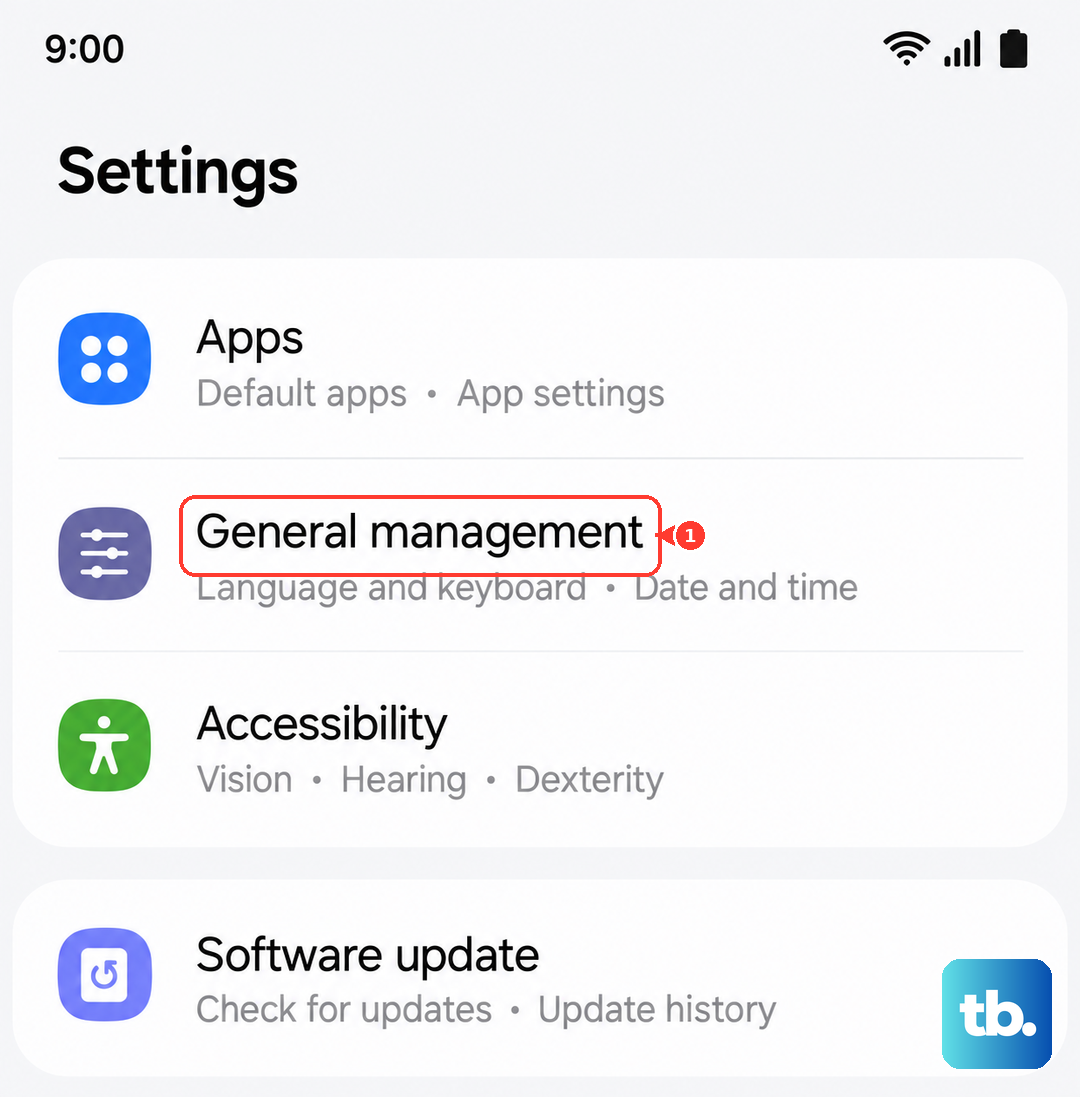
Restarting resets the camera software stack and frees up stuck processes. Go to Settings > General Management > Reset and tap Restart. If the screen is unresponsive or the camera is completely frozen, perform a force restart: press and hold the Volume Down and Side buttons simultaneously for about 10 seconds until the device restarts.
Turn Off Macro Mode
The Fold 7’s ultrawide lens can automatically switch to macro mode for close-ups. This can cause unexpected softness or focus hunting. Open the Camera app, tap the settings icon (gear), and look for Auto Macro or Focus Enhancer. Toggle it off if you’d rather control when macro kicks in, especially for shots at medium distances.
Check for Moisture or Condensation
Moving from a cold environment to a warm one can cause condensation to form inside the lens or on the sensor. This makes photos look foggy or hazy. Let the phone sit at room temperature for 15 20 minutes before using the camera. Don’t blow on the lens, that adds more moisture.
Update One UI and Camera App
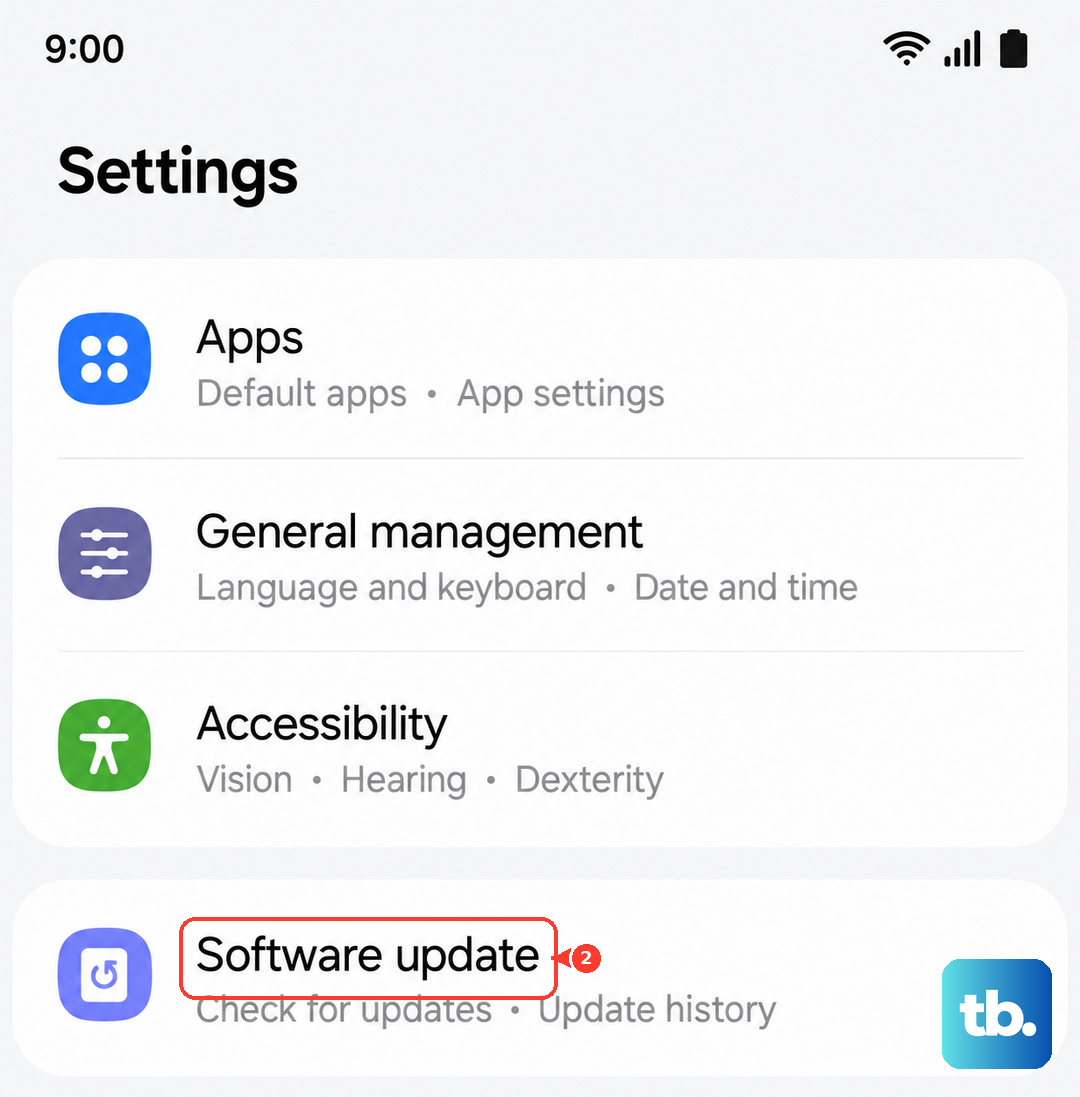
Camera improvements and bug fixes come through software updates. Go to Settings > Software Update and tap Download and Install. Also check the Galaxy Store for updates to the Camera app itself. A known autofocus bug could already be patched.
Reset Camera Settings
Custom camera settings can sometimes interfere with focus performance. Open the Camera app, tap the settings icon (gear), and scroll to Reset settings. This returns all camera options to their defaults, including focus modes, scene optimizers, and resolution settings. You won’t lose your photos, but any personalized presets will be cleared.











