Bluetooth issues on the Samsung Galaxy Z Fold 7 are a particular pain point. You've got a premium foldable with cutting-edge specs, and something as basic as connecting to your earbuds or car gets stuck in a loop. Let's cut through the generic advice and get into the fixes that actually work on this device.
Do a Forced Restart
Skip the menus on this one. A normal restart doesn't always clear deep system hangups on the Z Fold 7. Press and hold the Volume down and Side buttons simultaneously for 10 seconds. Keep holding until the Samsung logo pops up and the phone reboots.
This usually kicks the Bluetooth radio back into gear if it was stuck in a bad state. Once it boots up, try pairing your device again right away.
Check Your Battery and Charging First
The Z Fold 7 has a documented quirk where it stops charging at around 45% if the battery calibration gets thrown off. A deep discharge can also make the phone shut down radios to save power. If Bluetooth is acting up, plug it in with a certified Samsung or USB PD PPS charger and a good USB-C cable.
Let it charge past the 50% mark before testing Bluetooth again. Low power states and connectivity problems often go hand in hand on this model.
Clear the Bluetooth System Cache
Corrupted cache data is a common culprit on Samsung's One UI. Go to Settings > Apps, tap the filter icon (three dots or a down arrow), and select Show system apps. Scroll down to Bluetooth, tap Storage, and hit Clear Cache.
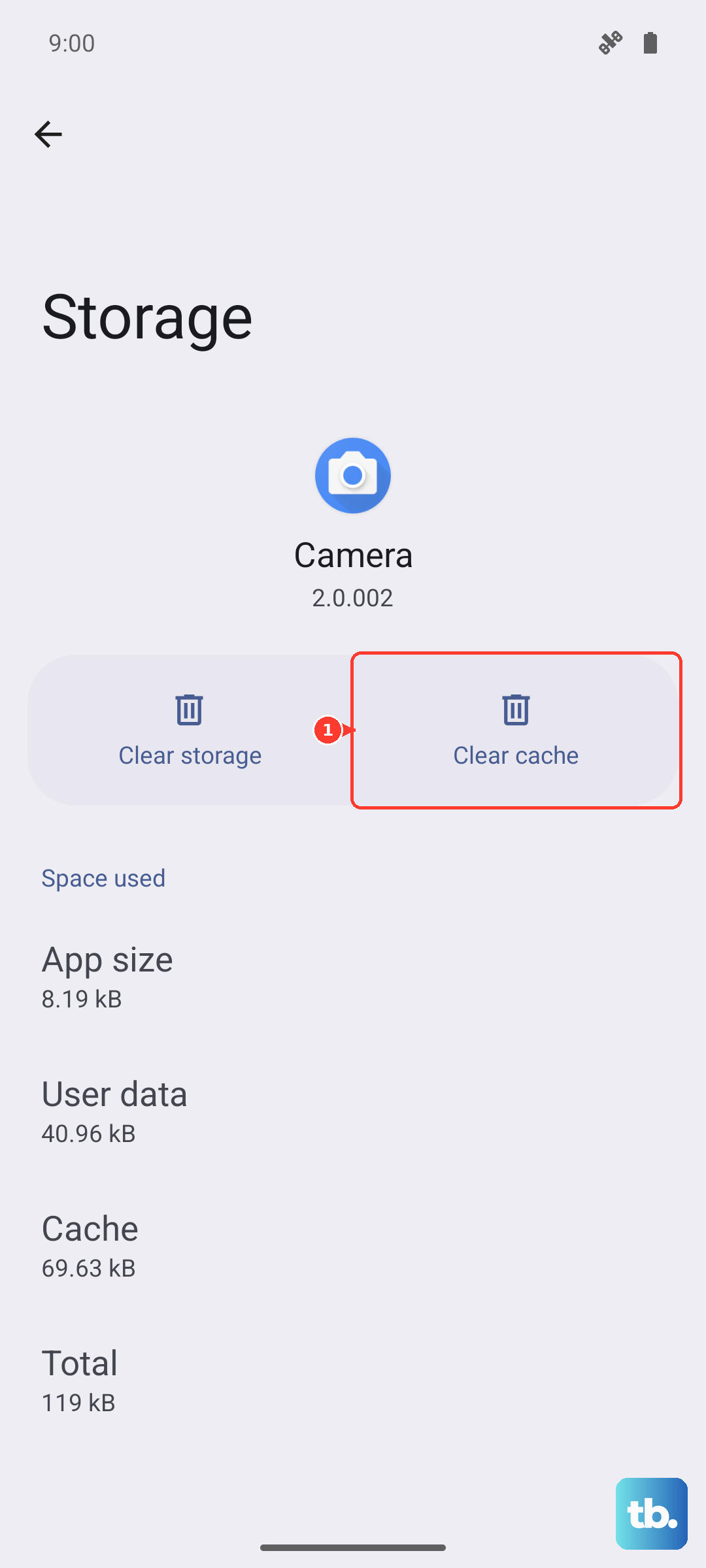
You don't need to clear the data yet, just the cache. Reboot the phone afterwards. This often resolves pairing failures without you having to forget and repair everything.
Reset Your Network Settings
If the cache clear didn't stick, a network settings reset is the next logical step on Android 15. It wipes your saved Wi-Fi networks and Bluetooth pairings, but it leaves your apps, photos, and accounts alone.
Navigate to Settings > General management > Reset > Reset network settings. Confirm with your PIN, and let the phone restart. You will have to re-pair your Galaxy Buds or car system, but this step fixes a surprising number of persistent connection bugs.
Look for a Software Update
Samsung pushes frequent updates for the Z Fold series, and a recent patch might directly address Bluetooth stability. Go to Settings > Software Update > Download and Install.
Don't forget to update your accessories too. Open the Galaxy Wearable app and check for any pending firmware updates for your Galaxy Watch or Buds. Pairing issues are often a two-way street.
Test in Safe Mode
If Bluetooth drops intermittently or only acts up with specific devices, a third-party app might be interfering. Boot the Fold 7 into Safe Mode by pressing and holding the Side button, long-pressing Power off on the screen, and tapping Safe Mode.
Try using Bluetooth here. If it works perfectly, you've got a rogue app causing havoc. Restart normally and uninstall anything you installed just before the problem started, especially battery managers or connectivity tools.
When It's Time for a Factory Reset
If you've worked through the steps above and Bluetooth still won't connect or stays grayed out, there's a small chance it's a hardware fault. One last software measure is a full reset.
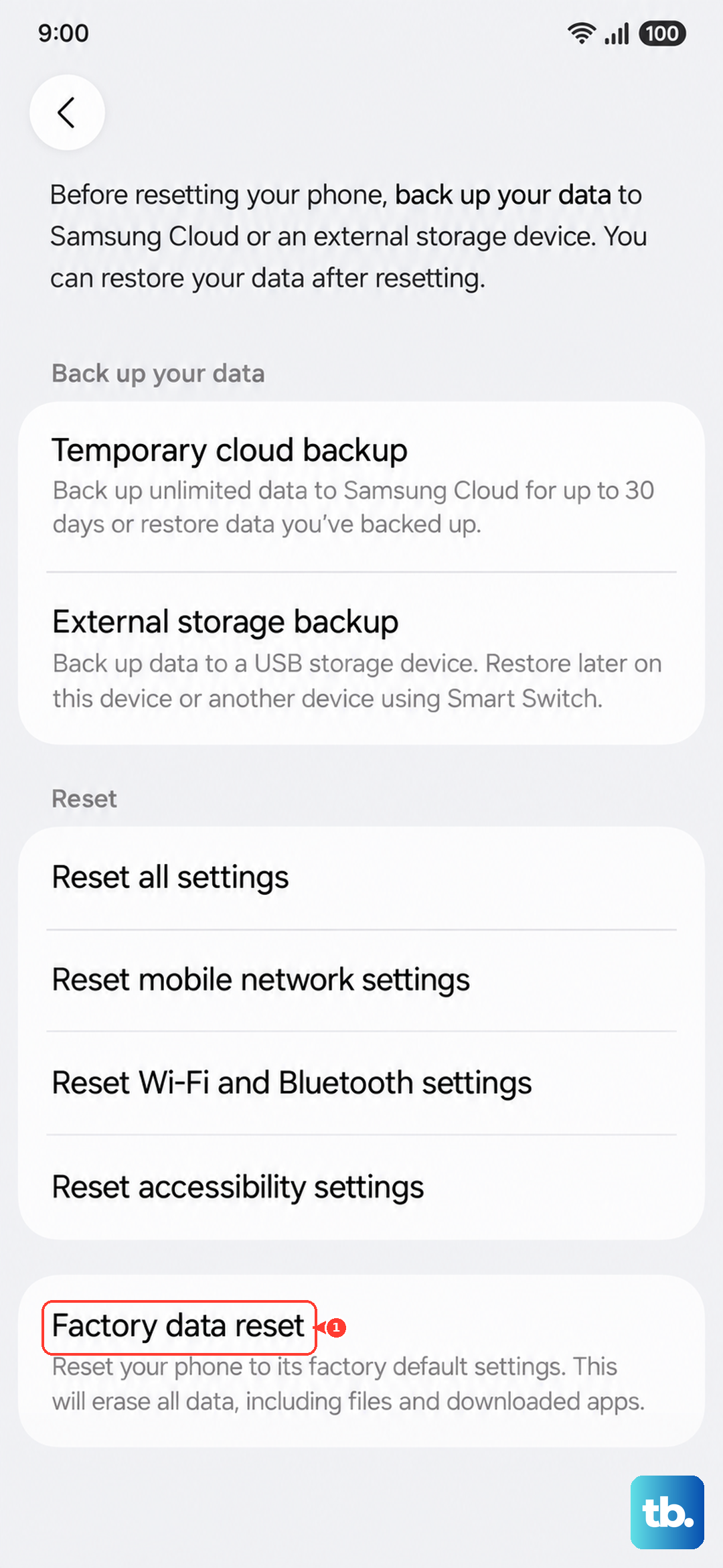
Back up everything first, because this wipes the phone completely. Go to Settings > General management > Reset > Factory data reset. If Bluetooth is still dead after a fresh start, the radio hardware itself might need a repair under warranty.