
When your Galaxy Z Fold 6 won't charge on a wireless pad, it's frustrating, but it's rarely a sign of a major hardware failure. The issue is almost always related to alignment, a software hiccup, or something interfering with the connection. Let's get it working again.
Center Your Phone on the Pad
The Z Fold 6's wireless charging coil is located in the center of the device's back half. Placement is critical. You need to position the phone so that this coil aligns directly with the coil inside the charging pad. I'd start by placing the phone dead center on the charger and waiting a few seconds for the charging tone or on-screen indicator.
If you're using it folded, the alignment is more straightforward. If you're trying to charge it while open, you'll need to be extra precise, as the larger form factor can make it easier to misalign. A slight nudge in any direction can be the difference between charging and not charging.
Take Off the Case
This is a very common culprit, especially with folding phones. Cases designed for the Z Fold 6 can be thick to offer hinge protection, and some have built-in kickstands or metal plates that completely block the wireless signal. Pop the case off and try charging the bare phone.
If it works without the case, you'll need to find a case that's explicitly rated for wireless charging. Look for "Qi compatible" or "wireless charging friendly" in the product description. Avoid any case that has magnets or metal components in the back panel area.
Inspect Your Charger and Cable
Make sure your wireless charging pad is properly plugged in. The pad itself needs adequate power to function. For the fastest 15W wireless charging on the Z Fold 6, you must use a compatible Samsung Adaptive Fast Charging wall adapter (25W) and a good-quality USB-C cable.
If you're using a low-power adapter from an old phone or a weak USB port on a computer, the pad might not have enough juice to initiate a charge. Try a different outlet and a different power block. The pad should have an LED that lights up when it's receiving power.
Perform a Force Restart
A quick software refresh can clear out temporary glitches that affect hardware functions like charging. To force restart your Galaxy Z Fold 6, press and hold the Volume Down button and the Side/Power button together for about 10 seconds.
Keep holding until you see the Samsung logo appear on the screen. Once the phone boots back up, place it on the wireless charger again. This simple step resolves a surprising number of odd behaviors.
Clean the Phone and Charger Surface
Dust and pocket lint are enemies of good connectivity. Wipe the entire back of your Z Fold 6, paying special attention to the center area, with a soft, dry cloth. Don't forget the charging pad's surface, which can also collect grime.
For the Z Fold 6, it's also a good idea to gently clean the hinge area with compressed air to prevent debris buildup, which can indirectly affect how the phone sits on a flat surface. A clean connection is a reliable connection.
Check for Software Updates
Samsung regularly releases updates that fix bugs, including ones related to power management and charging. Open Settings, scroll down to Software update, and tap Download and install. Make sure your phone is running the latest version of Android and One UI.
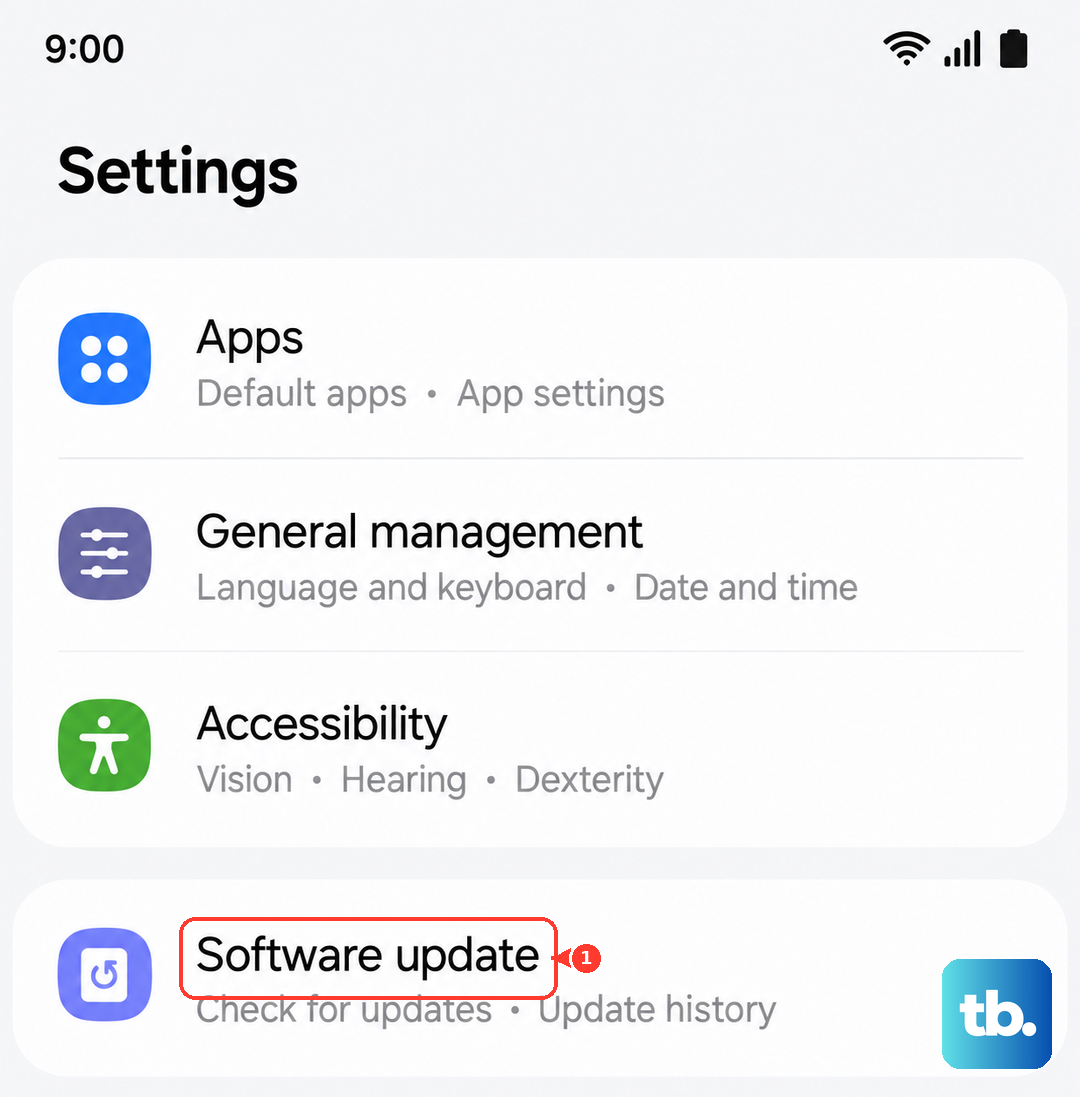
Installing an update requires a restart, which itself can help. Keeping your software current is one of the best ways to ensure all your phone's features, including wireless charging, work as intended.
Let Your Phone Cool Down
Wireless charging generates more heat than wired charging. If your Z Fold 6 feels warm to the touch, especially near the camera module on the back, it may have automatically paused charging to protect the battery. This is a safety feature.
Take it off the charger, close any demanding apps, and move it out of direct sunlight. Give it a few minutes to cool down before trying again. Avoid using the phone intensively, like gaming or video streaming, while it's on the charging pad.
Reset Your Network and Device Settings
If the basic restart didn't help, a settings reset can address deeper software conflicts. Go to Settings > General management > Reset. You have two good options here that won't delete your personal files.
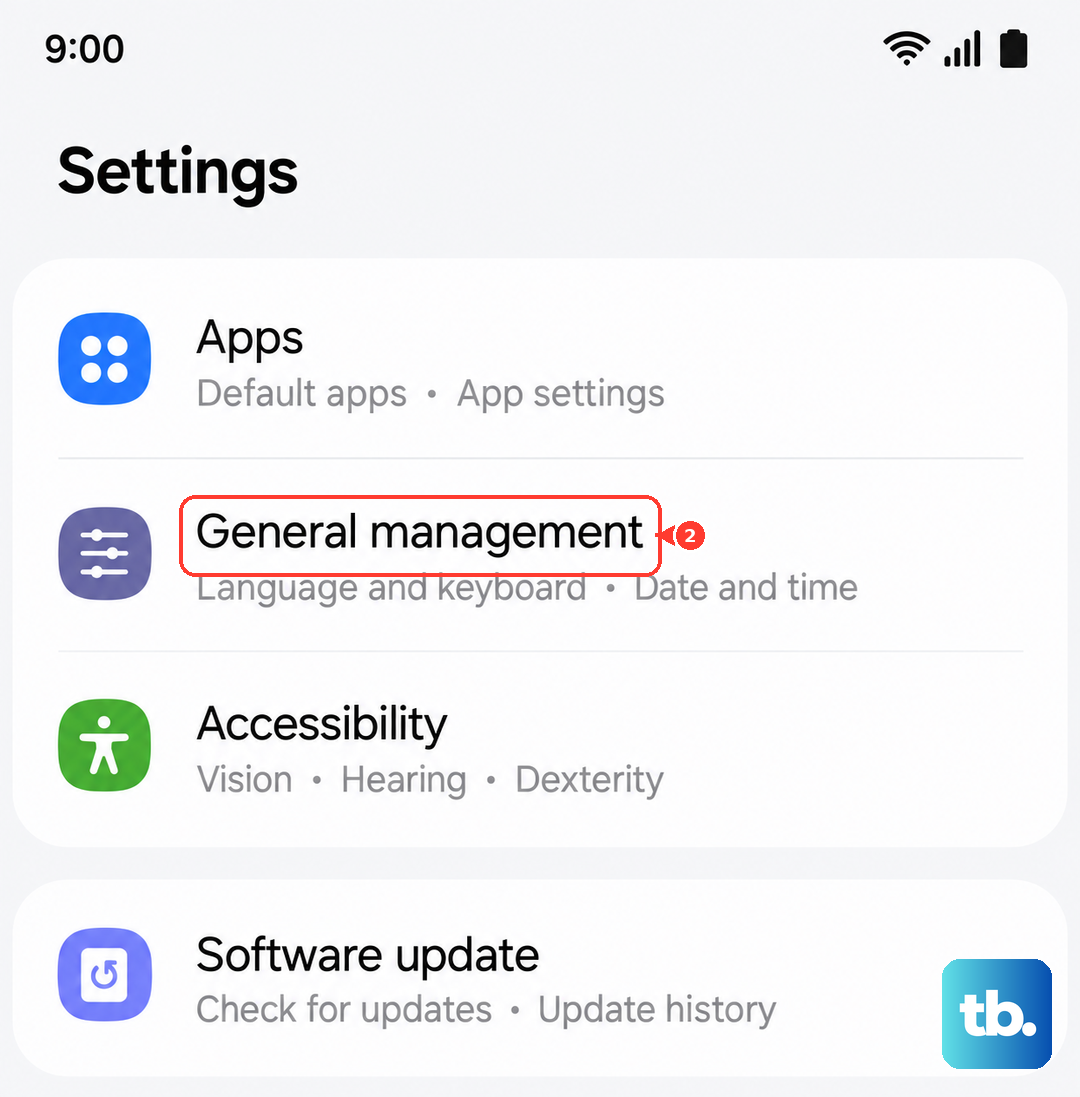
First, try Reset network settings. This clears Bluetooth and Wi-Fi connections. If that doesn't work, you can tap Reset all settings. This will revert all your system preferences (like ringtones and display settings) to default but leaves your photos, apps, and data untouched.
Test With a Different Charger
This is the best way to isolate the problem. Try your Z Fold 6 on a different, known-working Qi wireless charger. If it charges fine, then the issue is with your original charging pad or its power cable.
If your phone still refuses to charge on any wireless pad, but charges normally via the USB-C port, the problem is likely within the phone itself. At that point, it could be a hardware issue with the internal charging coil or related components.