
You're staring at your Galaxy Z Fold 6, trying to load a page or stream a video, but that Wi-Fi icon just won't cooperate. It's a frustrating feeling, especially on a device this advanced. The good news is that Wi-Fi problems on the Z Fold 6 are almost always a software or settings issue you can fix yourself in a few minutes.
Toggle Wi-Fi and Restart Your Phone
Let's start with the simplest fix. Swipe down from the top of your screen to open the Quick Panel and tap the Wi-Fi icon to turn it off. Wait about ten seconds, then tap it again to turn it back on. This forces your phone to drop the connection and search for networks fresh, which often solves the problem instantly.
If that doesn't work, give your phone a full restart. Press and hold the Side button and Volume Down button together for about ten seconds until you see the Samsung logo. A reboot clears out temporary glitches that can mess with the network hardware, and I've seen it work more times than I can count.
Forget the Network and Reconnect
Your phone might be holding onto old or corrupted login information for your network. To clear it out, open the Settings app and go to Connections > Wi-Fi. Tap on the name of your network, then select Forget.
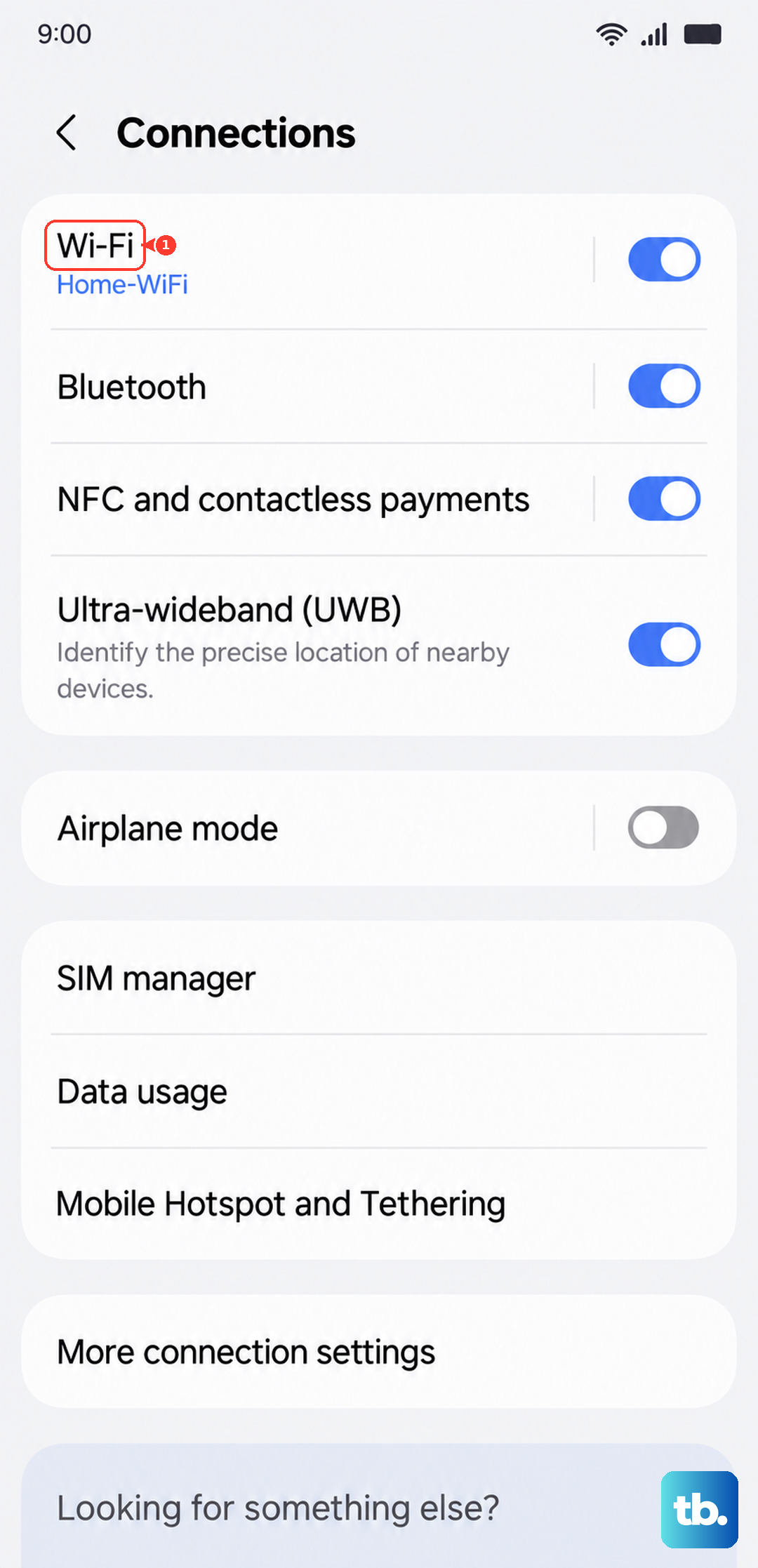
Now, find your network in the list again, tap it, and re-enter the password carefully. This is crucial if you've recently changed your Wi-Fi password or gotten a new router. Your Z Fold 6 could be stubbornly trying to use outdated credentials.
Check for Router and Interference Issues
Before you spend more time on your phone, rule out the source. Unplug your Wi-Fi router from power, wait a full 60 seconds, and plug it back in. If other devices in your home are also struggling, the router is almost certainly the culprit.
Also, consider potential interference. The Z Fold 6's unique hinge and form factor can sometimes affect signal reception depending on how you're holding it. Try moving closer to the router or changing the phone's orientation. Thick cases, especially those with metal elements, can also weaken the signal, so try removing the case temporarily.
Disable Adaptive Wi-Fi and Power Saving
Your Z Fold 6 has intelligent features designed to save battery, but they can sometimes get in the way. Go to Settings > Connections > Wi-Fi, then tap the three-dot menu and go to Intelligent Wi-Fi. Here, turn off options like Switch to mobile data. This feature can prematurely abandon a weak Wi-Fi signal.
Next, check your power mode. Go to Settings > Battery. If any power saving mode is enabled, turn it off. These modes can restrict background network activity, preventing a stable connection.
Update Your Phone's Software
Samsung regularly releases updates that fix bugs, including connectivity issues. Make sure your Z Fold 6 is running the latest software. Go to Settings > Software update and tap Download and install.
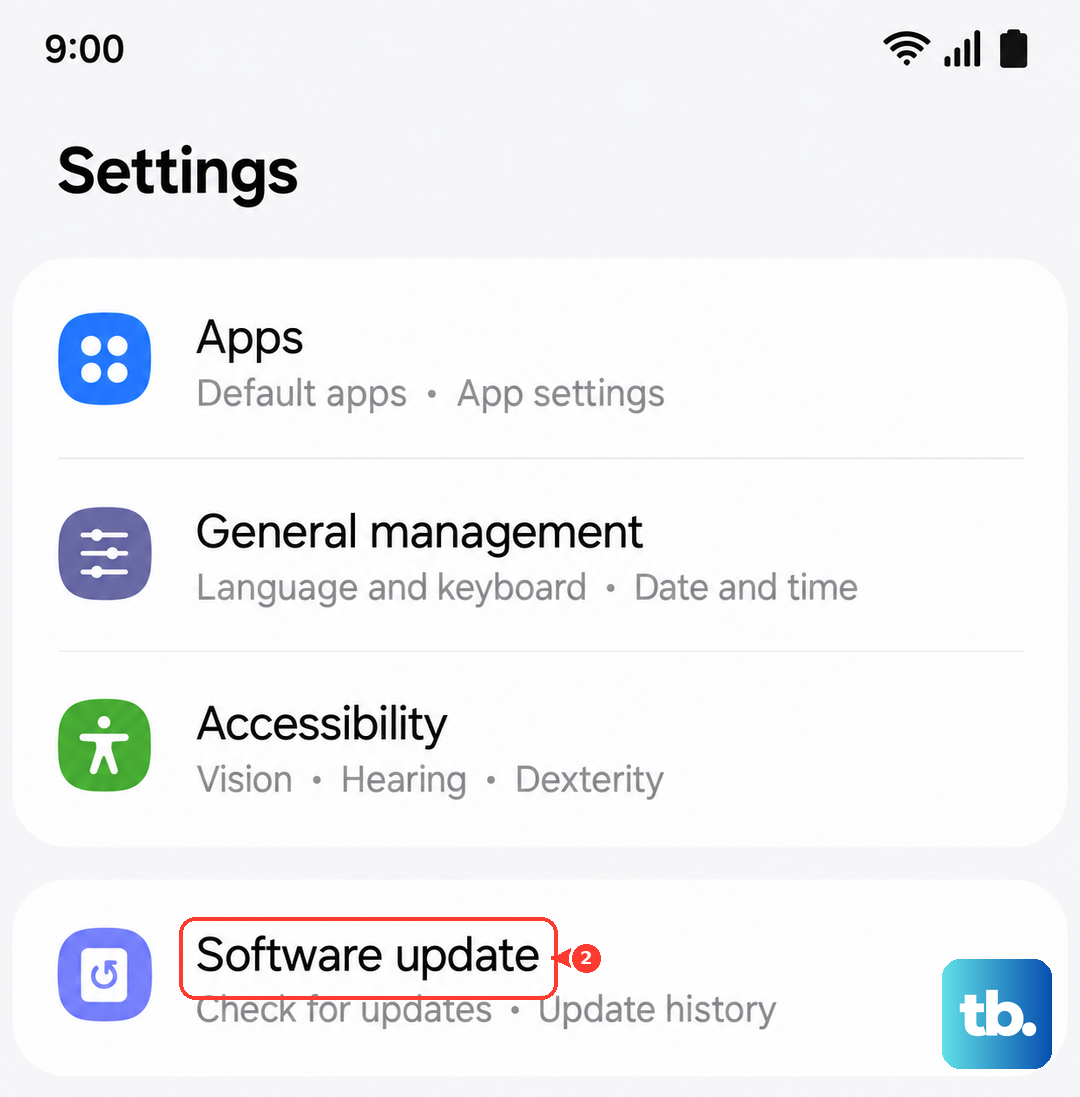
Installing an update can resolve conflicts between the Wi-Fi hardware and the Android system. It's a good habit to check for updates whenever you run into persistent problems like this.
Reset Your Network Settings
This step clears all network-related data without touching your personal files. It will erase saved Wi-Fi networks, Bluetooth pairings, and mobile network settings. To do it, navigate to Settings > General management > Reset > Reset network settings.
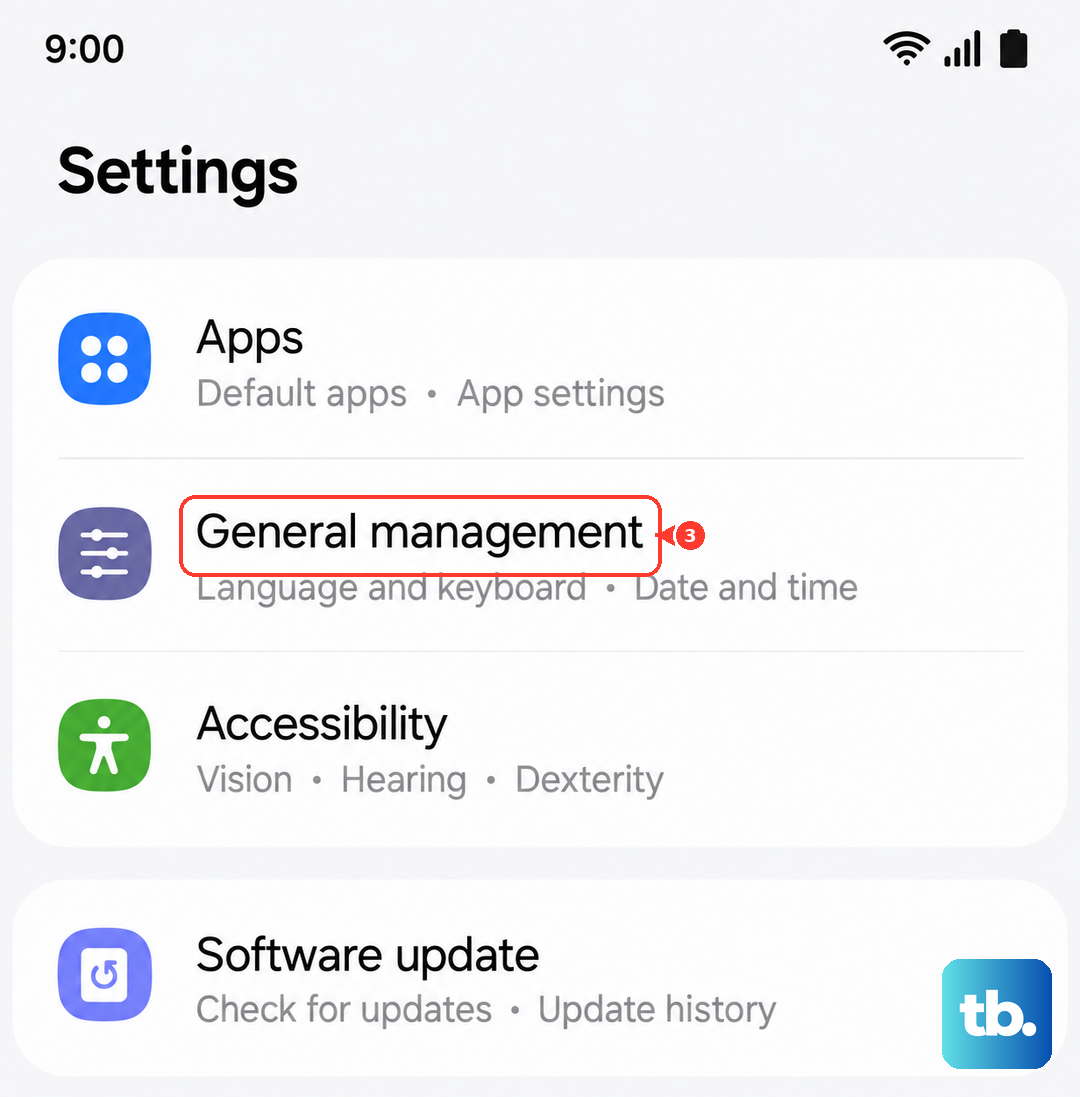
Tap reset and confirm. Your phone will reboot. Afterward, you'll need to reconnect to your Wi-Fi and re-pair Bluetooth devices, but this often resolves deep-seated configuration errors.
Boot Into Safe Mode
A third-party app you installed could be causing the conflict. To test this, you need to boot into Safe Mode, which temporarily disables all downloaded apps. Press and hold the Side button until the power menu appears, then tap and hold the Power off option until you see the Safe Mode prompt.
Tap to restart in Safe Mode. If your Wi-Fi works perfectly now, you know an app is the problem. You'll need to restart your phone normally and then uninstall recent apps one by one to find the culprit, paying special attention to VPNs, ad blockers, or network booster apps.
Check Date, Time, and MAC Settings
Incorrect date and time settings can break the security certificates used by Wi-Fi networks. Go to Settings > General management > Date and time and ensure Automatic date and time is switched on.
Also, some networks use MAC address filtering. Your Z Fold 6 has a setting that uses a randomized MAC address for privacy. To see if this is causing an issue, go to your Wi-Fi settings, tap on your network name, and under Privacy, change it to Use device MAC.
Consider the Inner Display and Hinge
This is specific to the Fold's design. While rare, ensure the inner display is fully opened when troubleshooting. The Wi-Fi antenna lines are strategically placed, and the phone's performance can be optimized for the open position.
Also, keep the hinge area clean. Debris buildup over time, a known issue with folding phones, shouldn't directly affect Wi-Fi, but it's good practice to gently clean the hinge with compressed air to maintain overall device health.
Perform a Factory Reset
This is your last resort. A factory reset will wipe your phone back to its original out-of-the-box state. You must back up everything important first. To proceed, go to Settings > General management > Reset > Factory data reset.
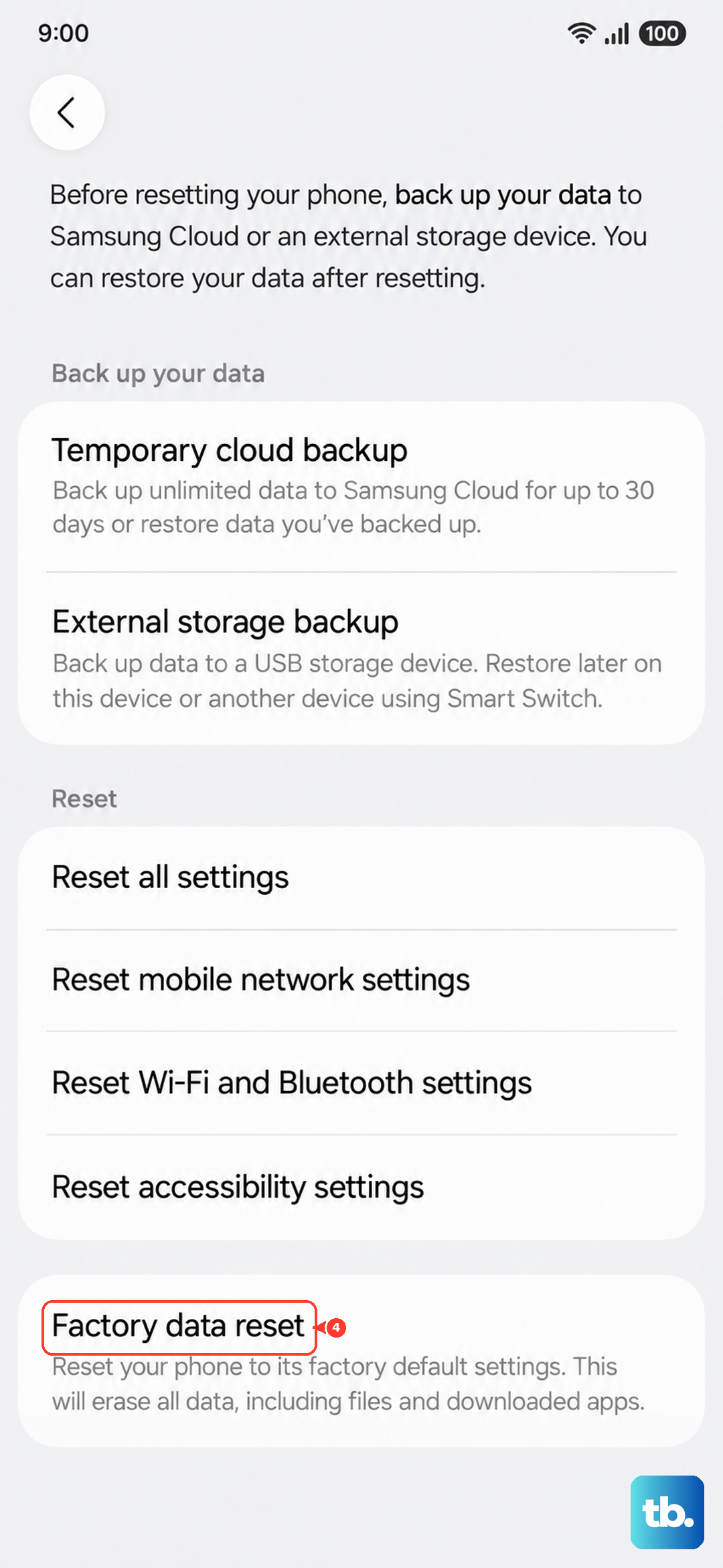
Follow the prompts to reset the phone. If Wi-Fi still doesn't function correctly after a full factory reset, the issue is likely with the phone's hardware. At that point, contacting Samsung support or your retailer would be the next step.