
When your Galaxy Z Fold 6 goes silent, it can feel like you're holding a very expensive piece of folded glass. Sound issues on this phone can be tricky, especially with its unique dual-screen setup and complex hinge mechanism. The good news is that most audio problems, whether it's no sound from the inner display's speaker or complete silence, are fixable without a trip to the repair shop.
It is worth confirming the basics with a quick left and right speaker test. If neither channel plays a tone, you are looking at a hardware or connection problem rather than a settings issue.
Check Your Volume and Sound Mode
This sounds obvious, but it's the most common fix. The Z Fold 6 has separate volume controls for media, ringtone, notifications, and system sounds. While you're on the home screen or in an app, press the volume up button on the side. If you see a small speaker icon with a slash through it on the volume slider, tap it to unmute.
You should also swipe down from the top of the screen to open the Quick Settings panel. Look for the "Sound" icon. If it says "Vibrate" or "Mute," tap it to switch back to "Sound" mode. I've seen more than a few users accidentally enable mute by pressing both volume buttons at once.
Disconnect Bluetooth and Other Audio Routes
Your Fold might be trying to send audio somewhere else. Open Settings > Connections > Bluetooth and turn the toggle off. This immediately cuts the connection to any headphones, speakers, or your car.
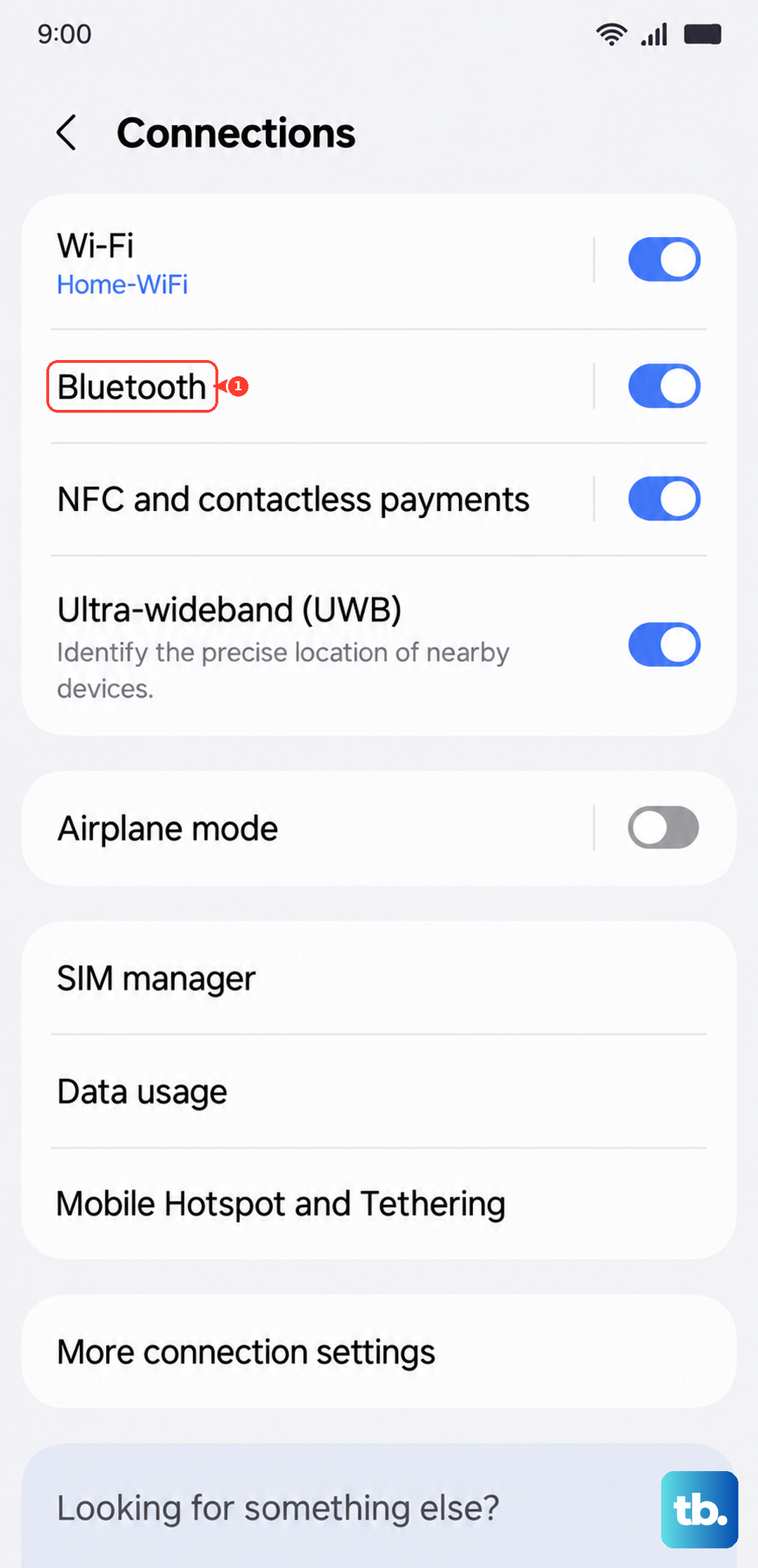
Also, check for the "Media Output" icon when you're playing something. It looks like a little triangle with circles above it. If you tap it, you can see a list of available devices and make sure "Phone speaker" is selected. The Separate App Sound feature can sometimes hijack audio, too. Go to Settings > Sounds and vibration > Advanced sound settings > Separate app sound and make sure it's turned off.
Clean the Speaker Grilles Carefully
The Z Fold 6's main bottom-firing speaker grille is a magnet for pocket lint. The earpiece speaker at the top of the cover screen can also get clogged. Shine a flashlight on them to check for visible blockages.
Use a soft, dry toothbrush or a clean, dry makeup brush to gently sweep away any debris. You can also try a can of compressed air, but hold it upright and use very short bursts from a few inches away. Never use a pin or SIM ejector tool, as you'll easily damage the delicate mesh.
Inspect for Physical or Hinge-Related Damage
This is specific to foldables. If you've recently dropped the phone or put pressure on it while folded, the internal ribbon cables that run through the hinge could be damaged. These cables carry, among other things, audio signals to the inner display's speaker.
Open and close the phone slowly while playing a song. Listen for any crackling, cutting out, or changes in sound that coincide with the movement. If the sound only works when the phone is at a certain angle, it's a strong indicator of a hinge or cable issue. Regularly cleaning the hinge with compressed air can prevent debris from causing internal problems over time.
Force Restart Your Phone
A simple reboot clears out temporary software glitches that can mute your audio. For the Galaxy Z Fold 6, press and hold the Volume Down button and the Side Key (power button) together for about 10 seconds.
Keep holding until you see the Samsung logo appear on the screen, then let go. The phone will restart normally. This is different from a standard power-off cycle and often resolves odd system behavior.
Check Do Not Disturb and Accessibility Settings
Some settings can mute sounds without an obvious warning icon. Pull down the notification panel twice and look for the "Do Not Disturb" icon (a circle with a line through it). If it's active, tap it to turn it off.
Dive deeper into Settings > Accessibility > Hearing enhancements. Make sure options like "Mute all sounds" are disabled. Also, look at Settings > Accessibility > Audio adjustment to ensure the balance isn't shifted completely to one side, which might make it seem like one speaker is dead.
Boot Into Safe Mode
Safe Mode temporarily disables all third-party apps. If your sound works perfectly here, you know a recently downloaded app is the culprit. To enter Safe Mode on the Z Fold 6, first turn the screen on.
Press and hold the power button until the power menu appears. Then, tap and hold the "Power off" icon on the screen until you see a prompt to reboot to Safe Mode. Tap "Safe mode" to confirm. Test your sound with a YouTube video. To exit, just restart the phone normally.
Clear the System Cache Partition
Corrupted system cache files from a bad update or app install can break audio functions. This doesn't delete any personal data. First, power the phone off completely. Connect it to a computer with a USB cable.
Now, press and hold both the Volume Up button and the Side Key. When the Samsung logo appears, release only the Side Key but keep holding Volume Up. You'll enter the Recovery Mode menu. Use the volume buttons to highlight "Wipe cache partition" and press the Side Key to select it. Confirm, then select "Reboot system now."
Update Your Software
Samsung regularly releases updates that fix bugs, including audio-related ones. Go to Settings > Software update > Download and install. Let it check for updates. If one is available, plug your phone into a charger and connect to Wi-Fi to download and install it.
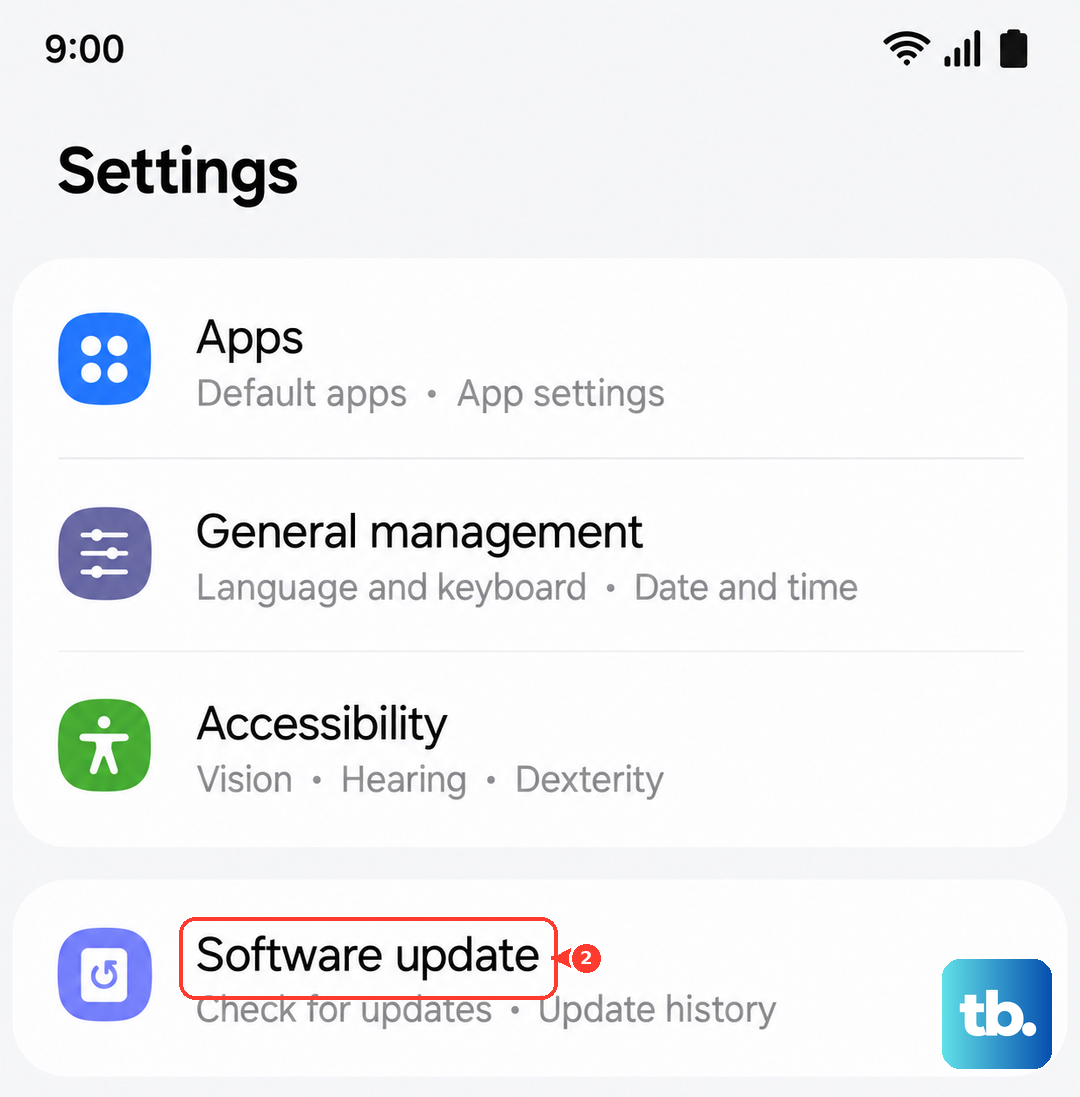
After the update, your phone will restart. It's a good practice to check for updates monthly, as the fixes are often for issues you might not have even noticed yet.
Reset All Settings
If the problem is a misconfigured setting buried deep in the menus, this will fix it. This resets all your network, Bluetooth, sound, and display settings back to factory defaults but leaves your photos, apps, and accounts intact. Go to Settings > General management > Reset > Reset all settings.
Enter your PIN if prompted and confirm. The phone will reboot. You'll need to reconnect to Wi-Fi and Bluetooth devices and re-adjust your volume and ringtone preferences, but it often clears up persistent glitches.