
Press and hold the Volume Down button and the Side button together for about 10 seconds. Keep holding them until you see the Samsung logo appear on the screen. This force restart is the single most effective fix for an unresponsive screen, as it clears the phone's temporary memory and software glitches without touching your data.
If touches seem to go missing, run an online online touch test first. The grid fills in wherever the screen registers contact, so gaps stand out immediately.
Key Points
- Clean the Screen and Hinge : Power off your Galaxy Z Fold 6 completely.
- Check the Screen Protector : A peeling or added film can affect touch, but main-screen protector replacement should go through Samsung service.
- Boot into Safe Mode : This starts your phone with all third-party apps disabled.
- Check for Software Updates : Outdated software can cause touchscreen conflicts.
- Run Touch Screen Diagnostics : Use Samsung Members diagnostics to test for touch dead spots.
- Reset All Settings : This returns all system settings to default without erasing your personal files.
- Perform a Factory Reset : This will erase all your personal data, so it's a final step.
- Consider Physical Damage : The inner screen is more delicate than a standard phone display.
I'd start with this one every time. It works for both the cover screen and the main inner display, and it often resolves temporary freezes caused by an app or a minor system hiccup.
Clean the Screen and Hinge
Turn off your Z Fold 6 and gently wipe both the cover screen and the inner display with a soft, lint-free microfiber cloth. Pay special attention to the crease area on the inner screen, as oils from your fingers can build up there and sometimes interfere with touch sensitivity.
For the hinge, use Samsung's foldable-care guidance: if it becomes dusty or dirty, clean it gently with a soft, dry cloth. Do not blow debris into the hinge or try to clean inside it; the Z Fold 6 is not dust resistant, and Samsung warns not to allow particles to enter the device. If the hinge no longer opens normally, contact Samsung Support or an authorized service center.
Remove the Screen Protector
If touch issues started after a protector was added to the inner display, treat that protector as a possible cause, but do not stack or swap films on the main screen. Samsung says Galaxy foldables ship with a specially designed main-screen protector, warns not to attach adhesive protectors or stickers to the main screen, and says screen-protector replacement should go through an authorized Samsung service center.
If the film is peeling, has dust or air under it, or is bubbling at the crease, contact Samsung Support or an authorized service center for replacement instead of pulling at the inner display yourself.
Boot into Safe Mode
First, power off your phone completely. Once it's off, press and hold the Side button until you see the Samsung logo, then immediately press and hold the Volume Down button. Keep holding the Volume Down button until you see "Safe Mode" in the bottom left corner of the screen.
If the touchscreen works perfectly in Safe Mode, you know a recently downloaded app is causing the conflict. You can then restart normally and begin uninstalling apps one by one, starting with the most recent installations, to find the culprit.
Check for Software Updates
Go to Settings > Software update > Download and install. Samsung frequently releases updates that include patches for touchscreen performance and general stability improvements.
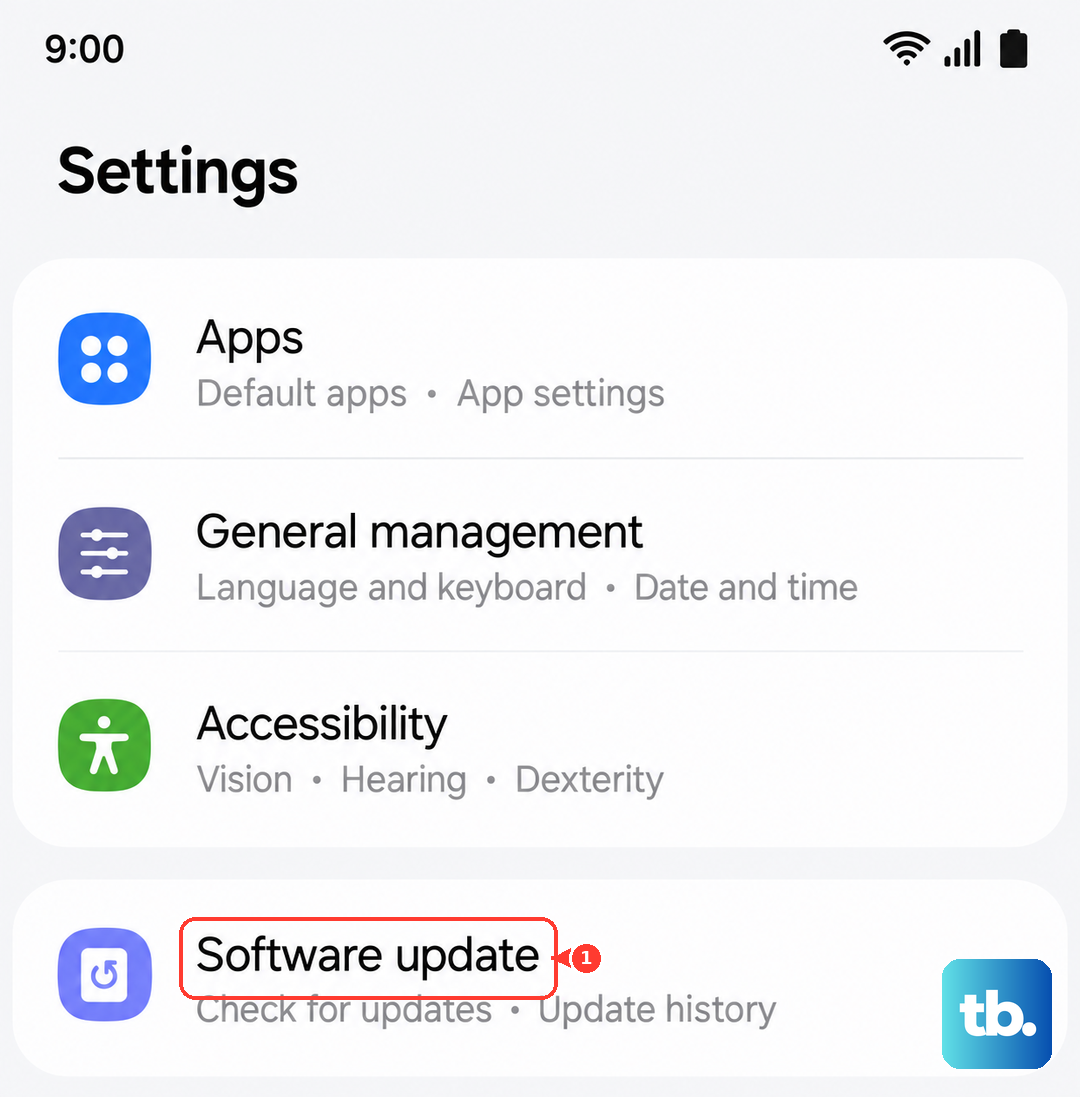
Make sure your phone is connected to Wi-Fi and has at least a 50% charge before starting the update. If an update is available, install it and see if it resolves the touch response issue. Keeping your Fold 6 on the latest version of Android and One UI is one of the best ways to prevent software-related glitches.
Run Touch Screen Diagnostics
Use Samsung Members diagnostics instead of treating a hidden dialer code as calibration. Open Samsung Members, tap Diagnostics, then Phone diagnostics, and choose the Touch screen test.
Follow the on-screen instructions. If the test fails or shows areas that do not register touch, use Samsung Members' related help options or contact Samsung Support; the diagnostic identifies a touch problem, it does not recalibrate the display.
Reset All Settings
This is a more thorough step than a restart but less drastic than a full factory reset. Navigate to Settings > General management > Reset > Reset all settings.
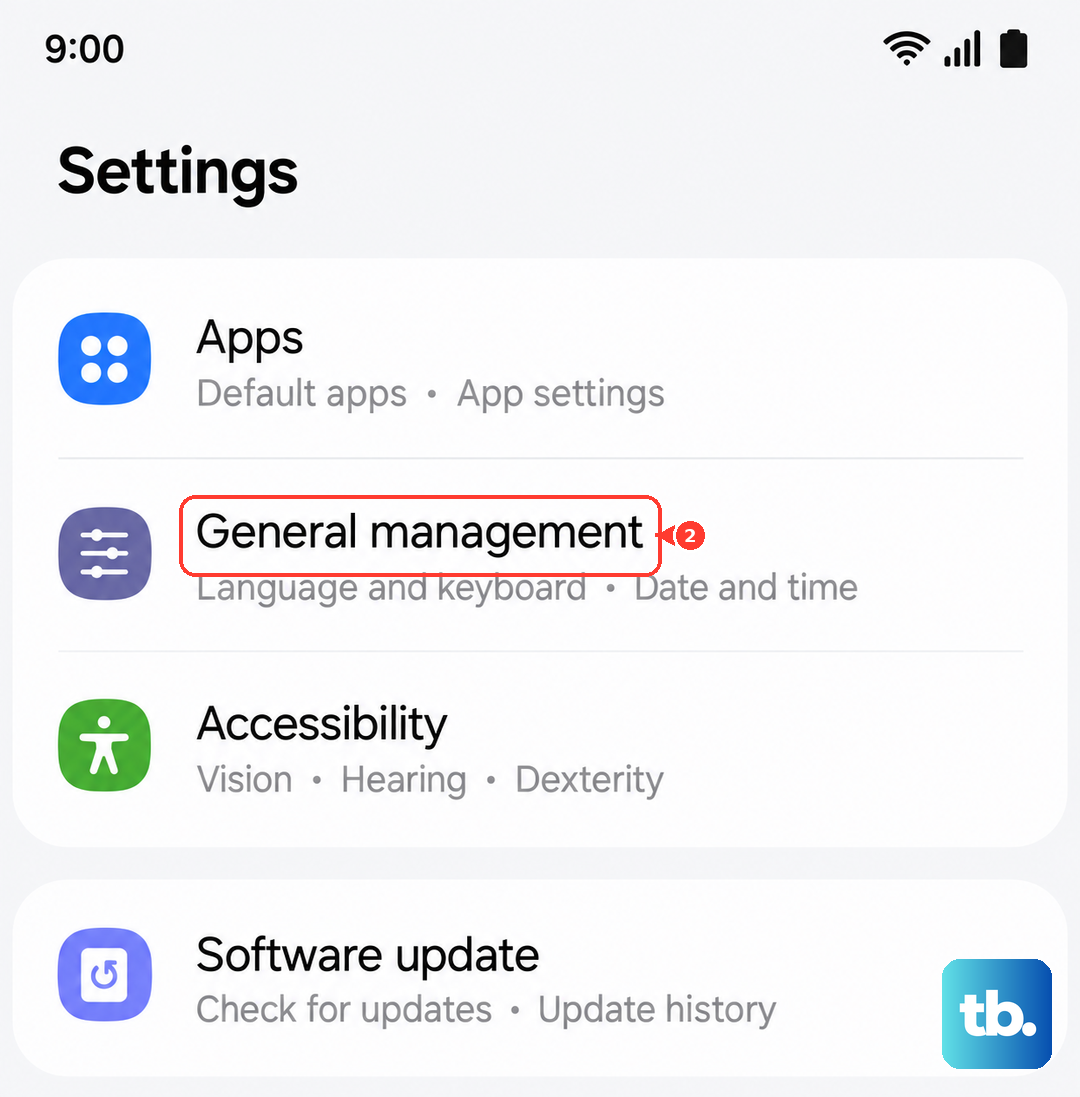
This will revert your Wi-Fi passwords, Bluetooth pairings, wallpaper, and all system settings back to their factory defaults. Your photos, messages, and apps will remain untouched. It's a good way to rule out a setting or configuration that's causing a conflict with the display driver.
Perform a Factory Reset
If nothing else has worked, a factory reset is the final software step. First, ensure all your important data is backed up to Samsung Cloud or your Google account. Then, go to Settings > General management > Reset > Factory data reset.
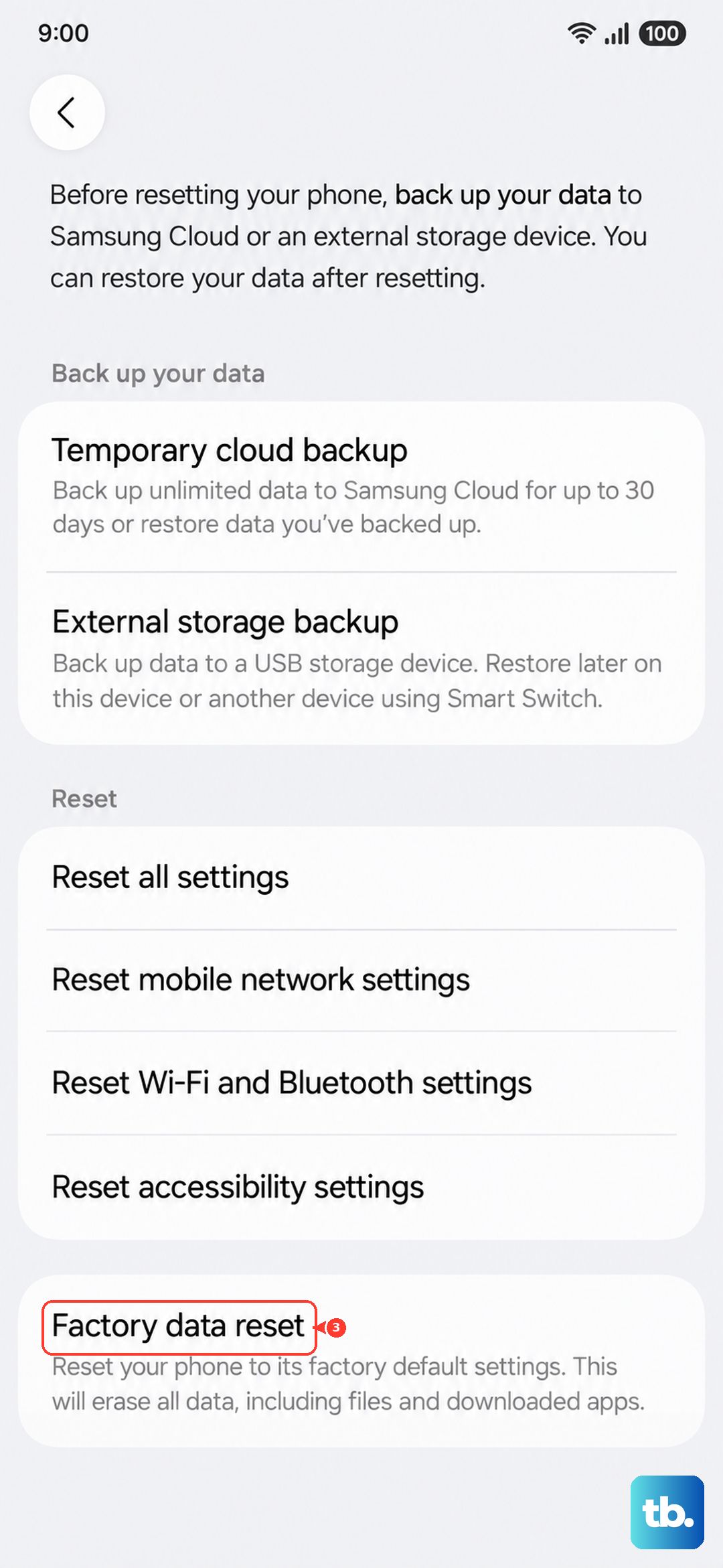
Tap "Reset" and follow the prompts. The phone will erase everything and reboot as if it were new. This eliminates any deep-seated software corruption. If the touchscreen is still unresponsive after a factory reset, the problem is almost certainly hardware-related.
Consider Physical Damage
The Galaxy Z Fold 6's inner screen is more susceptible to damage from pressure or impact than a traditional glass screen. If you've ever placed a heavy object on the closed phone or dropped it, even from a low height, the delicate display layers inside could be damaged.
Look very closely at the inner screen, especially along the crease, for any new discoloration, flickering lines, or black spots. These are telltale signs of physical damage. Similarly, if the hinge feels gritty, makes noise, or doesn't open fully flat, internal debris or a mechanical fault could be affecting the display cables that run through it.