
When the auto-suggest feature on your Galaxy Z Fold 6 stops working, it can really slow you down, especially when you're trying to type quickly on that expansive inner display. The suggestions might disappear, become inaccurate, or the keyboard might just feel less intelligent. Let's get it back to predicting your next word.
Start With a Quick Restart
Before diving into settings, give your phone a fresh start. Press and hold the Volume Down button and the Side button together for about ten seconds until you see the Samsung logo. This force restart can clear out any temporary glitch that's affecting the keyboard's predictive engine.
Clear the Keyboard's Cache
Your keyboard stores temporary data to help it run smoothly, but this cache can sometimes get corrupted. Clearing it is a safe first step that won't delete your personal dictionary or settings. Go to Settings > Apps, then tap the three-dot menu and select Show system apps.
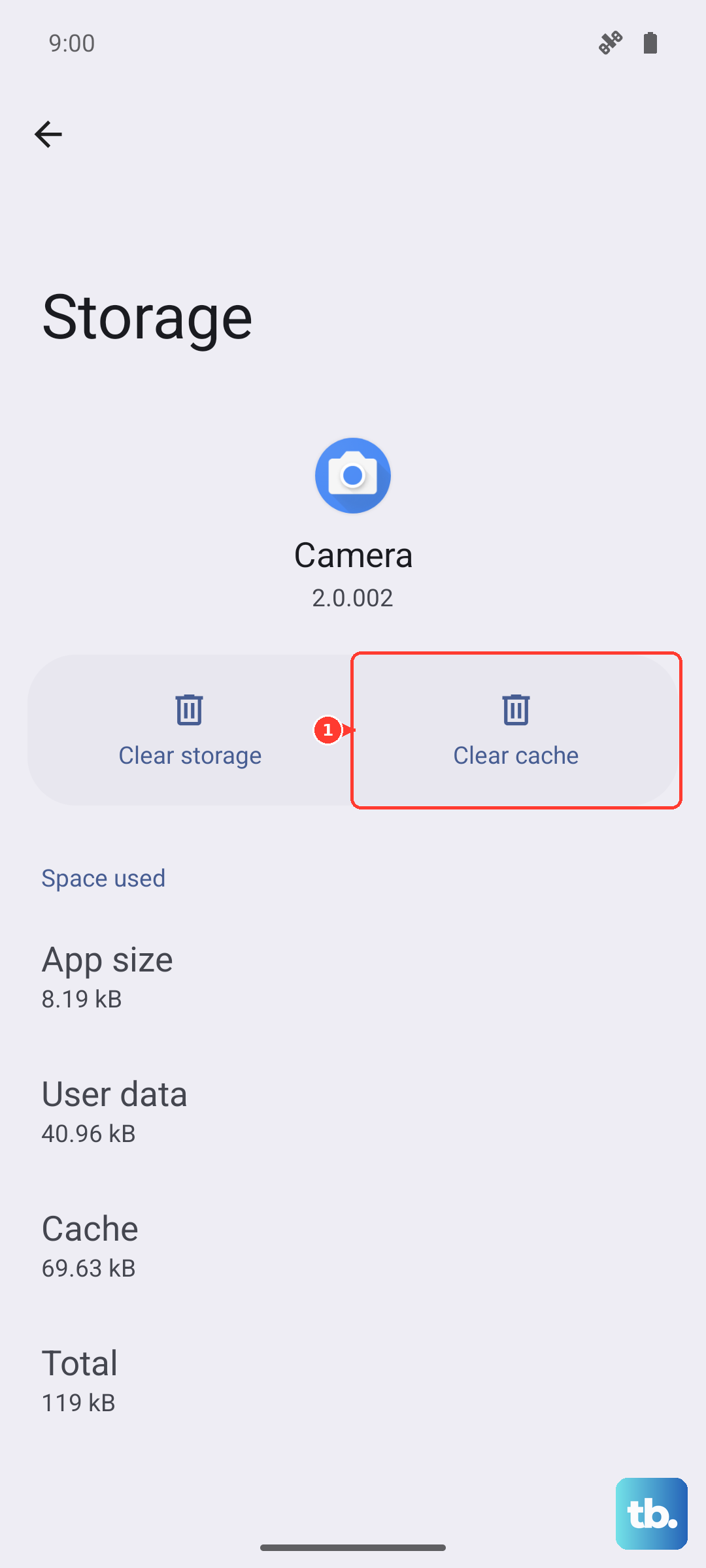
Find and select Samsung Keyboard. Tap on Storage, then hit Clear Cache. I'd recommend doing this for both the main "Samsung Keyboard" and "Samsung Keyboard Neural Beta" if you see it listed.
Check Your Smart Typing Settings
It's possible a setting was accidentally changed. Open Settings and go to General Management > Language & input > On-screen keyboard. Tap on Samsung Keyboard.
Here, tap Smart typing. Make sure the switch for Predictive text is turned on. While you're here, you can also toggle it off and back on again to refresh the feature. This is often the quickest fix if suggestions just vanished.
Update Your Keyboard Language
The predictive text models for your language receive updates to improve accuracy. Staying current can fix suggestion problems. In the Samsung Keyboard settings, tap Languages and types, then select your primary language (like English US).
Tap Manage input languages. Tap the three-dot menu in the top right and select Check for an update. Download and install any available updates for your language pack.
Reset the Keyboard to Default
If suggestions are still off, resetting the keyboard can wipe away any deeper configuration error. This will erase your personalized dictionary and any custom settings, so it's a more significant step. Back in the main Samsung Keyboard settings menu, scroll down and tap Reset to default settings.
Confirm the reset. Afterward, you'll need to go back into the Smart typing menu to re-enable Predictive text, as the reset turns everything off.
Clear the Keyboard's App Data
When a reset doesn't do the trick, the issue might be in the app's stored data. This is more thorough than clearing the cache. Go back to Settings > Apps > Samsung Keyboard > Storage.
This time, tap Clear Data. A warning will pop up noting this will delete all data for the app, including your saved words and settings. After confirming, you'll have to set up your keyboard preferences again, but it often resolves persistent prediction failures.
Ensure the App Is Updated
Finally, make sure the Samsung Keyboard app itself is up to date through the Galaxy Store. Open the Galaxy Store app, tap the menu icon, and go to Updates. Look for Samsung Keyboard in the list and install any pending update. Samsung often pushes keyboard improvements and bug fixes through here.