
Seeing "No Service" on your Samsung Galaxy Z Fold 6 can stop you in your tracks, especially when you need to make a call or use mobile data. This usually means your phone can't find or connect to your carrier's network. The good news is it's often a simple software hiccup or setting that needs a quick adjustment.
I'd start with the most common fix first, which is toggling Airplane Mode. Swipe down from the top of your screen to open the Quick Settings panel and tap the Airplane Mode icon to turn it on. Wait about ten seconds, then tap it again to turn it off. This forces your phone's cellular radio to restart and reconnect to the nearest tower, which can clear up a temporary glitch.
Perform a Force Restart
If Airplane Mode didn't work, a force restart is your next best step. This is different from a normal restart and can clear deeper system errors that might be affecting the modem. Press and hold the Volume Down button and the Side button (power button) together for about ten seconds.
Keep holding them until you see the Samsung logo appear on the screen, then let go. Your phone will boot up fresh. This process doesn't delete any of your data, but it often resolves stubborn connectivity issues by resetting all the phone's hardware components.
Check Your SIM Card
A loose, dirty, or faulty SIM card is a very common culprit for the "No Service" message. The Z Fold 6's SIM tray is located on the bottom edge of the phone. You'll need the SIM ejector tool that came in the box (or a small paperclip) to pop it open.
Carefully remove the SIM card and take a look at the gold contacts. If you see any dust or discoloration, gently wipe them with a soft, dry cloth. Blow any dust out of the SIM tray slot as well, being mindful of the hinge area nearby. Reinsert the SIM card firmly until it clicks into place, then restart your phone.
Verify Mobile Network Settings
Sometimes network settings can get changed accidentally or become corrupted. Open the Settings app and tap on Connections, then select Mobile networks. Make sure the Mobile data switch is turned on.
While you're here, tap on Network operators. Select Search networks and let it scan. Once the list appears, choose your carrier's name directly from the list instead of relying on "Select automatically." This manually forces a connection to your specific provider.
Reset Your Network Settings
This is a more thorough step that resets all Wi-Fi, Bluetooth, and cellular connections back to their factory defaults. It won't touch your photos, apps, or personal files. Go to Settings > General management > Reset.
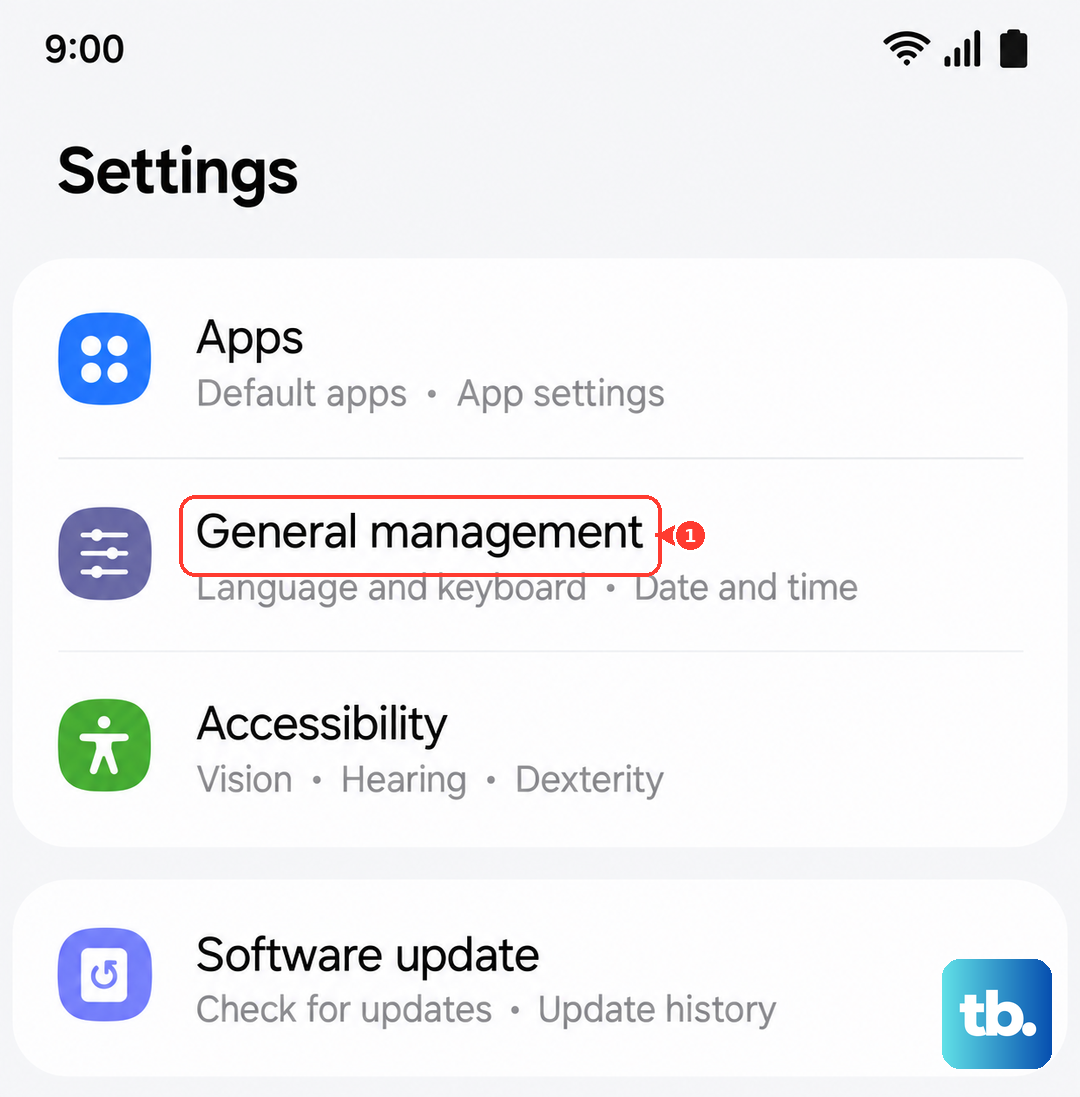
Tap on Reset network settings. You might need to enter your PIN or password. Confirm the reset. After your phone reboots, you'll have to reconnect to Wi-Fi networks and re-pair Bluetooth devices, but this often clears up persistent network configuration errors.
Update Your Access Point Name (APN)
The APN is like the address your phone uses to connect to your carrier's internet. An incorrect APN will give you a "No Service" or "Mobile network not available" error. Go back to Settings > Connections > Mobile networks > Access Point Names.
If you see multiple APNs listed, tap the three-dot menu in the top right and select Reset to default. If that doesn't work, you may need to enter the settings manually. Your carrier's customer support can provide the exact APN details you need for the Galaxy Z Fold 6.
Check for a Software Update
Samsung regularly releases updates that fix bugs, including ones related to cellular connectivity. Make sure your Z Fold 6 is running the latest version of Android and One UI. Go to Settings > Software update and tap Download and install.
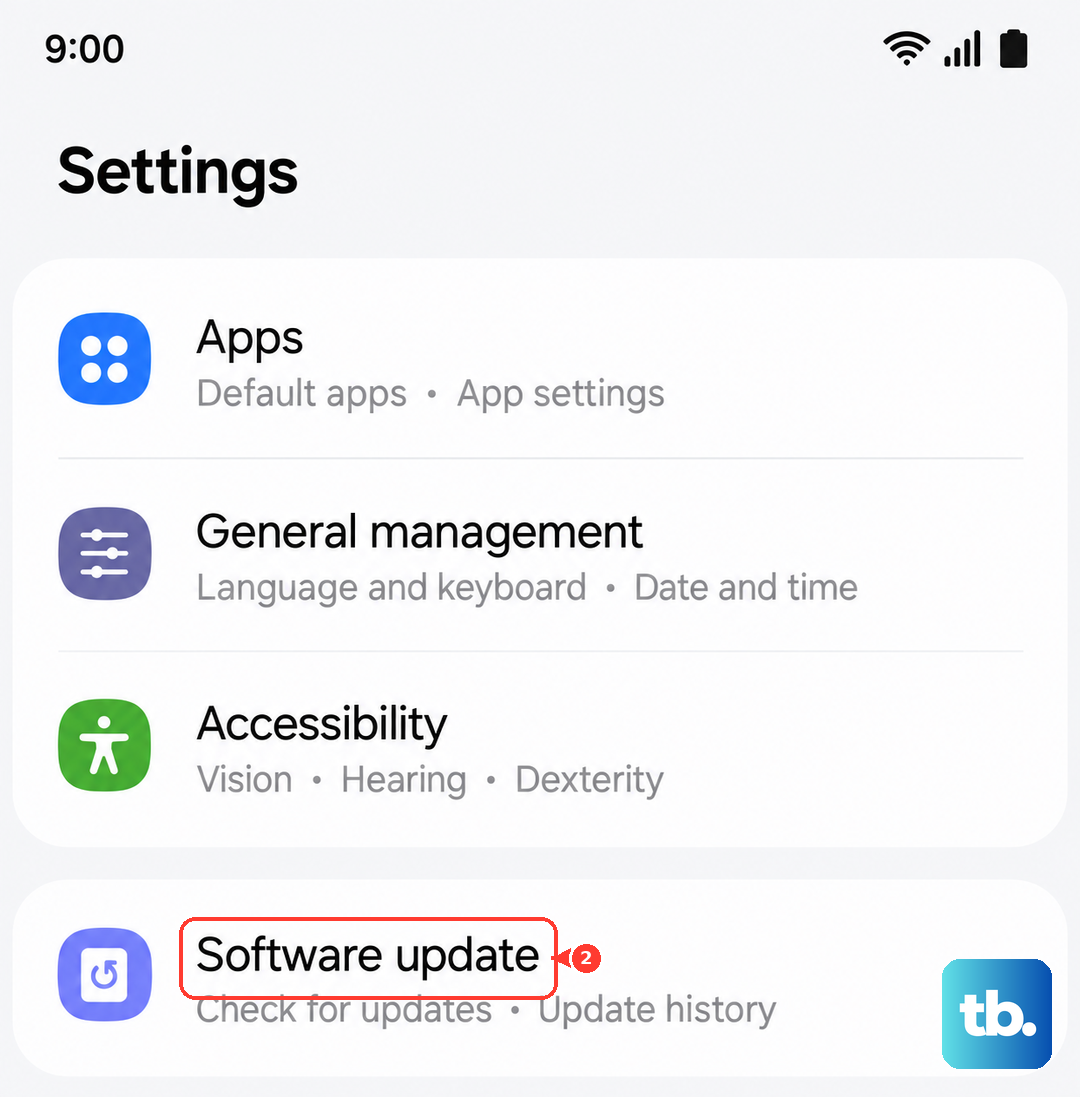
If an update is available, connect to Wi-Fi and let it install. Your phone will restart. I've seen updates specifically target modem performance, so this is always worth checking, especially if the problem started after you got a new phone or changed carriers.
Use the Phone Information Menu
Android has a hidden diagnostic menu that lets you interact directly with the phone's radio. Open your Phone app and dial *#*#4636#*#*. This should open the Testing menu. Tap on Phone information.
Scroll down and look for a dropdown menu labeled "Set preferred network type." Try changing this to a different standard, like "LTE only," then back to "NR/LTE/GSM/WCDMA" (which is 5G/Auto). You can also try tapping the Turn off radio button, then Turn on radio a moment later.
Consider Your Physical Location and Case
The Z Fold 6's unique design means the antenna bands are placed around the frame. A very thick or metal phone case can sometimes interfere with signal reception. Try removing your case for a few minutes to see if your service bars improve.
Also, be aware that being inside large buildings with thick walls, basements, or in rural areas with inherently weak coverage will show "No Service." Try moving near a window or stepping outside to see if the signal returns, which would point to an environmental issue, not a phone problem.
Contact Your Carrier
If you've tried everything here, the issue might be on your carrier's end. There could be a temporary network outage in your area, a problem with your account, or your SIM card itself could be damaged and need replacing.
Call your carrier's support line from another phone or use Wi-Fi calling on your Z Fold 6 if it's set up. They can check for outages, reprovision your line on their network, or send you a new SIM card. Testing your SIM in another compatible phone is the definitive way to rule out a device-specific hardware fault with your Z Fold 6.