
When your Samsung Galaxy Z Fold 6 microphone stops picking up your voice, it can turn simple phone calls, video chats, and voice commands into a frustrating experience. The first thing I'd do is figure out which microphone is affected, as this phone has several.
To separate a hardware fault from a settings problem, try a microphone test in your browser. Record a few seconds and play it back, and you will know exactly what you are dealing with.
Test Your Microphones
Start by opening your Voice Recorder app. Record a short clip while speaking normally, then play it back. If the audio is muffled or silent, you've confirmed an issue. Next, make a quick call to your voicemail and leave a message to test the primary call microphone.
For the rear microphones used in video, open the Camera app, switch to video mode, and record a clip while talking. This helps pinpoint if the problem is with a specific mic used for certain tasks.
Remove the Case and Check for Blockages
This is a surprisingly common fix, especially with the Z Fold 6's unique hinge design. Thick cases or skins can easily cover the microphone pinholes. Take the case off completely and test your voice recording again.
With the case off, take a close look at all the microphone openings. You'll find them near the USB-C port, at the top of the outer display, and on the camera module. Use a can of compressed air to gently blow out any dust or lint, paying special attention to the hinge area, which can trap debris over time.
Disconnect Bluetooth Accessories
If your Galaxy Buds, headphones, or a smartwatch are connected, your phone might be routing all audio through them. Swipe down from the top of your screen to open the Quick Settings panel and tap the Bluetooth icon to turn it off temporarily.
Then, try your microphone test again. If this fixes it, go into Settings > Connections > Bluetooth, tap the gear icon next to the problematic device, and make sure "Call audio" isn't set to always on.
Restart Your Phone
A simple reboot clears out temporary software glitches that can affect hardware like the microphone. Just press and hold the Side button and Volume Down button together until the power menu appears, then tap "Restart".
If the screen is unresponsive, you can force a restart. Press and hold the Volume Down button and the Side button simultaneously for about 10 seconds. Release when you see the Samsung logo.
Check App Permissions
If the microphone only fails in specific apps like WhatsApp, Zoom, or Discord, the app likely lost its permission. Go to Settings > Apps, select the problematic app, and tap "Permissions".
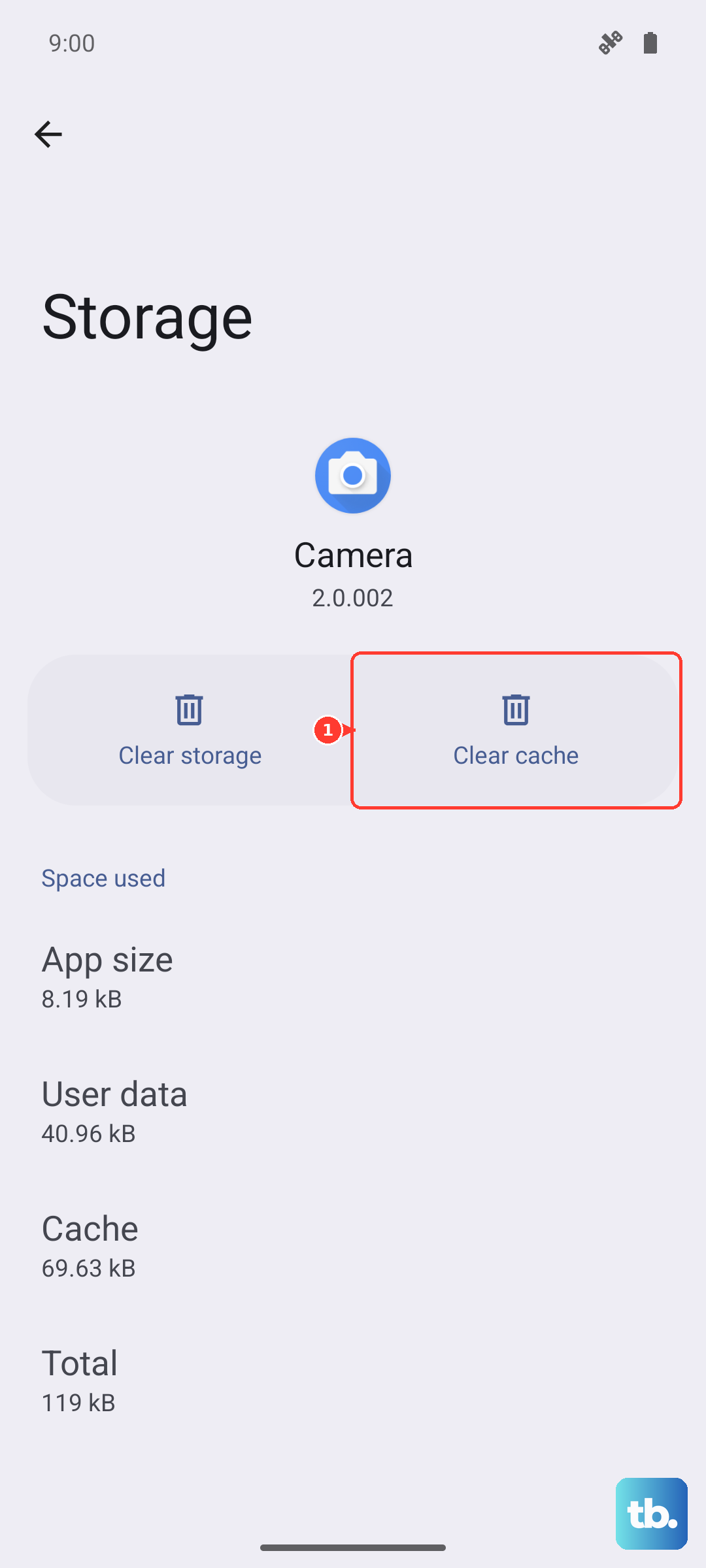
Find the Microphone permission and make sure it's set to "Allow". While you're there, you can also tap "Storage" and then "Clear cache" for that app, which can resolve minor software conflicts.
Update Your Software
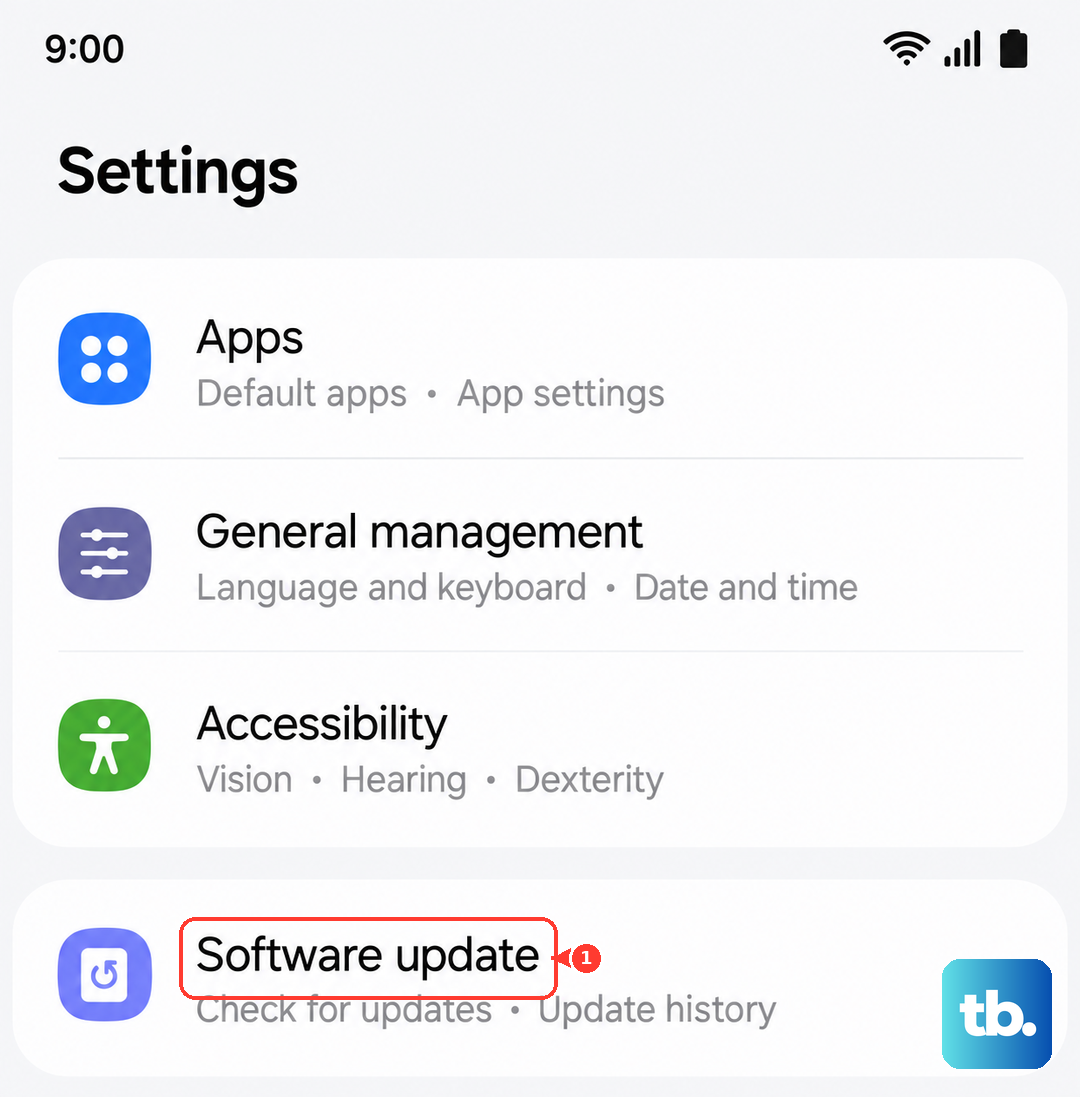
Samsung regularly releases updates that fix bugs, including audio issues. Go to Settings > Software update and tap "Download and install". Make sure your phone is connected to Wi-Fi and has at least a 50% charge before proceeding.
After the update installs, test the microphone again. It's also a good idea to check the Galaxy Store for updates to system apps like "Voice Recorder" or "Camera", as these can include important patches.
Run Samsung's Diagnostic Tool
Your Z Fold 6 has a built-in diagnostic suite. Open your Phone app and dial *#0*# to enter the secret test menu. This will launch a screen with various hardware tests.
Look for the "Mic" or "Audio" test options. The phone will guide you through testing each microphone individually. This is the best way to confirm if a specific hardware component has failed.
Reset All Settings
If permissions and updates don't help, a deeper software reset might. This will revert all your system settings to default without touching your personal data like photos or messages.
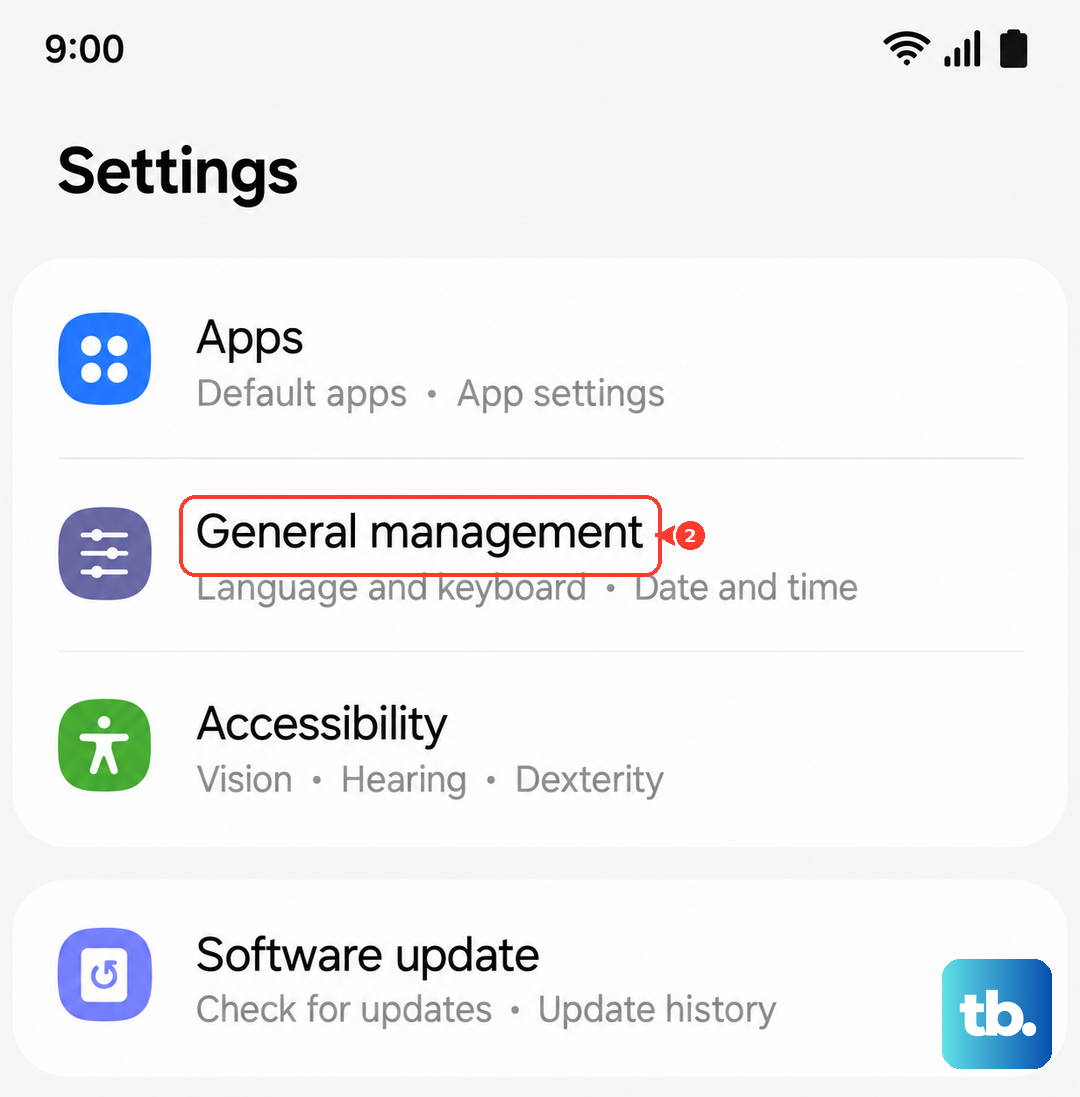
Go to Settings > General management > Reset > Reset all settings. You'll need to re-enter Wi-Fi passwords and reconfigure things like display and sound settings afterward, but it often clears up persistent glitches.
Consider the Hinge and Physical Damage
The Z Fold 6's folding mechanism is complex, and the microphone wiring runs through the hinge. If you've recently dropped the phone or notice new resistance when opening or closing it, there could be an internal connection issue.
Listen closely for any crackling or popping sounds from the earpiece during calls, as this can also indicate a loose internal connection related to the audio system. In my experience with foldables, physical stress from the hinge can sometimes affect nearby components.
Check for Moisture or Liquid Damage
While the Z Fold 6 has some water resistance, liquid exposure can still cause microphone corrosion. Check for a moisture detection alert in your notification panel. If you see one, power the phone off completely and let it dry in a warm, dry place for at least 24 hours.
You can also check the USB-C port for debris or corrosion. Gently clean it with a dry, soft-bristled brush. Avoid using compressed air directly into the port, as it can push debris further in.