
When your Samsung Galaxy Z Fold 6's email stops syncing, it can leave you feeling disconnected, especially when you rely on that large inner screen for productivity. Whether you're not receiving messages or can't send replies, the problem usually has a simple fix you can handle yourself.
Before we get into the specific steps, let's cover a few universal basics. Always make sure you have a solid internet connection, either via Wi-Fi or your mobile data. It's also worth checking your email provider's status page online to rule out a widespread service outage. Finally, a quick double-check of your email address and password never hurts.
Restart the Email App
This is often the quickest fix for a temporary glitch. Close the app completely and relaunch it. On your Z Fold 6, swipe up from the bottom of the screen and hold to enter the recent apps view. Find your email app, whether it's Gmail, Samsung Email, or Outlook, and swipe it all the way up to close it. Wait a moment, then tap the app icon to open it fresh.
Check Your Sync and Push Settings
Your phone's sync settings control how often it checks for new emails. If these are set incorrectly, messages won't arrive automatically. Open the email app you're using and dive into its settings. Look for options labeled "Sync," "Fetch new data," or "Push notifications."
For the Samsung Email app, you'd go to the app's menu, then Settings > Manage accounts, and select your account. Ensure "Sync email" is turned on. If "Auto sync" is off, your phone will only check for mail when you manually open the app.
Toggle Airplane Mode
This resets all your phone's radio connections in one go. Swipe down twice from the top of your screen to open the full Quick Settings panel. Tap the Airplane Mode icon to turn it on, wait about 15-20 seconds, then tap it again to turn it off. Your phone will reconnect to Wi-Fi and cellular networks, which can clear up a stuck connection.
Switch Between Wi-Fi and Mobile Data
Sometimes the issue is with one specific network. If you're on Wi-Fi and emails aren't coming through, try turning Wi-Fi off to force the phone to use your mobile data. You can do this from the Quick Settings panel. If emails work on mobile data, the problem is likely with your Wi-Fi network or router.
Verify Your Email Account Credentials
Passwords expire or get changed, especially for work accounts. Try logging into your email account through a web browser on a computer. If you can't sign in there, you'll need to reset your password. Once you have the new password, update it in your phone's account settings. For the Samsung Email app, go to Settings > Manage accounts, tap your account, and select "Sync settings" or "Server settings" to update the password.
Allow Background Data for Your Email App
Android can restrict apps from using data in the background to save battery. If this is turned off for your email app, it won't check for new messages unless it's open. Go to your phone's Settings > Apps. Select your email app, then tap Mobile data. Make sure "Allow background data usage" is enabled. Also check Battery settings within the app info to ensure it's not being put to sleep.
Check for App and System Updates
Outdated software is a common culprit. First, check for updates to your email app itself in the Google Play Store. Open the Play Store, tap your profile icon, go to Manage apps & device, and see if updates are available.
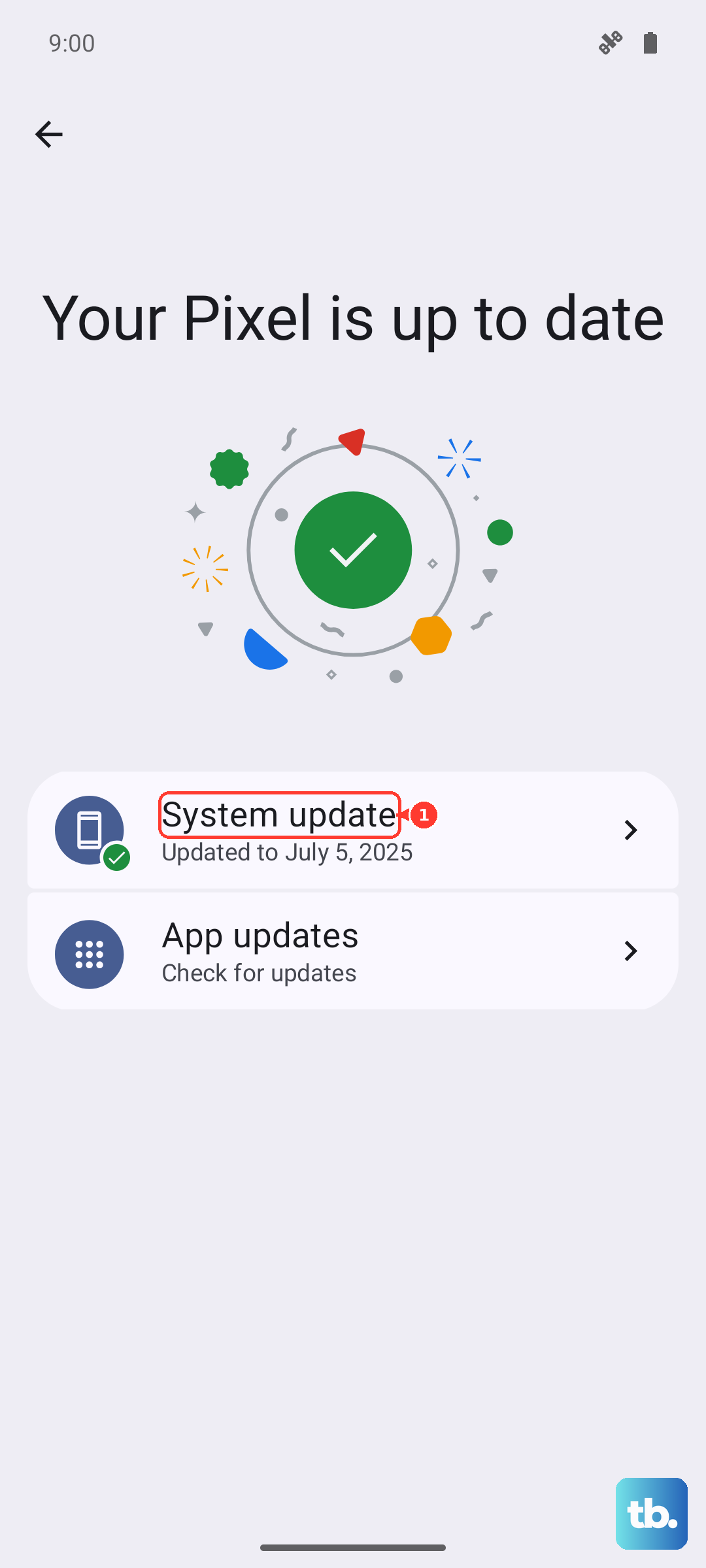
Next, check for a system update. Go to Settings > Software update > Download and install. Installing the latest version of One UI and Android can resolve bugs that affect email and other core functions.
Clear the Email App's Cache
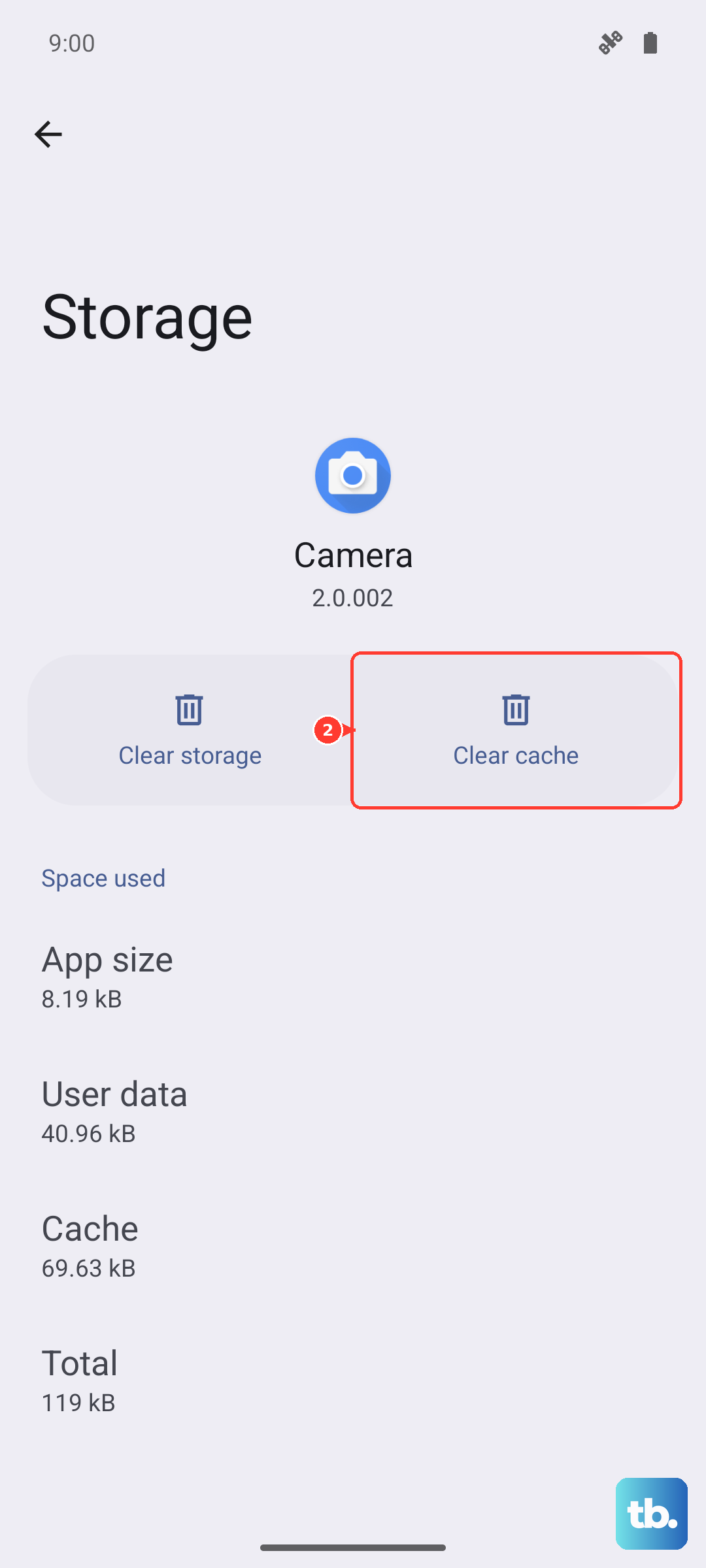
The app's cache stores temporary data to help it run faster, but this data can become corrupted. Clearing it won't delete your emails or account. Go to Settings > Apps, select your email app, then tap Storage. Tap "Clear cache." If problems persist, you can try "Clear data," but be aware this will remove the app's settings and you'll need to set up your account again.
Review Your Notification Settings
If emails are arriving but you're not getting alerts, the notification settings might be muted. Long-press on your email app's icon and tap App info. Go to Notifications. Here, make sure notifications are turned on for the app overall. You can also drill down into categories like "New mail" to ensure they are enabled and set to make a sound or vibrate.
Disable Any Active VPN
A VPN can sometimes interfere with the connection to your email server. If you're using a VPN app, open it and disconnect. You can also check in your phone's settings by going to Settings > Connections > More connection settings > VPN to see if a device-level VPN is active and turn it off.
Set Date and Time to Automatic
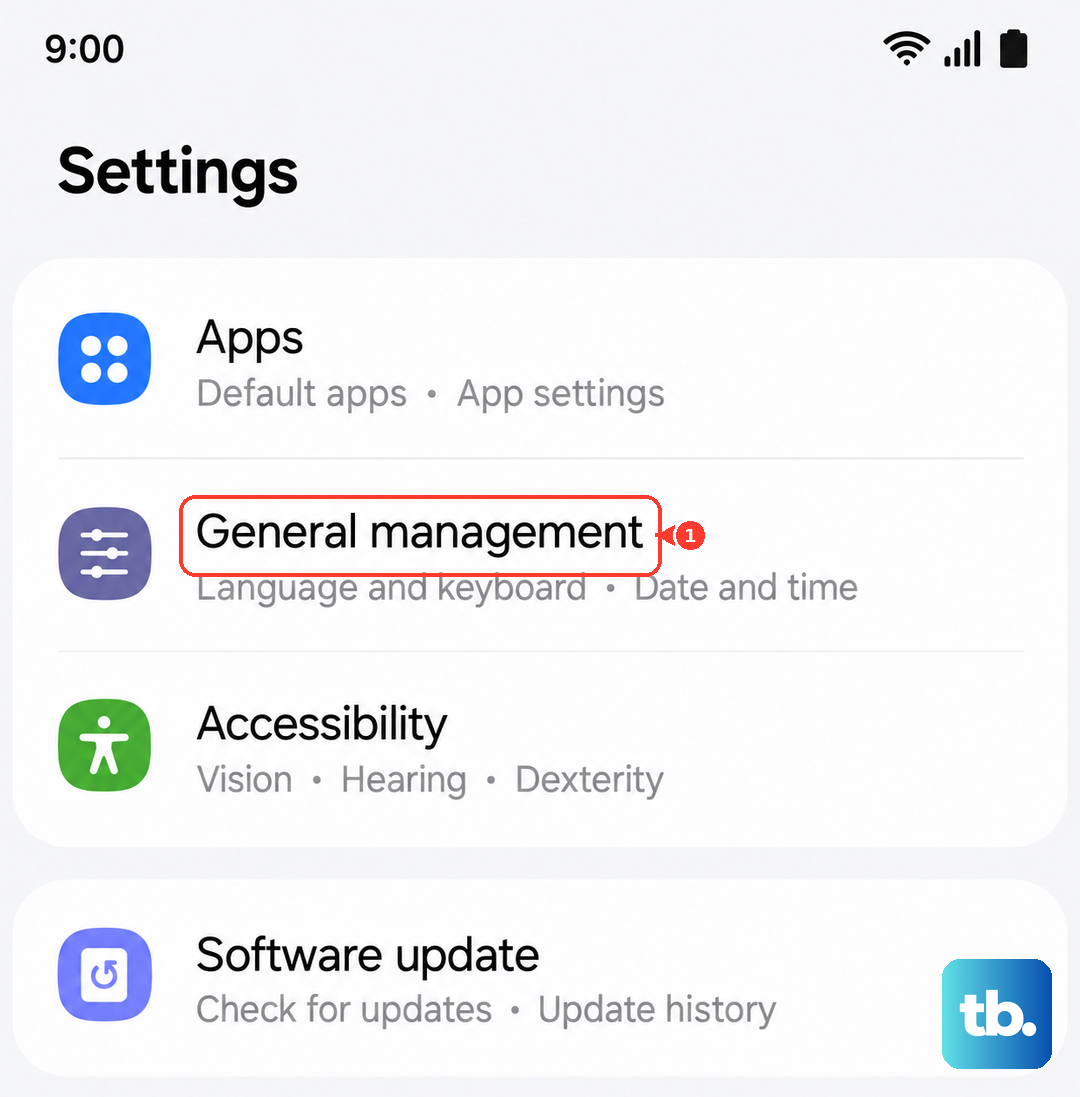
Incorrect time settings can cause security certificate errors that block email sync. Go to Settings > General management > Date and time. Make sure "Automatic date and time" is switched on. This ensures your phone's clock is always in sync with network time.
Remove and Re-add Your Email Account
This refreshes the connection between your phone and the email server. In your email app's settings, find the account management section. Select the problematic account and choose "Remove account" or "Delete account." Don't worry, this just removes it from your phone. After a moment, go through the setup process again to add it back. I've found this resolves stubborn sync issues more often than not.
Perform a Force Restart
A standard restart is good, but a force restart (or soft reset) can clear deeper system glitches. Press and hold the Volume Down button and the Side key (power button) simultaneously for about 10-12 seconds. Release when you see the Samsung logo appear on the screen. Your phone will reboot, and this can fix a wide range of temporary software hiccups.
Reset Network Settings
If you've tried everything else and connectivity issues seem to be at the heart of the problem, resetting network settings can help. This will erase all saved Wi-Fi networks, Bluetooth pairings, and mobile data settings, so you'll have to reconnect to everything afterward. Go to Settings > General management > Reset > Reset network settings. Tap reset, confirm, and let your phone restart.