
Is your Galaxy Z Fold 6 stuck in one orientation, refusing to flip when you open or tilt it? That's a common hiccup with the auto-rotate feature, and it can be especially annoying on a phone with two screens. The good news is it's usually a quick software setting, not a broken hinge or sensor.
Let's start with the most likely fix. Pull down your notification shade and look for the auto-rotate icon. On the Z Fold 6, it might show "Portrait" or have a little lock symbol. Just tap it once. When it's active, the icon should be blue or highlighted. I'd check this first, as it solves the issue about half the time.
Enable Rotation for the Home Screen
By default, Samsung doesn't rotate the home screen, even with auto-rotate on. If you want your cover screen or inner display's home screen to go landscape, you need to enable it separately. Pull down the notification panel and tap the text that says "Portrait" or "Auto rotate" below the icon.
This opens a small menu. Look for "Home screen" and toggle it on. You might also see an option for "Voice call screen," which you can enable if you want calls to rotate too. This setting is key for getting the full rotating experience on your Fold.
Restart Your Galaxy Z Fold 6
If the toggle is right but rotation is still dead, a simple restart can clear out a temporary glitch. Just press and hold the side button, then tap "Restart" on the screen. Wait for the phone to fully reboot. This takes about 30 seconds and doesn't affect any of your data or settings.
Perform a Force Restart
When a normal restart doesn't cut it, a force restart is the next step. This is a bit more thorough for clearing system caches. On the Z Fold 6, press and hold the Volume Down button and the Side button together for about 10 seconds.
Keep holding until you see the Samsung logo appear, then let go. Your phone will boot up normally. This is a safe procedure that won't delete anything, and it often fixes odd sensor behavior.
Check for App-Specific Rotation Locks
Some apps, especially video players or games, have their own rotation locks. If auto-rotate works in your gallery but not in YouTube, the app is likely the culprit. Open a few different apps to test. Also, think if the problem started after you installed a new app.
A poorly coded third-party app can sometimes interfere with system-wide sensor functions. If you suspect one, try uninstalling recent apps one by one to see if rotation returns. I've seen weather widgets or custom launchers cause this.
Update Your Software
Since the Z Fold 6 runs Android 14 with One UI 6.1.1, it's still receiving regular updates that squash bugs. A software glitch could definitely be behind a non-working gyroscope. Head to Settings > Software update > Download and install.
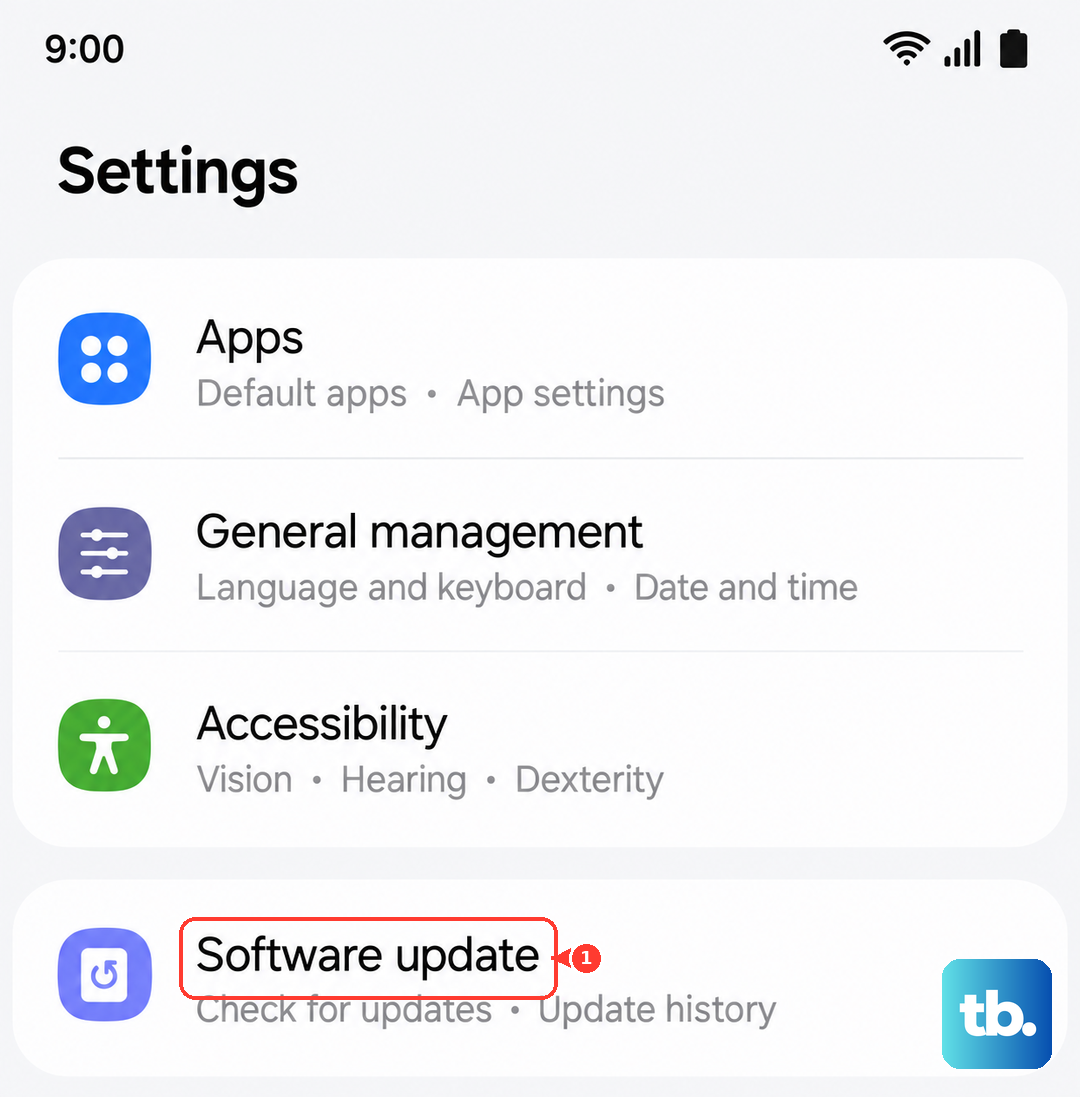
If an update is available, install it. Make sure your phone is charged above 50% and connected to Wi-Fi first. These updates often include patches for sensor performance and system stability.
Test the Phone's Sensors
Auto-rotate needs the accelerometer and gyroscope to work. You can test these directly with Samsung's secret diagnostic menu. Open your Phone app and dial *#0*#. This will launch a service menu with a grid of colored tiles.
Tap on "Sensor." You'll see a test screen with readings. Gently tilt and rotate your phone. The X, Y, and Z angle values should change in real-time. If they don't budge at all, there might be a deeper hardware or driver issue.
Consider the Fold's Unique Hardware
The Z Fold 6 has complex hinge mechanics and two displays. While rare, debris in the hinge or a fault with the inner display's sensor calibration could affect rotation. Avoid placing heavy objects on the phone when it's folded, as pressure on the inner screen can cause issues.
If you've tried every software fix here and the diagnostic test shows no sensor movement, it's worth contacting Samsung Support. Given the device's sophistication, a professional diagnostic at a service center might be needed, especially if the phone has been dropped or exposed to moisture.