
When your Galaxy Z Fold 6 won't install apps, it can bring your productivity to a halt, especially on that expansive inner screen. The issue usually stems from a temporary glitch in the Google Play Store or a system service. I'd start with a quick restart, as it often clears up the problem right away.
Press and hold the Volume Down and Side button together for about ten seconds until you see the Samsung logo. This force restart is a reliable first step for many software hiccups on the Z Fold 6.
Check Your Internet Connection
A stable connection is non-negotiable for downloading apps. Pull down the notification shade from the top of either screen and make sure Wi-Fi or mobile data is active. If you're on Wi-Fi, try switching to your 5G data for a moment to see if the network itself is the problem.
Some public or corporate Wi-Fi networks can block the ports the Play Store uses. If the app installs over mobile data, you'll know the Wi-Fi is the culprit.
Verify Date and Time Settings
Google's servers use your phone's time to authenticate downloads. If your clock is off, installations will fail. Open the Settings app, then go to General Management > Date and time.
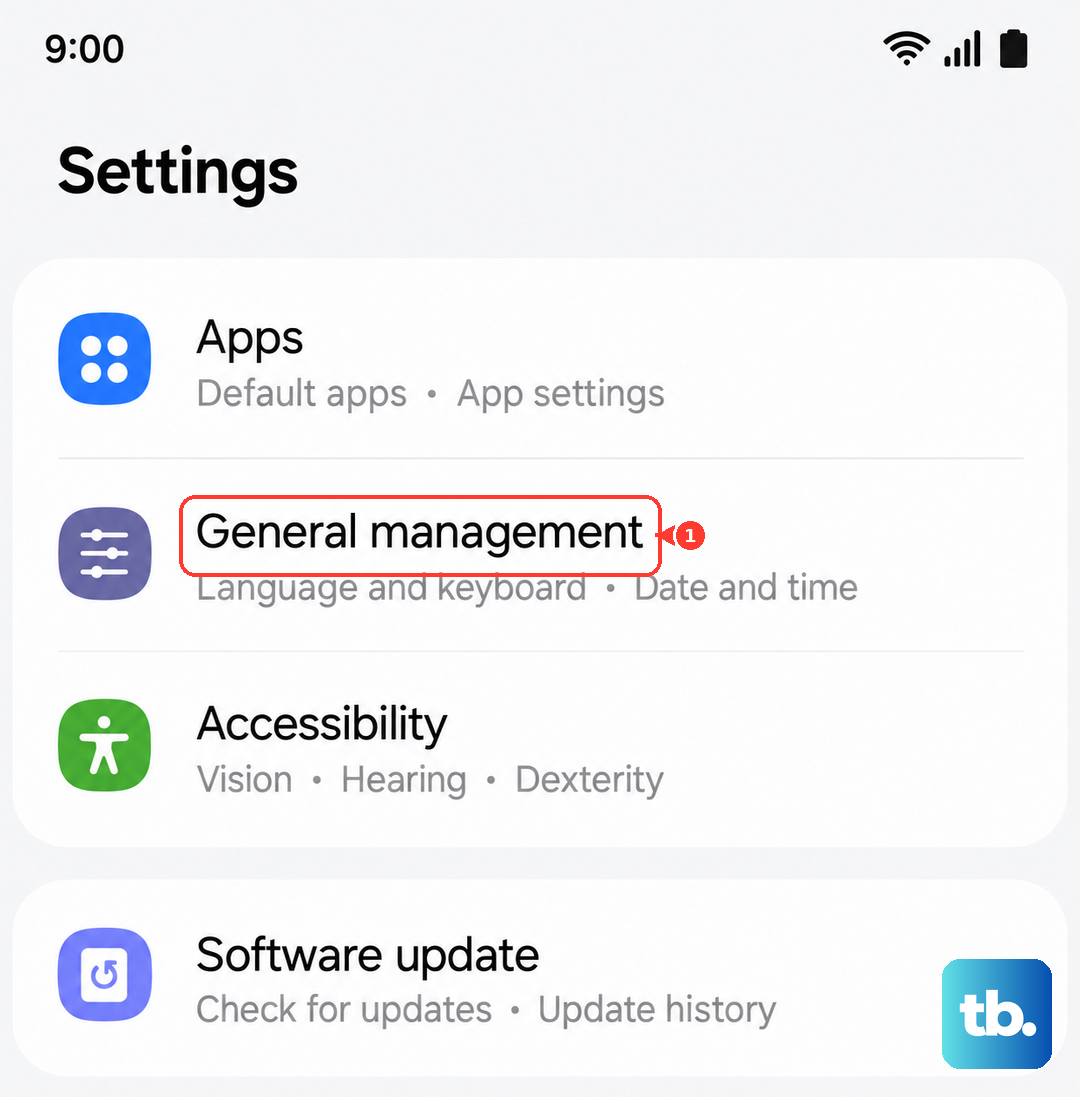
Make sure "Automatic date and time" is switched on. If it's already enabled and you're still having trouble, try turning it off and back on again to refresh the sync.
Clear the Google Play Store Cache
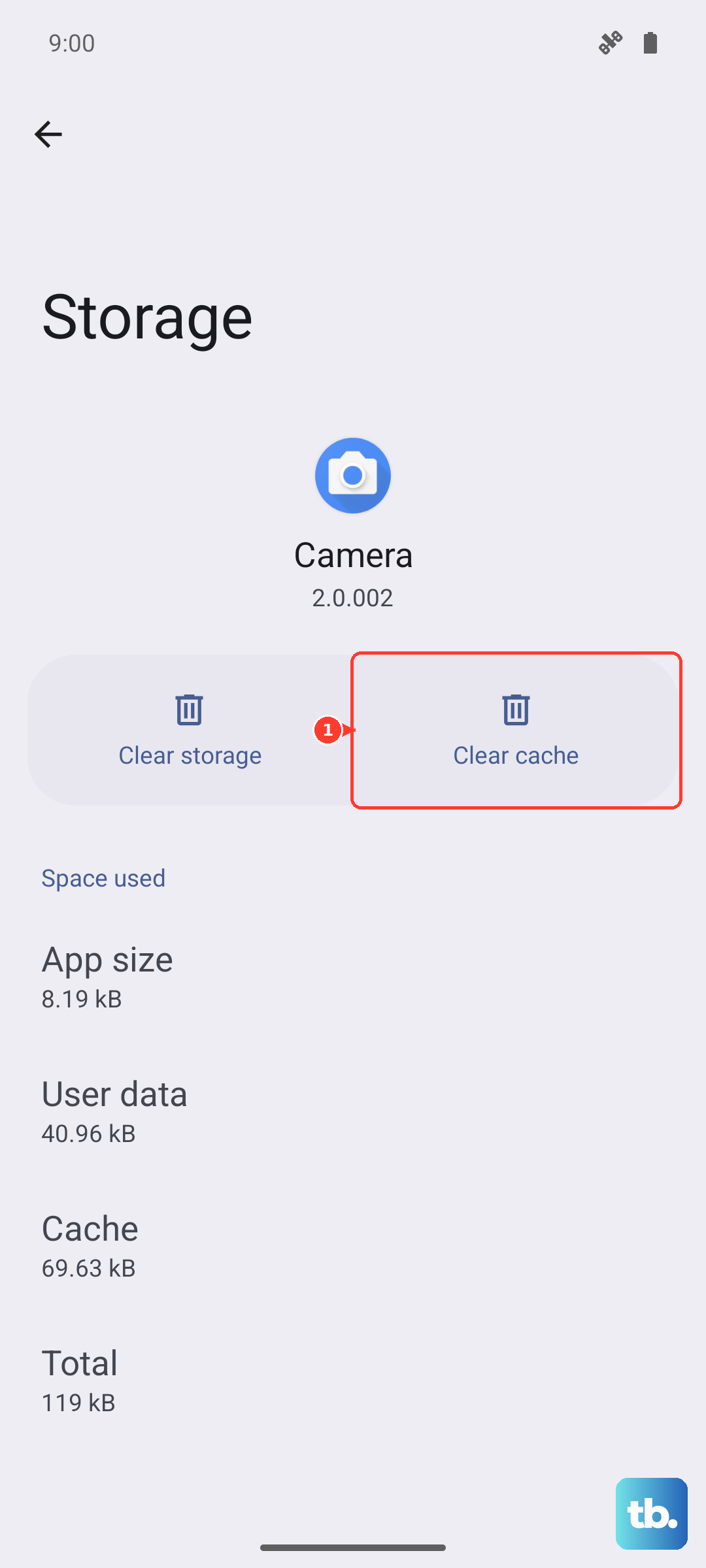
Corrupted temporary files in the Play Store can cause all sorts of issues. Clearing the cache is a safe, quick fix that doesn't delete any of your data or accounts.
Go to Settings > Apps, then find and tap on "Google Play Store." Tap Storage, and then hit "Clear Cache." After doing this, open the Play Store again and try to install your app.
Clear Google Play Services Data
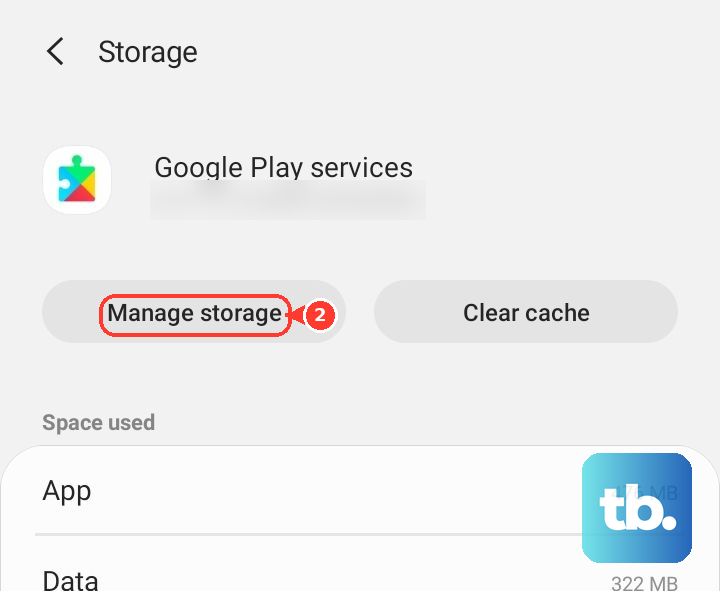
If the Play Store cache clear didn't work, the next step is to clear data for Google Play Services. This app works in the background to manage your Google account and app updates. Go back to Settings > Apps and find "Google Play Services."
Tap on it, then go to Storage. Tap "Manage storage," and then select "Clear all data." Confirm the action. Don't worry, this won't remove your account, but it will reset the service. You'll need to restart your phone afterward.
Check for Software Updates
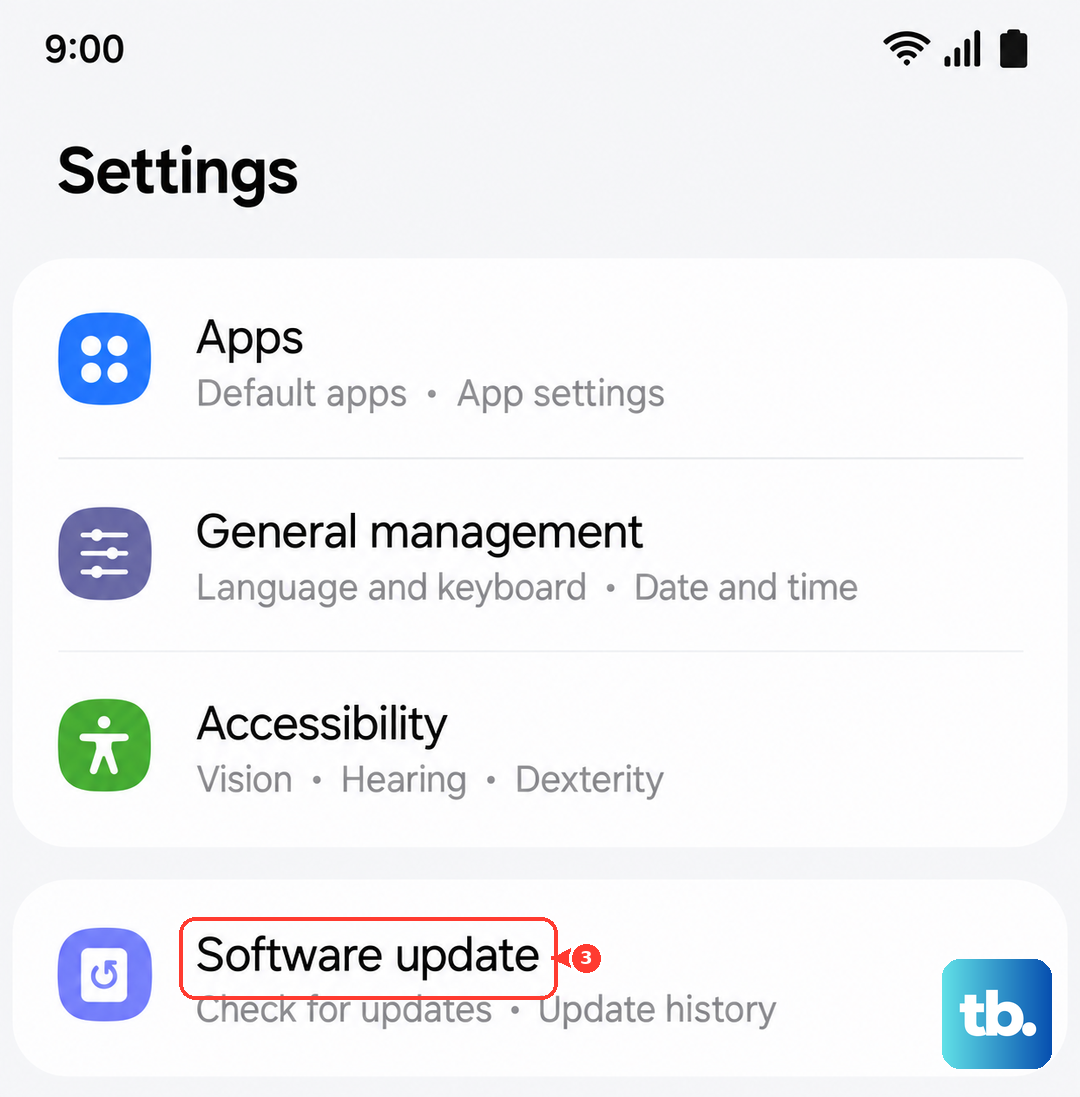
Running outdated software on your Z Fold 6 can lead to compatibility problems with the latest version of the Play Store or its services. Samsung frequently releases updates that include bug fixes.
Navigate to Settings > Software update and tap "Download and install." If an update is available, let it install completely. The phone will restart on its own, and you should check if the app installation works afterward.
Free Up Storage Space
If you're getting an "Insufficient storage" error, your Z Fold 6 literally doesn't have room for the new app. This can happen faster than you think, especially with 4K videos or large game files.
Head to Settings > Device care > Storage. This will show you what's taking up space. You can use the "Clean now" suggestion or manually review and delete large, unused files or apps. Moving photos and videos to Samsung Cloud or Google Photos can free up gigabytes instantly.
Review App Installation Permissions
For security, Android has settings that control where you can install apps from. If these are misconfigured, it can block installations. Open Settings and go to Apps > Special access > Install unknown apps.
Make sure the Google Play Store is listed and has permission allowed. More importantly, if you're trying to install an app from a browser or a file, you need to grant permission to that specific source here.
Remove and Re-add Your Google Account
This step refreshes the connection between your phone and Google's servers. Go to Settings > Accounts and backup > Manage accounts. Select your main Google account.
Tap "Remove account" at the bottom. Confirm, then restart your phone. Once it's back on, go back to the same menu, tap "Add account," and sign back in with your Google credentials. This often resolves persistent sync and download errors.
Check the Download Manager
The Download Manager is a system app that handles all downloads, including from the Play Store. First, ensure it's enabled. Go to Settings > Apps, tap the three-dot menu, and select "Show system apps."
Search for "Download Manager." If it's disabled, tap "Enable." If it's already enabled, tap on it, go to Storage, and tap both "Clear cache" and "Clear data." This can clear out any stuck download queues.
Reset All App Preferences
This is a broader reset that doesn't delete any personal data. It will reset permissions, background restrictions, and notification settings for all apps back to their defaults. It can fix issues where a system setting is inadvertently blocking installations.
In Settings, navigate to General Management > Reset > Reset app preferences. Tap "Reset" to confirm. Afterward, you'll need to re-grant permissions to apps as you use them, but it's a very effective troubleshooting step.