
When your Galaxy Z Flip 7 volume buttons stop responding, it’s easy to panic. You press them and nothing happens, no volume change, no vibration, no on-screen indicator. The good news is that most volume button issues on Samsung phones are software-related, and there’s a strong chance you can fix it yourself without a trip to the repair shop.
Let’s run through the most common causes and solutions. Start with the quickest fixes first, they resolve the issue more often than you’d think.
1. Take Off Your Case
This sounds almost too simple, but a tight or misaligned case is a frequent culprit. The Z Flip 7’s slim profile means even a slightly bulky case can press against the volume rocker and prevent it from moving freely. Pop the case off and test the buttons. If they start working again, you’ve found your problem. You might just need a trimmer case.
2. Force Restart the Phone
A force restart clears temporary software glitches without wiping your data. On the Galaxy Z Flip 7, the method is straightforward: press and hold the Volume Down button and the Side key (the button on the right edge) together for 10 15 seconds. Keep holding until the Samsung logo appears and the device restarts. This has fixed unresponsive buttons on countless Samsung phones, and it works for the Flip 7 too.
3. Check for Software Updates
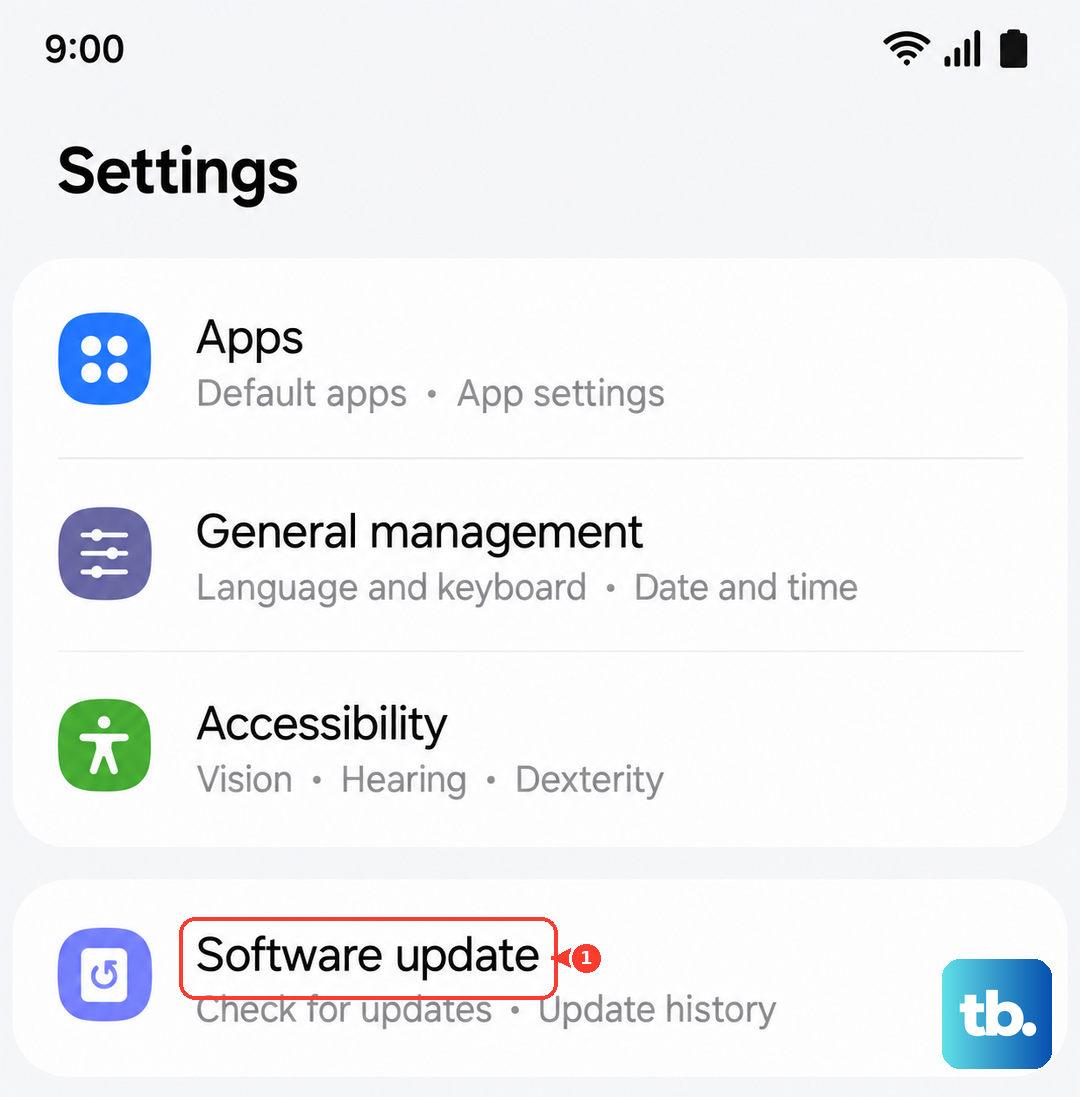
Volume button problems can be caused by bugs in Android 16. Samsung regularly pushes updates that patch these issues. Open Settings, tap Software update, then Download and install. If an update is available, install it and see if the buttons come back to life. I’d recommend doing this even if the buttons are working fine, it prevents future glitches.
4. Clean the Volume Buttons
Dust and pocket lint are the number one hardware cause of sticky or unresponsive buttons. The Z Flip 7’s foldable design can trap debris around the side buttons more easily than a standard slab phone. Grab a can of compressed air and give the volume rocker a few short bursts. For any sticky residue, dip a cotton swab in a tiny amount of isopropyl alcohol (90% or higher) and gently wipe around the button. Let it dry fully before pressing the buttons.
5. Use the On-Screen Volume Controls
While you troubleshoot, you can still adjust volume without the physical buttons. Press the Side key once to bring up the volume panel, or swipe down twice from the top to open Quick Settings and use the slider. You can also go to Settings > Sounds and vibration and adjust the sliders for media, ringtone, and notifications. This doesn’t fix the hardware, but it keeps your phone usable in the meantime.
6. Try the Buttons in Different Apps
Sometimes the issue is app-specific. Open a few different apps, YouTube, Spotify, a phone call, and even a game. If the volume buttons work in some apps but not others, the problem is likely a software conflict rather than a hardware failure. Restarting the affected app or clearing its cache usually resolves it.
7. Toggle Sound Modes
A quirk of Samsung’s One UI: the volume buttons can behave differently depending on your sound mode. Swipe down twice to open Quick Settings and switch between Sound, Vibrate, and Mute. Cycle through them a few times, then test the volume buttons again. Some users report that toggling the mode restores normal button behavior.
8. Enable Accessibility Shortcuts
Android 16 includes a feature that lets you control volume with a virtual button. Go to Settings > Accessibility > Interaction and dexterity > Assistant menu, then turn it on. A floating icon appears, tap it, then use the virtual volume controls. Using these for a few minutes can sometimes “wake up” the physical buttons. If that works, you’ve got a software glitch that’s worth reporting to Samsung.
9. Check for Physical Damage
Take a close look at the volume rocker. Is it misaligned, loose, or does it feel different when pressed? The Z Flip 7’s hinge mechanism means the side buttons are mounted on the flexible frame, and a drop can shift them slightly. If you see any physical damage or the button doesn’t click back, you’re likely looking at a hardware repair. No amount of software tricks will fix a bent button.
10. Factory Reset (With a Backup First)
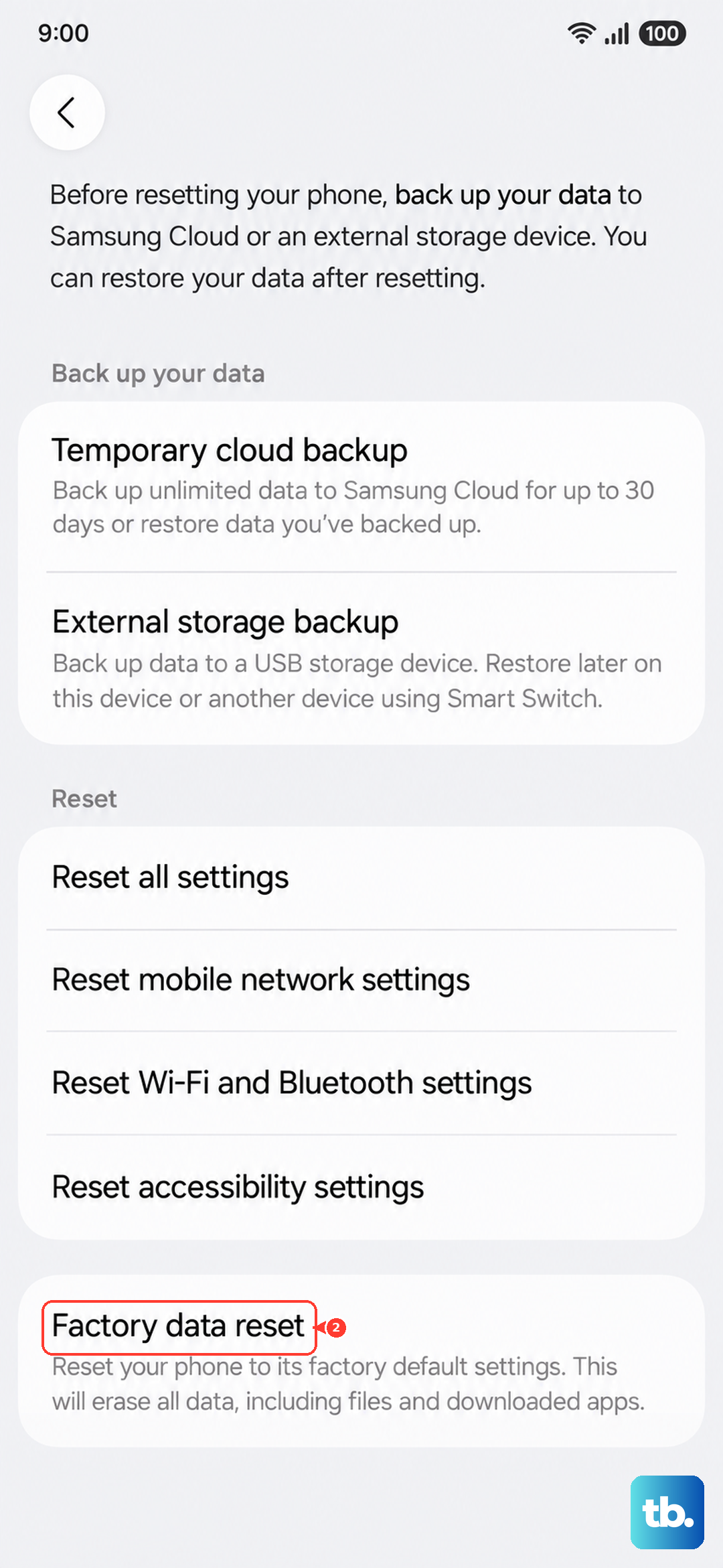
This is the nuclear option. A factory reset wipes your phone clean and brings it back to out-of-box state, which can eliminate deep software bugs that cause button issues. Back up everything to your Samsung account or a computer first. Then go to Settings > General management > Reset > Factory data reset. After the reset, set up the phone without restoring from a backup to test the buttons immediately. If they work, you can then restore your data.
If none of these steps get your volume buttons working, the issue is likely hardware. That happens rarely with the Z Flip 7, but when it does, a visit to a Samsung service center or an authorized repair shop is the next step. The good news is that most cases resolve with one of the first three fixes, so start there and work your way down.











