


Your Samsung Galaxy Z Flip 7 showing "No Service" or "Emergency Calls Only" is about as frustrating as it gets. You're holding a premium foldable that costs over a thousand bucks, and it can't even make a call. I've seen this happen for a bunch of reasons, from a simple software hiccup to a problem with your SIM. Let's work through the most common fixes, starting with the quick ones.
Most of the time, a force restart is all you need. On the Galaxy Z Flip 7, press and hold the Volume Down button and the Side key (the one on the right edge) together for about 10 to 15 seconds. The phone will vibrate and restart. This clears out temporary glitches in the modem firmware without affecting your data. Try that first.
Check Airplane Mode and Mobile Data
It sounds obvious, but sometimes Airplane Mode gets turned on by accident, especially if you've got a case that presses the side buttons. Pull down the notification shade twice to see the quick settings tiles. Make sure the airplane icon isn't highlighted. If it is, tap it to turn it off. While you're there, toggle the mobile data icon off and back on, this forces the phone to re-register on the network.
Reinsert the SIM Card
The Galaxy Z Flip 7 uses a nano-SIM, and the tray is on the bottom edge next to the USB-C port. Eject it with the tool that came in the box (or a paperclip). Take the SIM out, inspect the gold contacts for any dirt or damage, and then pop it back in firmly. A loose or slightly misaligned SIM can cause intermittent signal drops.
Is Your Carrier Down?
Before you dig into settings, check if there's a known outage. Ask a friend with the same carrier if their phone works, or look up down detector sites on Wi-Fi. If it's a carrier issue, there's nothing wrong with your Z Flip 7, you just have to wait it out.
Reset Network Settings
Network settings can get corrupted over time, especially after an Android 16 update. Head to Settings > General Management > Reset > Reset Network Settings. This will erase saved Wi-Fi networks, Bluetooth pairings, and VPN profiles, but it won't delete your photos or apps. You'll need to reconnect to Wi-Fi afterward, but it often fixes stubborn signal issues.
Update Your APN Settings
The Access Point Name tells your phone how to connect to your carrier's data network. If it's wrong or missing, you'll see "No Service" even if the signal bars look okay. Go to Settings > Connections > Mobile Networks > Access Point Names. Tap the three-dot menu and choose Reset to default. If that doesn't work, you'll need the correct APN details from your carrier's website, each carrier's values are slightly different.
Manually Select Your Network Operator
Sometimes the phone gets stuck trying to connect to a roaming partner that doesn't work. Force it to pick the right one. Go to Settings > Connections > Mobile Networks > Network Operators. Turn off "Select automatically," wait for the list to populate, then tap your carrier's name. The phone will attempt to register on that network. If it fails, try another entry (like "310410" for AT&T, depending on your region).
Tweak the Network Mode
Android 16 on the Z Flip 7 lets you choose between 5G, LTE, and 3G. Go to Settings > Connections > Mobile Networks > Network Mode. If you're in an area with spotty 5G, switch to "LTE/3G/2G (auto connect)" and see if the signal returns. You can always switch back later.
Turn Off Wi-Fi Calling
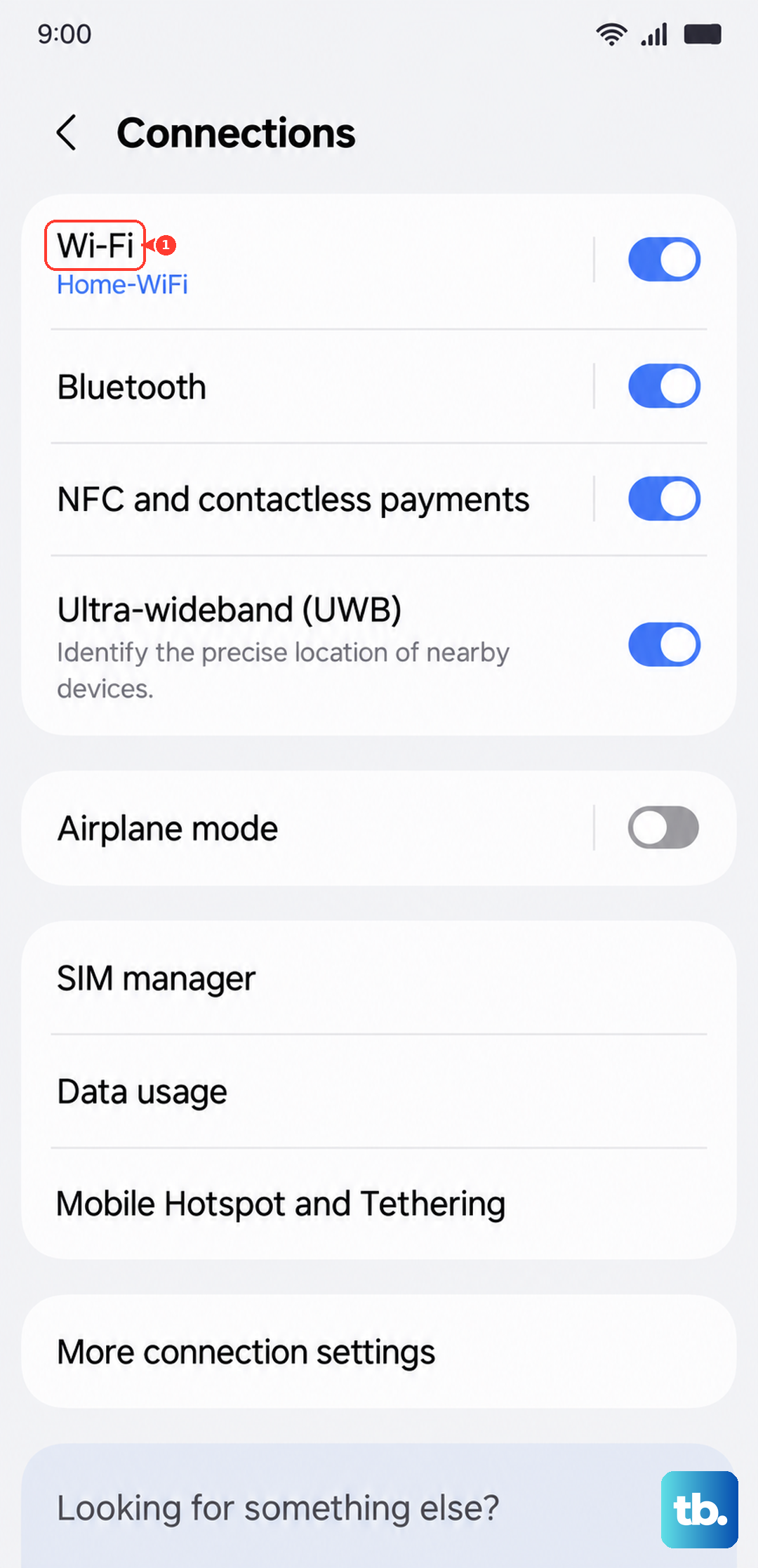
Wi-Fi Calling is great when it works, but it can interfere with cellular registration. Go to Settings > Connections > Wi-Fi Calling and toggle it off. Restart the phone and check if you get a signal. If yes, you can try turning Wi-Fi Calling back on later, sometimes a fresh registration is all it needed.
Check for Software Updates
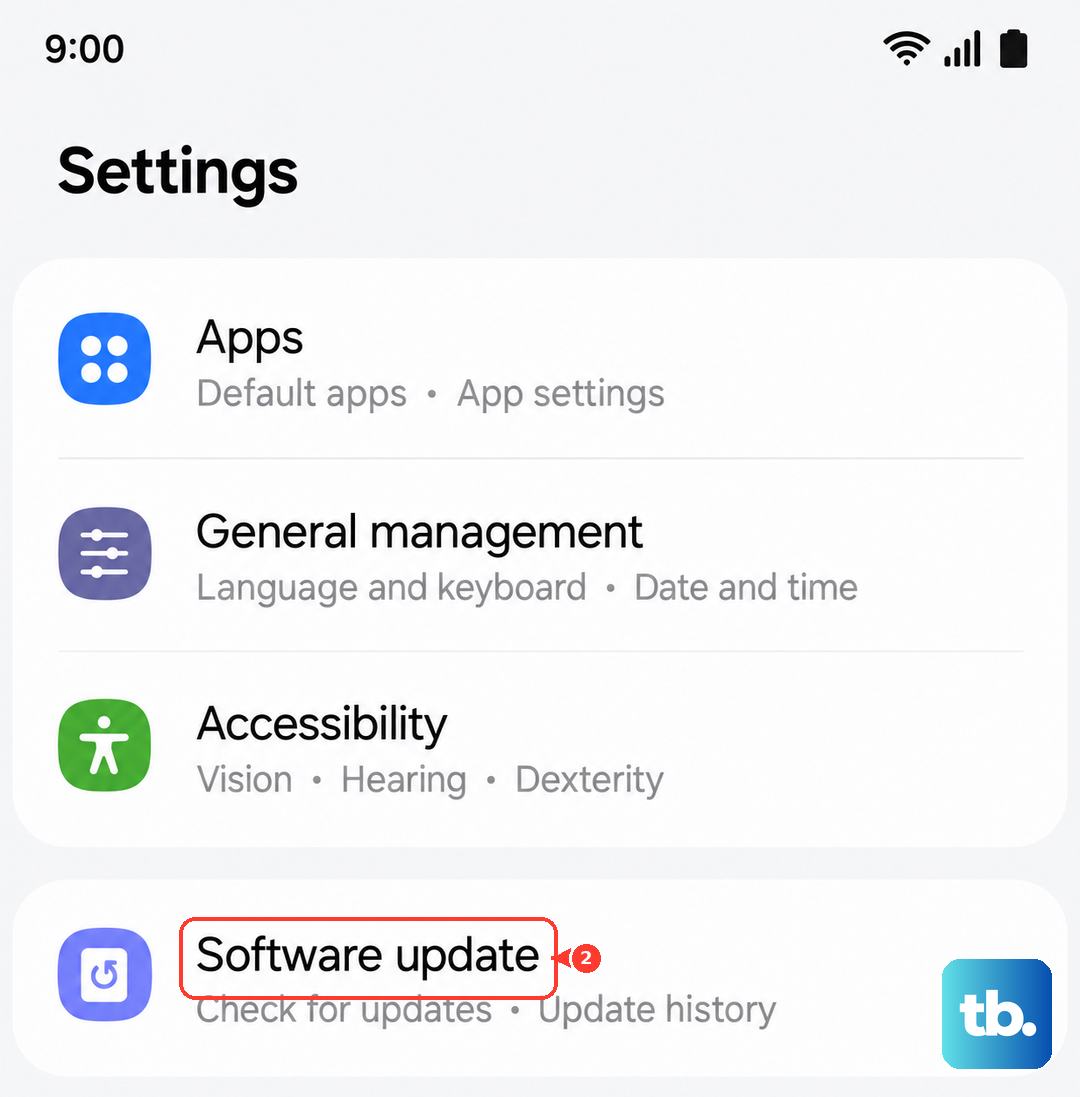
Samsung has pushed several updates for the Z Flip 7 that include modem and connectivity fixes. Go to Settings > Software Update > Download and Install. If there's an update, install it. The phone will restart, and the network issue might be resolved by the new firmware.
Try the Phone's Hidden Diagnostic Menu
If you're still stuck, dial *#0011# (Service Mode) on the phone app. This brings up a screen showing your current signal info, band, and connection state. It's mostly technical, but you can tap the three-dot menu, select Back, then Main, and look for a RF Test or Modem option. Don't change anything unless you know what you're doing, but sometimes just entering and exiting this menu can kick the modem back into gear.
If none of these steps get your Galaxy Z Flip 7 back on the network, the issue might be hardware-related, a damaged antenna connection inside the hinge is a known possibility for foldables. In that case, your best bet is a warranty repair from Samsung. But start with the free, no-risk fixes above. Nine times out of ten, one of them will work.