
Trying to send a photo or video from your Samsung Galaxy Z Flip 7 and it just spins forever before failing? MMS issues on a foldable can be especially annoying since you might be on the go with that compact form factor. Let's walk through the most common fixes, starting with the quickest.
Force Restart the Phone First
Before diving into settings, give your Z Flip 7 a forced reboot. Temporary software glitches are a common reason MMS gets stuck, and this is the fastest way to clear them out.
Press and hold the Volume Down button and the Side key at the same time for about 10 15 seconds. Keep holding until the Samsung logo appears and the device restarts. Unlike a normal restart, this bypasses any frozen processes that might be blocking the messaging service.
Check Your Mobile Data Connection
MMS requires an active mobile data connection, Wi‑Fi alone won't cut it for sending photos or group messages. Make sure mobile data is turned on and you have a solid signal.
Open Settings > Connections > Mobile networks and toggle on Mobile data. If you're connected to Wi‑Fi, try switching it off temporarily; some networks block MMS traffic. Also check your signal strength, the Z Flip 7 uses the same modem as the S25 series, but a weak signal can still prevent MMS from going through.
Verify MMS Settings in Your Messaging App
Your messaging app needs the right multimedia settings enabled. Whether you're using Samsung Messages or Google Messages (which comes pre‑loaded on the Z Flip 7), the steps are similar.
Open the Messages app, tap the three‑dot menu, and go to Settings > Multimedia messages. Make sure Auto‑retrieve is turned on. If you travel frequently, also enable Roaming auto‑retrieve. These settings tell the phone to automatically download MMS content, which can prevent sending failures.
Clear the Cache of Your Messaging App
Corrupted temporary files can interfere with MMS sending. Clearing the cache is safe and won't delete your conversation history.
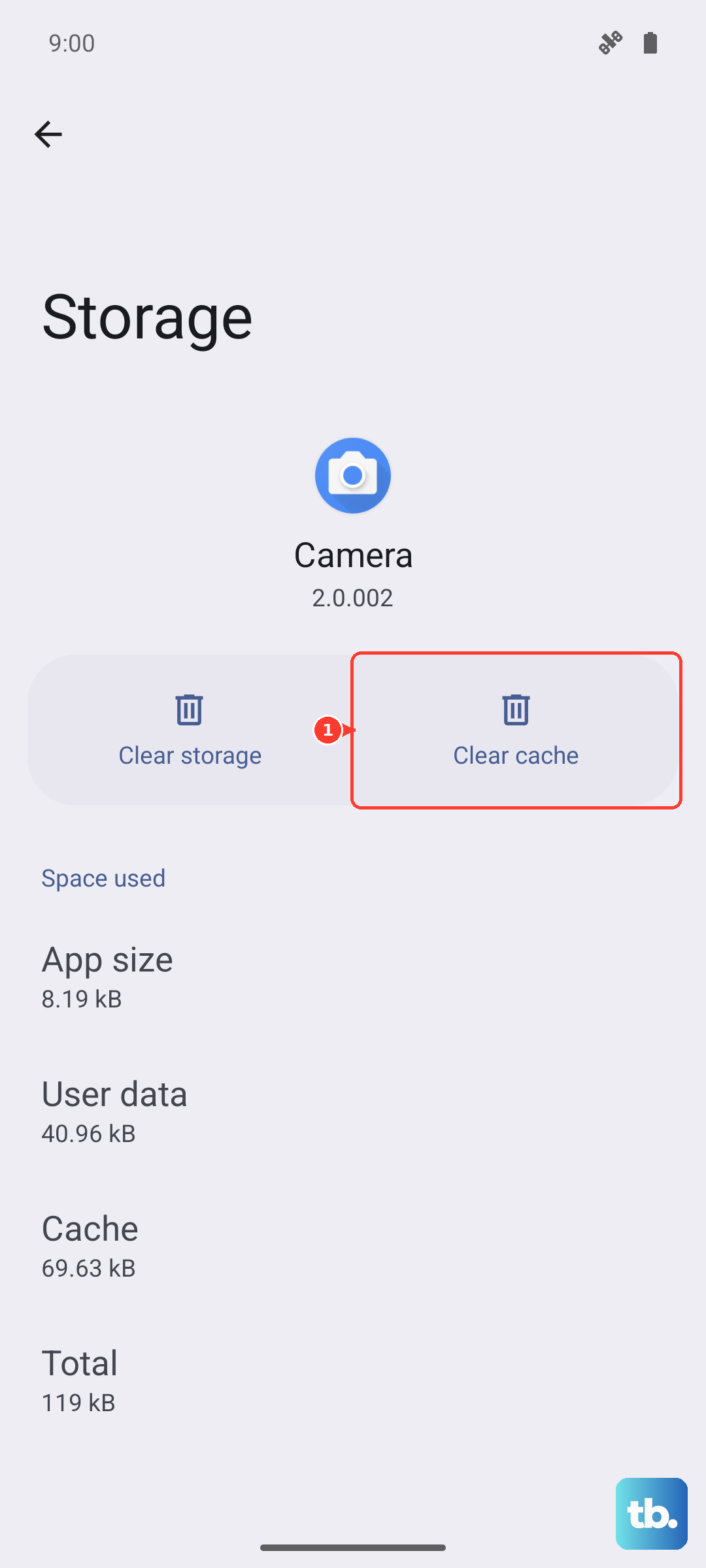
Go to Settings > Apps, find Messages (or whichever app you're using), tap Storage, then choose Clear cache. If that doesn't help, you can tap Clear data, but be warned, that will erase your message threads and attachments, so back up anything important first.
Clear System IMS or MMS Service Data
On Android 16, there's a system‑level service that handles MMS. Sometimes its cache gets stuck. You'll need to show system apps to find it.
In Settings > Apps, tap the three‑dot menu and select Show system apps. Look for IMS Service, MMS Service, or Messaging Service. Tap it, go to Storage, and try Clear cache first. If that's grayed out or doesn't help, and you're okay with resetting the service's settings, tap Clear data.
Double‑Check Your APN Settings
Access Point Name (APN) settings are the bridge between your phone and your carrier's MMS server. One wrong character and messages won't send.
Navigate to Settings > Connections > Mobile networks > Access Point Names. Compare the entries here with your carrier's official APN (available on their website or support chat). Pay special attention to the MMSC, MMS proxy, and MMS port fields. If you see a plus button, you can add a new APN if needed.
Update Your Phone's Software and Carrier Services
An outdated system or carrier bloatware can cause MMS glitches. The Z Flip 7 runs Android 16, and Samsung regularly pushes updates that fix messaging bugs.
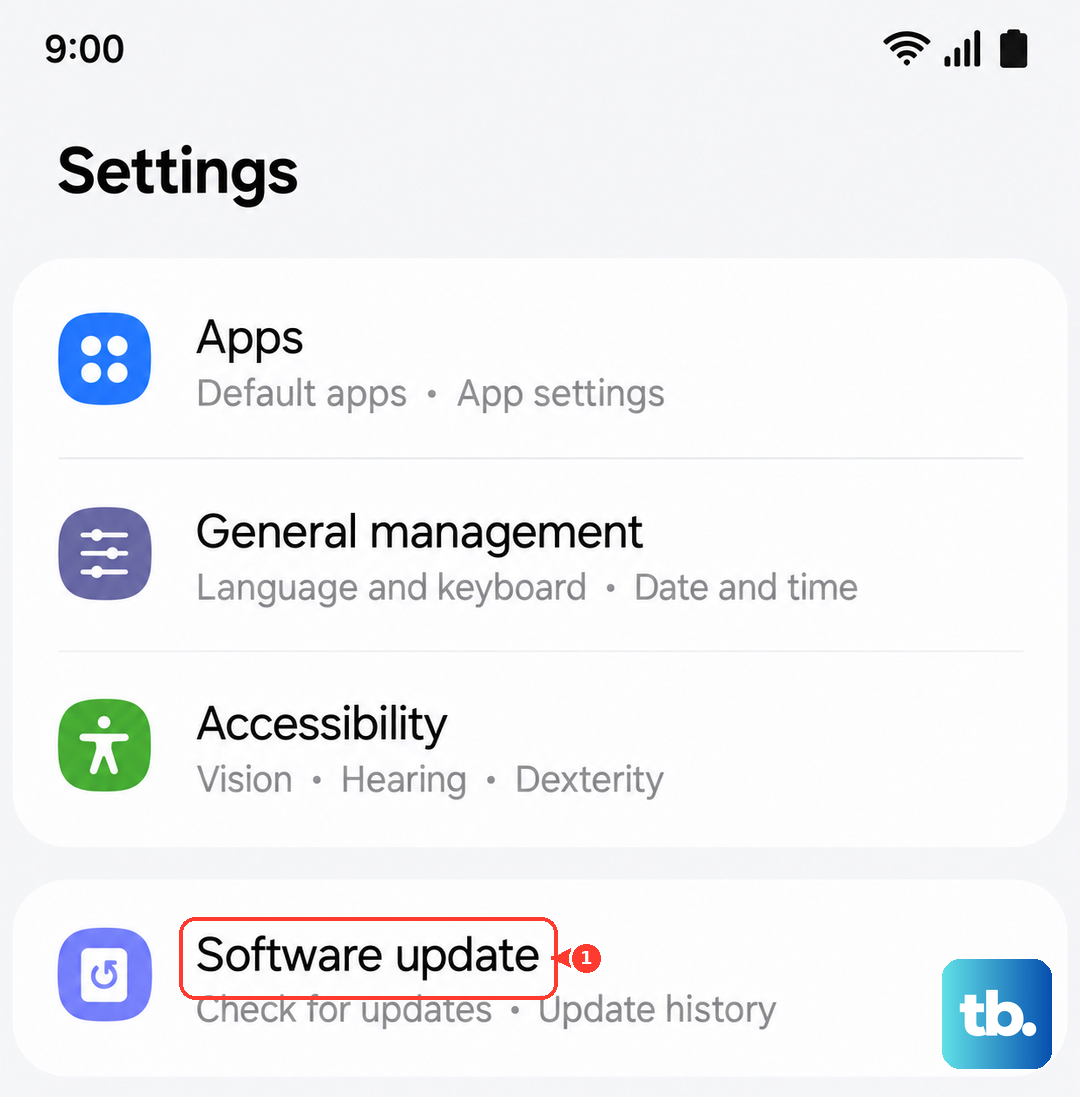
Go to Settings > Software update and tap Download and install. Also check in the Galaxy Store for any Carrier Services updates, these often handle RCS and MMS routing. Restart your phone after updating.
Reset Network Settings
If you've tried everything above, a network settings reset can wipe out deeper configuration problems without affecting your personal data.
Head to Settings > General management > Reset > Reset network settings. Your phone will restart and you'll need to reconnect to Wi‑Fi networks and re‑pair Bluetooth devices, but saved contacts and apps stay intact.
Free Up Storage Space
MMS downloads need temporary storage. If your Z Flip 7's internal storage is nearly full, the phone may refuse to send or receive multimedia messages.
Delete old message threads with large attachments, clear out unused apps, and move photos to the cloud or an SD card (though the Z Flip 7 doesn't have one, so cloud is your best bet). Aim for at least 200MB of free space, the Android 16 system reserves a chunk for messaging operations.
Try Google Messages Instead of Samsung Messages
Samsung's own messaging app can sometimes have hiccups with certain carriers on the latest Android version. Switching to Google Messages is a simple test that often resolves MMS issues.
Google Messages comes pre‑installed on the Z Flip 7. Open it, set it as your default messaging app when prompted, and try sending an MMS. The app is also better at handling RCS, which can improve group messaging reliability. If it works, you've found the culprit.