
When MMS messages won't download on your Samsung Galaxy Z Flip 7, it usually comes down to network settings, app glitches, or a carrier configuration issue. Android 16 handles multimedia messaging a bit differently than older versions, but the fixes are still straightforward.
Let's go through what works for this specific device.
Force Restart First
Press and hold the Volume Down and Side keys together for 10 to 15 seconds. Keep holding until the Z Flip 7 restarts. This is the official force restart method for your device, and it clears out temporary software hiccups without erasing anything.
Check Mobile Data and Signal
MMS won't download over Wi‑Fi alone most of the time you need an active mobile data connection. Swipe down from the top of the screen and make sure Mobile Data is turned on. If you're in a weak coverage area, the Z Flip 7 might struggle to fetch the file. Move to a spot with at least two bars, then try downloading the message again.
Enable Auto‑Retrieve for MMS
The Messages app on your Galaxy Z Flip 7 might be set to manual download only. Open the Messages app, tap the three‑dot menu in the top‑right corner, then go to Settings. Tap Multimedia Messages and toggle Auto Retrieve on. This tells the phone to pull in the multimedia file as soon as the message arrives.
Also flip on Roaming Auto Retrieve if you're traveling or your carrier uses roaming partners. The setting is right below Auto Retrieve in the same menu.
Clear the Messages App Cache
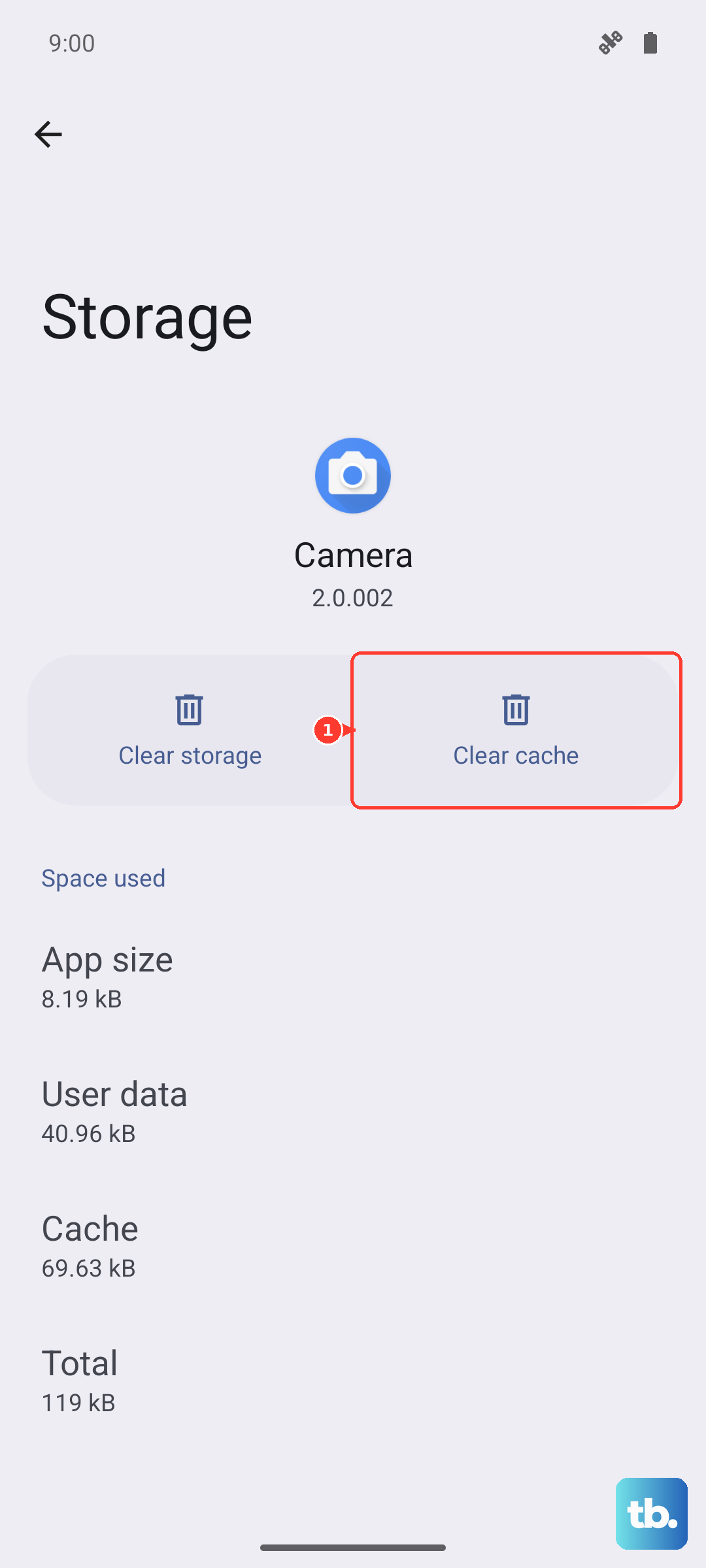
Go to Settings, then tap Apps. Look for Messages and tap it, then select Storage. Tap Clear Cache this wipes temporary files that might be causing the download to stall. If that doesn't help, you can tap Clear Data, but keep in mind that will erase your message history. Back up anything important first.
Reset Network Settings Without Losing Data
In Settings, choose General Management, then tap Reset, and select Reset Network Settings. This will reset Wi‑Fi, Bluetooth, and mobile network configurations back to default, but it won't touch your photos, contacts, or other personal data. You'll need to re‑enter Wi‑Fi passwords afterward. Once it's done, restart the Z Flip 7 and try downloading the MMS again.
Update to the Latest Software
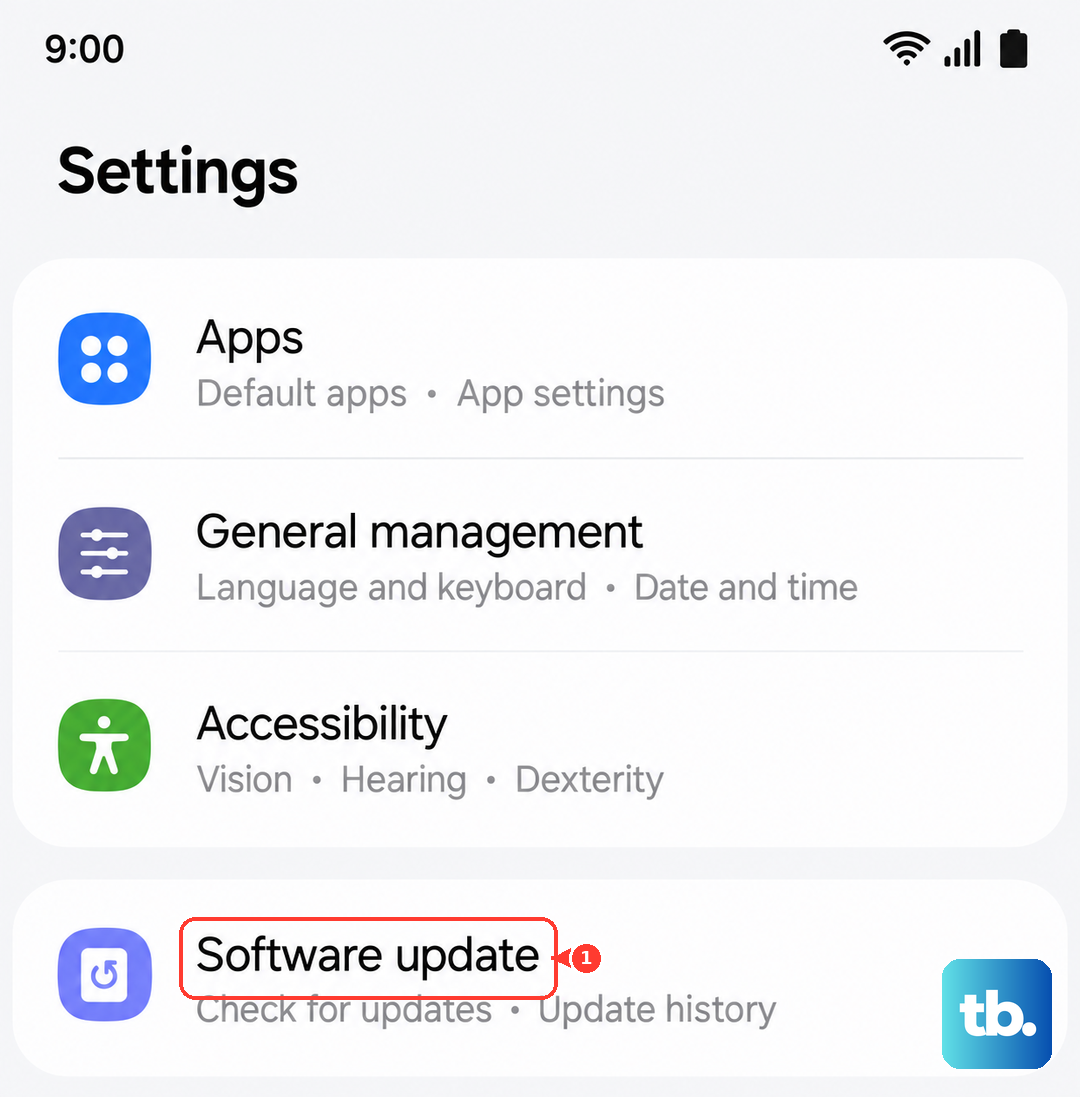
Go to Settings > Software Update > Download and Install. The Z Flip 7 runs Android 16, and Samsung regularly pushes updates that fix bugs in the messaging stack. If there's a pending update, install it and give the phone a full restart.
Check Your APN Settings
Incorrect Access Point Name (APN) entries are a common reason MMS fails on any device, including the Z Flip 7. Go to Settings > Connections > Mobile Networks > Access Point Names. Compare what's listed there with the APN values provided by your carrier. The MMS proxy, port, and MMSC fields are the critical ones. If any are wrong or missing, edit them exactly as your carrier specifies. Restart the phone after saving changes.
A Quick Note About the Z Flip 7's Charging
This isn't directly an MMS fix, but if you notice your phone acting sluggish after a charge maybe messages won't download right away the Z Flip 7 has a known issue where charging can stop intermittently. A soft reset (Volume Down + Side key) after unplugging can help the device return to normal operation.
Most MMS download problems on the Samsung Galaxy Z Flip 7 resolve with one of these steps. Start with the force restart and work through the settings you'll usually catch it early.