
Your Samsung Galaxy Z Flip 7 is a fast phone, but sometimes it can feel sluggish. This usually comes down to a handful of culprits: too many apps running in the background, storage getting full, or a software quirk that needs a quick reboot. The good news is most of these are easy to fix in just a minute or two.
Let's run through the fixes that tend to help most often.
Force Restart the Phone
If your Z Flip 7 feels unresponsive or just slow, a force restart is the first thing to try. This clears out temporary glitches without deleting anything.
Press and hold the Volume Down and Side key together for about 10 to 15 seconds. The screen will go black, and the Samsung logo will appear as it restarts. That's it.
A soft reset like this is also worth trying if you notice charging stopping unexpectedly, which is a known issue on early models.
Close Apps You Aren't Using
It's easy to open app after app and never close them. Too many apps running at once can eat up RAM and slow things down.
To close apps, swipe up from the bottom of the screen and hold for a second. You'll see all your open apps in a carousel. Swipe left or right to find the ones you want to close, then swipe up on them. Clearing out a few heavy apps like games or video editors can make an immediate difference.
Free Up Storage Space
Low storage is one of the biggest reasons phones slow down. When your Z Flip 7's storage gets close to full, the system struggles to manage files and apps efficiently.
Head to Settings > Device care > Storage. You'll see a breakdown of what's taking up space. Tap into each category to clear out junk files, old downloads, and unused apps. I'd start with the "Temporary files" section, which often has gigabytes of cache you don't need.
You can also use the built-in Storage Booster feature. It's under the same menu and will automatically clean up residual files from removed apps and old messages.
Update Apps and Android
Outdated software can cause slowdowns and weird behavior. Keeping everything current is a quick win.
For apps, open the Google Play Store, tap your profile icon in the top right, and select Manage apps & device. Tap Update all to bring everything up to date.
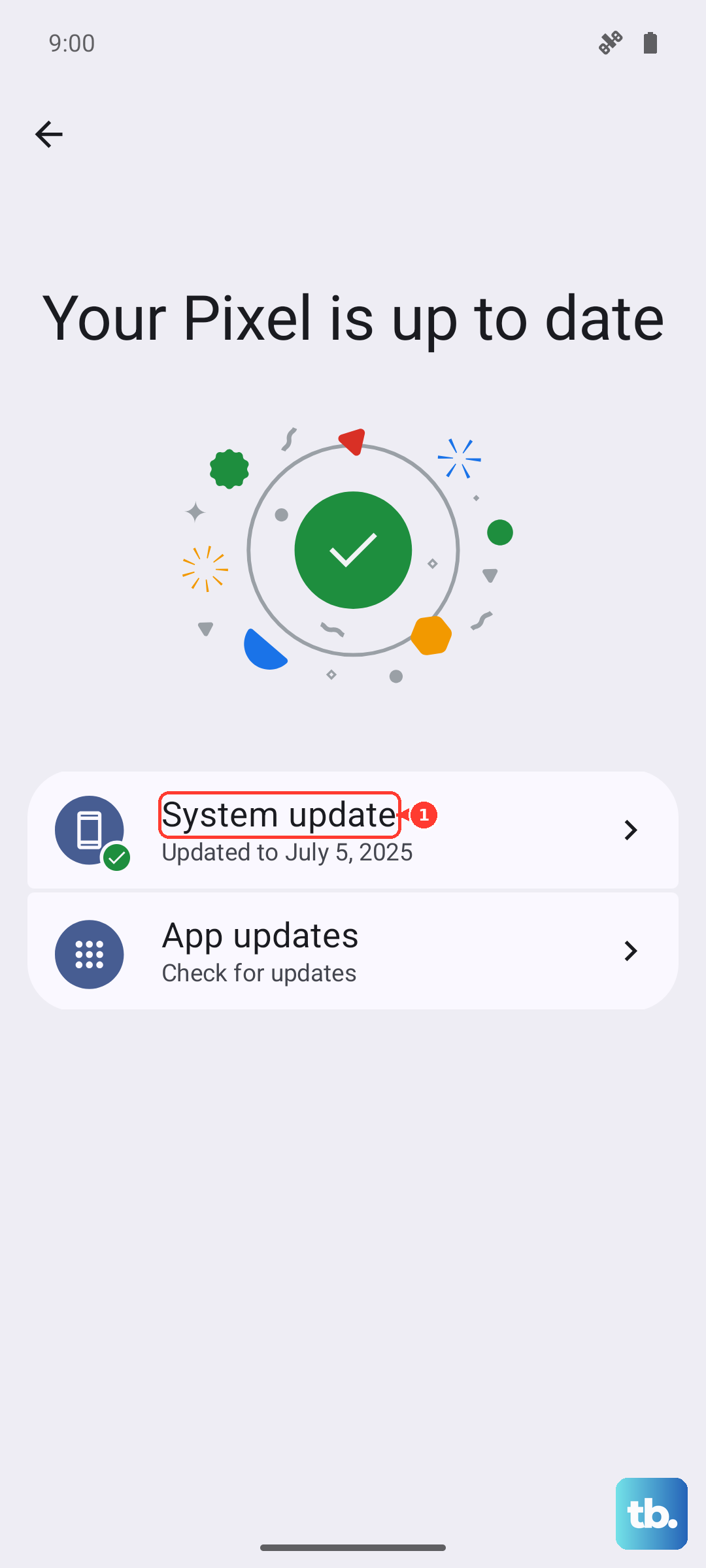
For system updates, go to Settings > Software update > Download and install. The Z Flip 7 runs Android 16, and Samsung regularly pushes updates that fix performance bugs, including that intermittent charging issue some users have reported.
Turn Off Background App Refresh
Many apps keep refreshing in the background, syncing data even when you aren't using them. This drains resources and can slow the phone down.
Go to Settings > Battery > Background usage limits. You'll see a list of apps that run in the background. Switch any apps you don't need constant updates from to "Put unused apps to sleep" or just turn off their background activity entirely.
This is especially useful for apps like social media or news that don't need to refresh every few minutes.
Clear the App Cache
Every app stores a cache of data to load faster. Over time, that cache can get bloated and start causing problems instead.
To clear cache for individual apps, go to Settings > Apps, tap the app that's been acting up, then tap Storage and select Clear cache. Do this for the apps you use most often, especially your browser, social media, and streaming apps.
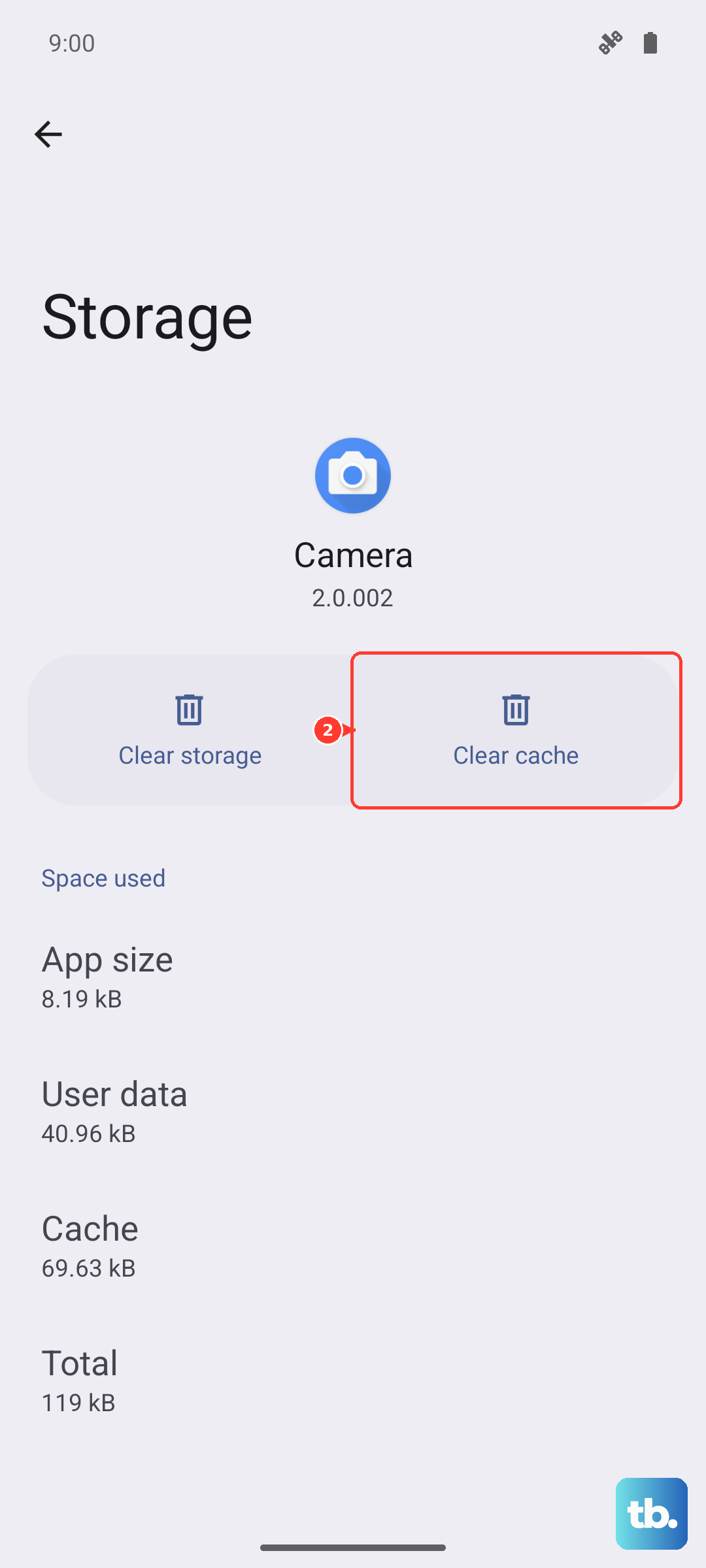
If you want to clear out cached files in bulk, open Settings > Device care > Storage to review and delete unnecessary files, or clear a specific app's cache under Settings > Apps > [app] > Storage > Clear cache. It's a faster option when you don't want to go app by app.
Check Your Battery Health
Battery health isn't just about battery life. When the battery degrades, the phone may throttle performance to prevent sudden shutdowns.
Go to Settings > Battery > Battery health. If the maximum capacity is below 80%, you'll likely notice some slowdown. A battery replacement should bring things back to normal.
You can also check which apps are draining the most power under the same menu. An app that's using a lot of battery may also be hogging CPU, which can slow the whole phone.
Reduce Animations and Visual Effects
Android 16 has smooth animations, but they can feel sluggish on any phone if the system is under load. Dialing them back can make the phone feel snappier.
To do this, you'll need to enable Developer Options. Go to Settings > About phone > Software information, then tap Build number seven times. Once Developer Options is unlocked, go back to Settings > Developer options.
Look for Window animation scale, Transition animation scale, and Animator duration scale. Set each one to 0.5x or turn them off entirely. This makes app opening and switching feel instant.
Turn on Power Saving Mode
Power Saving Mode limits background activity and reduces performance slightly to save battery. But paradoxically, it can also make the phone feel faster by cutting down on resource-hungry processes.
You can turn it on from Settings > Battery > Power saving. There's also a quick toggle in the notification panel if you swipe down twice.
It's a good stopgap when you're out and about and the phone is feeling sluggish. Just remember it will limit background syncing and may dim the screen a bit.
Reset Settings Without Losing Data
If none of the above helps, a settings reset can clear up deeper software conflicts without wiping your photos, messages, or apps.
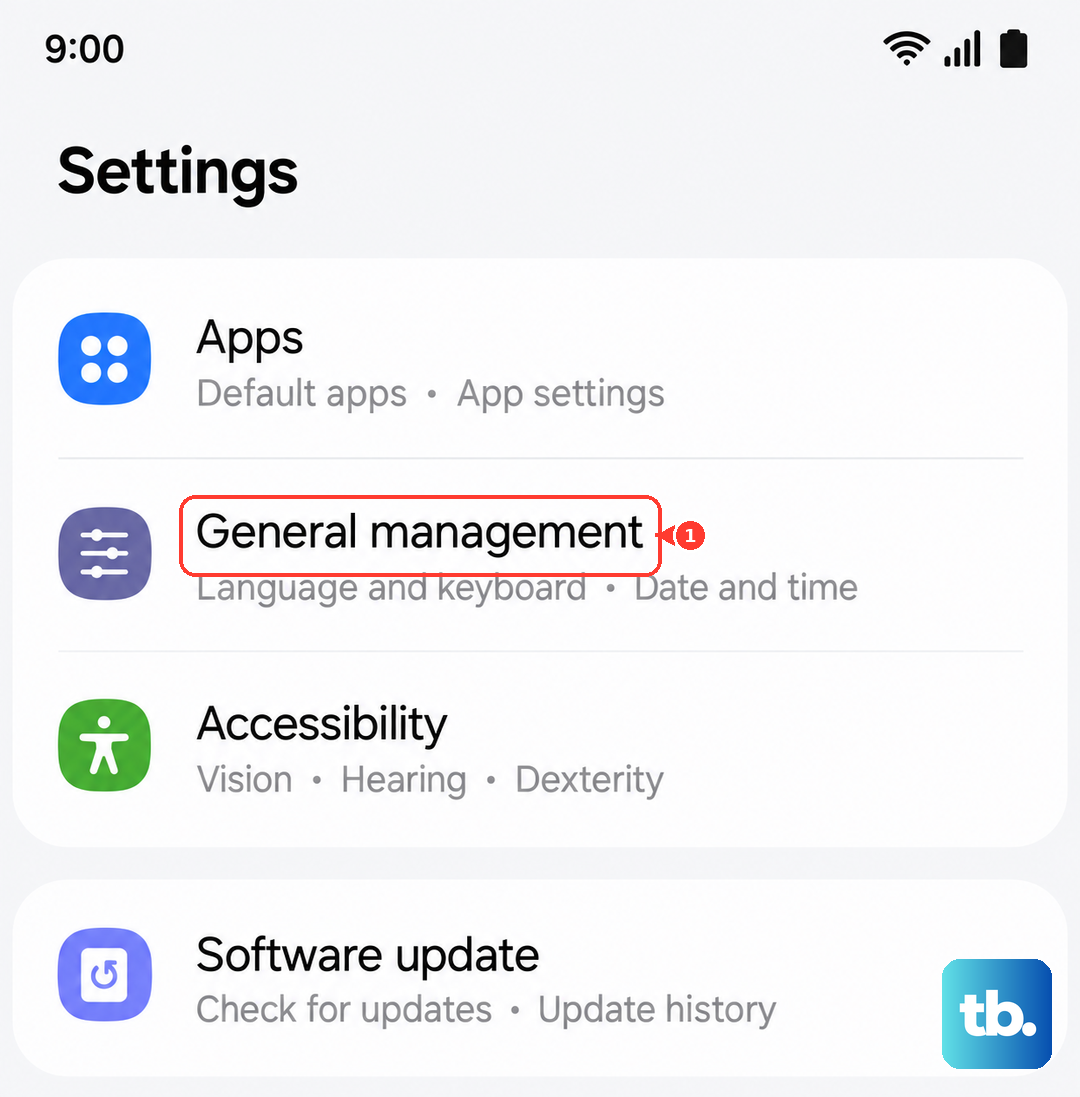
Go to Settings > General management > Reset > Reset all settings. You'll need to enter your PIN or password to confirm. This will reset network settings, display settings, and lock screen settings back to their defaults, but your personal data stays put.
It's a good step to try before doing a full factory reset, and it often resolves lingering slowdowns that other fixes miss.