
Your Samsung Galaxy Z Flip 7 suddenly restarting over and over? That boot loop can make the phone unusable. Most of the time it's a software hiccup, not a hardware failure, and you can fix it without sending it back.
Before trying anything destructive, back up your data if the phone stays on long enough. Samsung Cloud, Google Drive, or a USB-C connection to your computer all work. Okay, let's get into the fixes.
Force Restart First
This is the quickest thing to try and it works more often than you'd think. A force restart clears whatever temporary glitch might be stuck in the system memory.
Press and hold the Volume Down button and the Side key together for about 10 to 15 seconds. Keep holding until the phone vibrates and you see the Samsung logo pop up. That's it. This is different from a normal restart, it cuts power completely and forces a fresh boot.
If the phone boots normally after this, you're probably fine. If it starts restarting again, move on to the next steps.
Boot Into Safe Mode
Safe mode starts the Galaxy Z Flip 7 with only the pre-installed system apps running. If the random restarts stop while in safe mode, a third-party app is causing the trouble.
To enter safe mode, press and hold the Side key and Volume Down key until the power off menu appears. Tap and hold the "Power off" option on the screen, then tap "Safe mode" when it shows up. The phone will restart with "Safe mode" in the bottom-left corner.
Use the phone normally for a while. No restarts? You've got a rogue app. Restart the phone normally to leave safe mode, then start uninstalling apps you installed right before the problem started. I'd start with the most recently updated ones.
Clear the System Cache
Corrupted cache files can cause system instability on Android 16. The Z Flip 7 doesn't have the old recovery menu shortcut anymore, so here's how to clear it.
Turn off the phone completely. Once it's off, press and hold the Volume Up button and the Side key together. Release both buttons when the Android recovery menu appears on screen. Use the volume buttons to navigate and the side button to select. Choose "Wipe cache partition" and confirm.
This doesn't delete your photos, texts, or apps. It just clears temporary system files that might be corrupted. Reboot the phone after it finishes.
Check Your Charging Situation
This is a known issue specific to early Z Flip 7 units. Some phones shipped with a charging quirk where it stops charging before reaching 100% and needs to be unplugged and plugged back in. In rare cases, that intermittent charging behavior can trigger restart loops.
If you're using wireless charging, make sure the phone is centered on the pad. The Z Flip 7's smaller footprint means it's easy to misalign, especially on third-party chargers. Samsung's official wireless charger gives you the full 15W, but any Qi pad should work if positioned right.
Try a different USB-C cable and charger if you're using wired charging. The Z Flip 7 maxes out at 25W wired, so any good 25W+ USB-C charger should work fine.
Free Up Storage Space
When your internal storage gets too full, Android can start acting unstable. Boot loops and random restarts are common symptoms.
Go to Settings > Device care > Storage. If you're under a couple of gigabytes free, that's a problem. Android 16 needs breathing room for system processes. Tap "Clean now" to remove cached data and temporary files, or manually delete large videos and apps you don't use.
Moving photos to Google Photos or a cloud service frees up a surprising amount of space on a phone with no expandable storage.
Update Everything
Outdated software is a common cause of restart issues. Samsung pushes regular updates to fix bugs on the Z Flip 7, including one specifically for the charging and stability problems reported after launch.
Open Settings > Software update and tap "Download and install." If there's an update waiting, install it. While you're at it, open the Galaxy Store and Google Play Store and update all your apps too.
App developers often release patches after major OS updates like Android 16, so keeping everything current can resolve compatibility conflicts.
Review the Panic Logs
Your phone keeps a log of crash events. You can check these to see if a specific app or system process is causing the restarts.
Go to Settings > Device care > Diagnostics. If Samsung's diagnostic tools don't show anything obvious, you can check app-specific issues by looking at which apps crash frequently. Go to Settings > Apps and sort by "Most recent." Tap on any app that seems suspicious and look for "Force stop" or "Uninstall."
A better option if you're technically inclined: enable Developer Options by going to Settings > About phone > Software information and tapping "Build number" seven times. Then check Settings > Developer options > Running services to see what's hogging system resources.
Reset App Preferences
Sometimes the issue isn't a single app but the permissions and defaults assigned to all of them. Resetting app preferences doesn't delete any data, it just resets disabled apps, notification permissions, and default apps back to factory state.
Go to Settings > Apps > tap the three dots in the top-right corner > Reset app preferences. Confirm it. You'll have to re-set any defaults you changed (like your default browser or launcher), but it's a fast fix that resolves a lot of weird behavior.
Factory Reset (the nuclear option)
If nothing else has worked, a factory reset will wipe the phone clean and reinstall Android 16 fresh. This wipes everything, photos, texts, accounts, all of it. Make sure your backups are solid before proceeding.
Go to Settings > General management > Reset > Factory data reset. Tap "Reset" and confirm. The phone will restart and go through the full setup process like it's brand new.
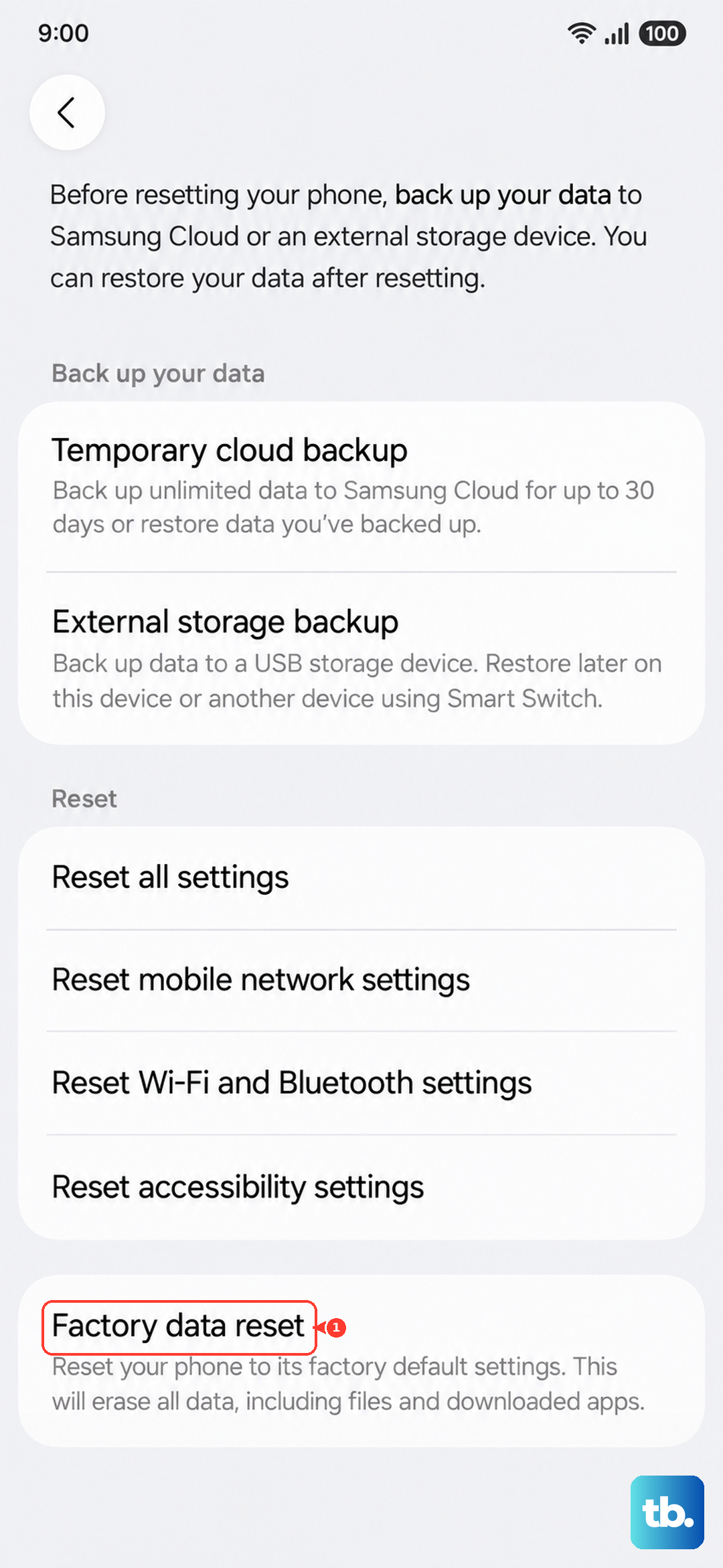
If the phone is stuck in a restart loop and won't let you get into Settings, you can factory reset from the recovery menu. Turn the phone off, then press and hold Volume Up + Side key. In recovery, use the volume buttons to select "Wipe data/factory reset" and confirm with the side button.
Don't restore from a backup that might carry the same corrupted settings. Set the phone up as new and manually reinstall the essential apps one at a time.