
Your Galaxy Z Flip 7's side-mounted fingerprint sensor should unlock your phone the instant your thumb hits the power button. When it stops working, it's usually something simple that got in the way. Let's run through the fixes that actually work for this specific device.
Clean the fingerprint sensor (this is almost always it)
The Z Flip 7's fingerprint reader sits right on the side key, and it collects pocket lint, oil, and smudges throughout the day. Take a soft, dry microfiber cloth and wipe down the entire power button area thoroughly. Don't use any liquids or alcohol wipes on it.
After cleaning, try registering your fingerprints again. You'll be surprised how often this single step fixes everything.
Restart your phone the right way
A normal restart clears up most temporary software hiccups. But if you're dealing with a stuck sensor, use the force restart method instead. Press and hold Volume Down + Side key for 10 to 15 seconds until the device restarts completely. This deeper reset clears any background processes that might be interfering with the sensor.
Remove and re-register your fingerprints
Sometimes a stored fingerprint gets corrupted or the data doesn't fully capture your print. Go to Settings > Biometrics and security > Fingerprints, enter your PIN, then tap the registered fingerprint you want to remove. Hit Remove and confirm.
When you re-add your fingerprint, rotate your thumb or finger across the sensor during registration so it captures the edges. This gives the sensor a better map to work with on the Z Flip 7's compact scanner.
Is your screen protector causing trouble?
The Z Flip 7 already comes with a pre-installed screen protector on the inner display, and that won't affect the fingerprint sensor since it's on the side. But if you've added any skin or sticker over the power button area, peel it off. Even a thin layer can confuse the optical sensor.
Tempered glass screen protectors for the cover screen are fine as long as they don't wrap around the side key. If you bought a full-body protector that covers the buttons, that's your culprit.
Check for a software update
Samsung regularly pushes updates through Android 16 that include fingerprint sensor optimizations. Go to Settings > Software update > Download and install to see if anything's waiting. The Z Flip 7 is still relatively new in 2025, so early firmware patches are common.
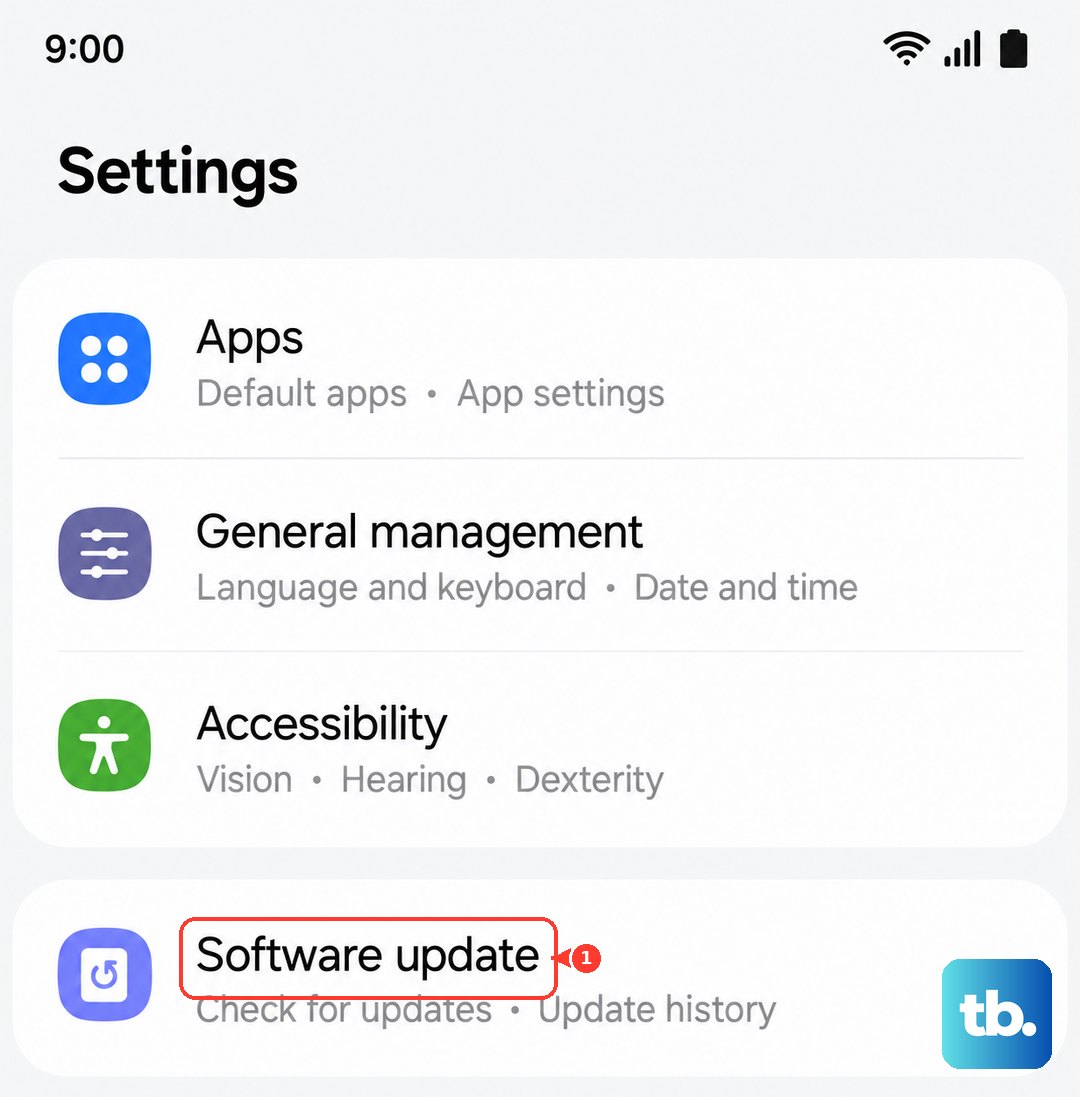
Installing the latest update takes five minutes and might directly address the sensor behavior you're seeing.
Turn off fingerprint gestures
The Z Flip 7 lets you swipe down on the fingerprint sensor to pull down the notification shade. That's convenient, but it can sometimes interfere with normal unlock detection. Head to Settings > Advanced features > Motions and gestures and toggle off Finger sensor gestures.
Restart your phone afterward and test the unlock. You can always turn the gestures back on later once the scanner is working reliably again.
Register the same finger twice
The Z Flip 7 lets you add up to four fingerprints total. Use one slot for your primary thumb, then register the exact same thumb in a second slot. This double-registration gives the sensor two slightly different reference points for the same print.
I've seen this trick work when a single profile just isn't capturing your thumb correctly. Rotate your finger differently on the second registration so the sensor learns more angles.
Clear the system cache
A corrupted system cache can cause all sorts of odd behavior, including a fingerprint sensor that won't read. Turn your Z Flip 7 off completely. Press and hold Volume Up + Side key until the Samsung logo appears, then release. Use the volume keys to navigate to Wipe cache partition and press the power button to confirm.
Select Yes and wait for the process to finish. Then choose Reboot system now. This won't delete any of your personal data or settings.
Check your grip and finger position
The Z Flip 7's fingerprint sensor sits flush with the side frame, and it's smaller than some past Samsung sensors. If you're wrapping your hand around the phone oddly or using just the tip of your finger, the sensor might miss the read entirely.
Make sure your entire fingertip pad is making contact. Don't tap and pull away instantly. Hold your finger on the sensor for a full second. The Z Flip 7 needs a brief moment to process the read, especially if you're coming from a phone with a faster sensor.
Wireless charging interference (yes, really)
If you're using a wireless charger and notice the fingerprint sensor acting up, that's a known interaction. The electromagnetic field from Qi charging can temporarily mess with the sensor's electronics. The Z Flip 7 supports up to 15W wireless charging, and I've seen this happen most often on non-Samsung charging pads.
Take the phone off the charger and try unlocking it. If the sensor works fine, that's the issue. Stick to Samsung's official wireless charger if you need to charge and unlock at the same time.
Keep an alternate unlock method handy
Even after running through these fixes, sometimes the sensor just needs a moment. Travel to Settings > Lock screen and security > Screen lock type and make sure your PIN, pattern, or password still works. You'll need it whenever the fingerprint scanner glitches, and it's the only way to get back into the fingerprint settings to make adjustments.