
Clean the Camera Lens
This is the quickest fix and the one that solves most blur issues. Use a soft microfiber cloth to wipe the camera lenses on the back of your Galaxy Z Flip 7. Fingerprints, smudges, and dust from your pocket collect easily on the lenses, especially since you likely handle the phone a lot. Don't use your shirt or rough materials, they can scratch the lens coating.
Take Your Case Off
Many cases for foldables don't leave a perfectly clean opening around the camera module. A slight misalignment can partially cover the lens or create a foggy effect in photos. Pop the case off and snap a test shot. If the blur disappears, the case is the culprit. Also check that any camera lens protector film is fully removed.
Tap to Focus and Lock
Open the Camera app and tap directly on your subject. A white or yellow square appears to show where the camera is focusing. When you're shooting something close, like a flower or a receipt, the camera may lock onto the background instead. Tap on the foreground subject to force focus. Press and hold on the screen for about a second to lock both focus and exposure (AE/AF Lock). This is especially helpful for videos.
Switch Between Camera Lenses
The Galaxy Z Flip 7 has a main wide lens and an ultrawide lens. Open the camera and tap the 0.6x (ultrawide) and 1x (wide) icons. If only one lens is producing blurry images, that specific lens may need cleaning or service. If both are blurry, the issue is likely software or dirt covering the whole module.
Close and Reopen the Camera App
Swiping the Camera app away from the recent apps view clears out any software glitches that can mess with autofocus. On the Z Flip 7, you can also try closing the phone and opening it again, the hinge sensor sometimes triggers a fresh camera initialization. If the blur goes away, you were dealing with a temporary software hiccup.
Force Restart Your Galaxy Z Flip 7
Press and hold the Volume Down and Side key together for 10 15 seconds. The screen will go black and the Samsung logo appears, release both buttons when you see it. This resets the entire camera software stack and clears any stuck processes that could be causing blurry output.
Check for Moisture or Condensation
If you've moved from a cold environment to a warm one, or you were using the phone in high humidity, condensation can form on the camera lens inside the module. This makes photos look foggy and soft. Leave the phone folded in a dry room at room temperature for 20 30 minutes. Don't blow hot air on it, that adds more moisture.
Update Android and Camera Software
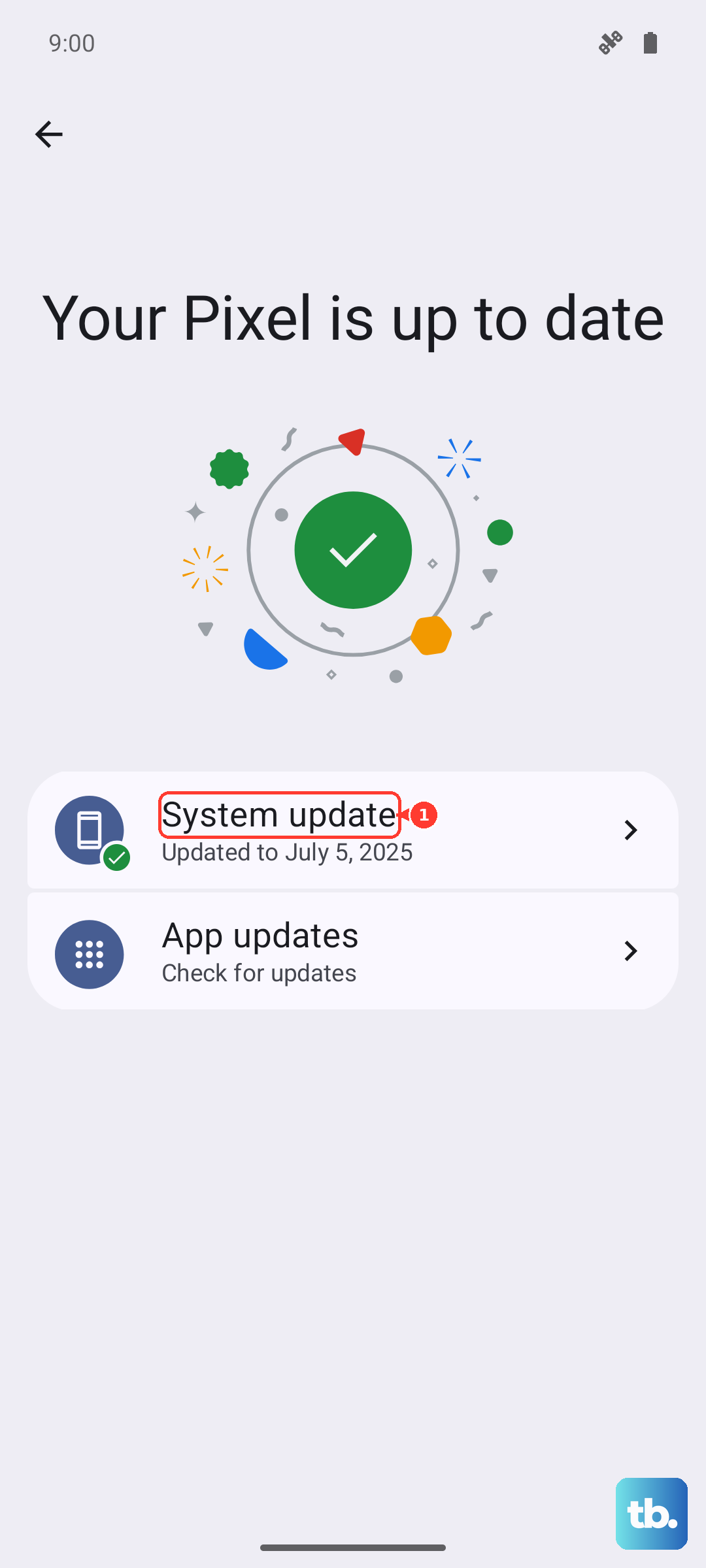
Go to Settings > Software Update > Download and install. Samsung regularly includes camera processing improvements and autofocus fixes in system updates. A known camera bug might already be patched in a newer version. This is a free fix that takes a few minutes.
Clear Camera App Cache
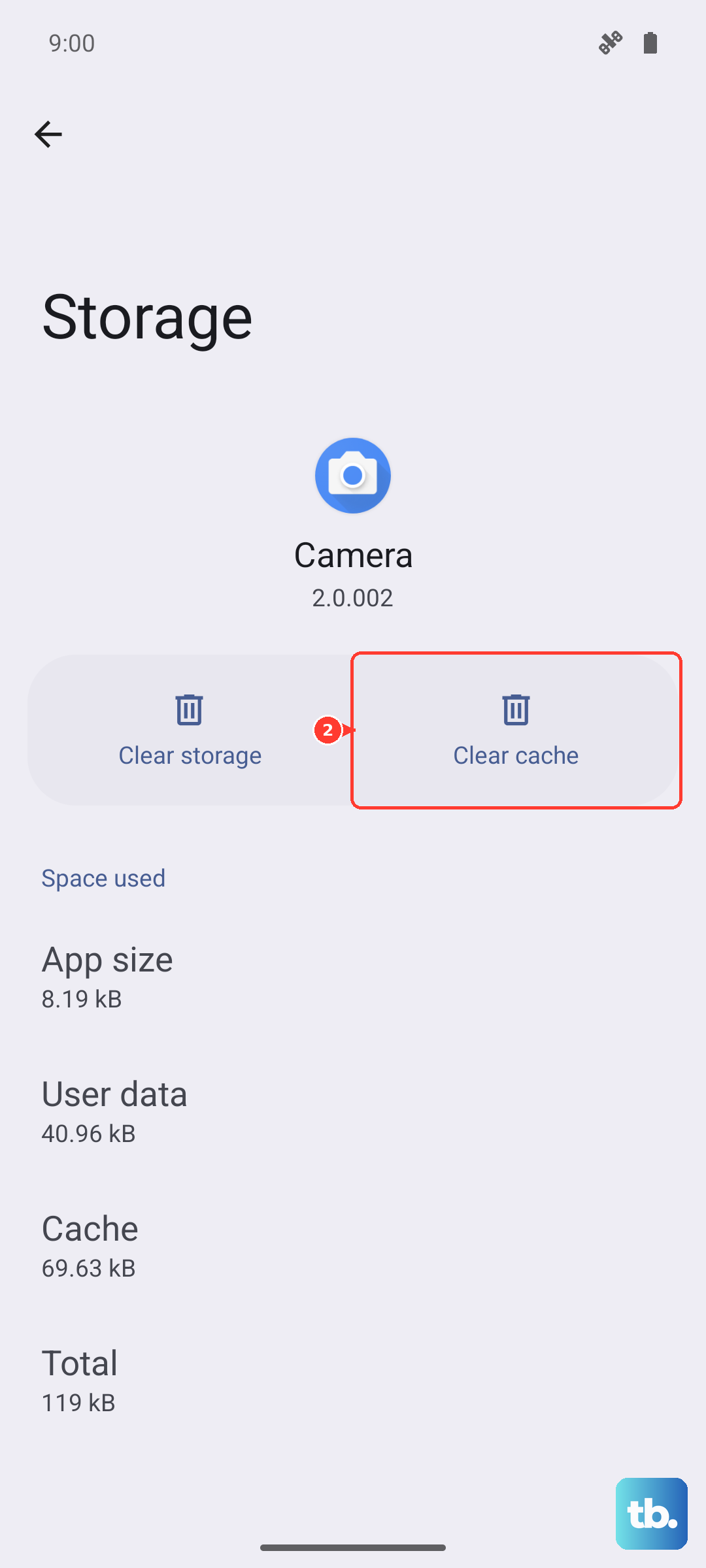
Sometimes corrupted cache data causes the camera to produce blurry images. Go to Settings > Apps > Camera > Storage and tap Clear cache (not Clear data, that resets your settings). Reopen the Camera app and test. You won't lose any photos.
Reset Camera Settings
If none of the above worked, reset the camera to its default state. Open the Camera app, tap the gear icon in the top-left corner, then scroll to the bottom and tap Reset settings. This reverts any custom picture sizes, scene optimizers, or filters that might be interfering with focus. After the reset, take a test photo in Auto mode.