
Bluetooth acting up on your Galaxy Z Flip 7 can be incredibly frustrating, especially when you're trying to connect earbuds for a commute or pair with your car. The good news is that most Bluetooth problems on Samsung's latest foldable are software-related and fixable in a few minutes.
Let's work through the solutions that are most likely to get your connection back.
Check the Obvious Stuff First
Before diving into deeper fixes, run through these quick checks. Make sure Bluetooth is actually turned on in your quick settings panel and that the device you're trying to pair is in pairing mode. Keep both devices within about 30 feet of each other and confirm both have enough battery charge to operate.
For Galaxy Buds or other Samsung accessories, remember you'll need the Galaxy Wearable app installed for proper pairing. Test your phone with a different Bluetooth device to figure out whether the issue is with your Z Flip 7 or the specific accessory.
Force Restart the Z Flip 7
A force restart clears out temporary software glitches without erasing any data. On the Galaxy Z Flip 7, press and hold the Volume Down button and the Side key together for 10 to 15 seconds. Keep holding until the device restarts on its own. This is different from a normal reboot, and I've seen it resolve Bluetooth hiccups that a standard restart won't touch.
Toggle Bluetooth Off and On
Sometimes the simplest fix is all you need. Pull down the notification shade, tap the Bluetooth icon to switch it off, wait about 10 seconds, then tap it back on. Try pairing your device again immediately. This refreshes the Bluetooth radio without touching any settings.
Remove Old Paired Devices
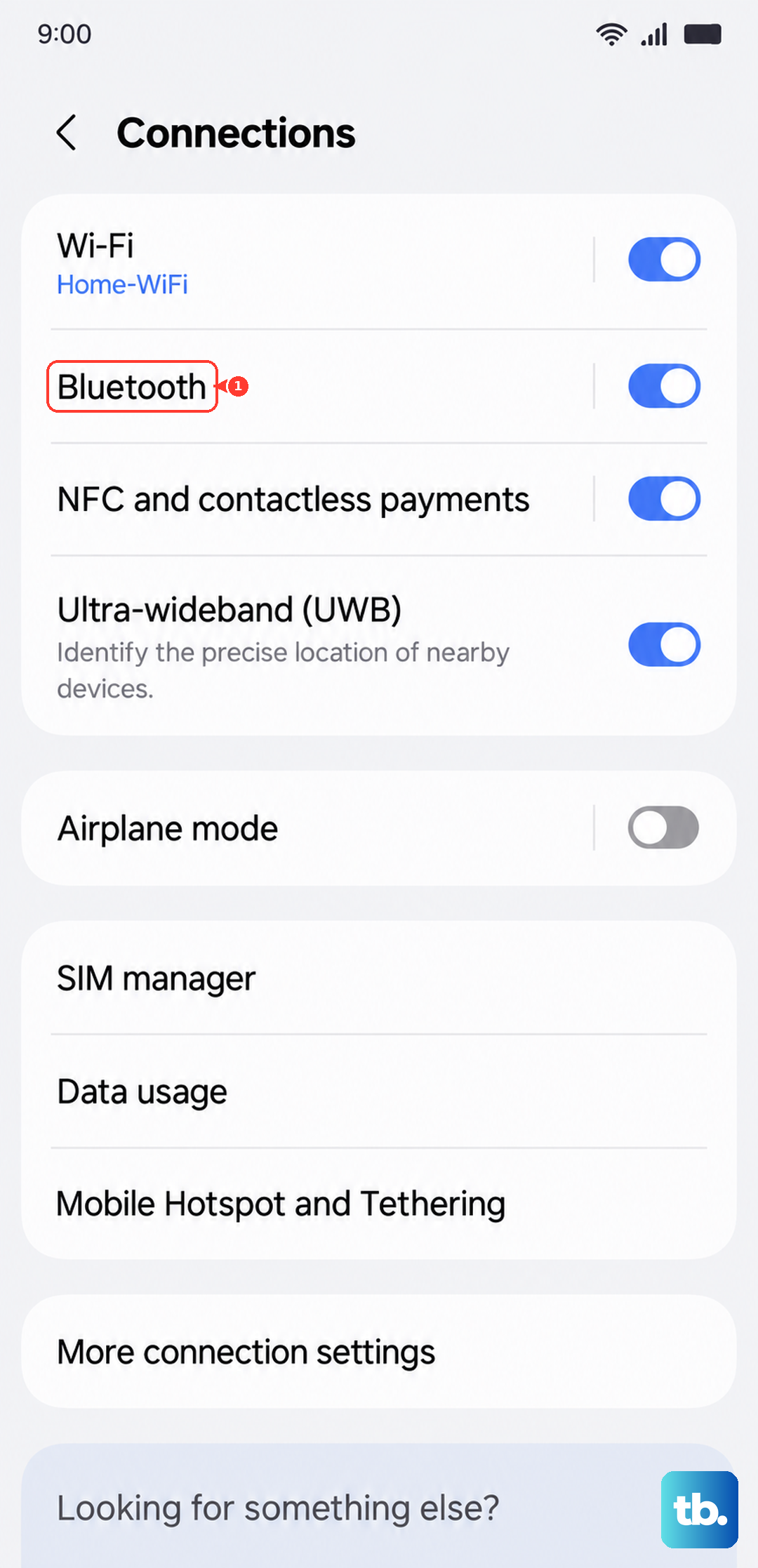
If you've paired a dozen devices over time, the Bluetooth memory can get cluttered and cause conflicts. Go to Settings > Connections > Bluetooth and tap the gear icon next to each saved device, then select Unpair or Forget. Clear out everything, restart your phone, and try pairing fresh. This gives Bluetooth a clean slate to work with.
Clear Bluetooth Cache and Data
Corrupted cache files are a common culprit when Bluetooth stops working properly. To clear them, go to Settings > Apps, tap the sort icon and choose Show system apps. Find Bluetooth in the list and tap it, then go to Storage and hit Clear Cache. Restart your phone and test the connection.
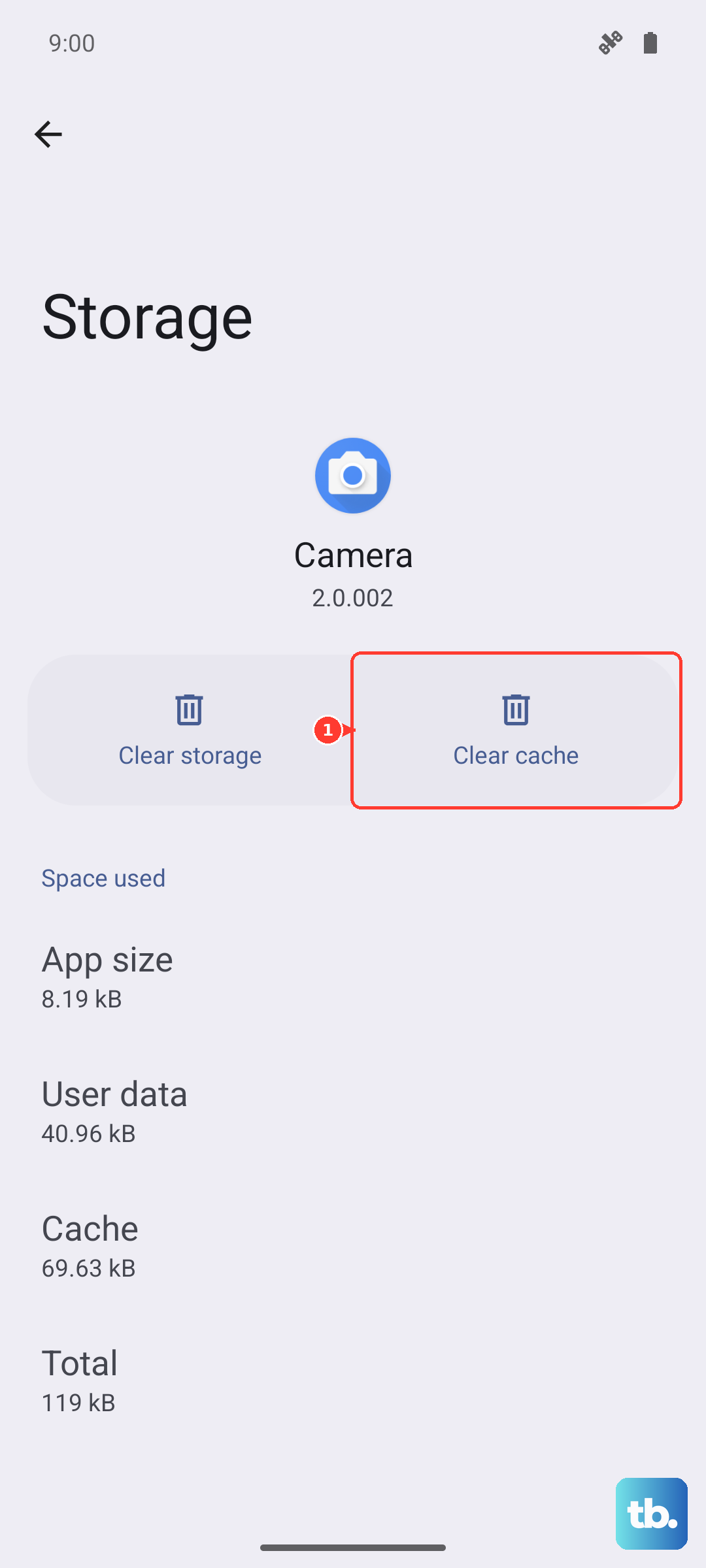
If that doesn't do the trick, go back to the same Bluetooth storage screen and tap Clear Data instead. This will wipe all your paired devices and Bluetooth settings, essentially starting fresh. You'll need to re-pair everything afterward, but it often resolves stubborn issues.
Reset Network Settings
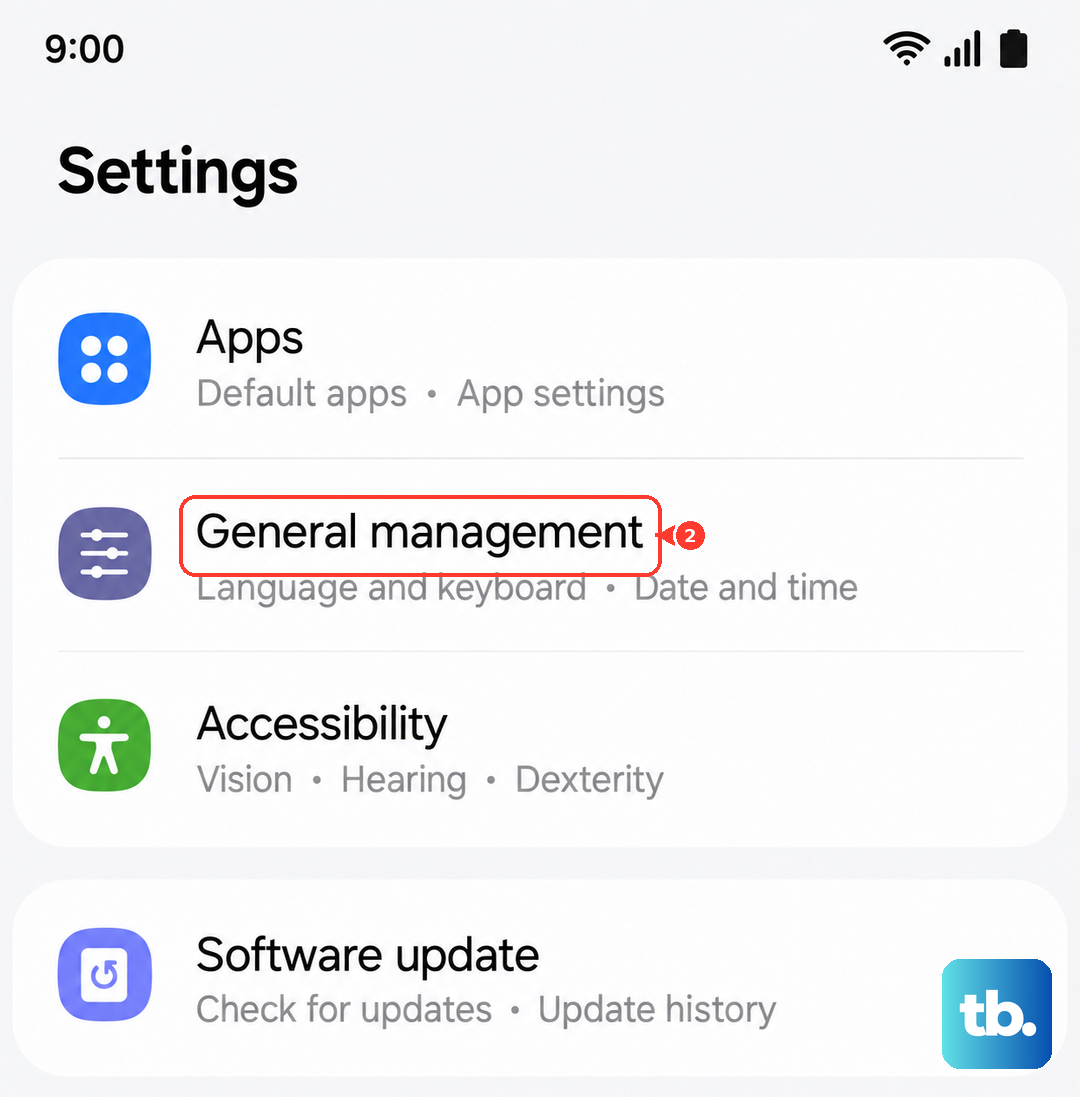
Bluetooth shares the networking stack with Wi-Fi and mobile data, so resetting network settings can clear up conflicts. Go to Settings > General management > Reset > Reset network settings. Enter your PIN or pattern if prompted, then confirm. Your phone will restart, and you'll need to re-pair Bluetooth devices and reconnect to Wi-Fi networks, but this step has a high success rate for Bluetooth problems.
Check for Software Updates
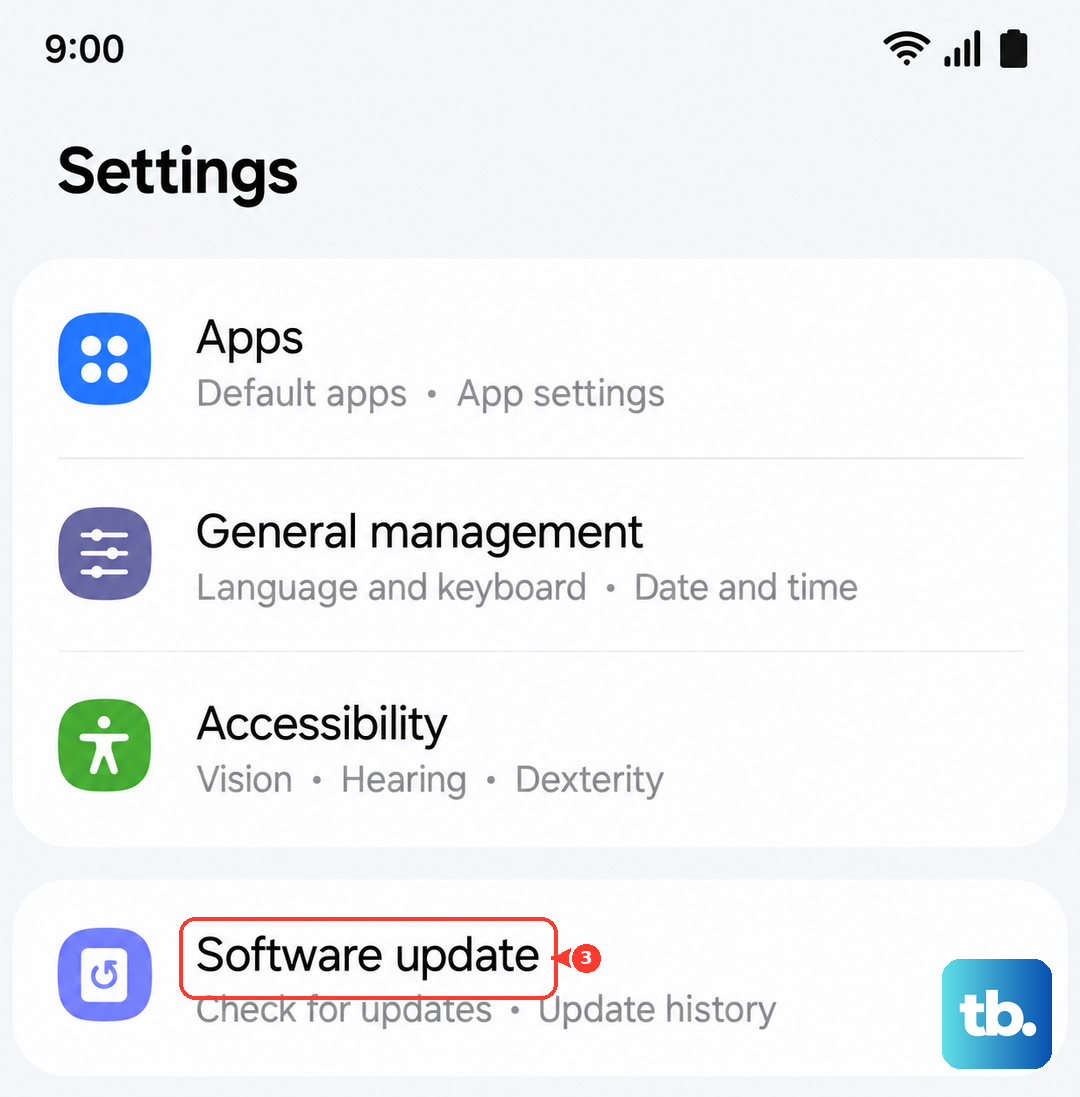
Samsung regularly pushes updates for the Z Flip 7 that include Bluetooth fixes and improvements. Go to Settings > Software Update and tap Download and Install. If an update is available, install it and see if Bluetooth starts working normally afterward. Also check whether your Bluetooth accessory has a firmware update available through its companion app.
Boot Into Safe Mode
Safe Mode temporarily disables all third-party apps, helping you pinpoint whether a downloaded app is interfering with Bluetooth. Press and hold the Power button until the power menu shows up, then tap and hold Power off until you see the Safe Mode prompt. Tap OK to restart in Safe Mode.
Try using Bluetooth in Safe Mode. If it works fine, a third-party app is the likely cause. Restart your phone normally and uninstall any apps you added around the time the Bluetooth trouble started. Do them one at a time and test after each removal to identify the culprit.
Factory Reset as a Last Resort
If you've tried everything above and Bluetooth still won't cooperate, a factory reset can clear out deeper software corruption. Back up all your important data first, this will erase everything on your Z Flip 7. Go to Settings > General management > Reset > Factory data reset and follow the prompts. After the reset, set up your phone without restoring from a backup to see if Bluetooth works on a clean system.
A Few Known Z Flip 7 Issues to Keep in Mind
Some Galaxy Z Flip 7 owners have reported that charging can stop intermittently, which might affect Bluetooth if the phone enters a low-power state unexpectedly. If you notice charging stopping on its own, try a soft reset using the Volume Down + Side key method. Using a Samsung official wireless charger at 15W and centering the device on the pad can help avoid charging interruptions that might mess with Bluetooth connectivity.
For wireless charging issues on non-Samsung pads, the phone may not maintain a stable connection, which could indirectly cause Bluetooth to behave oddly. Stick with Samsung's own chargers when possible for the most reliable experience.
Starting with the force restart and working through these steps in order should resolve most Bluetooth problems on the Galaxy Z Flip 7. The vast majority are software-related and won't require a trip to the service center.