
When your Samsung Galaxy Z Flip 7 stops rotating, it usually comes down to a simple settings toggle rather than a hardware failure. But the foldable design throws in a few extra variables, like Flex Mode, that can catch you off guard. Run through these fixes in order and you'll likely find the one that works.
Check the Quick Panel First
Pull down the notification shade twice to reveal the full Quick Settings menu. Look for the auto rotate icon, it might say Portrait Lock instead. Tap it until it switches to Auto Rotate.
This is the fastest fix and it resolves the issue more often than you'd think. Once it's enabled, tilt your phone to test if the screen rotates.
Unfold the Hinge Completely
Here's a Z Flip 7 specific quirk. If your phone is partially folded in Flex Mode, many apps will refuse to rotate because the system thinks you want it propped up.
Open the phone completely flat to its full 6.7-inch display and try rotating again. If that works, you can adjust Flex Mode rotation on a per-app basis in the settings.
Force Restart the Phone
A standard restart sometimes isn't enough to clear a stuck sensor. On the Z Flip 7, press and hold the Volume Down key and the Side key simultaneously for 10 to 15 seconds.
Keep holding both buttons until the Samsung logo appears on the screen. The phone will reboot and this clears most temporary software glitches without deleting any data.
Install Pending Software Updates
Software bugs can definitely mess with auto rotate. The Z Flip 7 had a known issue early on where charging would stop intermittently, and similar bugs can affect the gyroscope drivers.
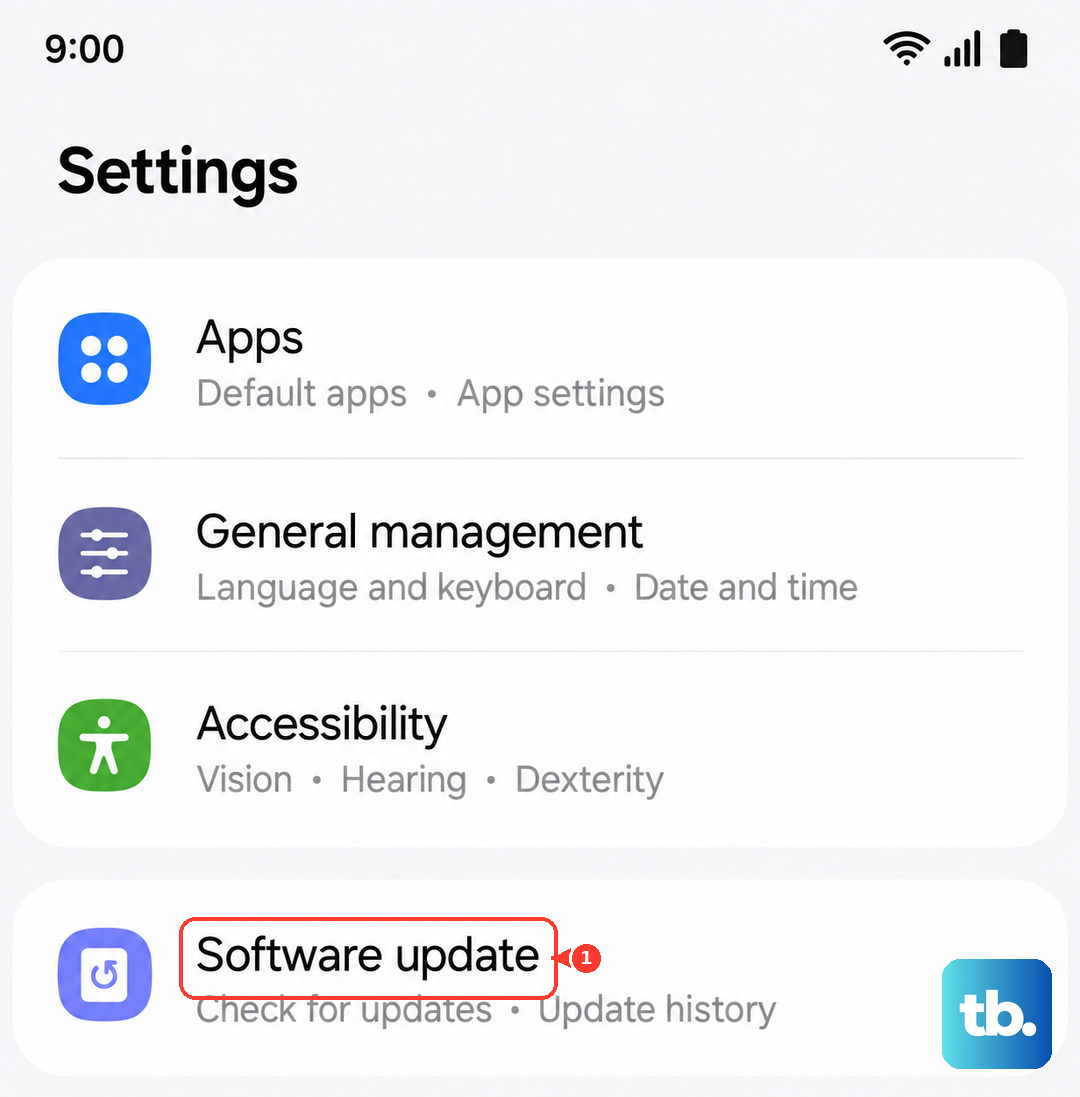
Go to Settings > Software Update > Download and Install. If an update is waiting, install it and restart the phone. I've seen this single step fix the rotation problem on recent Android 16 builds.
Calibrate the Gyroscope
Auto rotate relies on the tiny gyroscope inside your phone. You can test it by dialing *#0*# in the Phone app and tapping the Sensor option.
Move the phone around and watch the x, y, and z values. If they don't change smoothly, the sensor is stuck. Place the phone flat on a table and physically draw a figure 8 in the air with it for about 30 seconds to recalibrate it.
Check Per-App Rotation Settings
Some apps have their own rotation lock that overrides the system setting. YouTube, Gallery, and most video players have a small lock icon hidden in the playback controls.
If auto rotate works fine on the home screen but stops inside a specific app, that app is the one controlling it. Look for the lock icon in the corner of the screen.
Boot into Safe Mode
If nothing has worked so far, a third-party app could be interfering with the rotation sensor. Booting into Safe Mode temporarily disables all downloaded apps.
Press and hold the Side key, then tap and hold the Power off icon on the screen. Select Safe Mode. If auto rotate works perfectly in Safe Mode, a downloaded app is the culprit. Uninstall recently added apps until you find the one causing the conflict.
Avoid Screen Contact While Rotating
This sounds obvious, but it tricks people constantly. The Z Flip 7's touch screen is very sensitive.
If your finger or palm is touching the screen when you tilt the phone, the system assumes you are actively interacting with it. It intentionally stops rotating so the content doesn't flip while you're tapping it. Try holding the phone by the edges or the hinge bezel when you test rotation.