When your Galaxy Z Flip 6 won't send pictures, it's usually a quick network or app setting that needs adjusting. I'd start by checking your mobile data and making sure MMS is enabled in your messaging app.
Check Your Mobile Data and Connection
First, verify you have a solid internet connection. Open your phone and look at the status bar for the 5G, 4G, or Wi-Fi icon. If you're trying to send over mobile data, ensure it's turned on by going to Settings > Connections > Data usage and toggling Mobile data on.
If you're on Wi-Fi but the picture is stuck, try switching to mobile data temporarily. Sometimes Wi-Fi networks have firewalls that block MMS traffic. You can also try toggling Airplane mode on for 10 seconds and then off again to refresh all your connections.
Enable MMS in Your Messaging App
MMS (Multimedia Messaging Service) is required for sending pictures via traditional text. Open your Samsung Messages app, tap the three-dot menu, and go to Settings. Look for an option labeled "Multimedia messages" or "MMS messages" and make sure it's enabled.
If you're using a different messaging app like Google Messages, the setting is in the app's settings under "Advanced." Also, check that "Send as SMS/MMS when RCS is unavailable" is turned on, as this ensures the message will send through the standard network if the fancy chat features fail.
Verify the APN Settings
Incorrect Access Point Name (APN) settings from your carrier can block MMS. Go to Settings > Connections > Mobile networks > Access Point Names.
Select the APN profile for your carrier. If the settings look wrong or are missing, you'll need to get the correct ones. The easiest way is to contact your carrier's support or visit their website for the Z Flip 6 APN details to enter manually.
Clear the Messaging App's Cache
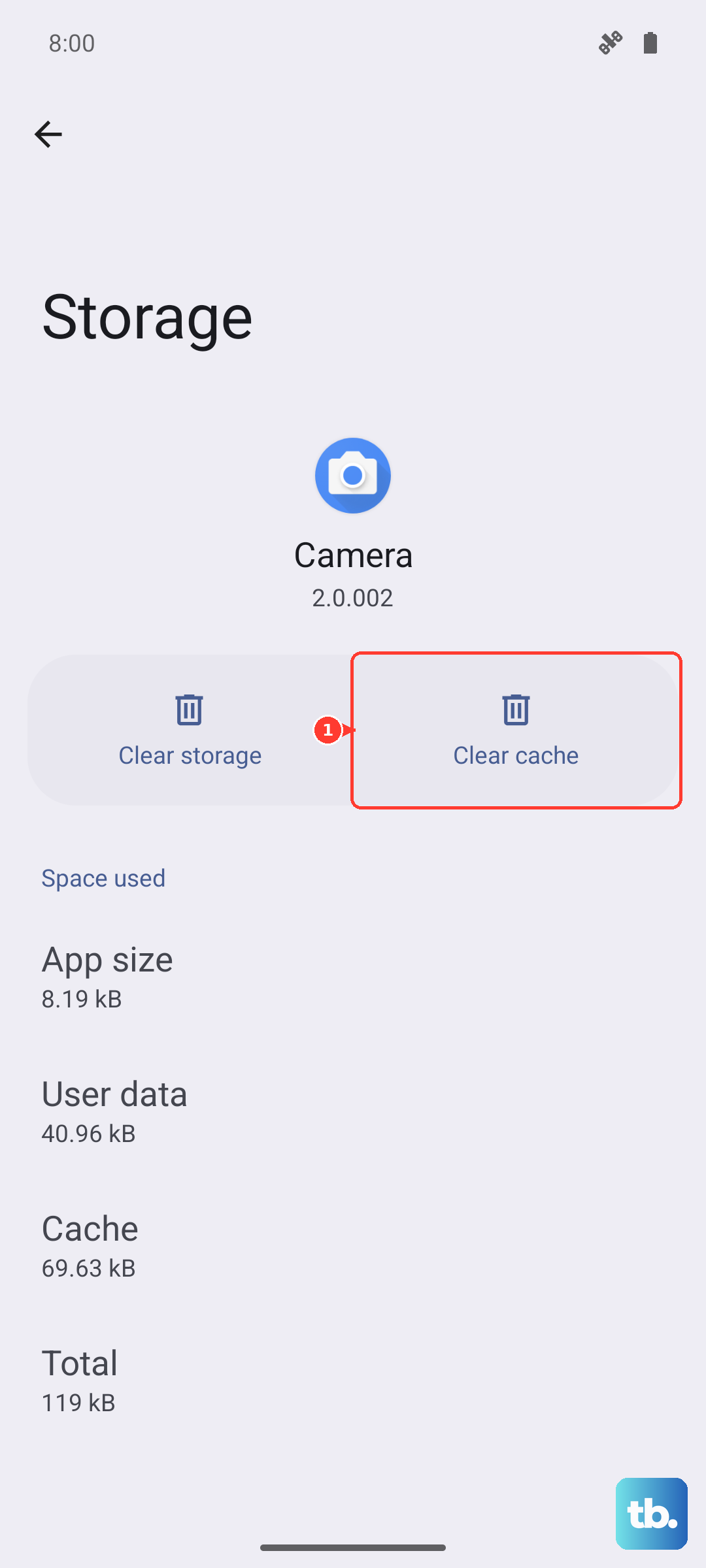
A corrupted cache in your messaging app can cause sending failures. Go to Settings > Apps, find and select your messaging app (like Samsung Messages or Google Messages).
Tap on Storage and then hit Clear cache. This won't delete your messages. After clearing, force stop the app from the same menu, then reopen it and try sending the picture again.
Check the File Size and Format
Most carriers have a size limit for MMS, usually between 1MB and 3MB. If your photo is a huge, high-resolution file from the Z Flip 6's camera, it might be too big. Try sending a different, smaller picture to test.
You can also compress the image before sending. Open the photo in your Gallery, tap the share button, and look for an option like "Resize image" or "Share as compressed." Some messaging apps will do this automatically, but it's good to check.
Restart Your Phone
A simple restart can clear out temporary software glitches that halt message sending. Press and hold the Volume Down button and the Side key (power button) together for about 10 seconds until you feel a vibration and the Samsung logo appears.
This force restart is the most reliable method for the Z Flip 6. Once it boots back up, open your messages and try resending the photo.
Disable Power Saving Modes
Power saving modes, like the standard Power saving or the more aggressive Adaptive battery, can restrict background data needed for MMS. Go to Settings > Battery.
Make sure any power saving mode is turned off. Also, check the background usage limits. Go to Settings > Apps > [Your Messaging App] > Battery and set it to "Unrestricted."
Update Software and Carrier Services
An outdated system can have bugs that affect messaging. Connect to Wi-Fi and go to Settings > Software update > Download and install to check for the latest Android and One UI updates.
Also, open the Google Play Store, tap your profile icon, and go to Manage apps & device > Updates available. Look for updates to "Carrier Services" and your messaging app, as these can contain crucial connectivity fixes.
Try a Different Messaging App
This can tell you if the problem is with your specific app or a system-wide issue. Download Google Messages from the Play Store, set it as your default, and try sending a picture. If it works, the issue is likely with your previous app's settings or data.
You can use this as a temporary fix or stick with the new app if you prefer it. The Z Flip 6's cover screen works with several messaging apps, especially if you enable Labs in Settings for better third-party app support.
Reset Network Settings
If you've tried everything else, resetting network settings is a strong next step. This will erase all saved Wi-Fi networks, Bluetooth pairings, and mobile data settings, but not your personal data.
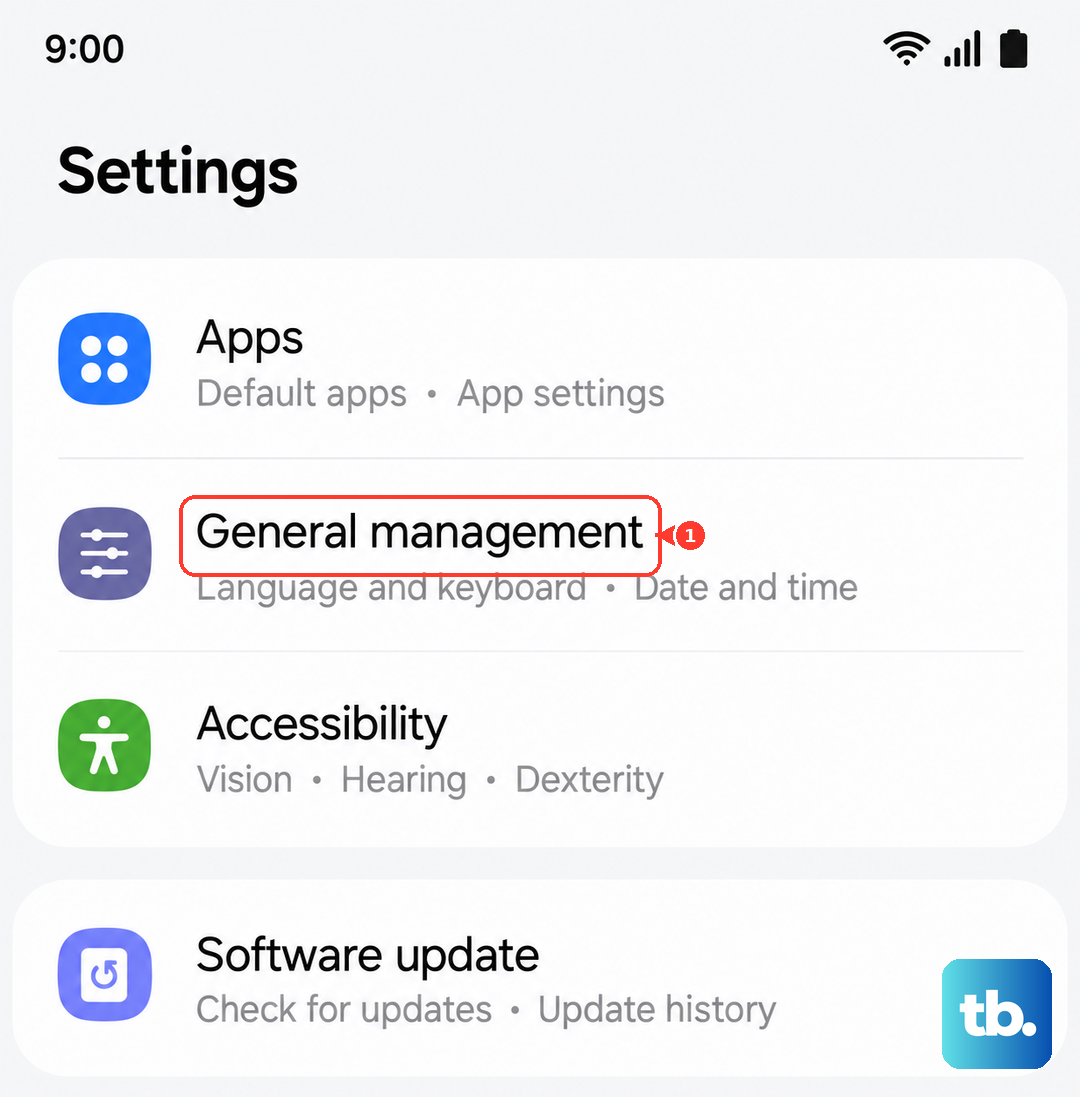
Go to Settings > General management > Reset > Reset network settings. Tap reset, enter your PIN if prompted, and confirm. Your phone will reboot. Afterwards, you'll need to reconnect to Wi-Fi and re-pair Bluetooth devices, but this often clears deep-seated network conflicts.