
You're trying to use your Samsung Galaxy Z Flip 6, but the Wi-Fi just won't play ball. That spinning icon on the cover screen or the inner display is a real mood killer. I've seen this happen a few times, especially with new foldables where the software is still getting polished. The good news is, it's almost always a software hiccup you can fix yourself in a few minutes.
Toggle Wi-Fi and Restart Your Phone
Let's start with the simplest fix. Swipe down from the top of your screen to open the Quick Panel. Tap the Wi-Fi icon to turn it off, wait a solid five seconds, then tap it again to turn it back on. This forces the phone's radio to re-scan for networks and can clear up a temporary glitch instantly.
If that doesn't do it, give the phone a full restart. Press and hold the Side key and Volume Down button together for about ten seconds. You'll see the Samsung logo appear as it reboots. This clears out any minor software bugs that might be interfering with the connection.
Use Airplane Mode to Reset Radios
This is a classic trick that works wonders. Turning on Airplane Mode shuts down all wireless communications, Wi-Fi, cellular, and Bluetooth. After about 15 seconds, turn it off again. This forces every radio to reinitialize from scratch, which often kicks a stubborn Wi-Fi connection back into gear.
You can do this from the same Quick Panel you used before. Just look for the airplane icon, tap it, wait, and tap it again to disable.
Forget the Network and Reconnect
Your Z Flip 6 might be holding onto old or corrupted login info for your network. To clear it out, open the Settings app, then tap "Connections," and select "Wi-Fi." Find your network name in the list and tap on it.
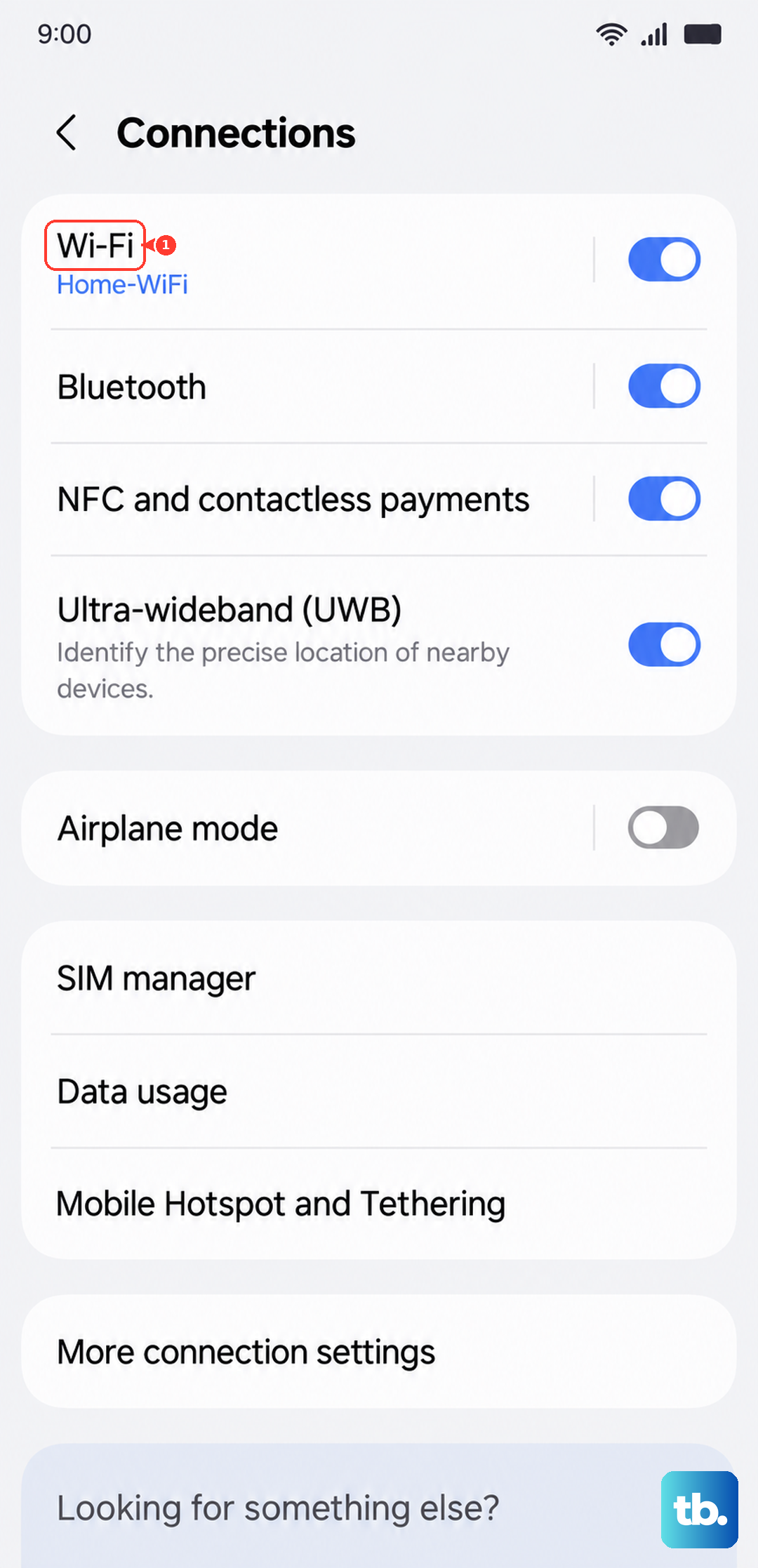
Then, tap "Forget" at the bottom. Don't worry, this just removes the saved password from your phone. Now, tap on your network name again from the main list and re-enter the password carefully. This is the fix if you've recently changed your Wi-Fi password.
Check for Router Issues
Before you spend more time on your phone, make sure the problem isn't actually with your internet source. Unplug your Wi-Fi router from the power outlet, wait a full 60 seconds, and then plug it back in. This gives it time to clear its memory and start fresh.
If other devices in your home are also struggling to connect, the router is almost certainly the culprit. While you're at it, check if there's a firmware update available for your router through its admin page or app.
Disable Smart Network Switch
Your Galaxy Z Flip 6 has a feature designed to help, but it can sometimes hinder. Smart Network Switch tries to seamlessly move you to mobile data if your Wi-Fi signal gets weak. In practice, it can be too aggressive and prevent a stable connection from ever establishing.
To turn it off, go to Settings > Connections > Wi-Fi. Tap the three-dot menu in the top right, select "Intelligent Wi-Fi," and toggle off "Switch to mobile data." This tells your phone to stay put on Wi-Fi.
Turn Off Bluetooth Temporarily
Bluetooth and Wi-Fi can sometimes interfere with each other on the 2.4GHz band. It's a long shot, but it's a quick check. Swipe down to your Quick Panel and tap the Bluetooth icon to turn it off. See if your Wi-Fi connects immediately afterward.
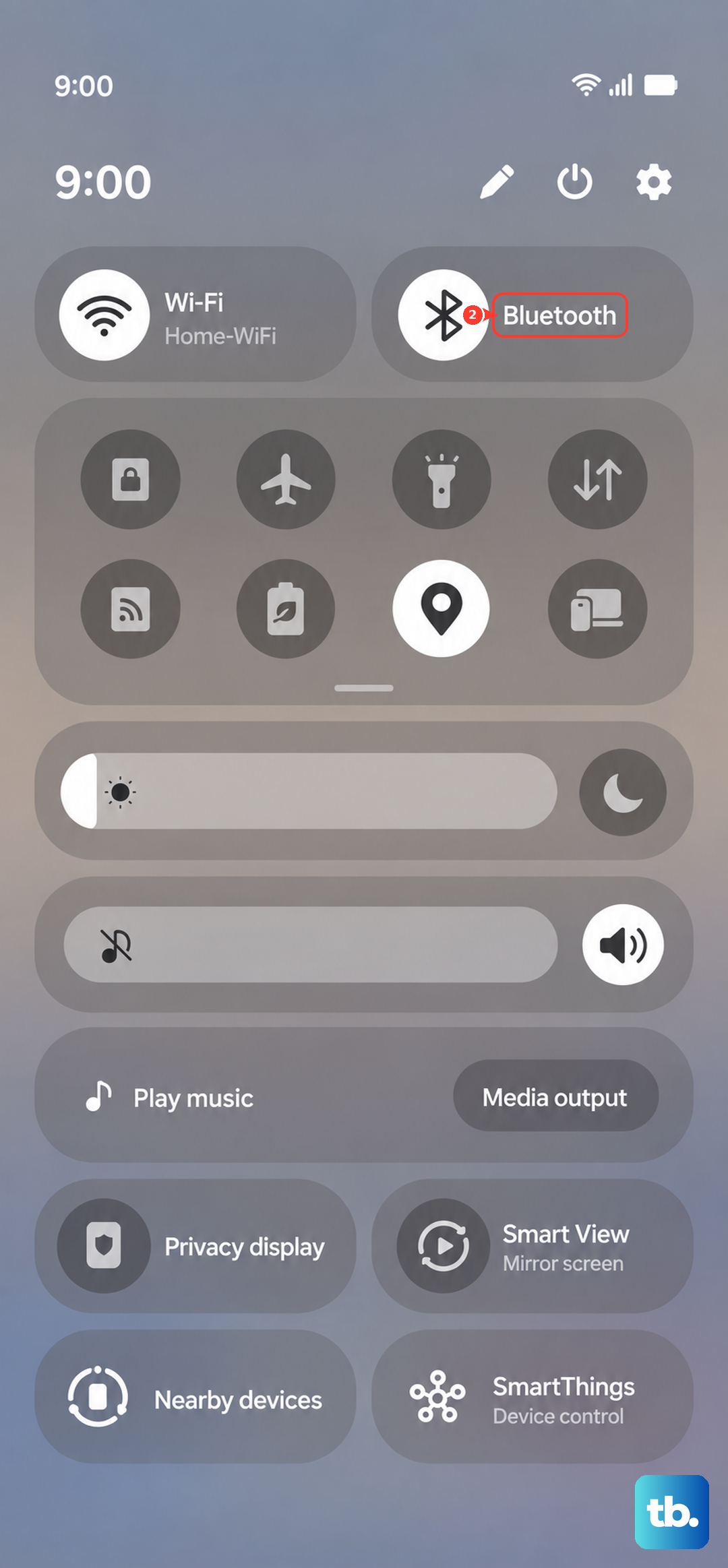
If this works, you know there's a conflict. You can usually turn Bluetooth back on after the Wi-Fi is stable, but you might need to be mindful of using both intensively at the same time.
Check Power Saving and Performance Modes
If you're using a power saving mode to extend the battery life of your Z Flip 6, it might be limiting background network activity. Go to Settings > Battery. Here, make sure "Power saving" is turned off.
Also, tap on "Performance profile" and ensure it's not set to "Light" mode, as this can throttle system performance, including network connectivity. Set it to "Standard" or "High" for testing.
Update Your Phone's Software
Samsung regularly releases updates that fix bugs, including connectivity issues. An outdated version of One UI could be the root of your Wi-Fi problems. Go to Settings > Software update and tap "Download and install."
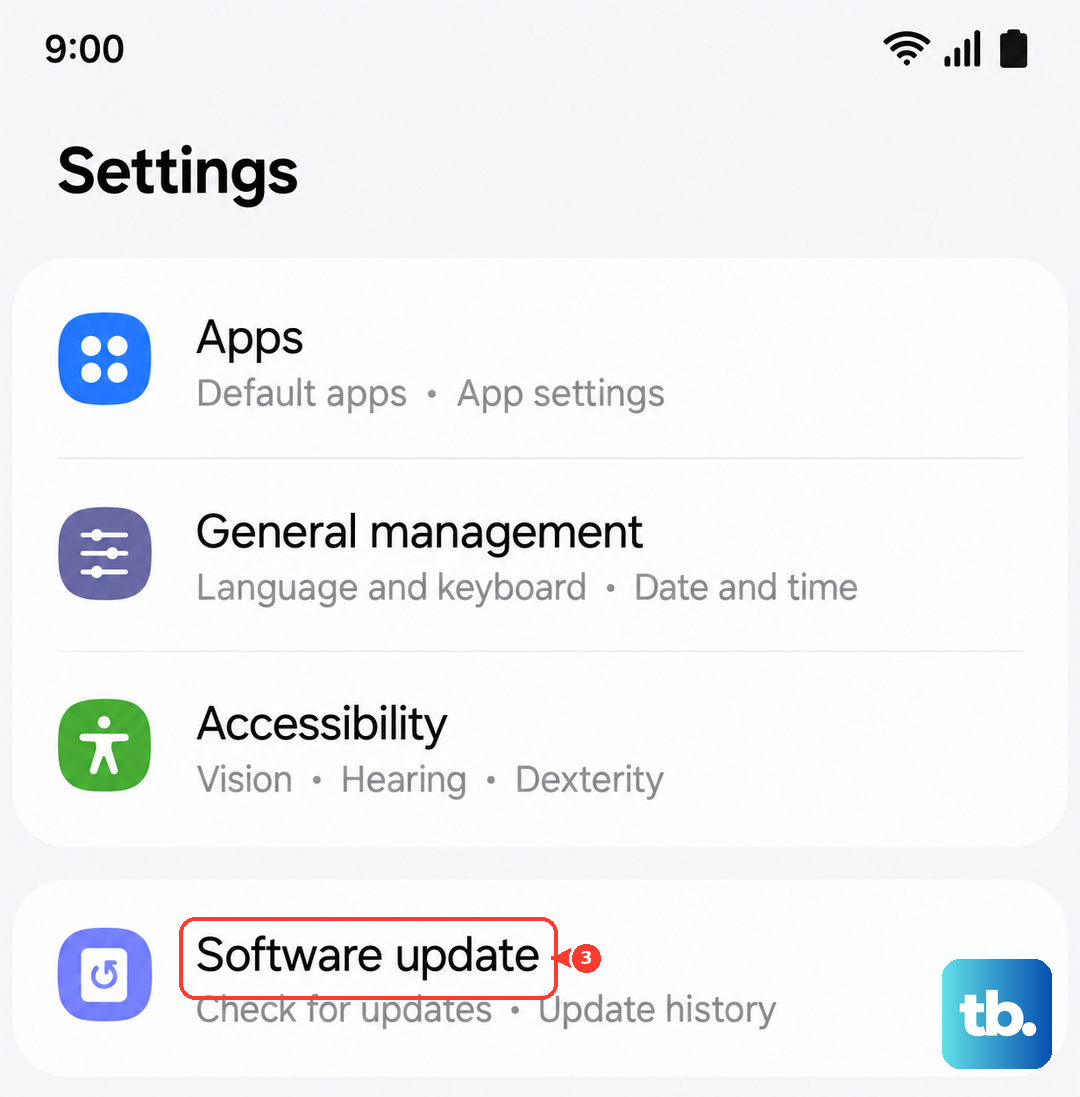
Make sure your phone is connected to a cellular network or, if possible, try a different Wi-Fi network to download the update. I've seen specific updates for the Z Flip series that target network stability.
Verify Date and Time Settings
This seems unrelated, but it's critical for network security. If your phone's clock is wrong, it can fail to properly authenticate with secure Wi-Fi networks. Go to Settings > General management > Date and time.
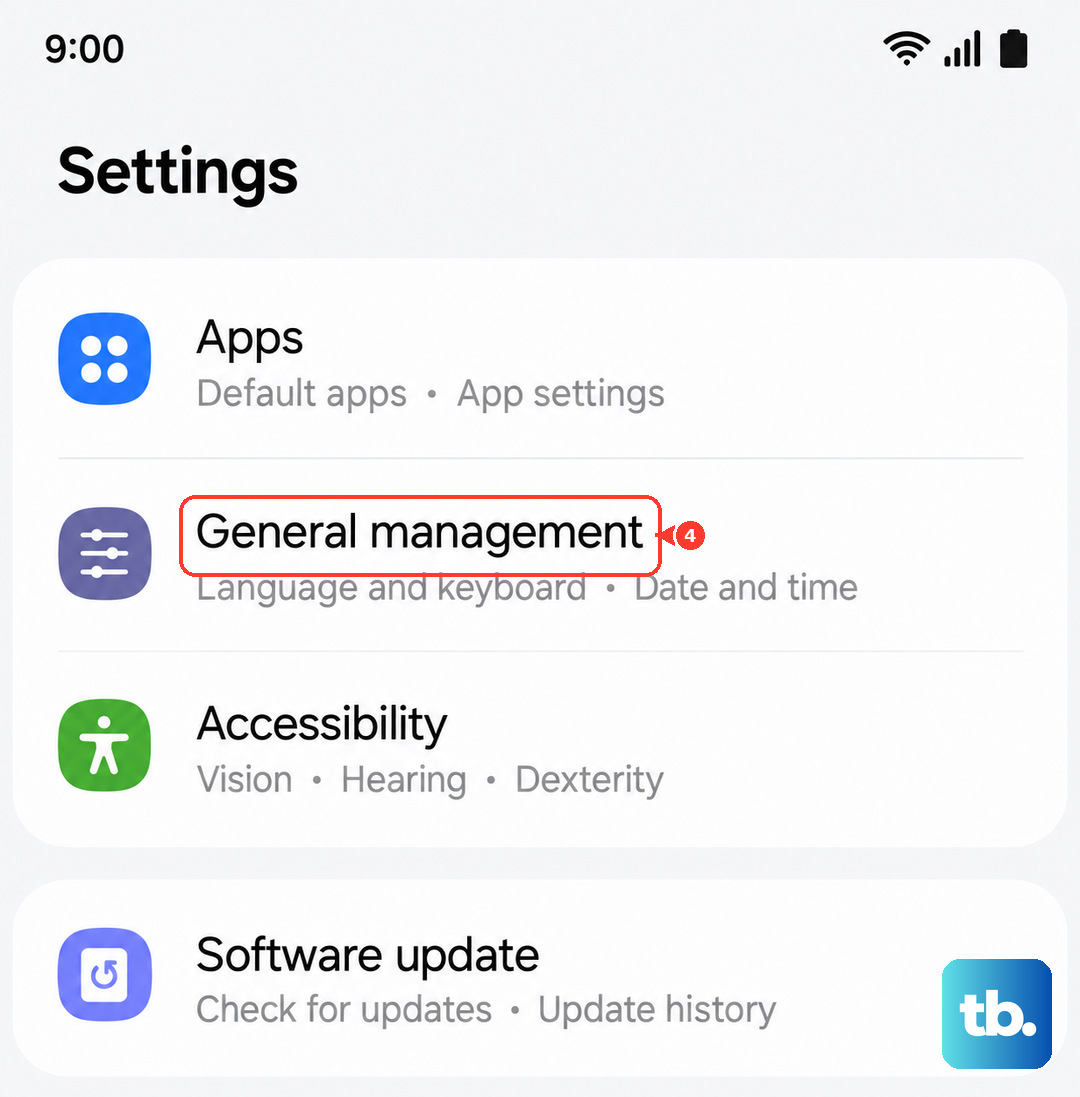
Make sure both "Automatic date and time" and "Automatic time zone" are switched on. This lets your phone sync with network time servers and keeps everything in order.
Reset Network Settings
If you're still stuck, this is a stronger step that resets all your network configurations. It will erase saved Wi-Fi networks, Bluetooth pairings, and mobile network settings. You'll have to reconnect to everything afterward.
To do this, navigate to Settings > General management > Reset. Tap "Reset network settings" and confirm. This is a very effective fix for persistent, weird connection issues and doesn't touch your personal data like photos or messages.
Boot Into Safe Mode
A third-party app you installed could be causing the conflict. Apps like VPNs, ad blockers, or certain "cleaner" utilities are common suspects. Booting into Safe Mode temporarily disables all downloaded apps.
To enter Safe Mode, press and hold the Side key until the power menu appears. Then, tap and hold the "Power off" option on your screen. You'll see a prompt to reboot into Safe Mode. Tap it. If Wi-Fi works perfectly in Safe Mode, you know an app is to blame. Start by removing recently installed apps or any network-related utilities.
Consider a Factory Reset
This is your absolute last resort before thinking about hardware. A factory reset will wipe your Z Flip 6 back to its original out-of-the-box state. You must back up everything important first, photos, files, app logins, the works.
If you decide to proceed, go to Settings > General management > Reset > Factory data reset. Follow the prompts. Only use this if every other fix on this list has failed. If Wi-Fi still doesn't work after a full factory reset, the issue may be physical.