
When the speaker on your Galaxy Z Flip 6 goes quiet, it can turn a great phone into a frustrating one. Whether you're missing notifications, can't hear calls, or your media is silent, the issue usually has a straightforward fix. I'd start with the basics, as a simple setting or a bit of pocket lint is often the culprit.
It is worth confirming the basics with a quick online speaker test. If neither channel plays a tone, you are looking at a hardware or connection problem rather than a settings issue.
Check Your Volume and Sound Mode
First, make sure your phone isn't just muted. Press the volume up button on the side a few times while you're on the home screen or playing a video. Look for the volume indicator on your cover screen or main display to confirm it's increasing.
Next, swipe down from the top to open the Quick Settings panel. Check if the "Sound" icon is highlighted. If you see a "Vibrate" or "Mute" icon instead, tap it to switch back to sound mode. Sometimes the phone can get set to vibrate if you close it while pressing the side buttons.
Clean the Speaker Grilles Carefully
The Z Flip 6's main speaker is along the bottom edge. Over time, lint from your pocket can get packed into the tiny holes, muffling the sound dramatically. Grab a soft-bristled brush, like a clean makeup brush or a new toothbrush, and gently brush across the grille.
You can also use a dry cotton swab. Avoid using compressed air, as the pressure can damage the internal speaker components. Take a peek with your phone's flashlight to see if there's any obvious blockage you can carefully dislodge.
Disconnect Bluetooth and Other Audio Routes
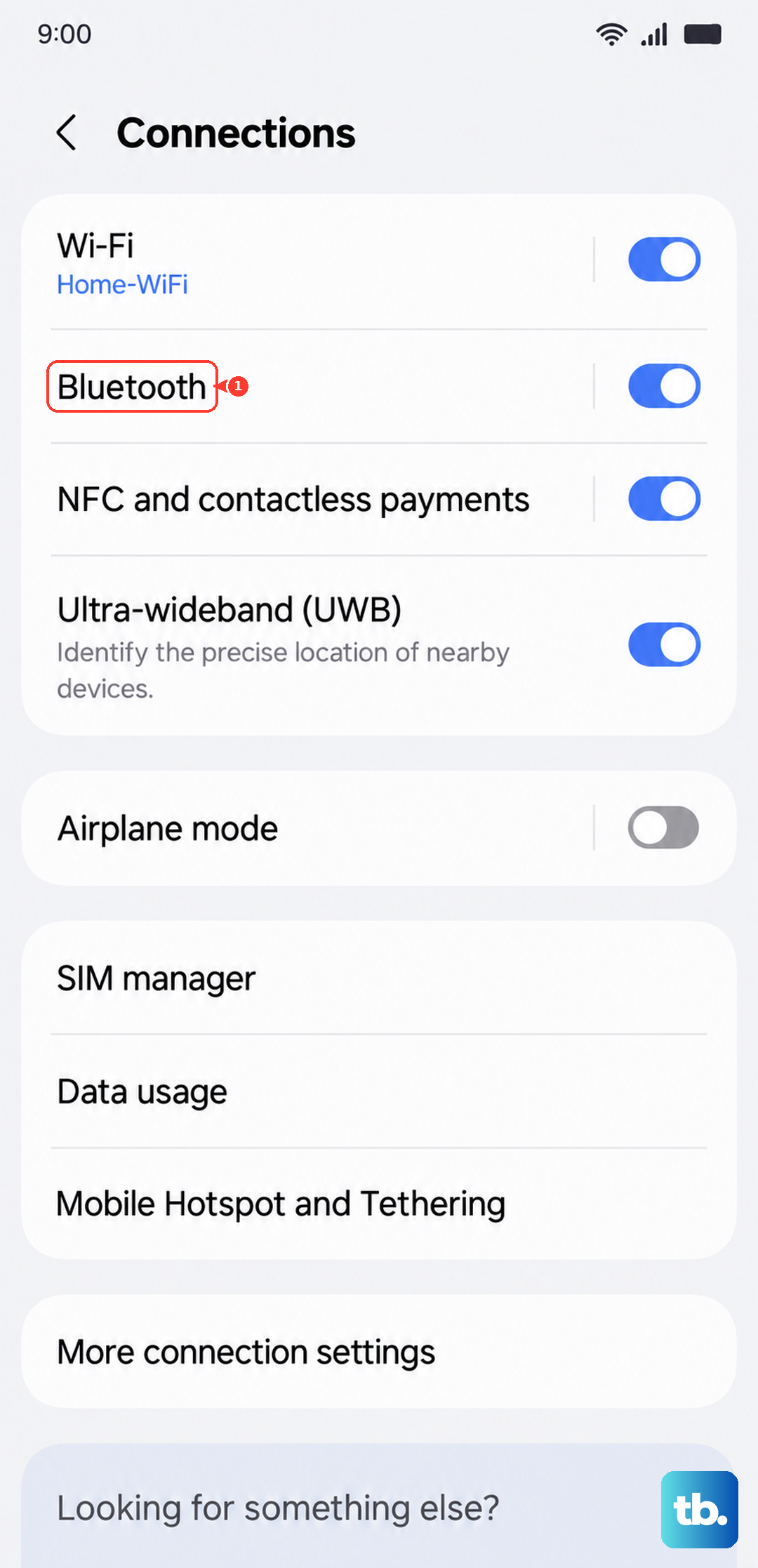
If your phone is still connected to a Bluetooth device like headphones or a car system, it will send audio there instead of to its own speaker. Go to Settings > Connections > Bluetooth and turn the toggle off at the top, or tap the gear icon next to a connected device and select "Disconnect."
Also, remove any USB-C accessories, like headphones or a charging cable, as they can sometimes tell the phone to route audio externally. If you're using a thick case, try removing it temporarily to see if it's accidentally covering the speaker grille.
Review Advanced Sound Settings
Samsung's One UI has some powerful audio features that can sometimes get misconfigured. Open Settings > Sounds and vibration. Tap on "Separate app sound" and make sure this feature is turned off, unless you intentionally want specific apps playing through a different device.
While you're there, scroll down and tap "Volume." Ensure all the sliders, like Media, Notifications, and System, are at an audible level. It's easy for one to get turned down without realizing it.
Check Do Not Disturb and Accessibility
Swiping down to see your Quick Settings isn't always enough. Go into Settings > Notifications > Do Not Disturb to see if a schedule is active or if it's manually turned on. If it is, toggle it off.
Next, visit Settings > Accessibility > Hearing enhancements. Look for any options like "Mute all sounds" or "Audio balance" that might be shifted all the way to one side. Disable any enhancements here to test if they're causing the problem.
Force Restart Your Phone
A quick reboot clears out temporary software glitches that can affect audio. For the Galaxy Z Flip 6, press and hold the Volume Down button and the Side Key (power button) together for about 10 seconds. Release when you see the Samsung logo appear on the screen.
Let the phone restart completely. This is different from a normal restart and can resolve deeper system hiccups that might be muting your speaker.
Boot Into Safe Mode
If the speaker works after a force restart but the problem comes back, a third-party app you installed could be interfering. Safe mode disables all downloaded apps. To enter it, press and hold the Side Key until the power menu appears.
Tap and hold the "Power off" option on your screen. A prompt to reboot into Safe Mode will appear, tap "OK." If your speaker works fine in Safe Mode, you'll know a recently installed app is the cause. You can then restart normally and uninstall apps one by one to find the offender.
Clear the System Cache Partition
Corrupted system cache files, especially after a software update, can lead to all sorts of issues, including audio problems. This doesn't delete any personal data. First, turn off your Z Flip 6 completely.
Now, connect it to your computer with a USB-C cable. Immediately press and hold the Volume Up and Side Key buttons. When you see the Android recovery screen, release the buttons. Use the volume keys to highlight "Wipe cache partition" and press the Side Key to select it. Confirm, then select "Reboot system now."
Update Your Software
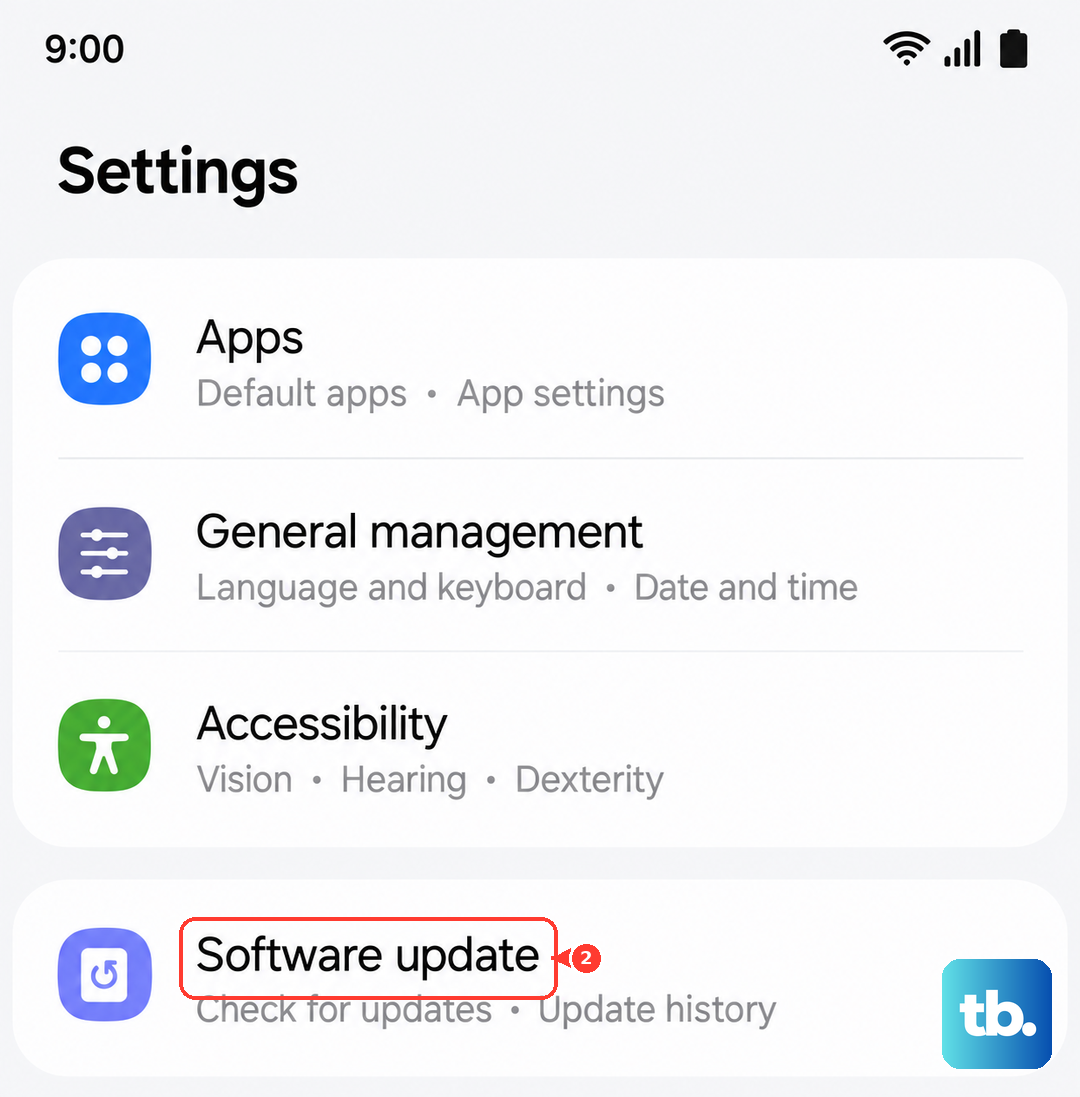
Samsung regularly releases updates that fix bugs, including audio-related ones. Go to Settings > Software update > Download and install. Let it check for updates. If one is available, connect to Wi-Fi and let it install.
It's a good idea to make sure your important apps are updated through the Galaxy Store or Google Play Store as well, as app updates can also resolve compatibility issues with your phone's audio system.
Reset All Settings
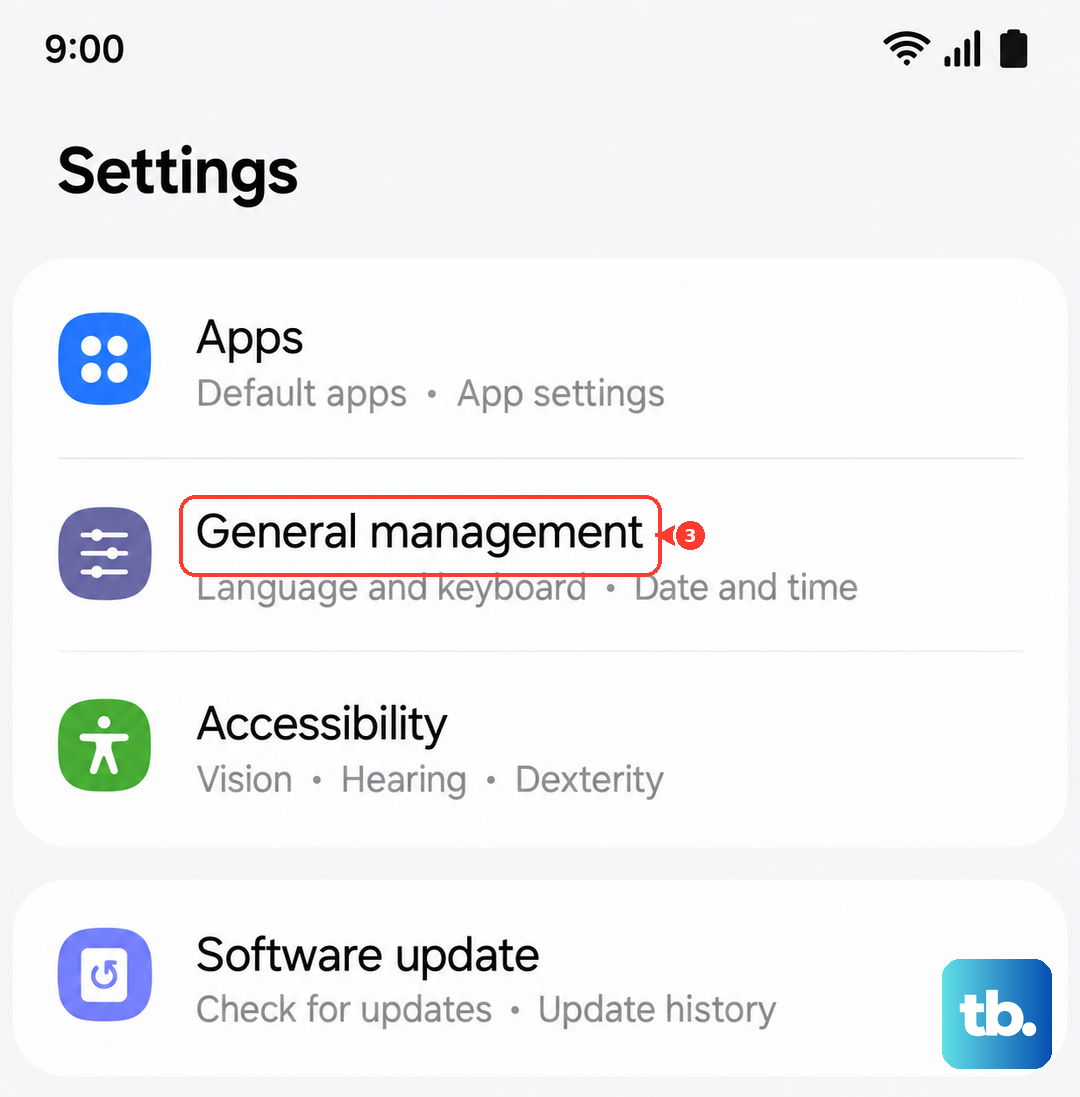
If you're still having trouble and you've ruled out hardware, this resets every system setting, like Wi-Fi passwords, Bluetooth pairings, and sound configurations, back to factory defaults. Your photos, messages, and apps remain untouched. Go to Settings > General management > Reset > Reset all settings.
Enter your PIN if prompted and confirm. The phone will reboot. Afterward, you'll need to reconfigure your preferences, but it often clears up persistent software conflicts causing the speaker to malfunction.