
Slow internet on your Galaxy Z Flip 6 can really take the fun out of using that beautiful folding screen. Whether you're trying to watch a video on the main display or quickly check something on the cover screen, a sluggish connection gets in the way. The fixes are usually pretty straightforward, and I'd start with the simplest ones first.
Before you do anything else, try a quick restart. Press and hold the Volume Down button and the Side button together for about ten seconds. Keep holding until you see the Samsung logo appear, then let go. This clears out any temporary software glitches that might be slowing things down and takes less than a minute.
Check Your Current Network and Signal
First, figure out if the problem is with your Wi-Fi or your mobile data. Swipe down from the top of your screen to open the Quick Settings panel. Take a look at the icons. If you're on Wi-Fi, you should see a solid signal indicator. For mobile data, look for "5G," "LTE," or "4G" next to the signal bars.
If the signal looks weak, try moving to a different location. Sometimes, just walking to another room or near a window can make a big difference. For Wi-Fi, you can also try turning it off and back on by tapping the Wi-Fi icon in your Quick Settings panel twice.
Use Samsung's Adaptive Wi-Fi Feature
Your Z Flip 6 has a smart feature called Adaptive Wi-Fi. When your Wi-Fi connection gets spotty, it can automatically switch you over to your mobile data so you don't lose your connection. This is great for staying on a video call or keeping a download going without interruption.
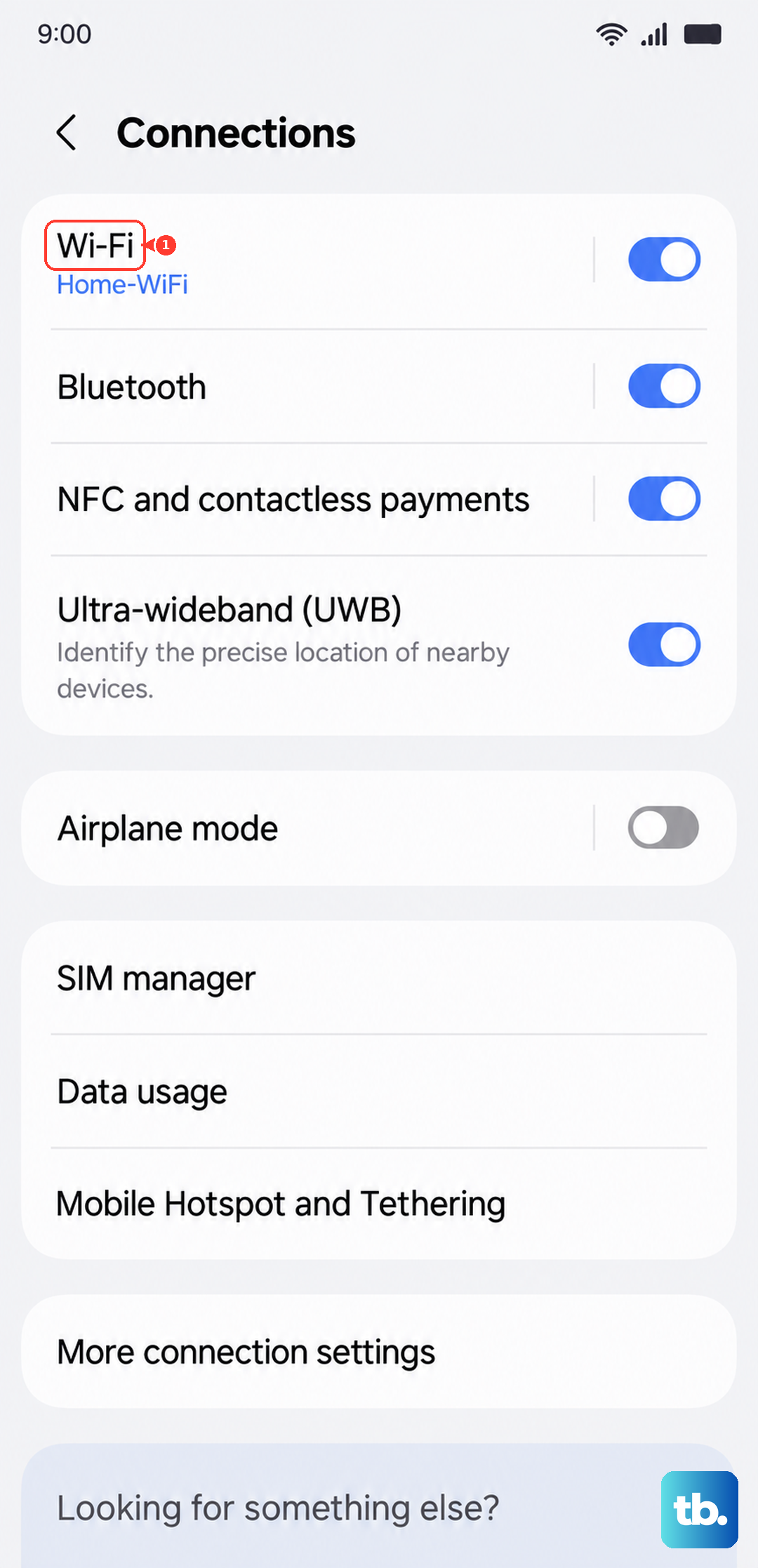
To turn it on, go to Settings > Connections > Wi-Fi. Tap the three-dot menu in the top right corner and select Advanced. Look for "Intelligent Wi-Fi" and tap on it. Inside, you'll find the option to toggle on Switch to mobile data. Just be mindful that this will use your cellular data plan if it kicks in.
Enable Data Saver Mode
If your mobile data feels slow, it might be because apps are using data in the background without you knowing. Data Saver mode puts a stop to that. It restricts background data for most apps, which can free up bandwidth for the app you're actively using, making it feel faster.
You can turn it on by going to Settings > Connections > Data Usage. Tap on Data Saver and toggle the switch at the top to the on position. You can also tap on "Allowed apps" to choose specific apps, like your messaging service, that are still allowed to use data in the background.
Clear Your Browser's Cache and Data
Over time, your web browser stores a lot of temporary files, or cache, to help pages load faster. But if this cache gets too big or corrupted, it can actually have the opposite effect and slow things down. Clearing it gives the browser a fresh start.
If you use Samsung Internet, open the app and tap the three-line menu button at the bottom. Go to Settings > Privacy and security. Tap Delete browsing data. Make sure "Cached images and files" is checked, then tap "Delete data." For Chrome, the process is similar: open Chrome, tap the three-dot menu, go to Settings > Privacy and security > Clear browsing data.
Update Your Phone's Software
Samsung regularly releases updates that can include improvements for network connectivity and performance. It's a good habit to check for these updates every so often. An outdated software version can sometimes be the culprit behind persistent slow speeds.
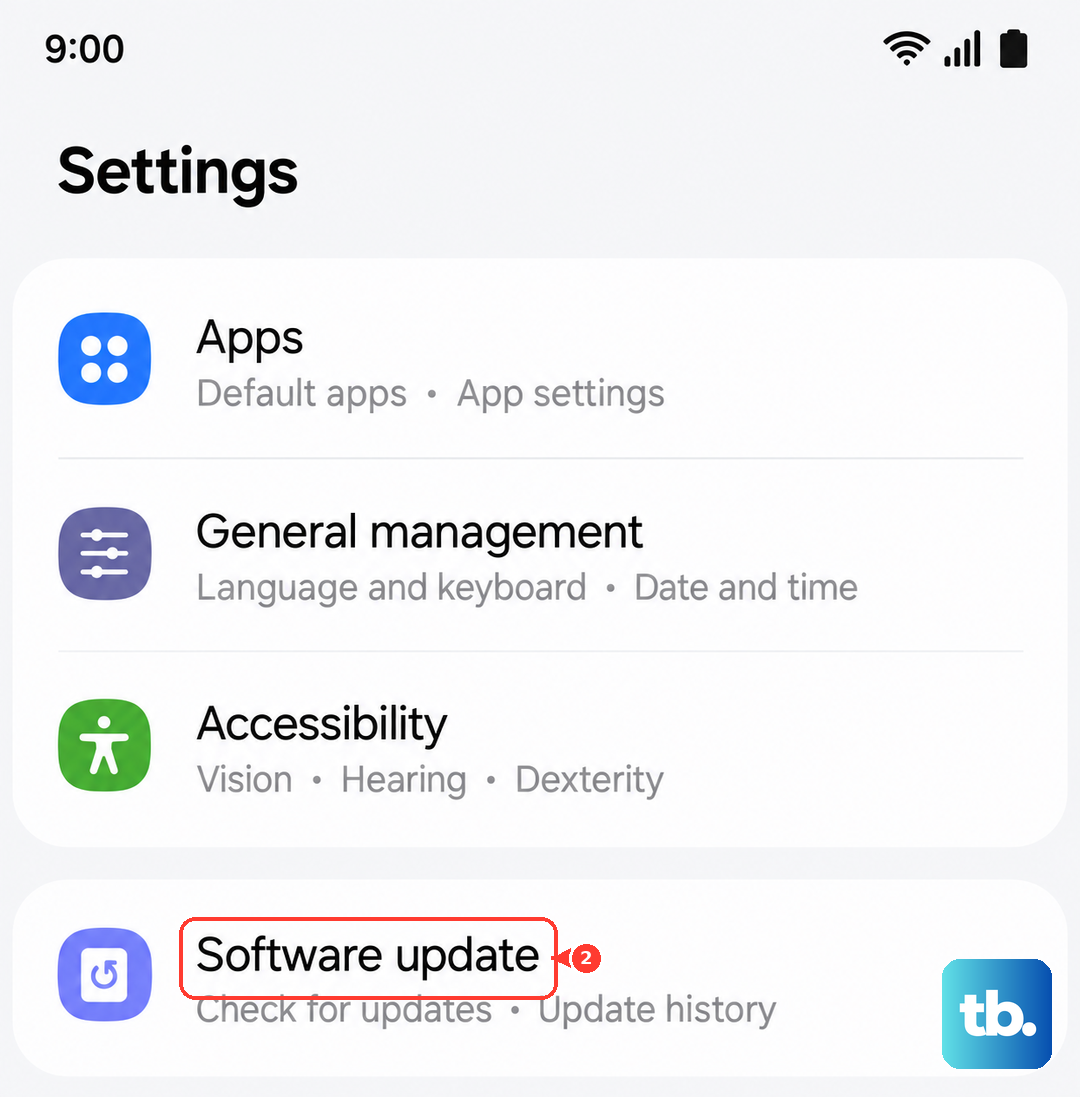
To check, go to Settings > Software update. Tap Download and install. Your phone will check for any available updates. If one is found, make sure you're connected to a strong Wi-Fi network and follow the prompts to install it. This is one of the more reliable fixes for weird, unexplained slowdowns.
Reset Your Network Settings
If you've tried everything else and your internet is still crawling, a network settings reset is a strong next step. This will erase all your saved Wi-Fi networks, Bluetooth pairings, and mobile data settings, returning them to their factory defaults. It often clears up deep-seated connection problems.
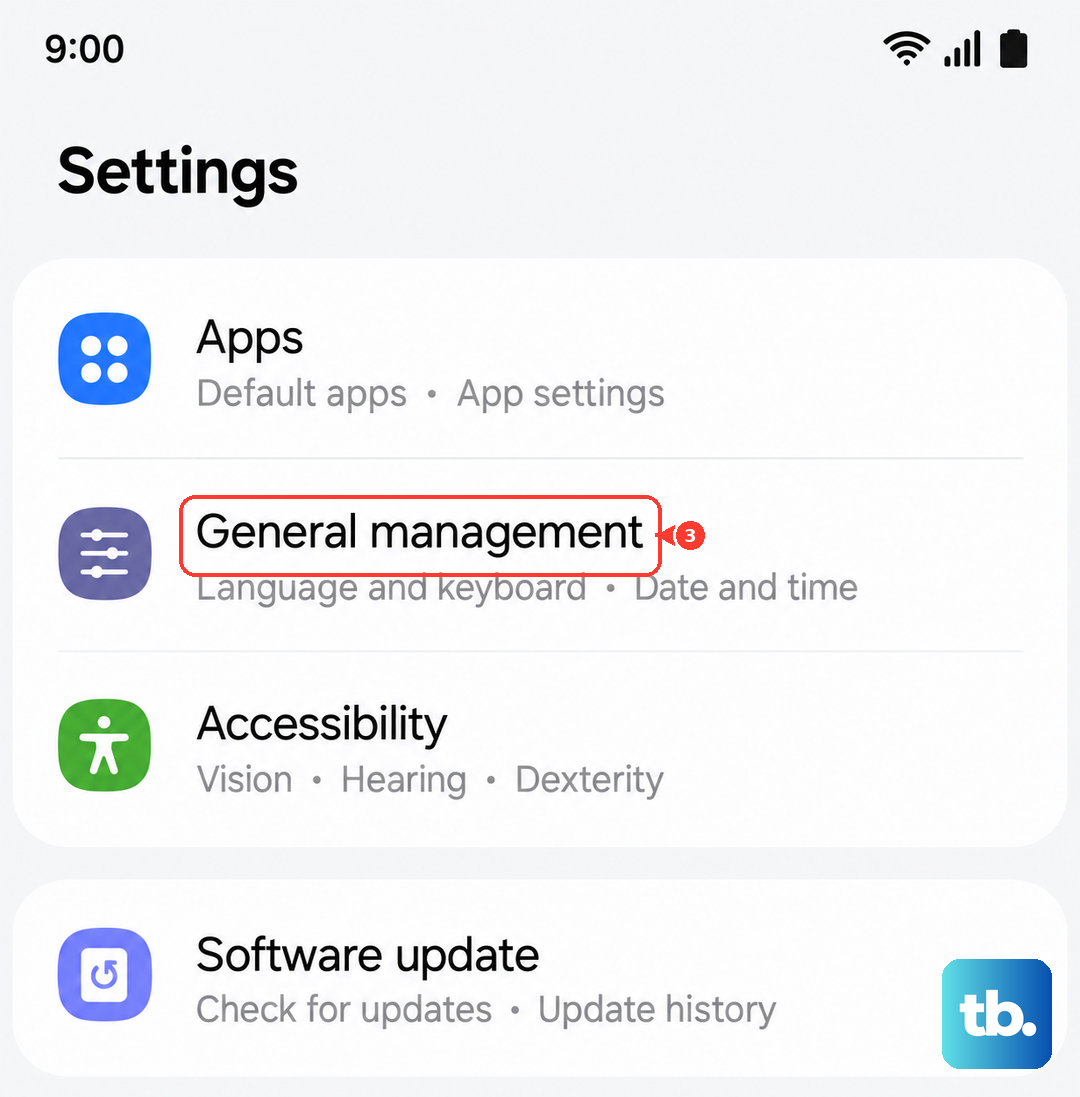
Remember, you'll need to re-enter passwords for your Wi-Fi networks afterward. To do it, go to Settings > General management > Reset. Tap on Reset network settings. You may need to enter your PIN or password, then confirm the action. Your phone will restart, and you can start reconnecting to your networks.
Check for Problematic Apps
A single misbehaving app can sometimes hog your bandwidth or cause general system slowdowns. Think about if the slow internet started around the time you installed a new app. You can check your data usage per app to see if anything looks suspicious.
Head to Settings > Apps. Tap the three-dot menu and select Sort by > Data usage. This will show you which apps have used the most mobile data recently. If you see an app you don't recognize or one that seems to be using a lot of data for no reason, you can tap on it and force stop it, or consider uninstalling it to see if your speed improves.
Try Using a Different DNS
Your phone uses something called a Domain Name System (DNS) server to translate website addresses into the numbers computers understand. Sometimes, your carrier or internet provider's default DNS can be slow. Switching to a faster public DNS, like Google's or Cloudflare's, can speed up how quickly web addresses resolve.
For your Wi-Fi, go to Settings > Connections > Wi-Fi. Tap the gear icon next to your connected network. Tap Advanced, then change the "IP settings" from DHCP to Static. Scroll down to the DNS 1 and DNS 2 fields. For Google DNS, enter 8.8.8.8 and 8.8.4.4. For Cloudflare, use 1.1.1.1 and 1.0.0.1. Tap Save when you're done.