One moment your Galaxy Z Flip6 looks flawless, and the next a faint shimmer rolls across the 6.7-inch inner display, or the FlexWindow cover screen blinks while you check the time. Flickering on a foldable can feel alarming because there are two screens that can act up: the Dynamic AMOLED 2X Infinity Flex main panel and the 3.4-inch Super AMOLED cover display. The good news is that most flicker on this phone comes from software settings, a temporary glitch, or even the lighting in the room rather than a broken panel. Work through the fixes below from the simplest first, and save the reset and service options for last.
Start with a free online monitor test to check the panel with fullscreen test patterns. What you see there tells you whether to blame the display, the cable, or the source.
Make Sure It Is Really the Screen and Not the Lighting
Before you change a single setting, check whether the flicker only shows up while you are recording video indoors. A flickering black line that appears solely during video capture, especially with Super Steady mode on or a fast shutter speed in Pro video, is usually caused by fluorescent or LED lighting, not a faulty panel.
To confirm, add more ambient light to the room, turn off Super Steady, or switch to a slower shutter speed in Pro video mode. If the screen looks perfectly normal whenever you are not recording video, your display hardware is very likely fine, and the steps below will address general flicker in everyday use.
Check Both Displays for Physical Damage
Because the Z Flip6 carries a foldable inner display plus a separate cover screen, you have two surfaces to inspect. Open the phone fully and look closely at the entire inner panel, then close it and study the cover screen.
You are looking for cracks, pressure marks, or any visible damage. If you find any, stop troubleshooting here. Physical damage can cause flickering that no software fix will resolve, so the right move is to visit a Samsung service center or schedule a repair rather than continuing through the menu changes below.
Tune the Display Settings to Stop Automatic Flicker
Several display features adjust brightness and refresh rate automatically, and those automatic shifts are a common source of flicker. Open Settings then Display and make the following adjustments.
- 1.Turn off Dark mode (it may be labeled Night mode on your software version).
- 2.Turn off Adaptive brightness, then raise the brightness slider manually to a comfortable level.
- 3.Tap Motion smoothness and select Standard.
These changes stop the phone from constantly recalculating brightness and refresh rate, which is often enough to settle a shimmering screen.
Flickering Only While Charging Has Its Own Fix
If the screen only flickers or glitches while the phone is plugged in, the cause is usually a combination of the charging connection and the refresh-rate behavior. First, make sure the charging cable is seated securely in both the phone and the adapter.
Then open Settings, tap Display, tap Motion smoothness, and select Adaptive. This is the opposite of the Standard recommendation above, and it specifically targets flicker that shows up during charging.
Restart the Phone to Clear Temporary Glitches
A simple restart clears the kind of temporary software hiccups that can make a screen flicker. To restart normally, press and hold the Volume down button and the Side button at the same time, tap Restart when the power options appear, then tap Restart again.
If the screen is frozen or completely unresponsive, do a force restart instead. Press and hold the Volume down button and the Side button simultaneously until the device turns off and turns back on. This forces the phone to power-cycle even when the touchscreen will not respond.
Optimize Storage and Memory
Background apps and lingering issues can tax the system enough to cause display problems. One UI includes a built-in cleanup tool that closes background apps and scans for trouble.
Open Settings, tap Device care, and tap Optimize now. Let the scan finish, then check whether the flicker improves during normal use.
Install Software and App Updates
Display bugs that cause flickering are frequently patched in software updates, so it pays to make sure you are current. A quick way to open Settings is to use two fingers to swipe down from the top right corner of the screen, then tap the Settings icon.
- 1.In Settings, tap Software update (it may appear as System updates on your version).
- 2.Tap Download and install, then follow the on-screen instructions.
- 3.Separately, open your app stores and update your installed apps as well.
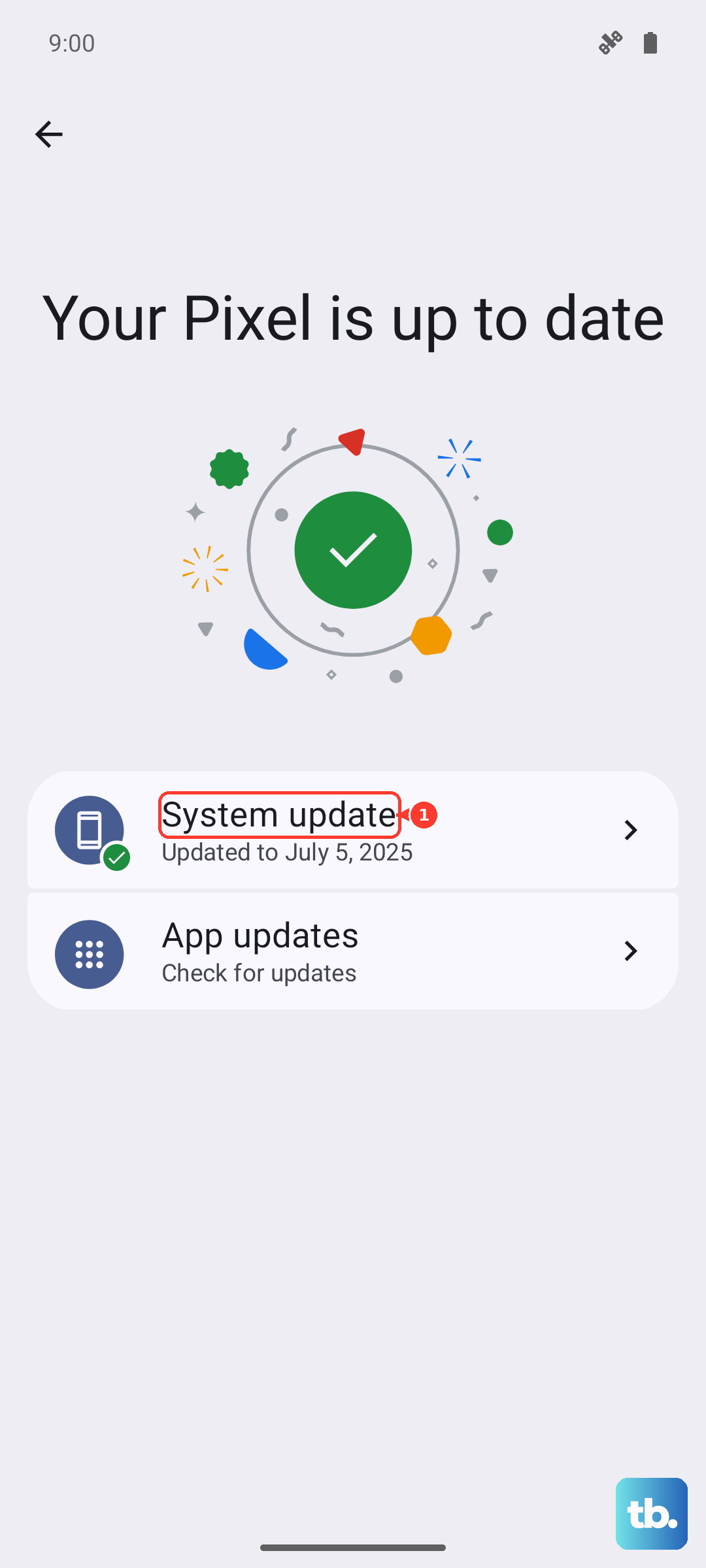
Because the Z Flip6 launched on Android 14 with One UI 6.1.1 and Samsung has since rolled out newer versions, the exact menu wording may differ slightly. Rather than chasing a specific version number, just check Software update and install whatever is offered.
Use Safe Mode to Catch a Misbehaving App
If a downloaded app is causing the flicker, Safe mode will reveal it because no third-party apps run in that state. Power the phone all the way off, turn it back on, and when the Samsung logo appears, press and hold the Volume down button until "Safe mode" appears in the bottom-left corner.
Now use the phone in Safe mode for a while. If the flickering stops entirely, a downloaded app is the culprit, so restart normally to exit Safe mode and then uninstall recently added apps one at a time until the problem disappears.
Factory Data Reset as the Last Software Step
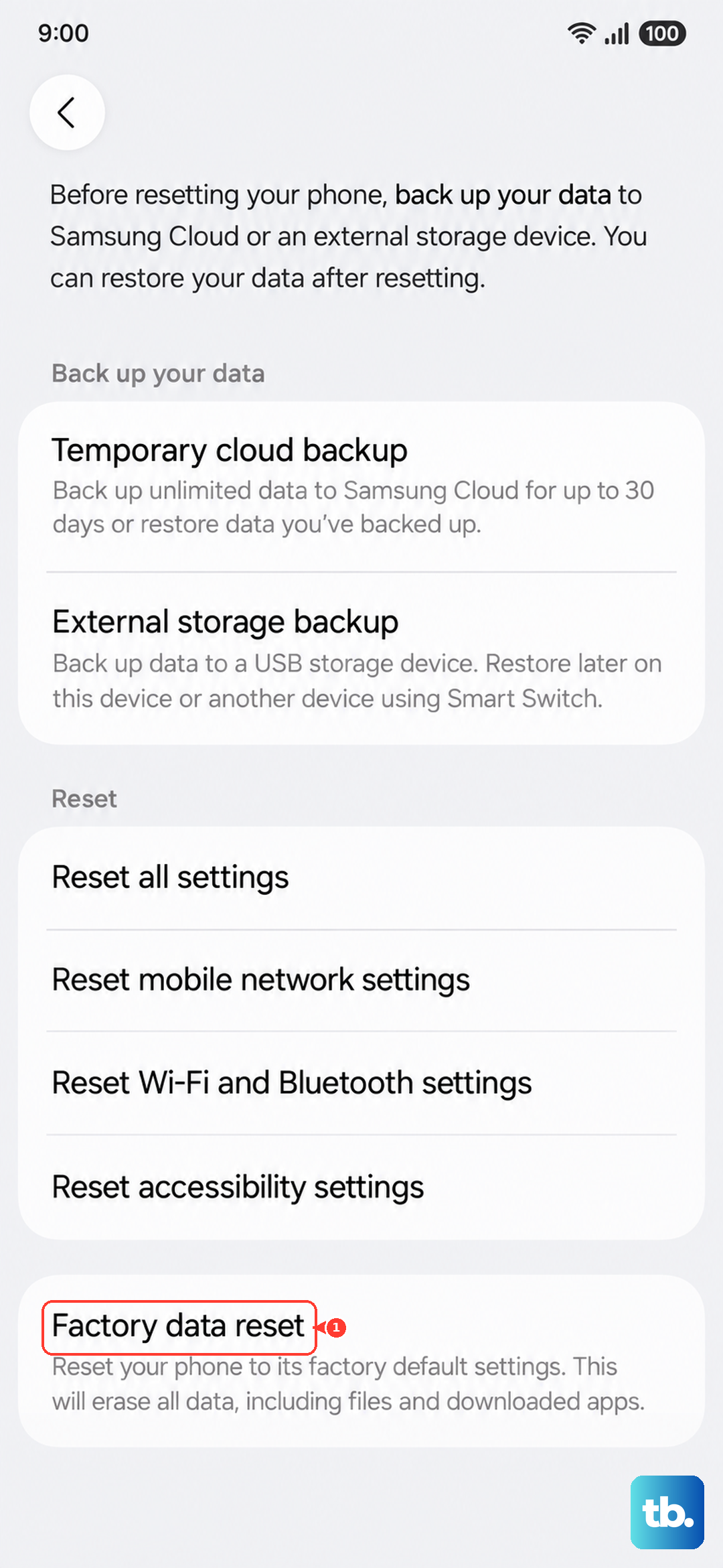
If flickering survives every fix above and you have ruled out physical damage, a factory data reset is the final software option. This erases everything on the phone, so back up your data first using Samsung Smart Switch on a Windows or Mac computer before you begin.
When your backup is complete, go to Settings, then General management, then Reset, then Factory data reset, then Reset, then Delete all. Samsung's own warning states, "Please save any information you need prior to the factory reset because your personal information may not be recovered." Keep the phone charged or plugged in throughout the reset so it does not power off mid-process.
When to Hand It to Samsung for Service
If the screen still flickers after a clean factory reset, the issue is almost certainly hardware and needs professional attention. The same is true the moment you spot cracks or pressure marks on either display.
Have the phone evaluated by an authorized Samsung service center, or reach out through Samsung customer support. Describing exactly when the flicker happens, such as only while charging or only during video recording, helps the technician diagnose it faster.
Frequently Asked Questions
Why does my Z Flip6 screen flicker only when I record video?
That is usually a lighting artifact rather than a panel fault. Indoor fluorescent or LED lighting can produce a flickering black line on video, especially with Super Steady on or a fast shutter speed in Pro video. Add more ambient light, turn off Super Steady, or use a slower shutter speed.
Should Motion smoothness be set to Standard or Adaptive?
For general flicker, set Motion smoothness to Standard in Settings then Display. If your screen only flickers while the phone is charging, set it to Adaptive instead and make sure the charging cable is seated securely.
How do I force restart a frozen Galaxy Z Flip6?
Press and hold the Volume down button and the Side button at the same time until the device turns off and turns back on. This power-cycles the phone even when the touchscreen is unresponsive.
Will a factory reset fix the flickering?
A factory data reset can resolve flicker caused by software, but it erases everything, so back up with Samsung Smart Switch first. If the flicker returns after a clean reset, the cause is likely hardware and the phone should be evaluated by an authorized service center.
How can I tell if the flickering is a hardware problem?
Inspect both the inner display and the cover screen for cracks or pressure marks. If you see any damage, or if flicker persists after updating software, optimizing the device, using Safe mode, and performing a factory reset, treat it as a hardware issue and contact Samsung support.