
Missing notifications on your Galaxy Z Flip 6 can make you feel disconnected, especially when you're waiting for something important. The issue can stem from a simple setting or a deeper system glitch. I'd start with the quick fixes, as they resolve most cases in under a minute.
First, give your phone a quick restart. Press and hold the Volume Down and Side button together for about ten seconds until you see the Samsung logo. This clears out any temporary software hiccups that might be blocking alerts.
Next, check your Do Not Disturb and Focus modes. Swipe down from the top of your screen twice to open the Quick Settings panel. Look for the Do Not Disturb or Moon icon and make sure it's turned off. Also, check if you have any Modes or Routines active that could be silencing notifications.
Check App-Specific Notification Settings
Android and One UI give you a lot of control over notifications per app. If only one app isn't alerting you, its individual settings are the first place to look.
Go to Settings > Notifications > App notifications. Find the problematic app in the list and tap on it. Make sure the toggle at the top is set to "On." Then, check the types of notifications listed below, like "General" or "Messages", and ensure those are also enabled.
For some apps, especially on the cover screen, you might need to dig deeper. Tap on a notification type and look for options like "Pop-up notification" or "Show on Lock screen" to ensure they're configured to actually alert you.
Enable Background Activity for Key Apps
Battery optimization is great for longevity, but it can sometimes be too aggressive. If an app is put into a deep sleep state, it won't check for new messages or send notifications until you open it.
Head to Settings > Apps, select the app that's not notifying you, and then tap Battery. Here, you'll see the background activity setting. Choose "Unrestricted" for critical apps like your messaging or email client. This tells your Z Flip 6 to let that app run in the background so it can fetch new data.
You can also manage this more broadly. Go to Settings > Battery > Background usage limits. Check both the "Sleeping apps" and "Deep sleeping apps" lists. If your important app is there, remove it.
Review Your Cover Screen Notification Settings
The Z Flip 6's cover screen is fantastic, but its notification behavior is separate from the main display. If you're only missing alerts when the phone is closed, this is where to look.
Open Settings > Cover screen. Tap on "Widgets" and make sure the notification widget is enabled and positioned where you can see it. You can also go into Cover screen > Notifications to choose which apps are allowed to show alerts on the small screen.
Some users find that enabling Labs features helps. Go to Settings > Advanced features > Labs and see if there are any toggles related to cover screen notifications or allowing more apps on the cover display.
Clear the App's Cache and Data
A corrupted cache can break an app's notification function. Clearing it is safe and won't delete your account or personal data within the app, like your messages.
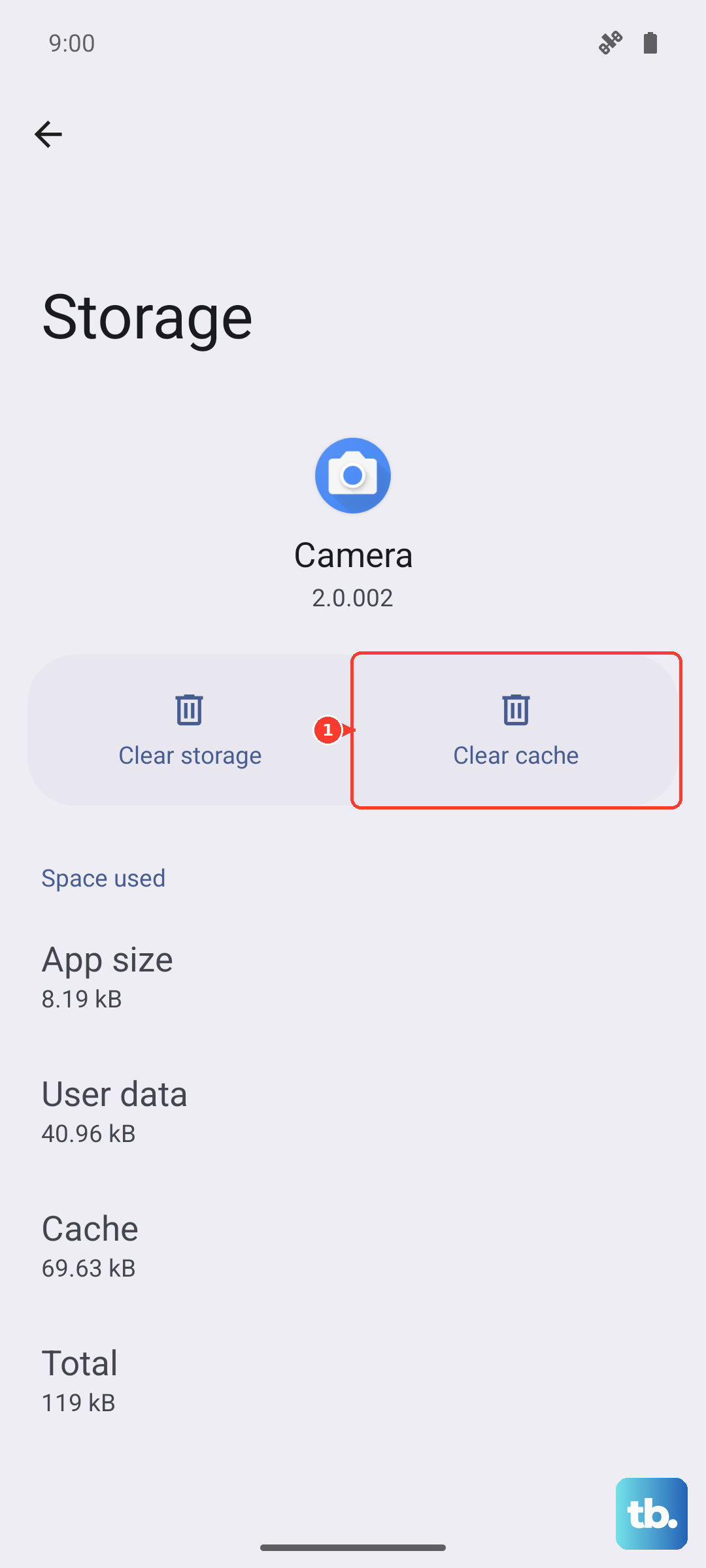
Navigate to Settings > Apps, find the app, and tap on it. Select Storage, then tap "Clear cache." Try the app again. If notifications still don't work, you can go back and tap "Clear data." Just be aware this will reset the app to its default state, so you may need to log back in.
Verify System Notification Permissions
Beyond the app's own settings, the system has overarching controls. Go to Settings > Notifications and scroll down to "Advanced settings." Here, check a few key items.
Ensure "Show notification icons" and "Notification history" are enabled. Look for "Blink flashlight" or "Flash notification" and turn it off if it's on, as this feature can sometimes interfere. Also, check "Do not disturb" settings to make sure exceptions are set up correctly for your favorite contacts or apps.
Update Your Apps and Software
An outdated app or system software can have bugs that break notification delivery. It's a simple but often overlooked fix.
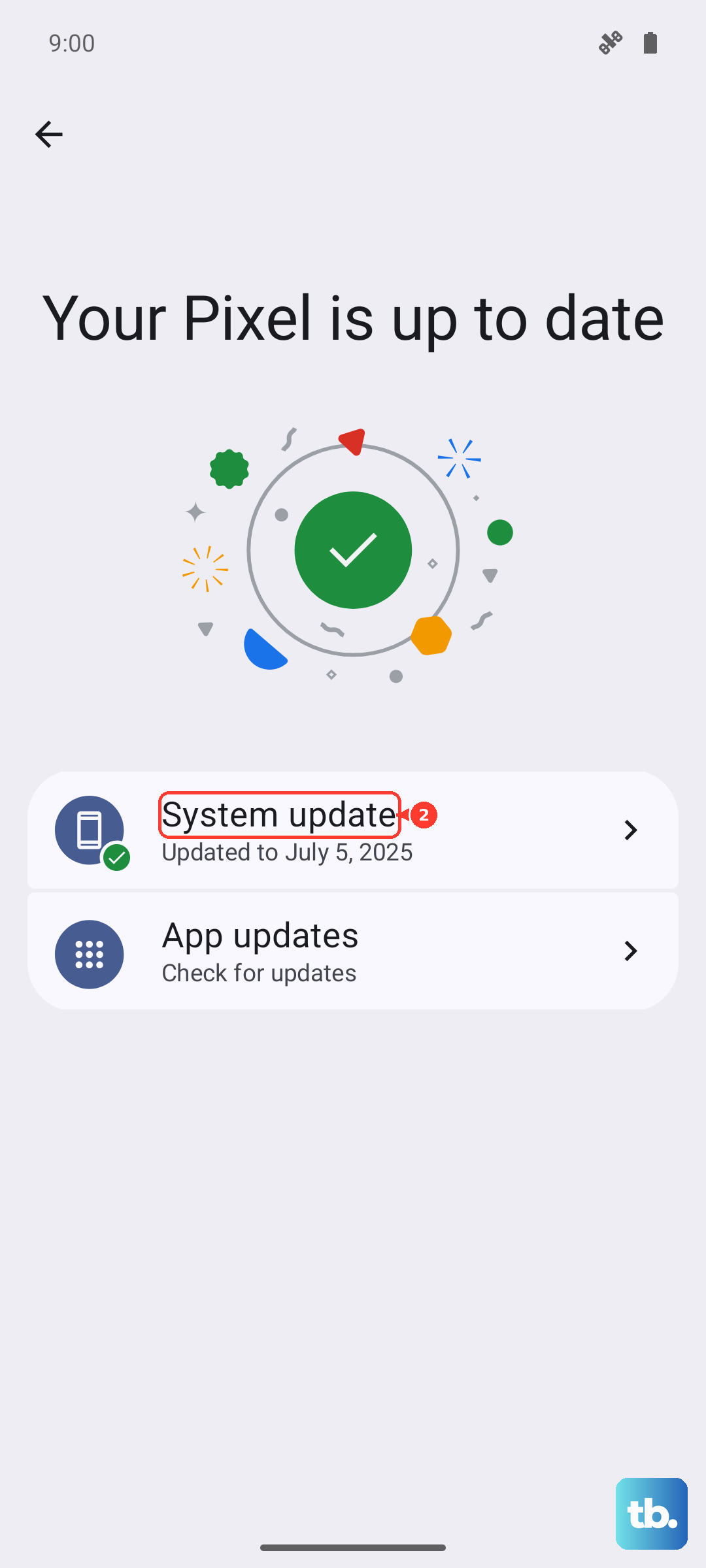
Open the Galaxy Store and Google Play Store, go to your profile menu, and check for updates. Install all available app updates. Then, check for a system update by going to Settings > Software update > Download and install. Installing the latest One UI update can resolve known notification issues.
Reset All App Preferences
This is a broader reset that doesn't delete your personal data. It will revert all your app permissions, notification settings, and default apps back to their original state. It's very effective for mysterious system-wide issues.
Go to Settings > Apps, tap the three-dot menu in the top right, and select "Reset app preferences." Confirm the action. Afterward, you'll need to re-grant permissions like microphone or location when you use apps for the first time, and re-customize your notification sounds for messaging apps.
Check for Conflicting Modes or Routines
One UI's Modes and Routines are powerful, but a misconfigured routine could be silencing your phone at certain times or in certain locations without you realizing it.
Open the Modes app or go to Settings > Modes and routines. Review any active Modes (like Work or Sleep) and see what notification rules they have. More importantly, check the "Routines" tab. Look through any automated routines you've created that might have an action like "Do not disturb" or "Mute notifications."
Ensure Critical Apps Aren't Optimized or Sleeping
Samsung's device care features can sometimes be overzealous. Let's make sure your key communication apps are exempt from any power-saving measures.
Go to Settings > Battery. Tap on "App power management" and review "Adaptive battery" and "Put unused apps to sleep." You can temporarily disable Adaptive battery to test if it's the culprit. Also, go back and tap "Background usage limits" to ensure your critical apps aren't listed in Sleeping or Deep sleeping apps.
As a Last Resort, Reset Network Settings
If your missing notifications are specifically for online apps like WhatsApp, Slack, or email, a network glitch could be to blame. Resetting network settings clears your Wi-Fi passwords, Bluetooth pairings, and mobile data preferences.
You can find this option at Settings > General management > Reset > Reset network settings. Tap to reset and confirm. After your phone restarts, you'll need to reconnect to Wi-Fi networks and re-pair Bluetooth devices, but it can clear up persistent connection-related notification problems.