
That "No SIM card" or "Insert SIM card" error on your Galaxy Z Flip 6 can stop you in your tracks. It's a common hiccup, often caused by a loose card, a software bug, or a simple setting that needs a refresh. The good news is you can usually fix it yourself in a few minutes.
Let's start with the simplest solution that works more often than you'd think. Power your phone down completely. Once it's off, pop open the SIM tray using the ejector tool that came in the box. Take the SIM card out, give the gold contacts a gentle wipe with a clean, dry cloth, and carefully reseat it. Make sure it's sitting flush in the tray. Power the phone back on and see if it connects.
Restart Your Phone and Toggle Airplane Mode
If a simple SIM re-seat didn't do it, a full restart is your next best move. For the Z Flip 6, press and hold the Volume Down button and the Side key (power button) together for about 10 seconds until you see the Samsung logo. This force restart can clear out temporary glitches that might be confusing the modem.
After it boots, pull down the notification shade from the top of your cover screen or main display. Look for the Airplane mode icon and tap it to turn it on. Wait a solid 10 seconds, then tap it again to turn it off. This cycle forces your phone's radio to reconnect to the network from scratch, which can kick a stubborn SIM back into action.
Check Your SIM Card Manager Settings
It sounds obvious, but sometimes the software just needs a reminder. Open your Settings app and go to Connections, then tap on SIM card manager. Here, you'll see your SIM card listed. Make sure the switch next to it is turned on. If you're using two SIMs (if your model supports it), ensure the correct one is set for calls and data.
While you're in this menu, I'd also tap on your SIM's name and check the "Network mode." Set it to "Automatic" or "2G/3G/4G (auto connect)" to let the phone find the best available signal without any restrictions.
Inspect and Clean the SIM Card and Tray
Power the phone off completely before you do this. Use the ejector tool to remove the SIM tray, which is located on the bottom frame of the phone. Take a very close look at the SIM card itself. Are the gold contacts scratched, dirty, or have any greenish corrosion? Even a tiny bit of pocket lint can cause a bad connection.
Gently clean the contacts with a soft, lint-free cloth. If there's stubborn grime, you can lightly dampen a corner of the cloth with a tiny bit of isopropyl alcohol (90% or higher), but let it dry completely before reinserting. Also, peek into the SIM slot on the phone. Use a can of compressed air to blow out any dust, be gentle. Carefully reinsert the tray, making sure the SIM card is perfectly aligned and the tray clicks fully into place.
Update Your Phone's Software
Software bugs in One UI or Android can sometimes cause the modem to lose track of the SIM. Samsung regularly releases updates that fix these kinds of issues. To check, go to Settings, then scroll down to Software update. Tap "Download and install."
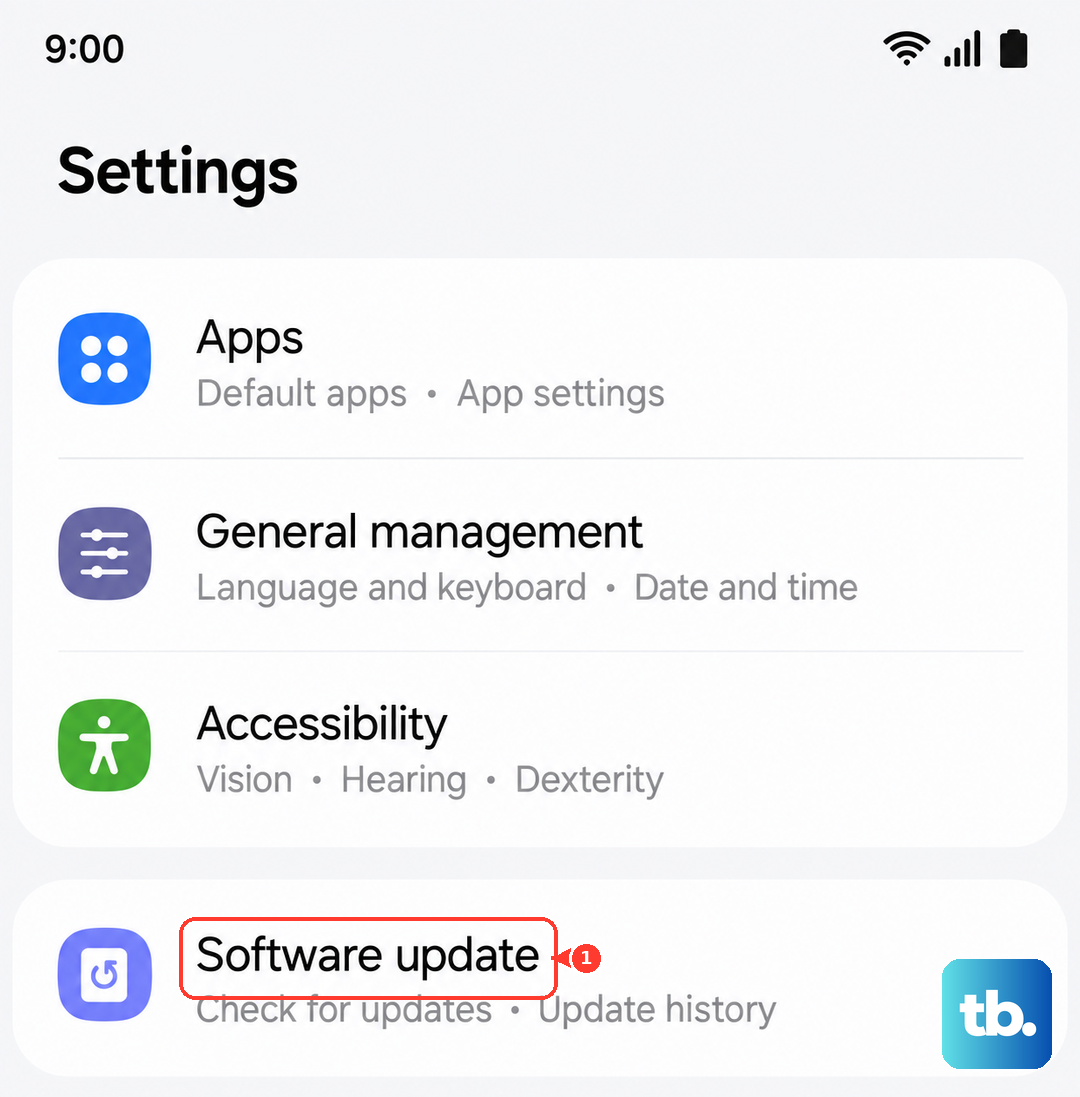
If an update is available, let it run its course. Your phone will restart. It's a good practice to check for updates monthly, as they often contain important stability patches beyond just new features.
Reset Your Network Settings
This is a stronger step that clears out all your saved network configurations. It will erase your Wi-Fi passwords, paired Bluetooth devices, and mobile network settings, but it won't touch your personal photos, messages, or apps. It's very effective for persistent network glitches.
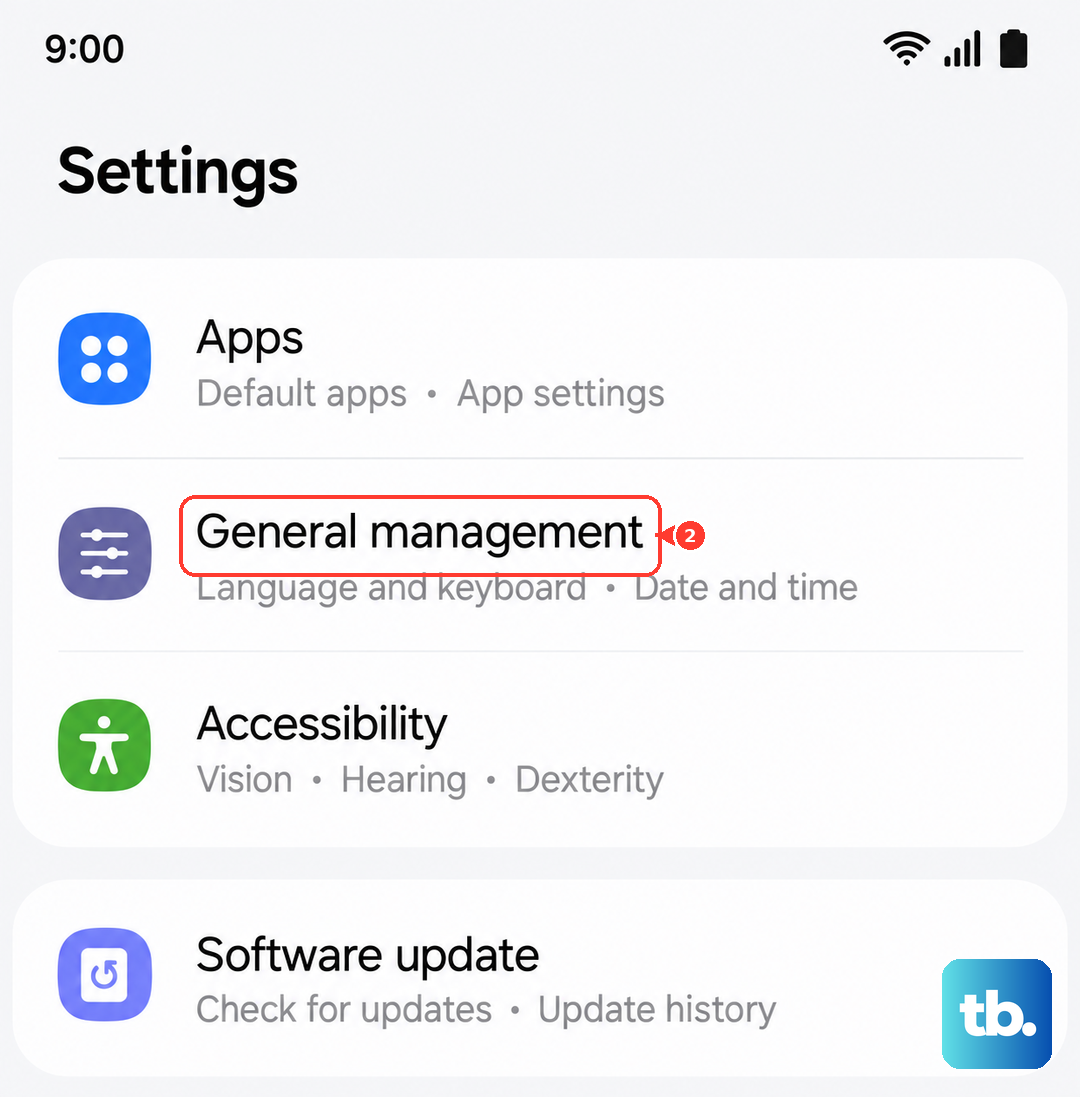
To do it, open Settings, go to General management, and tap Reset. Select "Reset network settings" and confirm. Your phone will reboot. Afterward, you'll need to reconnect to Wi-Fi and re-pair Bluetooth devices, but it often resolves mysterious SIM and signal problems.
Clear the Cache for SIM Services
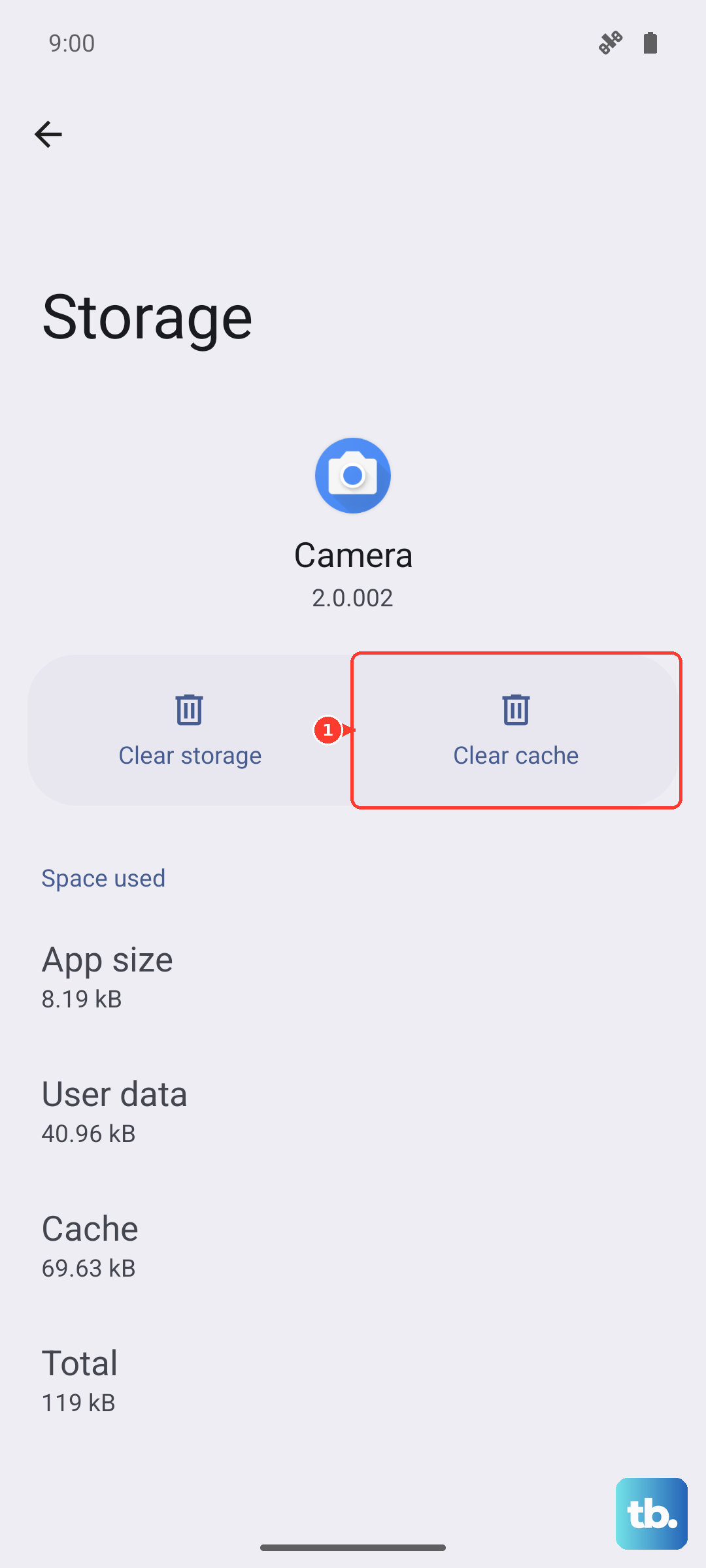
Cached data for system apps can sometimes get corrupted. You can clear this data for services related to the SIM. Go to Settings > Apps. Tap the three-dot menu in the top right and select "Show system apps."
Now, search for "SIM Card manager" or "SIM Toolkit." Tap on it, go to Storage, and then tap "Clear cache." Do not tap "Clear data" unless you're instructed to by your carrier, as that might remove carrier-specific settings. This is a harmless step that can clear up minor software conflicts.
Manually Select Your Network Operator
Sometimes the automatic network selection gets stuck. You can manually tell your phone which carrier to use. Go to Settings > Connections > Mobile networks.
Tap on "Network operators." Your phone will search for a moment. When the list pops up, you should see your carrier (e.g., T-Mobile, AT&T, Verizon). Select it manually. If your carrier doesn't appear in the list, that points to a bigger signal issue or a problem with the SIM itself.
Reset Your APN Settings
The Access Point Name (APN) tells your phone how to connect to your carrier's mobile data network. If these settings are wrong, you might see a "No SIM" or "Emergency calls only" message. Go to Settings > Connections > Mobile networks > Access Point Names.
Tap the three dots in the top right and select "Reset to default." This will load the standard APN settings for the SIM card's carrier. After the reset, restart your phone. If you had to use custom APN settings before, you may need to re-enter them, which you can get from your carrier's support site.
Test the SIM in Another Phone and Consider eSIM
This is the best way to figure out if the problem is with your Z Flip 6 or the SIM card itself. Power off another unlocked phone, insert your SIM, and turn it on. If the other phone also says "No SIM," then the SIM card is likely faulty or deactivated, and you need to contact your carrier for a replacement.
If the SIM works perfectly in another phone, the issue is with your Z Flip 6. Since the Z Flip 6 supports eSIM, you could ask your carrier about switching your line to a digital eSIM. This completely bypasses the physical SIM tray and reader, which can be a permanent fix if there's a minor hardware fault there. The process is usually done through your carrier's app or website.