
Seeing "No Service" or a missing signal bar on your Samsung Galaxy Z Flip 6 is a real headache. You can't make calls, send texts, or use mobile data, which defeats the purpose of having a phone in your pocket. The good news is that this is usually a software hiccup or a simple setting that's out of place, not a sign of a broken phone.
I'd start with the simplest fix first, which often does the trick. Give your Z Flip 6 a quick restart by pressing and holding the Volume Down and Side button together for about ten seconds. Keep holding until you see the Samsung logo appear on the screen. This clears out any temporary glitches in the system that might be blocking the cellular radio.
Check Your Basic Connection Settings
It sounds obvious, but it's worth a quick look. Swipe down from the top of your cover screen or inner display to open the Quick Settings panel. Make sure the Airplane Mode icon isn't highlighted. If it is, tap it to turn it off.
Next, open the full Settings app and go to Connections. Tap on Mobile Networks and ensure the switch at the top for "Mobile Data" is turned on. While you're here, also make sure "Data Roaming" is enabled if you're traveling, though be aware your carrier might charge extra for that.
Reinsert Your SIM Card
A loose or dirty SIM card is a common culprit for signal problems. You'll need the SIM ejector tool that came in the Z Flip 6's box. Find the tiny pinhole on the top edge of the phone frame and gently push the tool in.
The SIM tray will pop out. Carefully remove the SIM card, give the gold contacts a gentle wipe with a soft, dry cloth, and then reseat it firmly in the tray. Push the tray back into the phone until it clicks. Wait a minute for the phone to search for the network again.
Reset Your Network Settings
If the simple stuff didn't work, this is my next go-to step. Resetting network settings clears out any corrupted configuration data for Wi-Fi, Bluetooth, and cellular networks. It won't delete your photos or apps.
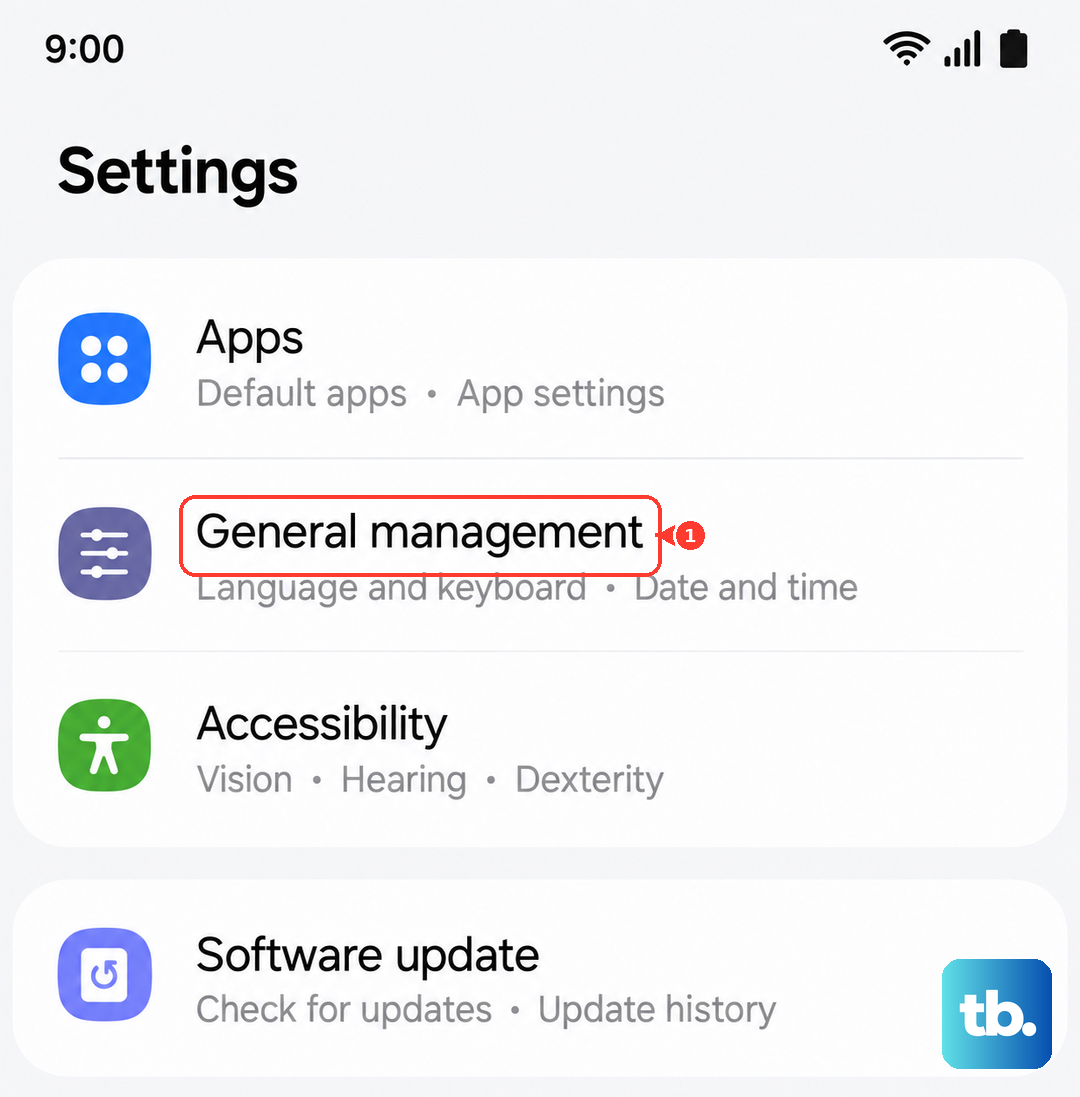
Go to Settings > General Management > Reset. Tap on Reset Network Settings and confirm. Your phone will reboot. After it comes back on, you'll need to reconnect to your Wi-Fi networks and re-pair Bluetooth devices, but your cellular connection should be freshly established.
Update Your Access Point Name (APN)
Your APN is like the phone's address book for connecting to your specific carrier's network. If these settings are wrong, you get no service. Head back to Settings > Connections > Mobile Networks > Access Point Names.
You should see a list of APNs. Tap the one that's currently selected (it will have a filled-in circle next to it) and look for a menu option to "Reset to default." If that doesn't appear or work, the most reliable method is to get the exact settings from your carrier's website or customer service and enter them manually here.
Manually Select Your Network Operator
Sometimes your phone gets stuck trying to connect to a weak or unavailable tower. You can force it to search again and lock onto your proper carrier. Go to Settings > Connections > Mobile Networks > Network Operators.
Tap "Select automatically" and wait for the scan to complete. If it still fails, tap "Search networks" manually. When the list pops up, choose your specific carrier's name from the list, not any roaming partners. This can re-establish a handshake that the automatic process missed.
Use the Phone Information Menu
Android has a built-in diagnostic menu that lets you tinker with the radio directly. Open your Phone app and dial *#*#4636#*#*. This should open the "Testing" menu. Tap on "Phone information."
Look for a dropdown menu near the top labeled "Set preferred network type." Try changing it to a different option, like "LTE only," then back to "NR/LTE/GSM/WCDMA" (which is the automatic 5G setting). You can also try tapping "Turn off radio" and then "Turn on radio" to cycle the cellular modem.
Check for a Software Update
Samsung frequently releases updates that fix bugs, including ones related to network connectivity. It's easy to miss these notifications. Open Settings > Software update and tap "Download and install."
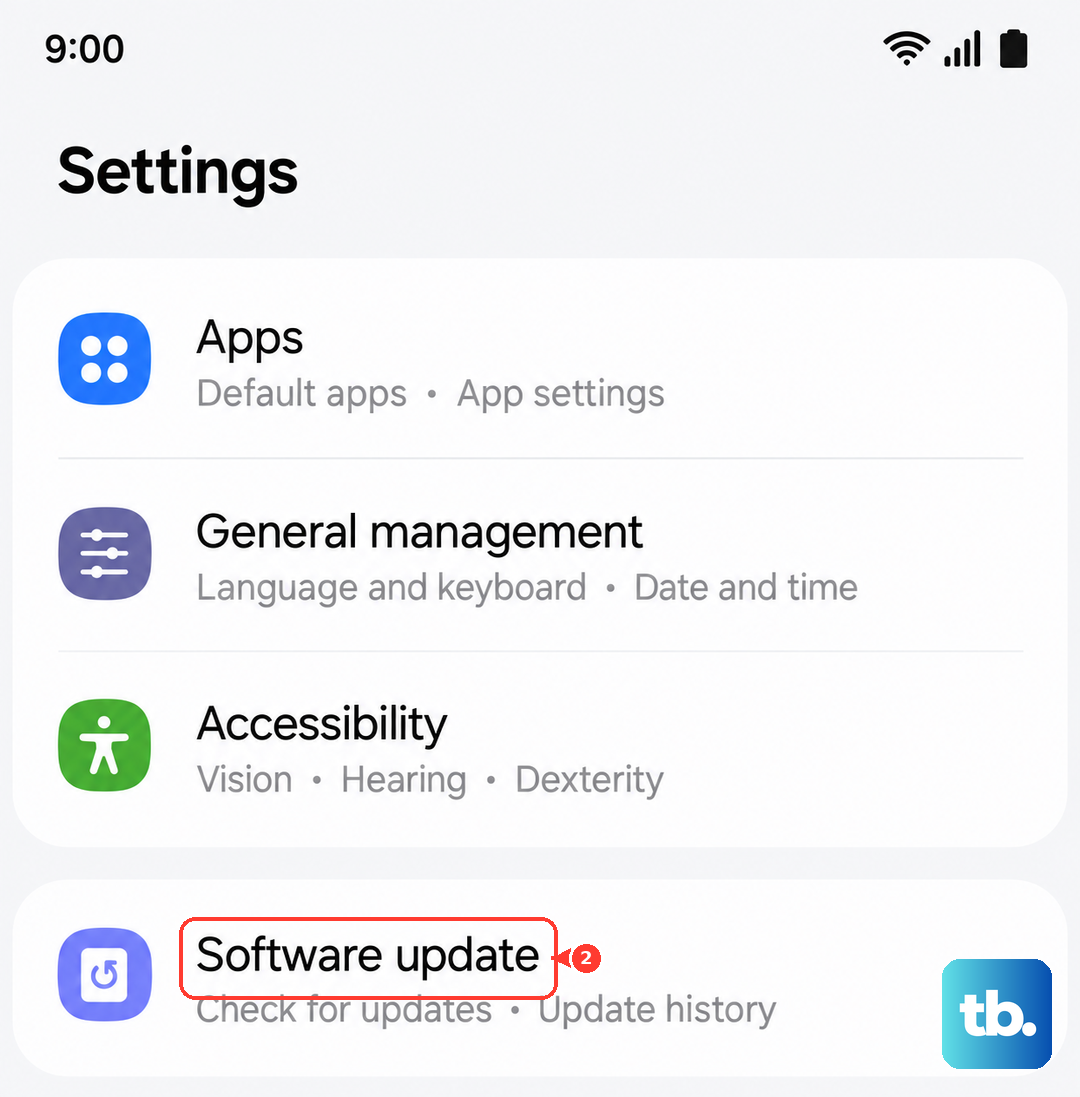
If an update is available, let it download and install. Your Z Flip 6 will restart. This is a very common fix for intermittent signal issues that appear out of the blue, as it patches the system software.
Disable Any VPN or Ad-Blocking Apps
Third-party apps that route your traffic through a VPN or block ads at a system level can sometimes interfere with your cellular data connection. Try temporarily disabling or uninstalling any apps like these to see if your signal returns.
You can check for active VPNs in Settings > Connections > More connection settings > VPN. If you see a VPN profile here that you're not currently using, you can tap on it and select "Delete VPN profile."
Test Your SIM Card and Contact Your Carrier
At this point, if you're still seeing no service, the issue might be with the SIM card itself or your carrier's network. The best test is to put your SIM card into another unlocked phone. If that phone also gets no signal, you know the problem is with the SIM or your account.
Give your carrier's customer support a call. They can check for any outages in your area, verify your account is active, and often push a network refresh signal to your phone. If the SIM is old or faulty, they can usually issue a replacement, which often solves persistent no-service problems.