
Getting a "Download Failed" message when someone sends you a picture or video on your Samsung Galaxy Z Flip 6 is a common annoyance. MMS messages need a specific setup to work, and a small glitch in your network, settings, or the app itself can block the download.
Let's walk through the fixes, starting with the simplest things you can try in about thirty seconds.
Force Restart Your Phone
This is my go-to first step for any weird glitch on the Z Flip 6. It clears out temporary software hiccups without affecting your data. Just press and hold the Volume Down button and the Side (power) button together for about ten seconds.
You'll see the Samsung logo appear as the phone restarts. Once it's back on, check your Messages app to see if the stuck MMS will download.
Check Your Mobile Data Connection
MMS doesn't download over Wi-Fi by itself on Android. It requires an active mobile data connection, even if you have full Wi-Fi bars. Swipe down from the top of your screen to open the Quick Settings panel and make sure the Mobile Data icon is turned on.
Also, take a glance at your signal strength. If you're down to one bar or are in a known weak spot, try moving to a different location. A weak signal can time out the download process.
Enable MMS Auto-Retrieve
Sometimes the setting to automatically grab MMS files gets turned off, maybe after a software update. You'll need to enable it in the Samsung Messages app. Open the app and tap the three-dot menu in the top-right corner, then go to Settings.
From there, tap on Multimedia messages. You'll see an option for Auto download. Make sure this is toggled on. While you're here, if you travel, you might also want to enable Roaming auto download.
Clear the Messages App Cache
The app stores temporary data to run quickly, but this cache can become corrupted. Clearing it is safe and won't delete your conversations. Go to your phone's Settings, then tap Apps.
Find and select Messages from the list. Tap on Storage, and then hit Clear cache. This takes a second. Afterward, open Messages again and see if the problem is resolved.
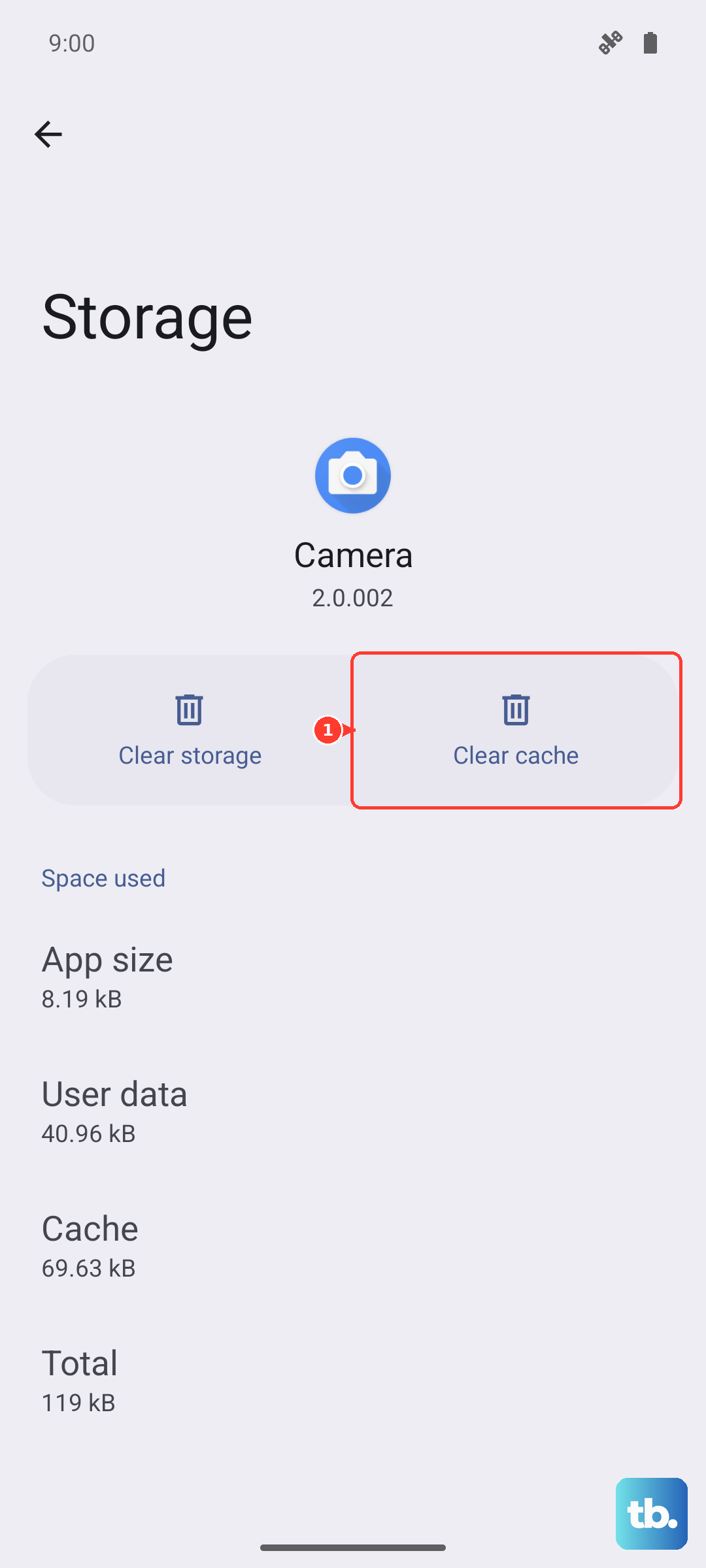
For a more thorough clean, you can tap Clear data on that same screen. Be warned, this will erase all your message threads and restore the app to its default state, so only do this if you're okay with losing that history or have it backed up.
Verify Your APN Settings
This is often the culprit. The Access Point Name (APN) tells your phone how to connect to your carrier's multimedia messaging service. If these details are wrong, MMS will fail.
Go to Settings > Connections > Mobile networks > Access Point Names. You should see a list of APNs, with one selected (usually your carrier's name). The correct settings are unique to your carrier.
I'd recommend not editing these manually unless you're sure. The best move is to contact your carrier's support, they can often send you a configuration message that sets it all up automatically. You can also search their website for "APN settings for [your carrier]".
Reset Your Network Settings
If the APN check doesn't work, a network reset can clear deeper connection issues. This will erase all your saved Wi-Fi networks, Bluetooth pairings, and mobile data settings, but it won't touch your personal files.
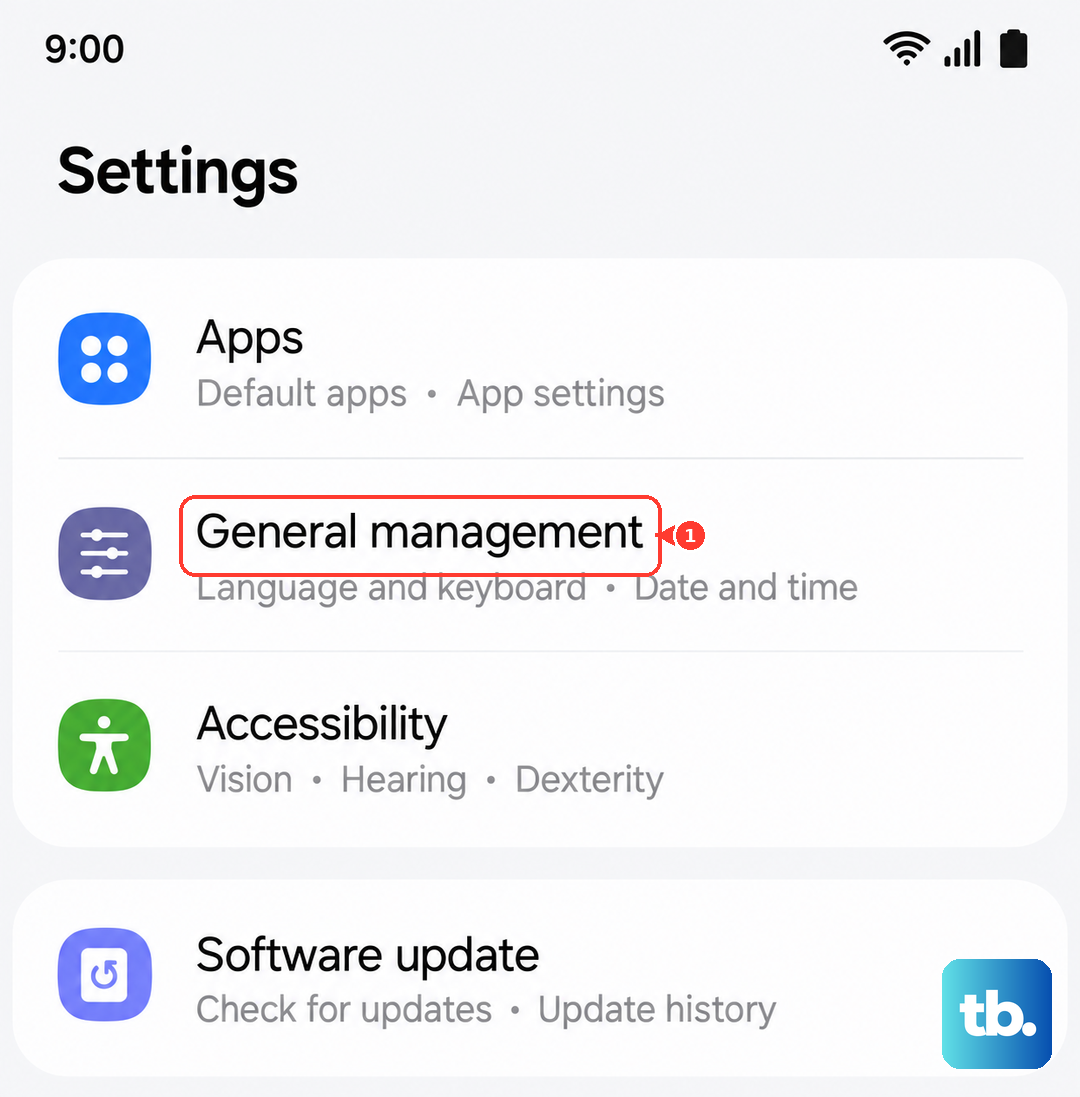
To do this, navigate to Settings > General management > Reset > Reset network settings. You'll need to confirm your PIN or password. After the reset, you'll have to reconnect to Wi-Fi and re-pair Bluetooth devices, but it often fixes persistent MMS problems.
Check for a Software Update
Samsung regularly releases updates that can fix bugs affecting messaging. It's worth making sure your Z Flip 6 is running the latest software. Head to Settings > Software update > Download and install.
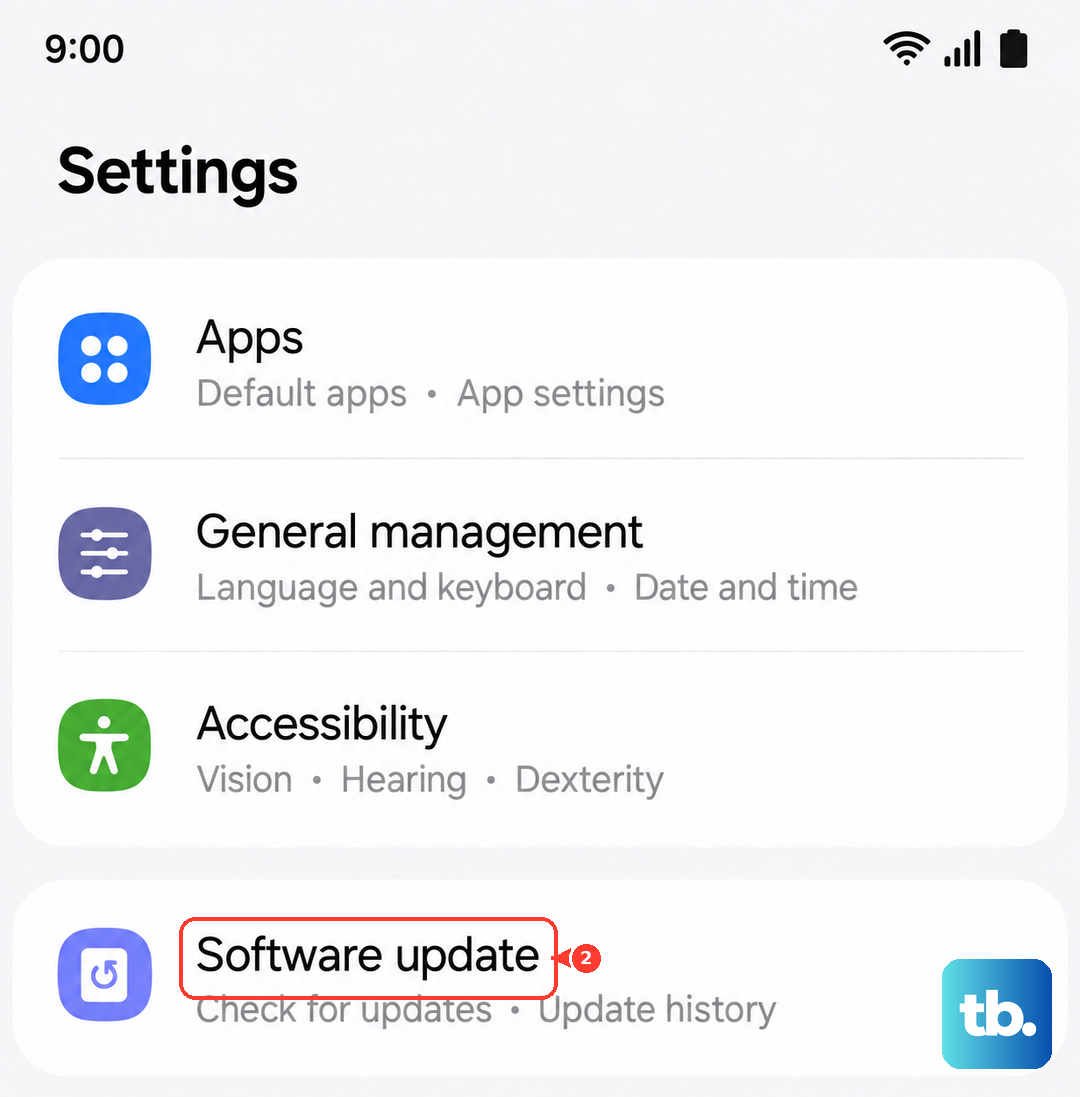
Let it check for updates. If one is available, I'd install it while connected to Wi-Fi. An update can resolve conflicts that cause MMS downloads to fail, especially if the issue started after you got the phone.
Try a Different Messaging App
As a quick test, you can see if the problem is with the Samsung Messages app itself. Download Google Messages from the Play Store and set it as your default app. Send yourself an MMS from another phone or ask a friend to.
If the MMS downloads fine in Google Messages, then the issue is localized to your Samsung app. You can either keep using the new app or use this as confirmation to clear the data for the Samsung app as mentioned earlier.