
Is your Samsung Galaxy Z Flip 6 feeling sluggish when you open apps or swipe through menus? A foldable phone with this much power shouldn't lag, but sometimes background tasks and software hiccups can slow things down. The good news is you can usually fix it yourself in a few minutes.
I'd start with a simple restart. It clears out temporary system glitches and stops any rogue processes that might be hogging resources. For the Z Flip 6, you force restart by pressing and holding the Volume Down button and the Side key together for about ten seconds. Keep holding until you see the Samsung logo appear on the screen.
Close Apps Running in the Background
Having too many apps open, especially on both the main and cover screens, can drain memory. Swipe up from the bottom of the main screen and hold to enter the recent apps view. You can swipe each app window away to close it individually, or tap the three-dot menu and select "Close all" for a clean slate.
Don't worry about constantly closing apps you use frequently, as Android manages memory well. This is more for clearing out a bunch of apps you opened hours ago and forgot about.
Check Your Available Storage Space
When your phone's storage gets too full, it has less room to operate efficiently, which can cause slowdowns. Head to Settings > Device care > Storage. This screen shows you exactly what's taking up space.
Look for the "Clean now" button, which often clears cached data safely. You can also review large files, unused apps, and downloaded documents. Moving photos and videos to Samsung Cloud or Google Photos can free up a significant amount of space quickly.
Update Your Apps and Software
Outdated apps can have bugs that hurt performance, and system updates often include optimizations. Open the Galaxy Store and tap the menu icon to check for app updates. For Google Play Store apps, open the Play Store, tap your profile icon, and go to "Manage apps and device."
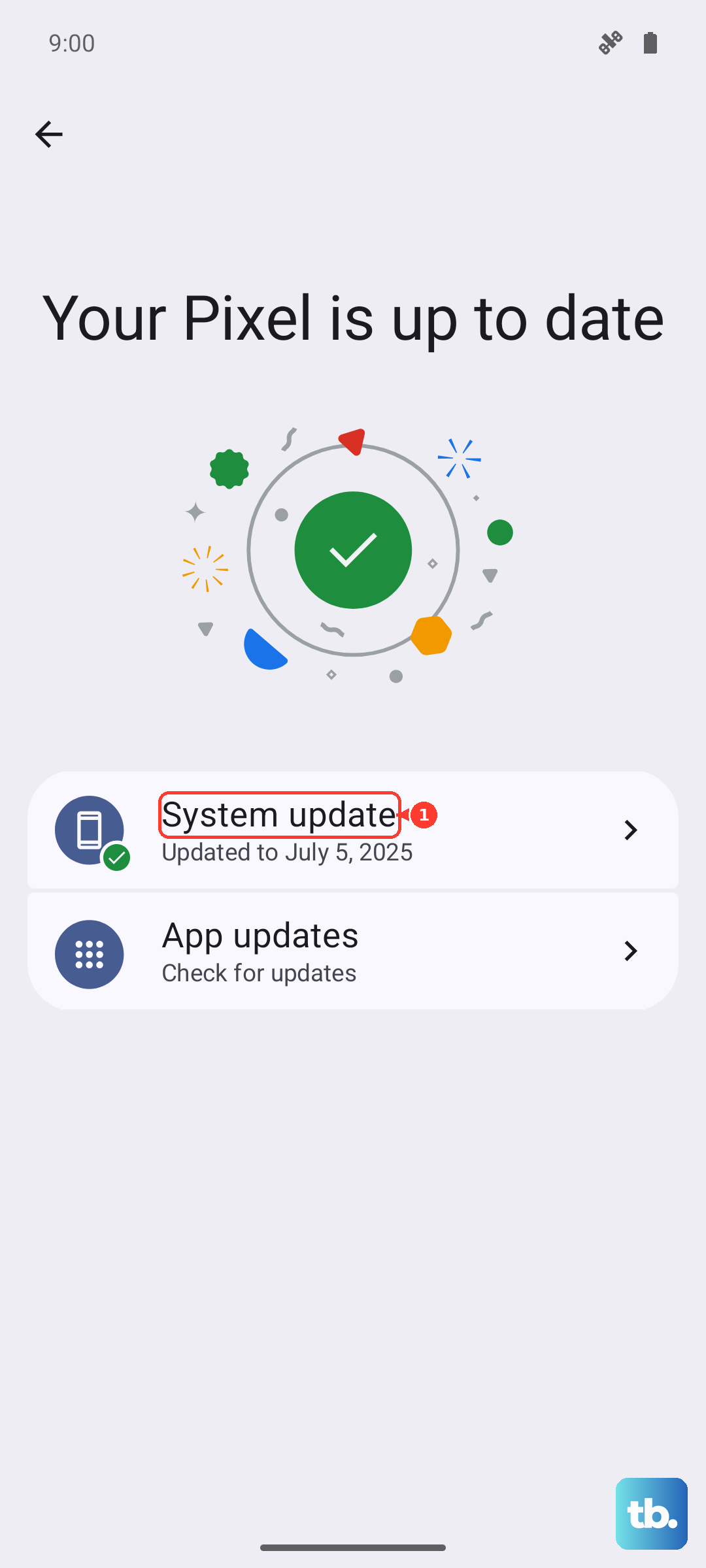
More importantly, check for a system update. Go to Settings > Software update > Download and install. If an update is available, install it while your phone is charging and connected to Wi-Fi.
Clear App Caches Individually
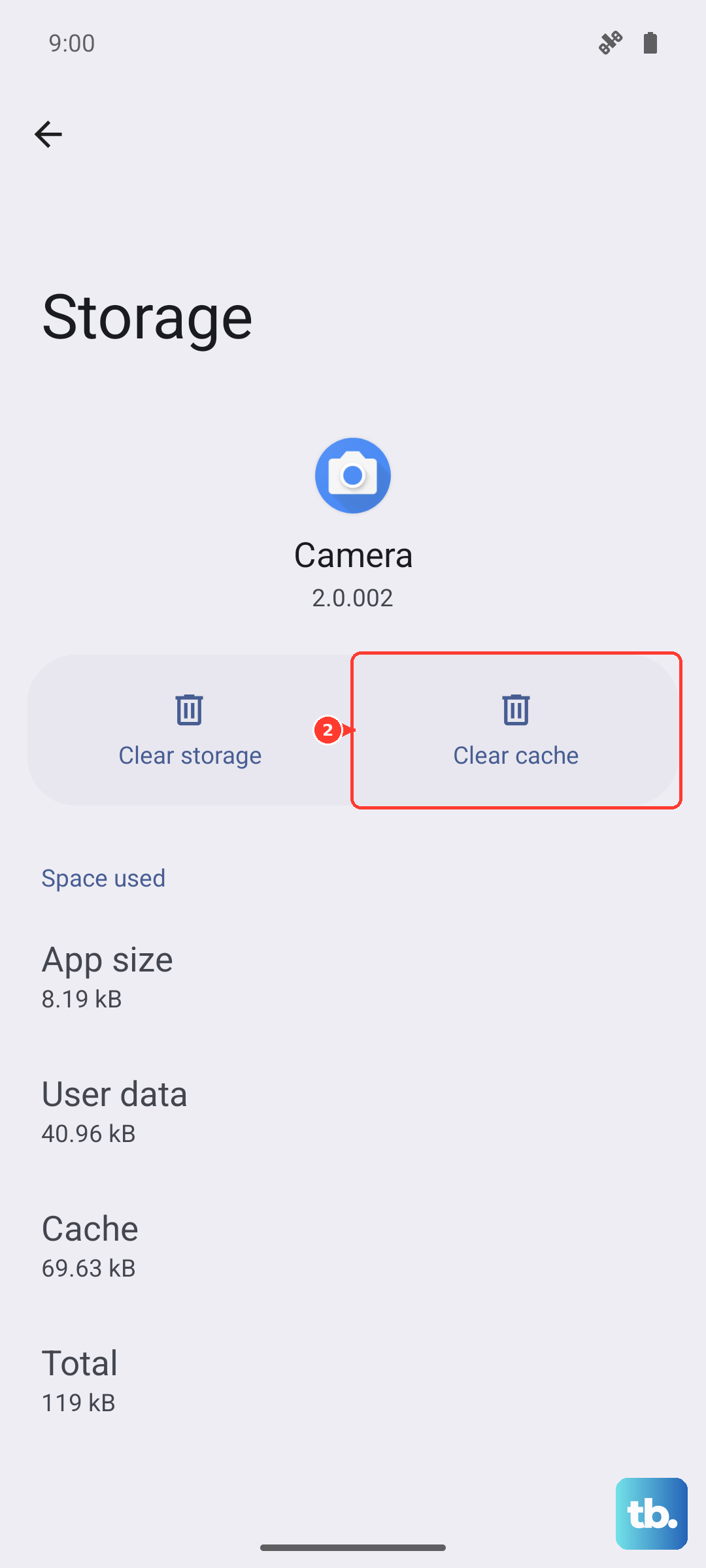
Over time, apps store temporary data (cache) that can become corrupted and cause lag. You can clear this data without deleting your login info or personal settings. Go to Settings > Apps, select an app that's been slow, then tap "Storage."
Tap "Clear cache." Do this for apps like your internet browser, social media apps, and any game that's been stuttering. Avoid "Clear data" unless you're okay with resetting the app completely.
Manage Background Activity and Battery Usage
Some apps are overly aggressive about running in the background. Samsung's device care has tools for this. Go to Settings > Battery. Tap "Background usage limits." Here, you can put unused apps to sleep or add them to a deep sleep list to prevent them from running at all.
Also, check the "Battery usage" list below. If a specific app is using a surprisingly high percentage, it might be the culprit behind both battery drain and sluggish performance.
Optimize Your Home Screen and Widgets
Live wallpapers and widgets that constantly update (like weather or news feeds) can use more processing power. Try switching to a static wallpaper for a bit to see if it helps. Also, review your home screen widgets.
Long-press on a widget and remove any you don't actively need. Each widget is a small, constantly running app on your home screen, and having too many can contribute to a slower feel.
Enable Performance Profile in Game Booster
If your slowdowns are happening during games or other intensive tasks, check the Game Booster settings. Open Settings > Advanced features > Game Booster. While in a game, you can pull out the sidebar and select "Performance."
Make sure it's set to "Focus on performance" rather than a battery-saving mode. This setting tells your phone to prioritize speed and frame rate over power efficiency while you're playing.
Review Accessibility and Visibility Enhancements
Certain accessibility features, while helpful, can add a slight processing load. If you have features like "TalkBack" or "Sound detectors" enabled that you aren't using, consider turning them off. Go to Settings > Accessibility and review the installed services.
Also, in Settings > Accessibility > Visibility enhancements, features like "High contrast fonts" or "Remove animations" can sometimes improve perceived speed on older devices, though the Z Flip 6 is powerful enough that this is less critical.
Reset All Settings as a Last Resort
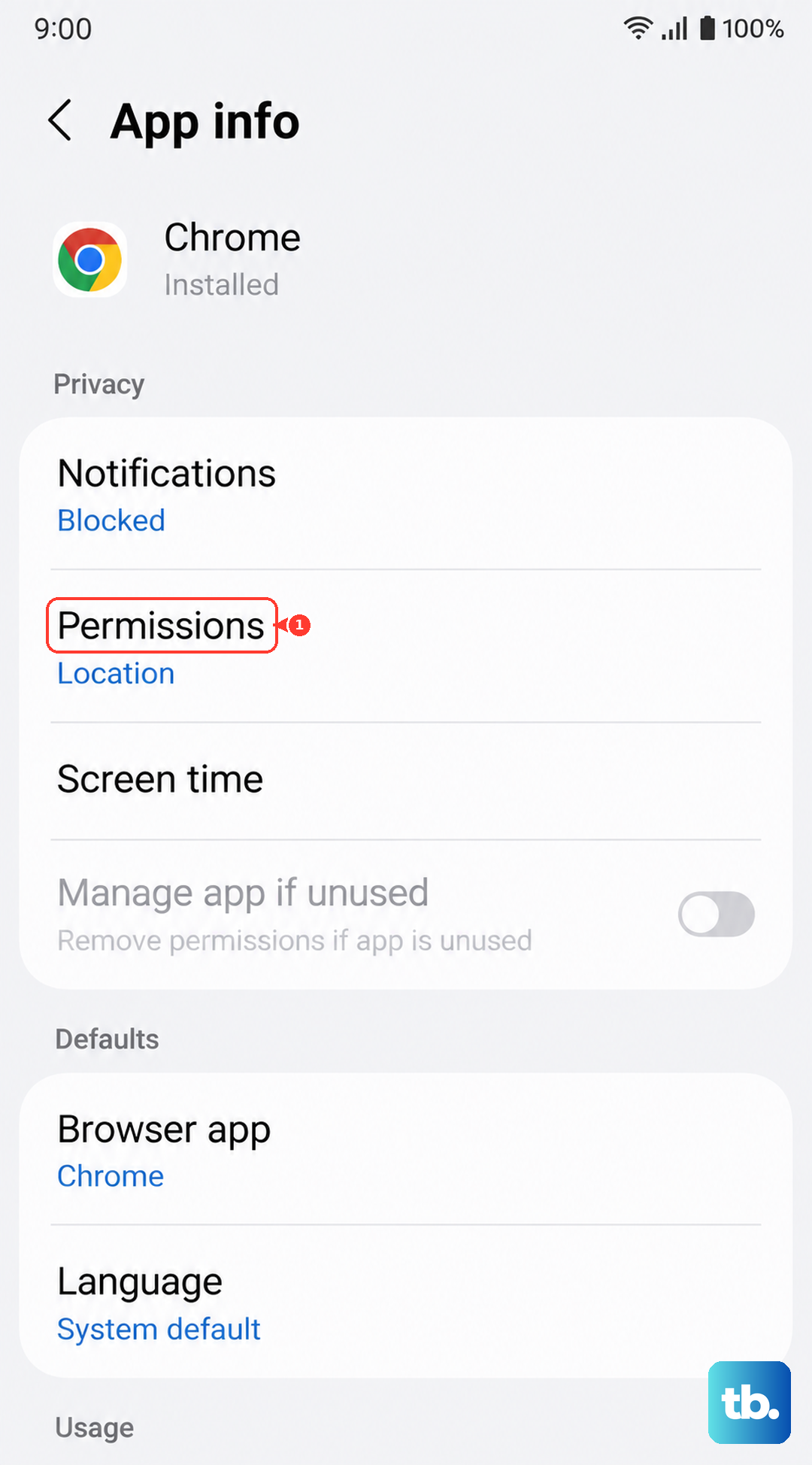
If you've tried everything and the phone is still slow, you can reset all your system settings without deleting your personal data. This will revert Wi-Fi passwords, Bluetooth pairings, wallpaper, and app permissions back to default. Go to Settings > General management > Reset > Reset all settings.
Enter your PIN or password to confirm. After the phone restarts, you'll need to reconfigure some preferences, but your photos, messages, and apps will remain untouched. This often clears up conflicts caused by a problematic setting change.