
When your Bluetooth headphones refuse to connect to your Galaxy Z Flip 6, it can ruin your music, calls, and podcasts. The phone might not see them at all, or it might connect and then drop the audio. Let's get them working again.
It helps to confirm what actually works before changing settings. Run a headphone test, note which channels and frequencies play correctly, and match the result against the steps below.
Restart Your Galaxy Z Flip 6
This is the quickest fix for a lot of temporary glitches. Press and hold the Volume Down button and the Side button (power key) together for about 10 seconds. Keep holding until you see the Samsung logo appear on the screen, then let go. This force restarts the phone and often clears up Bluetooth connection issues right away.
Toggle Bluetooth Off and On
Swipe down from the top of your screen to open the Quick Settings panel. Tap the Bluetooth icon to turn it off, wait for about 10 seconds, and then tap it again to turn it back on. This simple refresh of the Bluetooth radio can kickstart a stalled connection.
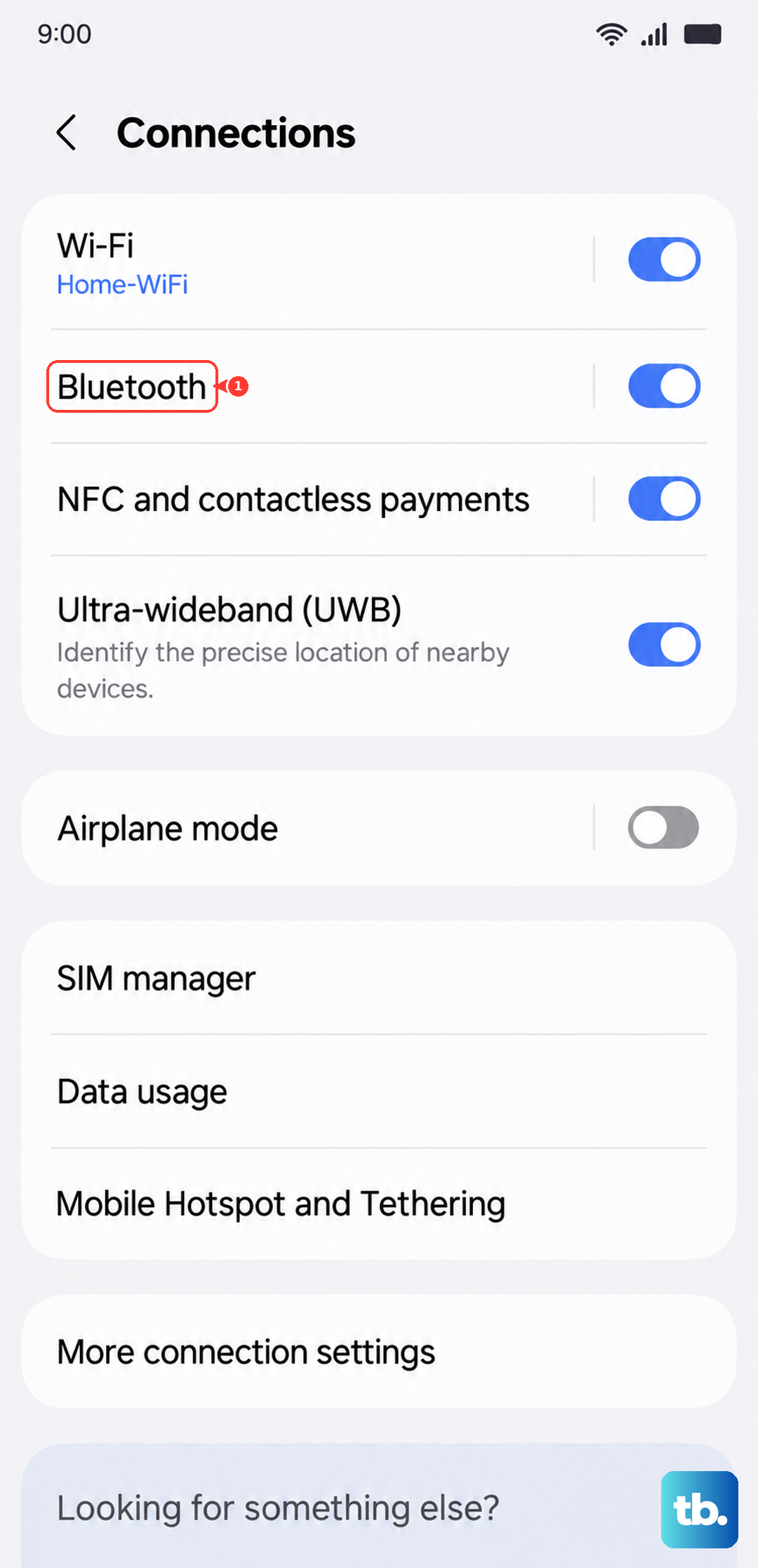
For a more thorough reset, go into Settings > Connections > Bluetooth. Tap the switch at the top to turn Bluetooth off, wait a moment, and then turn it back on. I've seen this work when the quick toggle doesn't.
Forget and Re-Pair Your Headphones
Go to Settings > Connections > Bluetooth. Find your headphones in the list under "Paired devices" and tap the gear icon next to them. Tap Unpair or Forget to remove them completely.
Now, put your headphones into pairing mode. The method varies, but it usually involves holding a button until a light flashes. With your Z Flip 6's Bluetooth still on, your headphones should appear in the "Available devices" list. Tap them to pair from scratch. A fresh pairing fixes corrupted connection data.
Check the Audio Output
Sometimes your phone connects to the headphones but sends the audio somewhere else. While playing music or a video, swipe down to open the Quick Settings and look at the Media output tile. Tap it to see a list of available devices and make sure your headphones are selected.
You can also check within apps like Spotify or YouTube. Look for a speaker or cast icon in the player controls. Tapping it will let you choose your Bluetooth headphones as the output device.
Check for Software Updates
Samsung regularly releases updates that fix bugs, including Bluetooth problems. Go to Settings > Software update and tap Download and install. If an update is available, install it and see if your headphone connection improves.
This is especially important for Samsung-branded earbuds like the Galaxy Buds, as they receive firmware updates through the Galaxy Wearable app on your phone. Make sure that app is also up to date in the Google Play Store.
Reset the Network Settings
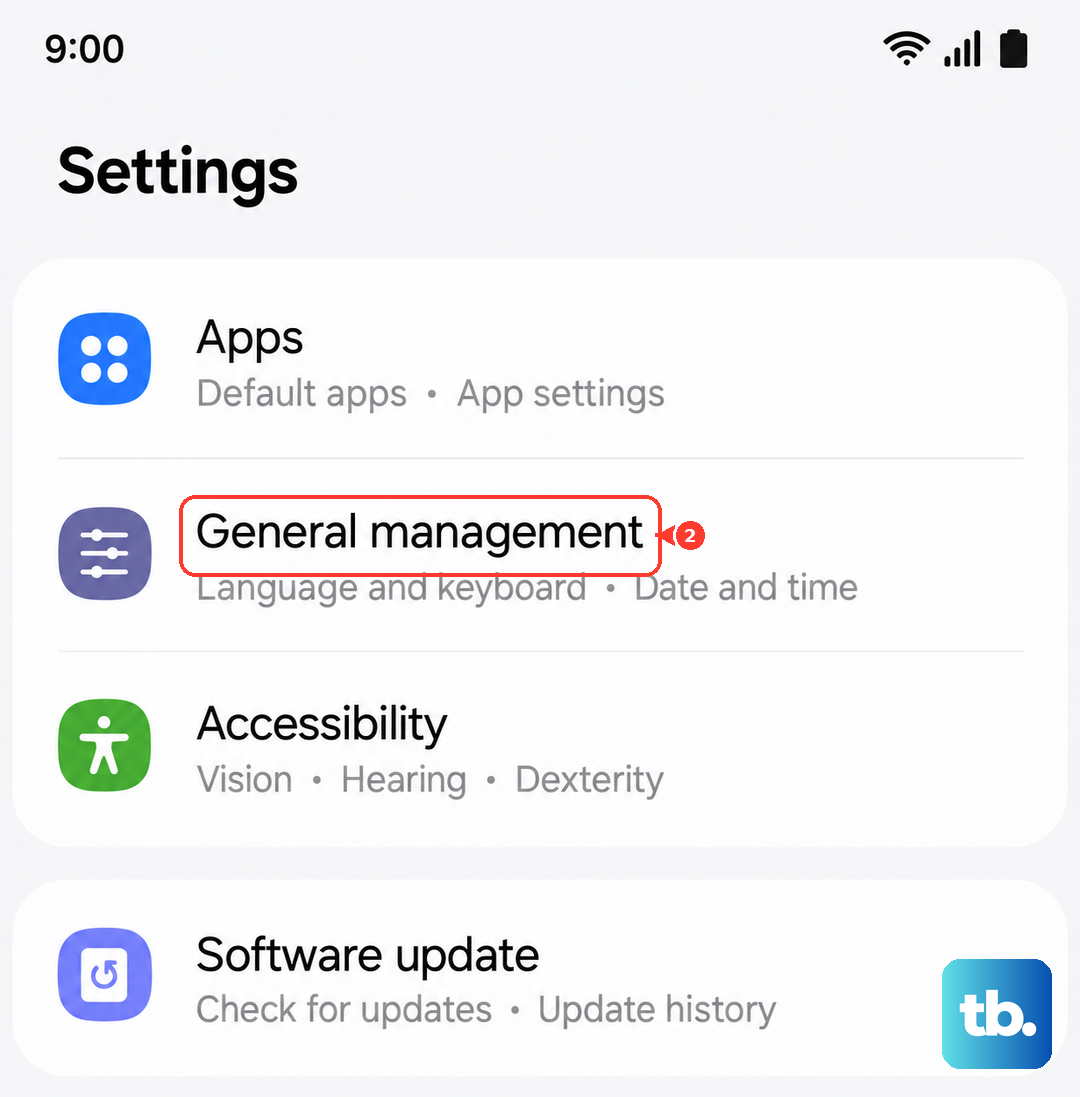
This will erase all your saved Wi-Fi networks, Bluetooth pairings, and mobile data settings. Go to Settings > General management > Reset > Reset network settings. Tap to confirm.
After the phone restarts, you'll need to re-pair your headphones and reconnect to Wi-Fi. This is a reliable way to clear out any deep-seated network configuration errors that might be blocking Bluetooth.
Check Your Headphones on Another Device
Try pairing your headphones with a different phone, tablet, or computer. If they won't connect to anything, the problem is with the headphones themselves. Check their battery level and consult their manual for a specific reset procedure.
Many Bluetooth headphones have a tiny pinhole button for a hard reset. If they connect to other devices just fine, then the issue is isolated to your Z Flip 6, and we can focus on the phone's settings.
Clear the Bluetooth App Cache and Data
Go to Settings > Apps. Tap the three-dot menu in the top right and select Show system apps. Scroll down and find Bluetooth in the list and tap on it.
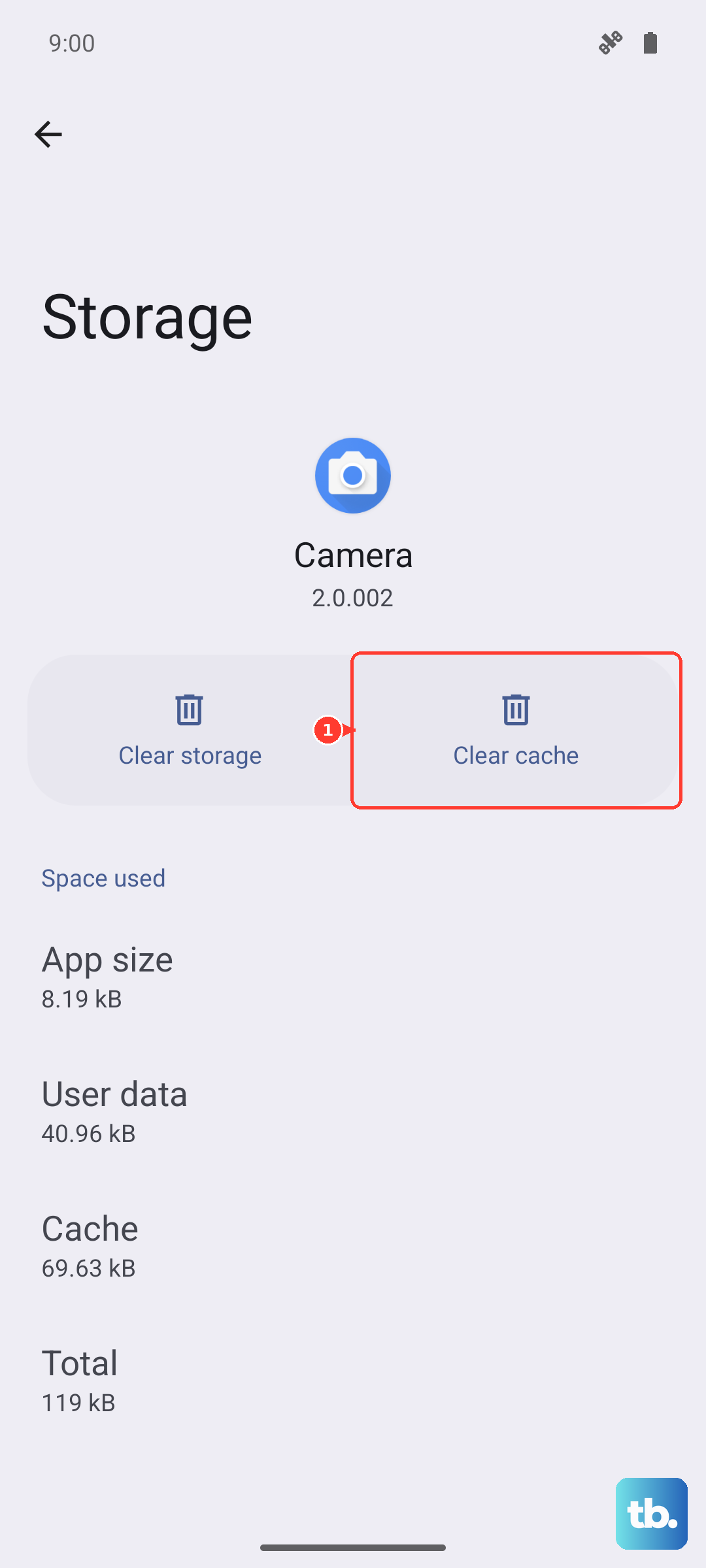
Tap Storage, then tap Clear cache. If the problem persists, you can go back and tap Clear data. This will wipe the Bluetooth service's temporary files and can resolve stubborn pairing issues.
Disable Battery Optimization for Bluetooth
Android's battery saving features can sometimes be too aggressive and shut down Bluetooth services. Go to Settings > Apps again, find the Bluetooth app (you may need to show system apps), and tap on it.
Tap Battery. If the option is set to "Optimized," change it to Unrestricted. This tells your phone not to limit the Bluetooth app's background activity, which can help maintain a stable connection.
Boot into Safe Mode
This starts your phone with all third-party apps disabled. If your headphones work perfectly in Safe Mode, then a recently installed app is likely causing the conflict. To enter Safe Mode, press and hold the Side button until the power off menu appears.
Then, press and hold the "Power off" option on the screen. A prompt will appear asking if you want to reboot to Safe Mode. Tap it. Test your headphones. To exit, just restart the phone normally. You can then uninstall apps one by one to find the culprit.