
When the GPS on your Galaxy Z Flip 6 stops locking on, it's more than an inconvenience, it can leave you stranded without navigation on that compact cover screen. The issue can pop up whether you're using the phone fully open or in Flex Mode for hands-free directions. I've found that on Samsung's foldables, it's usually a quick software setting that needs a refresh, not a broken antenna.
Start by pulling down the Quick Settings panel from the main screen. Tap the Location icon to turn it off, wait about ten seconds, and then tap it again to turn it back on. This simple reset clears the temporary connection glitch that causes most problems. If you're using an app on the cover screen through Labs, try opening the phone fully and testing the GPS on the main display, as some third-party app implementations can be finicky.
Force Restart Your Phone
A soft reset can clear out background processes that might be interfering with the location services. For the Z Flip 6, you'll press and hold the Volume Down button and the Side key (power button) together for about ten seconds. Keep holding until you see the Samsung logo appear on the screen, then release. This is different from just tapping "Restart" and often fixes deeper glitches.
Verify Location Permissions and Mode
Open your Settings and go to Location. First, make sure the main switch at the top is on. Then, tap on "Location services" or "Improve accuracy". Here, you want to ensure that "Wi-Fi scanning" and "Bluetooth scanning" are both enabled. These help your phone get a faster, more accurate lock, especially when you're between tall buildings where the GPS signal alone might struggle.
Next, check the app permissions. Go to Settings, then Apps, and select your navigation app, like Google Maps or Waze. Tap Permissions and make sure "Location" is set to "Allow all the time" or at least "Allow only while using the app". If it's set to "Deny", that's your problem right there.
Disable Power Saving Modes
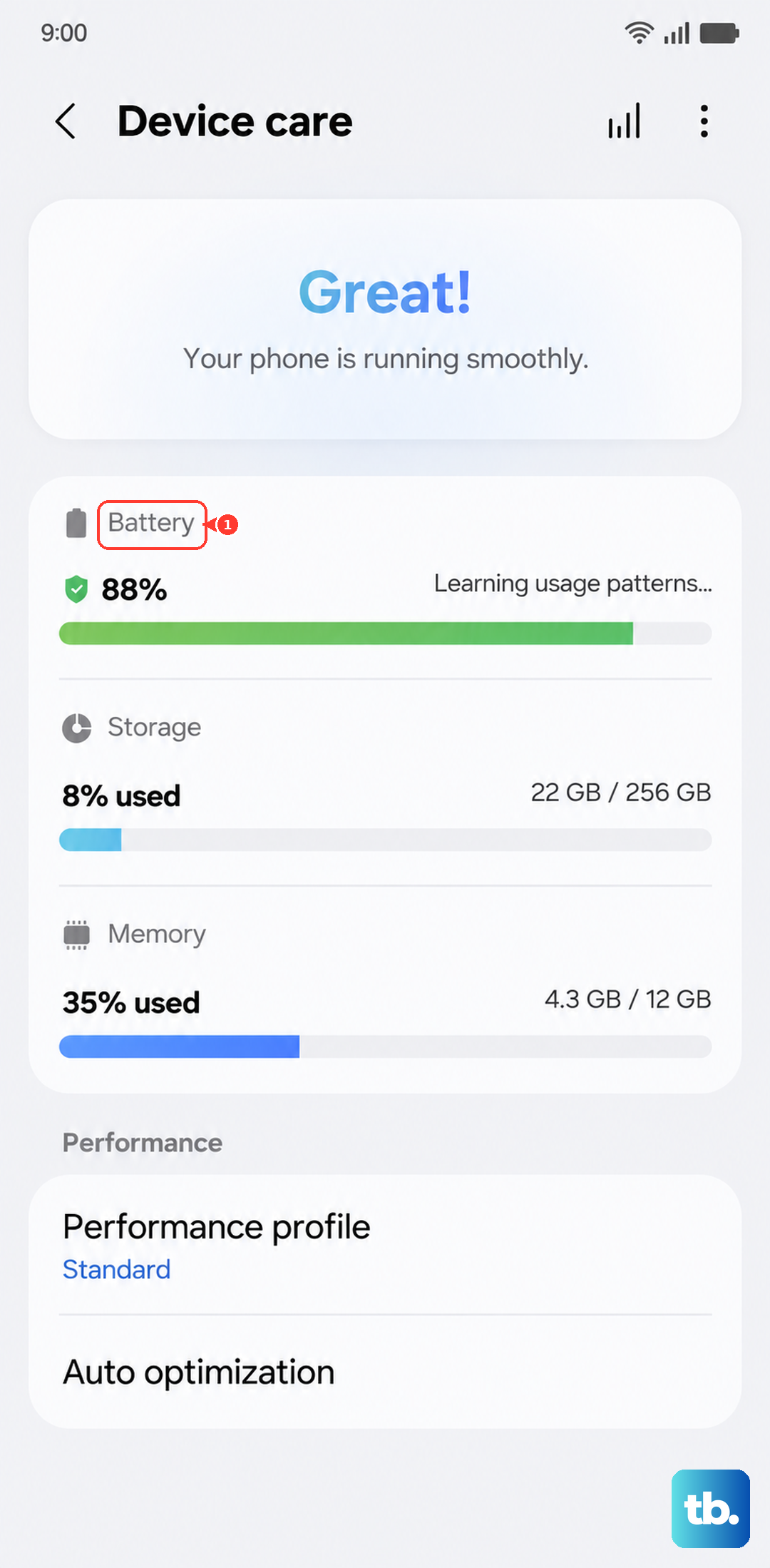
The Galaxy Z Flip 6 has a 4000mAh battery, and Samsung's power saving features are aggressive to make it last. These modes often limit background data and precise location fetching. Go to Settings > Battery and Device Care > Battery. If any power saving mode (like Power saving or Adaptive power saving) is enabled, turn it off temporarily. Try your GPS again immediately after.
Reset Network and Location Settings
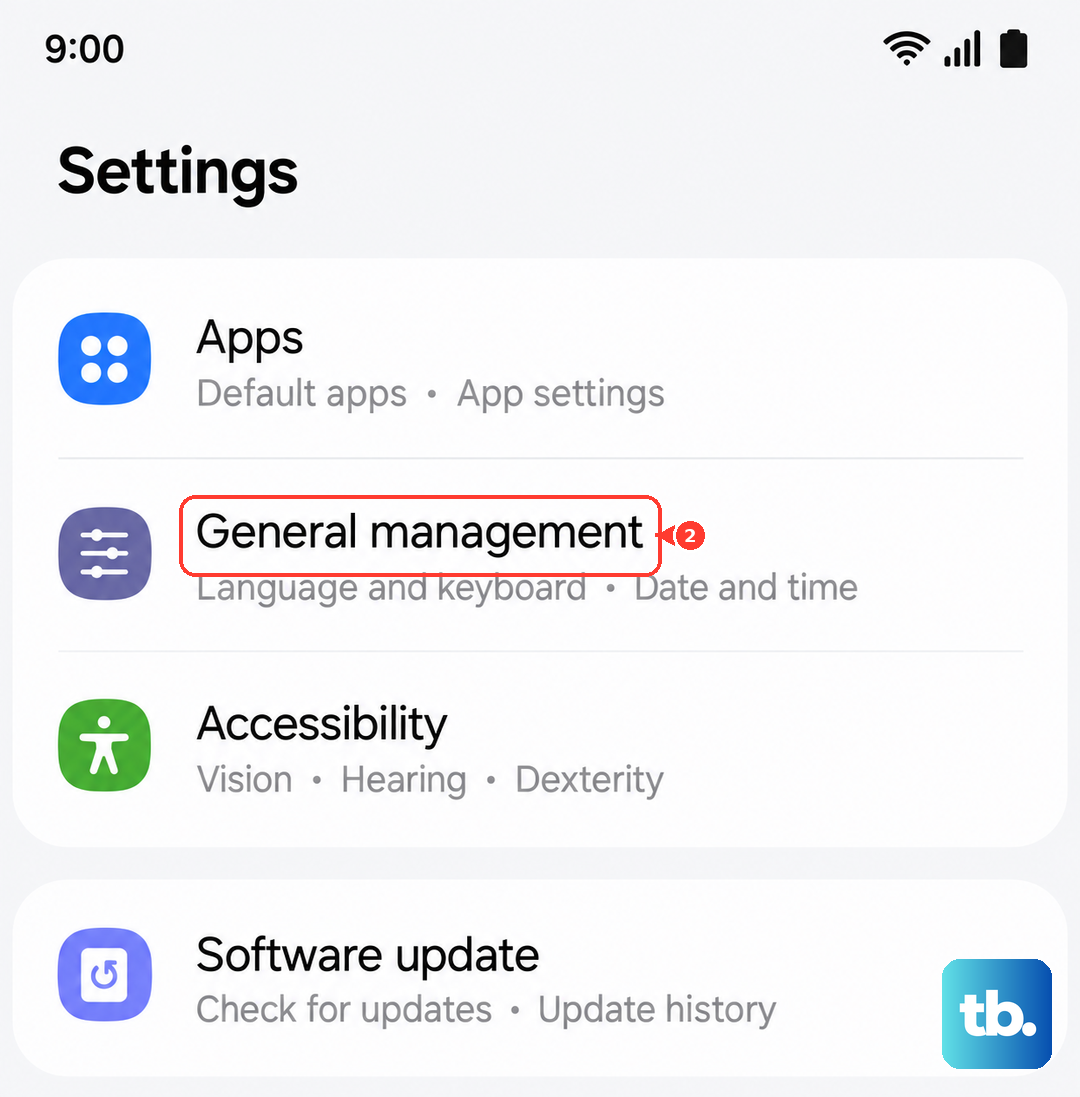
This won't delete your personal data like photos or messages, but it will wipe all your saved Wi-Fi networks, Bluetooth pairings, and location preferences. It's a strong step for persistent issues. Navigate to Settings > General management > Reset. Select "Reset network settings" and confirm. After the phone reboots, you'll need to reconnect to Wi-Fi and your smartwatch or buds, but it often clears up conflicting configuration data.
Update Your Apps and Software
An outdated version of Google Maps or your phone's operating system can have bugs that break GPS functionality. Open the Galaxy Store and the Google Play Store and check for updates for all your apps, especially navigation ones. Then, go to Settings > Software update > Download and install. Samsung regularly pushes updates for One UI that include stability fixes for the Z Flip series.
Clear the App Cache and Data
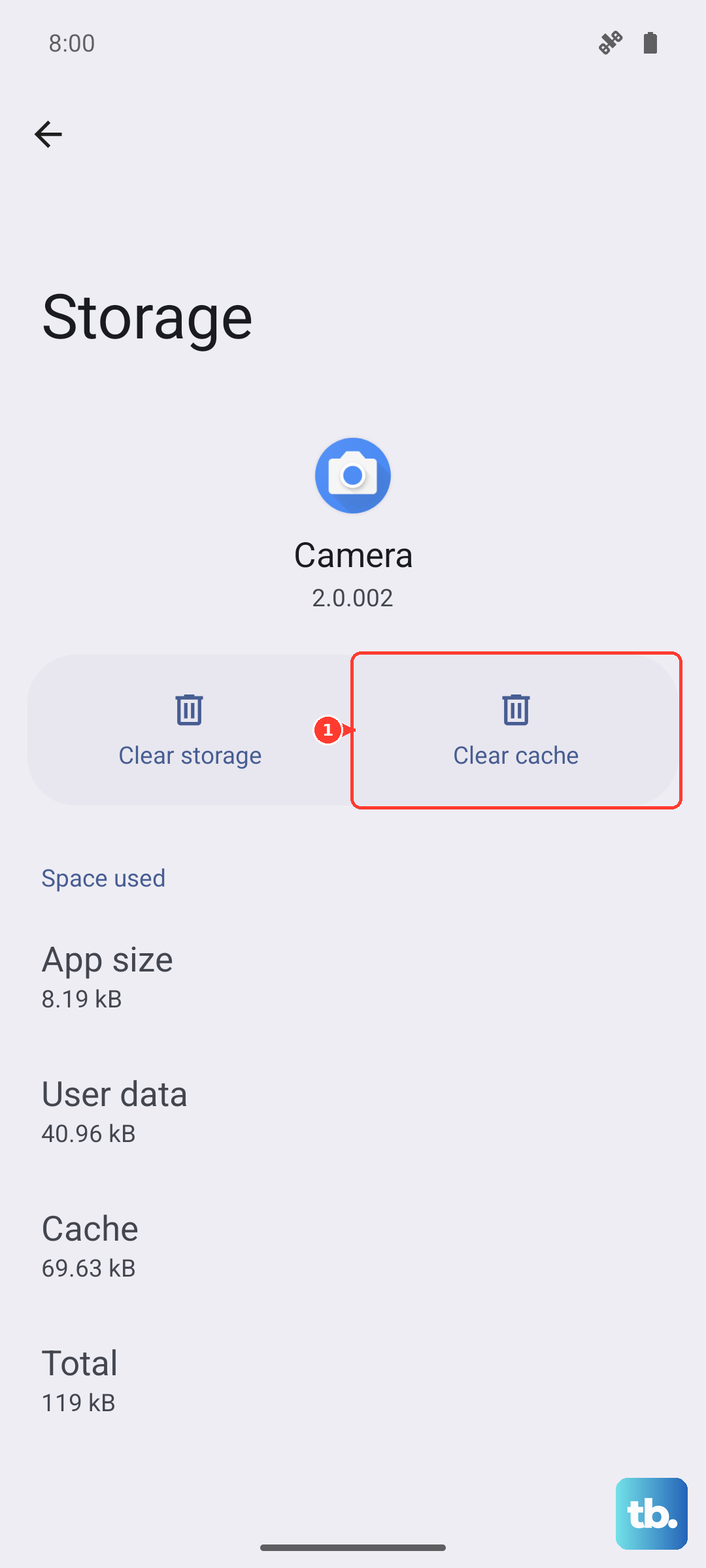
If a specific app, like Maps, is acting up, its stored data might be corrupted. Go to Settings > Apps, find the app, and tap on it. Select Storage, then tap "Clear cache". This is safe and won't delete your saved places. If the problem continues, you can tap "Clear data". Just be warned, this will reset the app to its default state, so you'll lose any offline maps or custom settings within that app.
Check for Physical and Environmental Issues
The Z Flip 6's unique design means the GPS antenna is placed strategically within the body. A very thick or metal-heavy case can sometimes interfere with the signal. Try removing the case and testing the GPS in an open area. Also, avoid testing it indoors or in a car's windshield mount that has a metallic heating element, as these can block satellite signals entirely.
Boot Into Safe Mode
This starts your phone with all third-party apps disabled. If the GPS works perfectly in Safe Mode, you know a recently downloaded app is causing the conflict. To enter Safe Mode on the Z Flip 6, press and hold the Side key until the power menu appears. Then, tap and hold the "Power off" icon on the screen until you see the Safe Mode prompt. Tap to confirm. Test your GPS with a basic app like Maps. To exit, just restart the phone normally.
Clear the System Cache Partition
This is a deeper clean than clearing a single app's cache. It clears temporary system files that can become corrupted. First, power off your Z Flip 6 completely. Connect it to your computer with a USB-C cable. Now, press and hold both the Volume Up button and the Side key. When you see the Samsung logo, release only the Side key but keep holding Volume Up until the Android Recovery screen appears. Use the volume buttons to highlight "Wipe cache partition" and press the Side key to select it. Confirm, then select "Reboot system now".
Test with a GPS Diagnostic App
If you've tried everything and the GPS is still dead, you need to figure out if it's a software or hardware problem. Download an app like "GPS Test" or "GPS Status & Toolbox" from the Play Store. Open it and go outside with a clear view of the sky. The app will show you how many satellites your phone can "see". If it sees plenty but your navigation apps still can't get a lock, it's likely software. If it doesn't see any satellites at all after several minutes outdoors, there might be a hardware issue with the antenna.