
A frozen Samsung Galaxy Z Flip 6 can be especially frustrating with its unique folding screen. The inner display might get stuck on an app, the cover screen could stop responding, or the whole phone might just lock up. I've found that most of the time, this is a temporary software hiccup you can fix yourself.
Force Restart Your Z Flip 6
This is the go-to fix for a completely unresponsive phone. Press and hold the Volume Down button and the Side key (power button) at the same time. Keep holding them for about 10 seconds until you see the Samsung logo appear on the screen. This forces a clean reboot without deleting any of your personal data.
Let the Phone Process
Sometimes, your phone isn't truly frozen. It might be working hard in the background, like installing a system update or processing photos. If the screen is stuck but the phone feels warm, give it a solid 5 to 10 minutes to finish its task before you try a force restart.
Plug It In to Charge
A battery that's nearly dead can cause the phone to act erratically or seem frozen. Connect your Z Flip 6 to its 25W USB-C charger and let it sit for at least 15-20 minutes. If the battery was critically low, it needs to build up enough charge to properly boot up again.
Close the Problem App
If the freeze is only happening within one app, you can force it to close. Swipe up from the bottom of the screen and hold to bring up your recent apps. Find the frozen app and swipe it up off the screen to close it completely. You can then reopen it. If a specific app keeps causing trouble, check for updates in the Galaxy Store or Google Play Store.
Check Your Available Storage
When your phone's storage is almost full, the system has no room to create temporary files it needs to run smoothly, which can lead to freezing. Go to Settings > Device care > Storage to see how much space you have left. Try clearing cached data or offloading some photos and videos to free up a few gigabytes.
Install the Latest Software Update
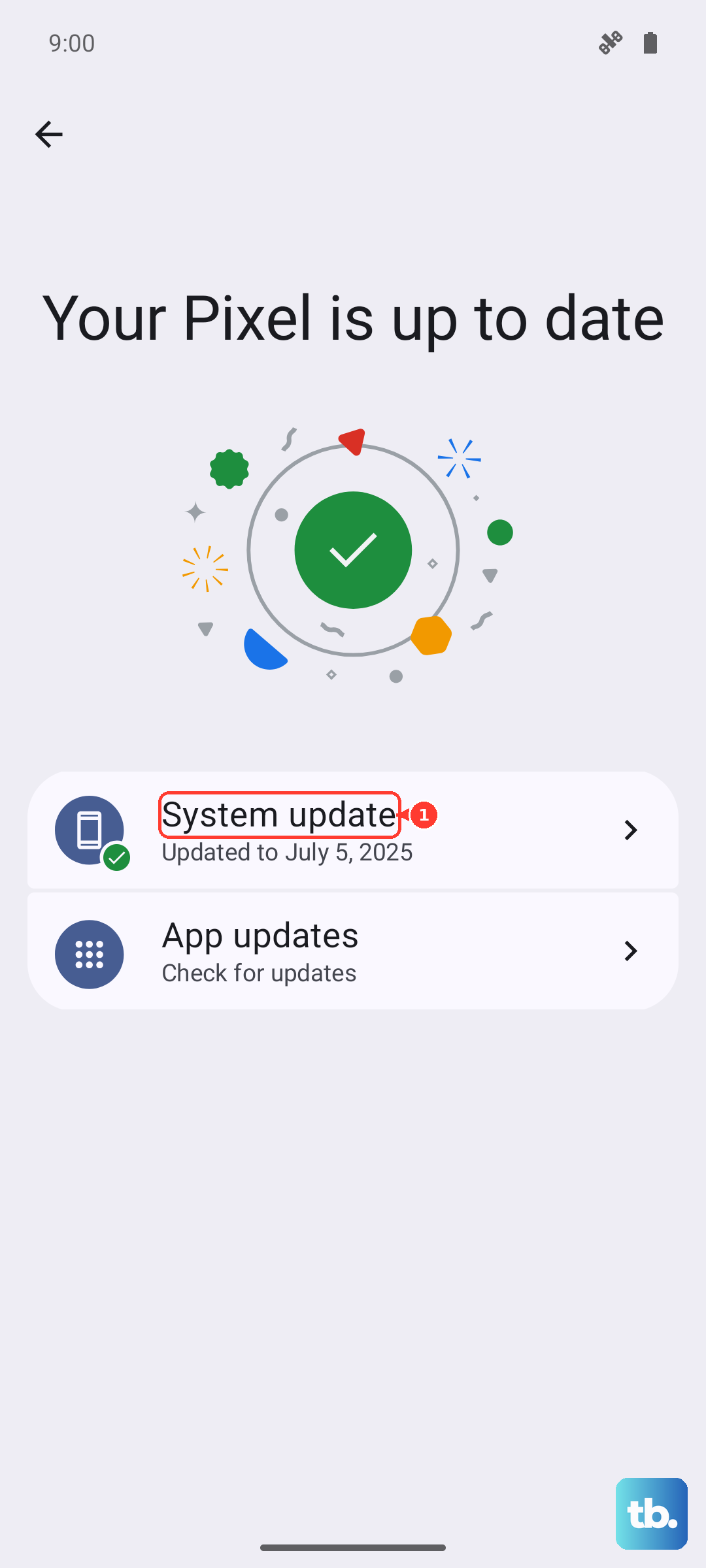
Software bugs that cause freezing are often patched in updates. After restarting your phone, navigate to Settings > Software update > Download and install. Make sure your Z Flip 6 is connected to Wi-Fi and has sufficient battery before starting the update. Keeping your phone on the latest version of Android and One UI is one of the best ways to prevent issues.
Reset All Settings
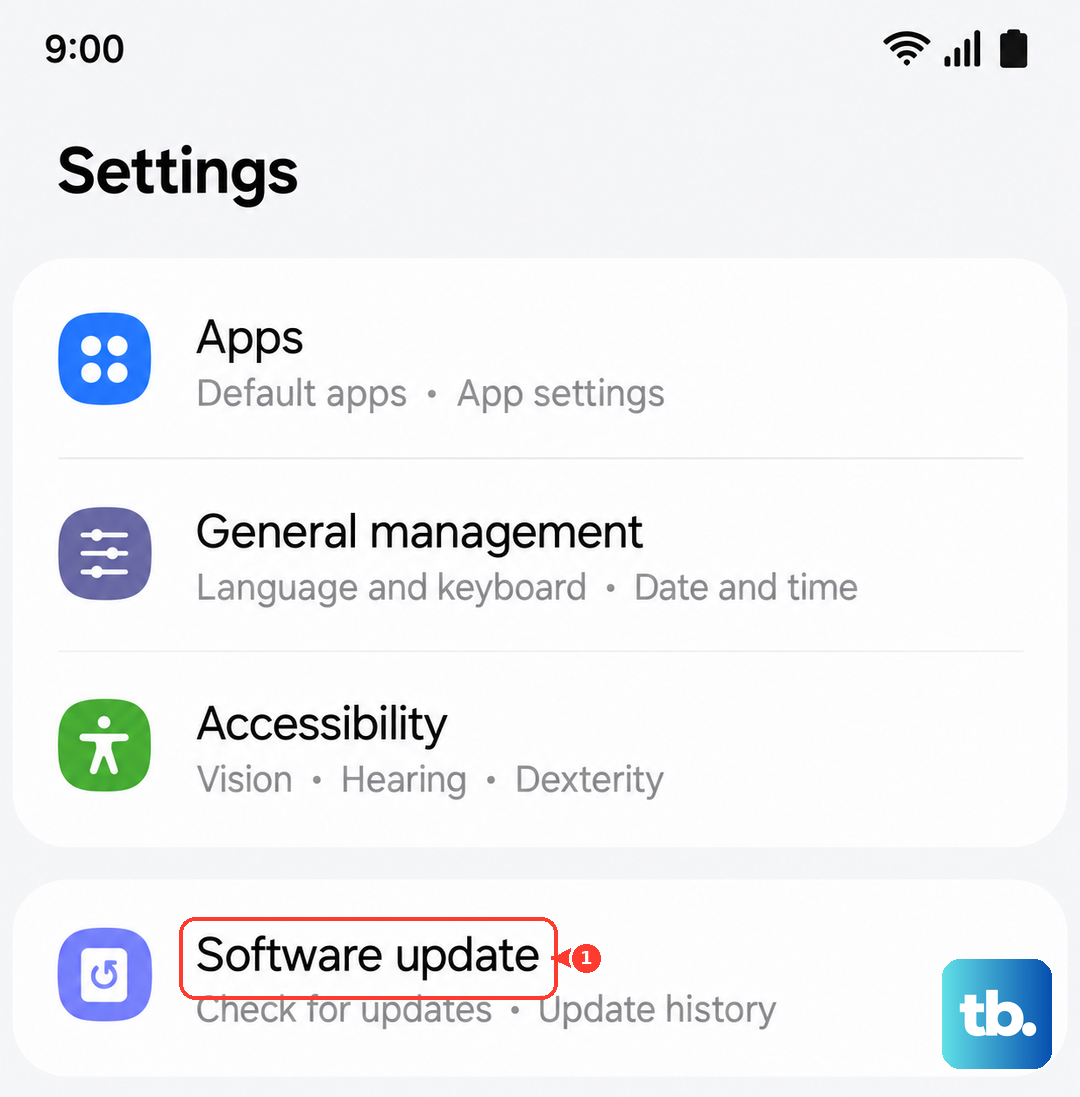
If freezes keep happening after a restart, a system setting might have become corrupted. You can reset them without touching your photos or apps. Go to Settings > General management > Reset > Reset all settings. You'll need to reconfigure things like Wi-Fi passwords and display preferences, but it often resolves persistent glitches.
Consider the Hinge and Flex Mode
Since this is a folding phone, software related to the hinge position can sometimes act up. If the freeze occurs when opening, closing, or using Flex Mode, try gently folding and unfolding the phone a few times after a restart. Also, check that the hinge area is clean and free of any debris that might interfere with the sensors.
Let an Overheated Phone Cool Down
Your phone will throttle performance or freeze to protect itself if it gets too hot. If the Z Flip 6 feels warm, take it out of its case and move it away from direct sunlight. Avoid using it or charging it for 15-20 minutes to let it cool down. Using the phone while it's overheating, especially for demanding tasks, is a common trigger.