
A blurry camera on your Samsung Galaxy Z Flip 6 can ruin photos and videos, especially when you're trying to capture a moment with its unique Flex Mode. The blur might be constant, only happen in certain lighting, or affect just one of the lenses. Before you worry about a hardware issue, there are several software and simple fixes to try first.
Clean the Camera Lenses
Start with the most obvious fix. Gently wipe the main camera lenses on the back of the phone with a soft, lint-free microfiber cloth. Smudges from your fingers are the number one cause of hazy, blurry photos. I'd also recommend checking the inner selfie camera and the cover screen camera, as they can collect dust and oil just as easily.
Avoid using your shirt or paper towels, as they can leave tiny scratches on the lens coating over time. For stubborn grime, a tiny drop of isopropyl alcohol on the cloth can help, but apply it to the cloth first, not directly to the phone.
Remove Your Case and Check for Obstructions
Take your phone out of its case and snap a test photo. Some cases, particularly third-party ones, can have a camera cutout that's slightly misaligned or has a lip that partially covers the edge of a lens. Also, make sure you haven't accidentally left a plastic shipping film or a camera lens protector on that isn't perfectly clear.
Since the Z Flip 6 folds, be extra careful that nothing is caught in the hinge area that could be pressing against the camera module when the phone is closed. Avoid closing the phone with any objects between the screens.
Use Tap to Focus and Focus Lock
Open the Camera app and tap directly on your subject on the screen. You should see a yellow focus box appear. The camera's autofocus can sometimes guess wrong, especially in low light or with busy backgrounds. Tapping tells it exactly where to focus.
For a steady shot, press and hold on the screen where you want to focus. This locks both the focus and exposure (AE/AF Lock), which is great for when your subject isn't moving. You'll see "AE/AF Lock" appear at the top of the viewfinder.
Switch Between Camera Lenses
Try manually switching lenses to see if the blur is isolated. In the Camera app, tap the tree icon for the ultra-wide lens, the standard "1x" for the main lens, or "2x" for the telephoto. If only one lens is consistently blurry while the others are sharp, the issue is likely with that specific sensor or its lens cover.
This helps rule out a software glitch affecting the entire camera system. It's a quick diagnostic step that takes just a few seconds.
Close Background Apps and Restart the Camera
Swipe up from the bottom of the screen and hold to enter the recent apps view. Find the Camera app and swipe it away to close it completely. Then reopen it and try taking a photo again. A temporary software hiccup can cause the autofocus motor to stick or the image processing to malfunction.
If you were using an app like Instagram or Snapchat's camera and noticed the blur, try the native Samsung Camera app instead. Third-party apps sometimes don't utilize the full camera hardware correctly.
Restart Your Galaxy Z Flip 6
If closing the app didn't help, a full restart is the next step. Press and hold the Volume Down button and the Side button simultaneously for about ten seconds. Release when you see the Samsung logo. This force restart clears the phone's memory and resets all background processes, including those for the camera.
It's the digital equivalent of turning it off and on again, and it resolves a surprising number of glitches. Give it a try before moving on to more involved fixes.
Check Your Camera Settings and Modes
Certain camera settings can inadvertently cause blur. Make sure you haven't accidentally enabled a filter or a scene mode that adds a softening effect. Also, check if you're in a specialized mode like "Food" or "Portrait" that uses heavy background blur (bokeh); if the effect is too strong or misapplied, it can look like an error.
Switch back to "Photo" mode for standard shooting. If you're using Flex Mode for hands-free shooting, ensure the phone is fully open at the angle you want, as the software optimizes the shot based on the hinge position.
Update Your Phone's Software
Camera performance improvements and bug fixes are often included in software updates. Go to Settings > Software update > Download and install. If an update is available, install it and restart your phone. Samsung has been known to release patches for camera autofocus and image processing in past models.
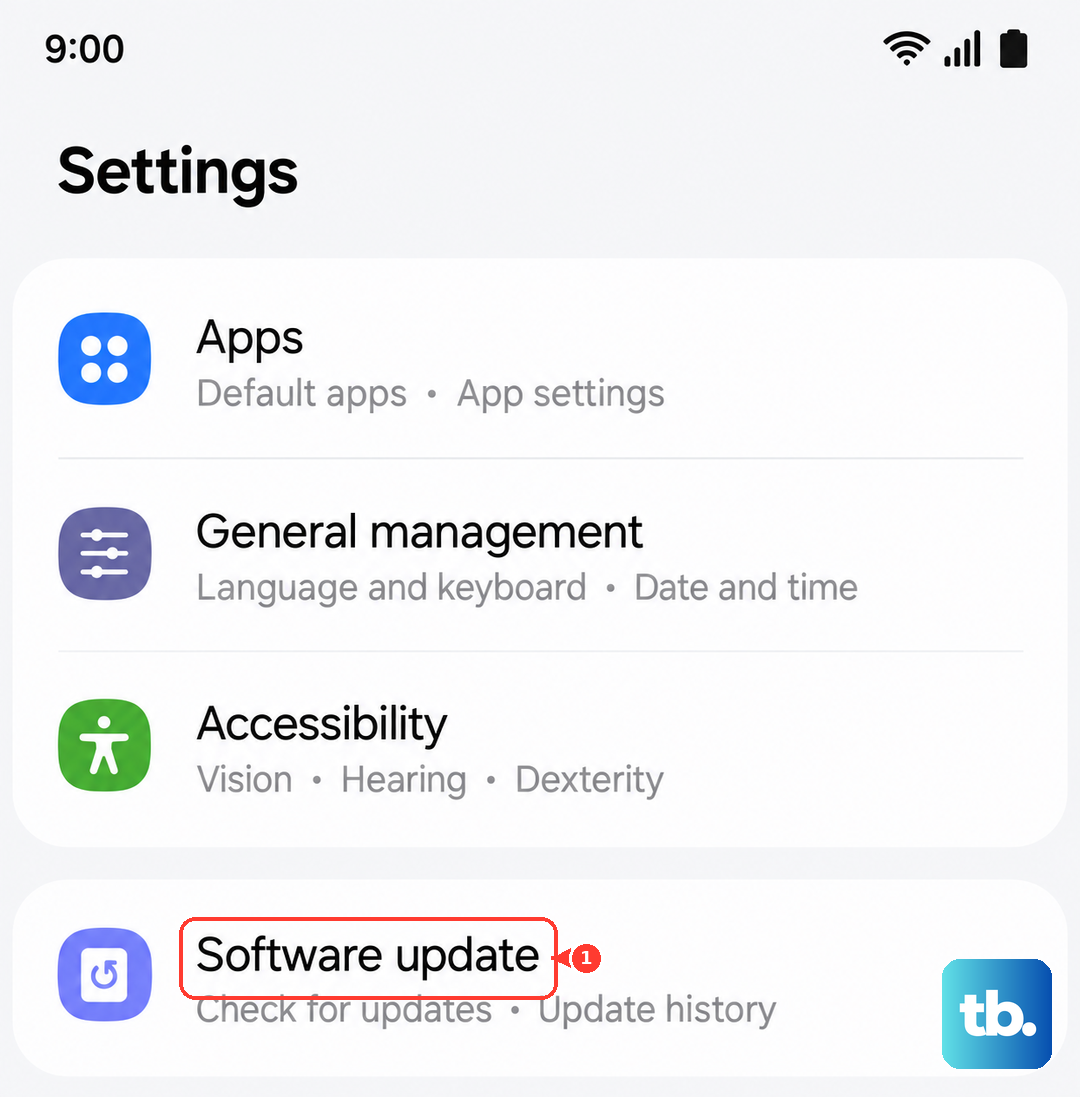
Keeping your Z Flip 6 on the latest version of Android 14 and One UI 6.1.1 ensures you have all the latest optimizations. This is a crucial step that many people overlook.
Reset the Camera App Settings
If a specific setting you changed long ago is causing problems, resetting the app can help. Go to Settings > Apps, find and tap on "Camera", then select Storage. Tap "Clear cache" first. This deletes temporary data without affecting your photos.
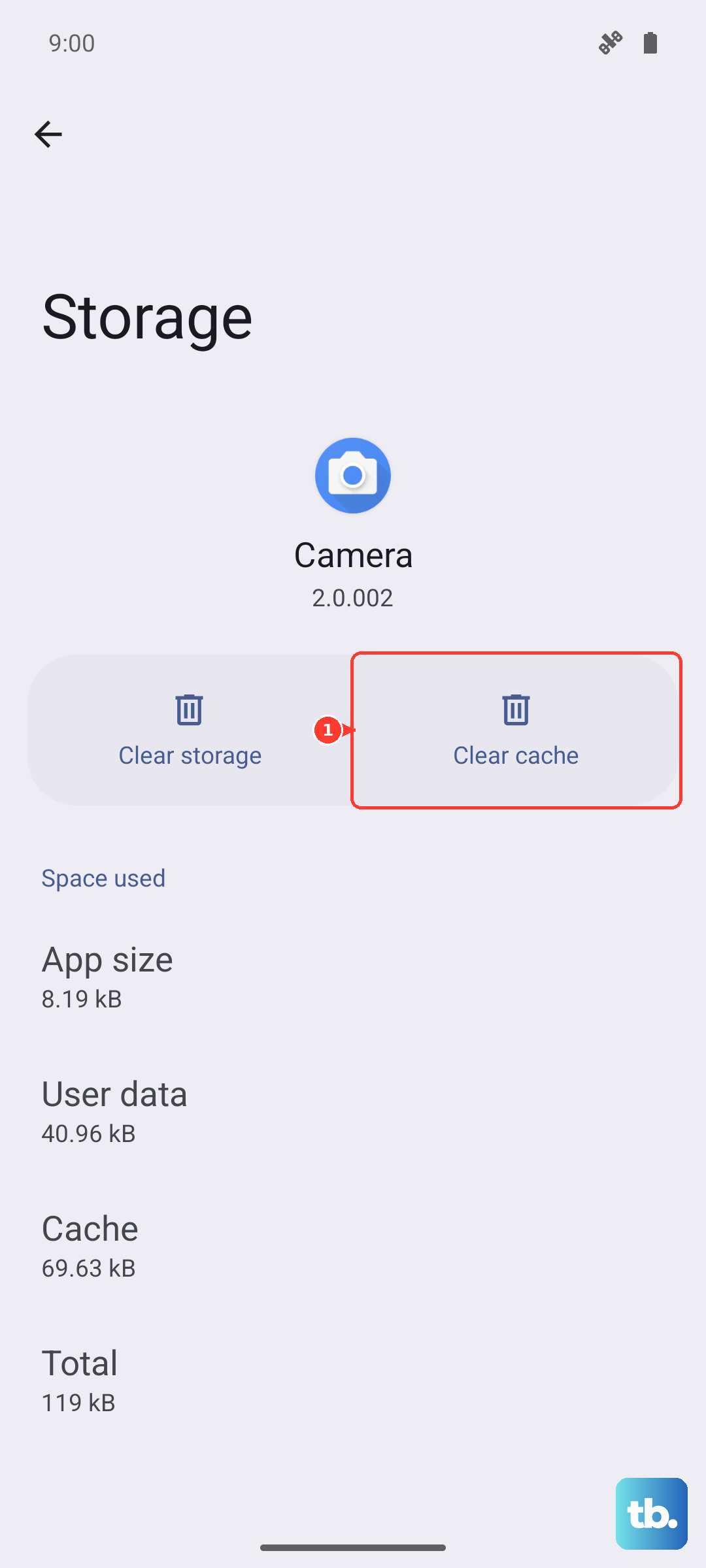
If the problem persists, you can go back and tap "Clear data". This will reset the Camera app to its default factory settings, so you'll lose any saved preferences or custom modes, but it can eliminate a software conflict causing the blur.
Scan for Moisture or Condensation
If you've moved from a cold environment to a warm one, or if there's high humidity, condensation can form inside the camera lens. This creates a permanent foggy or blurry look in all your photos. Let the phone sit at room temperature for at least 20-30 minutes to see if it clears up.
Do not use a hairdryer or put the phone in rice, as heat and dust can cause damage. If the blurry spot inside the lens doesn't go away after a few hours, it could indicate a seal failure, which is less common but possible with a folding phone's complex construction.