
If your Samsung Galaxy Z Flip 6 won't connect to your earbuds, car, or smartwatch, it can be incredibly frustrating. Bluetooth issues on the Z Flip 6 are usually software glitches that you can resolve yourself. I'd start with the quick fixes, as they solve the majority of connection problems.
Pull down the quick settings panel from the top of your screen and tap the Bluetooth icon to turn it off. Wait about ten seconds, then tap it again to turn it back on. This simple refresh of the Bluetooth radio often clears up temporary hiccups. If that doesn't work, try pairing your device again.
Restart Your Z Flip 6 and the Bluetooth Device
A full restart clears the phone's memory and stops any background processes that might be interfering. To restart your Z Flip 6, press and hold the Side key and Volume Down button together for about ten seconds until you see the Samsung logo.
Don't forget to power cycle the device you're trying to connect to as well. Turn your headphones, speaker, or car stereo completely off and then back on. Once both devices are fresh, attempt the pairing process from the beginning.
Forget and Re-Pair the Problem Device
Sometimes a pairing gets corrupted. The best fix is to remove the device from your phone's memory and start over. Open Settings, then tap Connections and select Bluetooth.
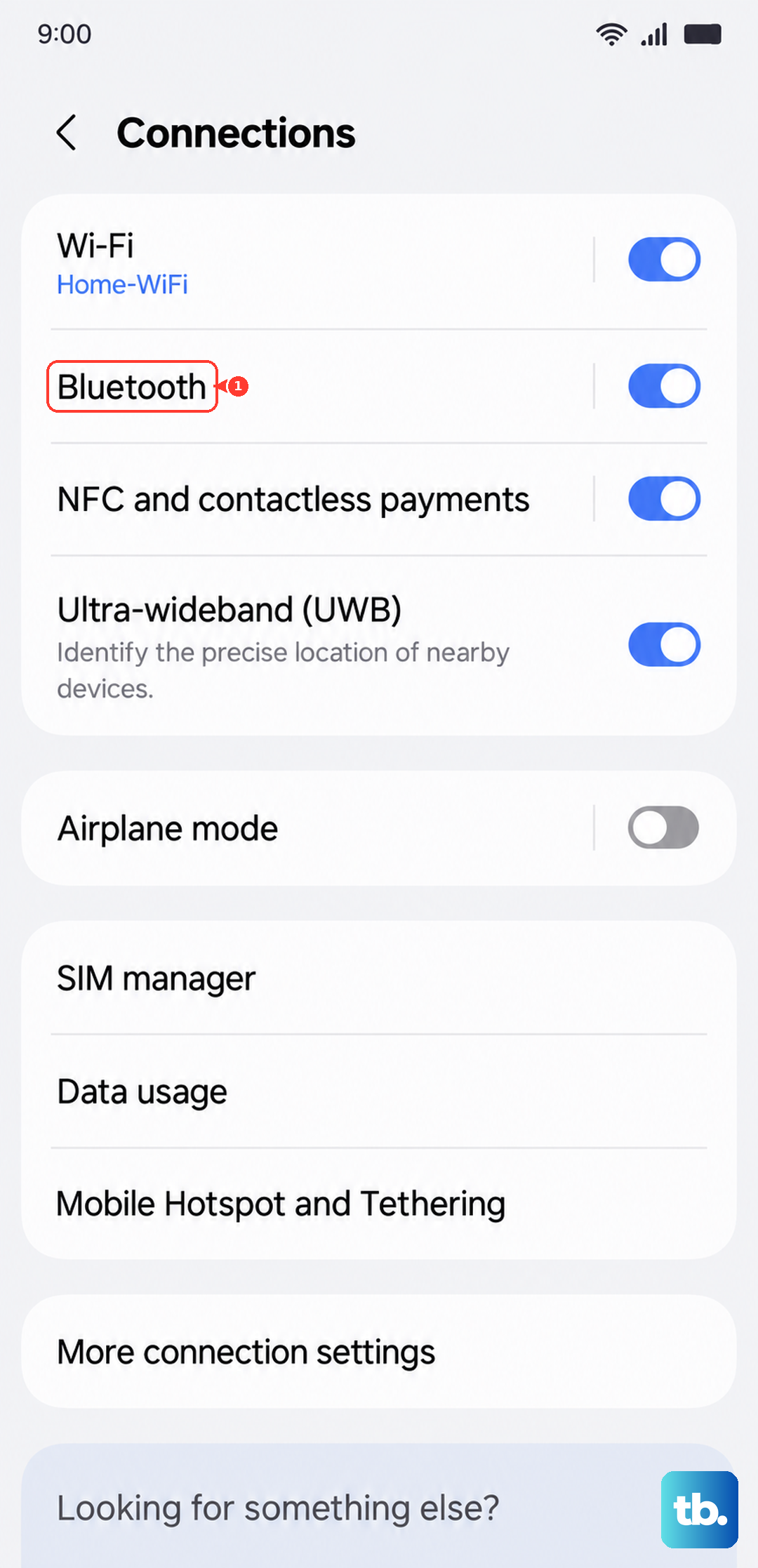
Find the troublesome device in your list of paired items. Tap the gear icon next to its name, then select Unpair or Forget. With the device in its pairing mode again, select it from the "Available devices" list on your Z Flip 6 to establish a fresh connection.
Check for Software Updates
Samsung frequently releases updates that fix bugs, including Bluetooth compatibility issues. It's a good idea to make sure your Z Flip 6 is running the latest software. Go to Settings > Software update and tap Download and install.
Also, check if the Bluetooth accessory itself needs a firmware update. For Samsung devices like Galaxy Buds or a Galaxy Watch, open the Galaxy Wearable app and look for an update option in the settings.
Clear the Bluetooth System Cache
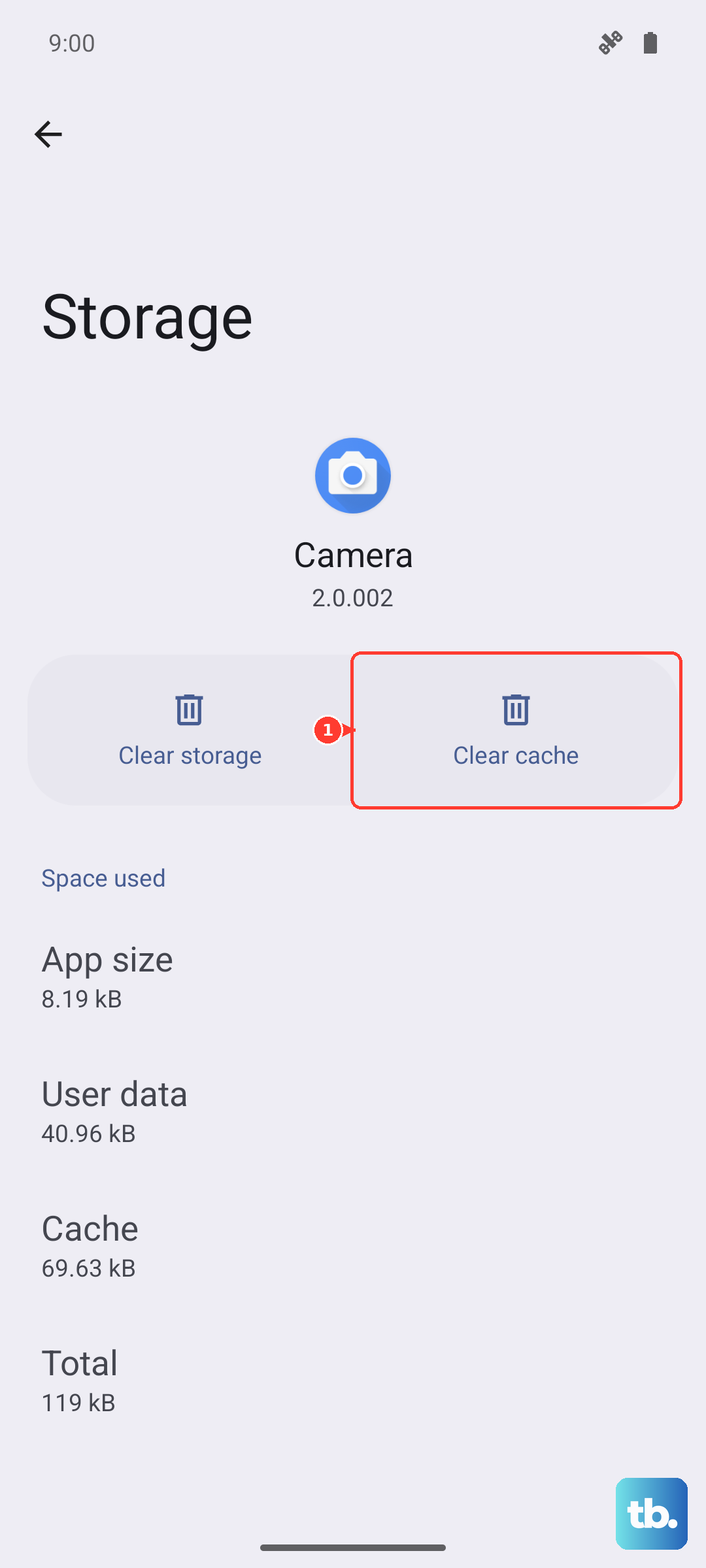
Android stores temporary data for system services like Bluetooth. If this cache becomes corrupted, it can cause connection failures. Clearing it is safe and won't delete your personal data or paired devices.
Navigate to Settings > Apps. Tap the three-dot menu in the top right and select Show system apps. Scroll down and find Bluetooth in the list, then tap on it. Select Storage and tap Clear cache. After doing this, restart your phone and test the Bluetooth connection again.
Test in Safe Mode
If a recently downloaded third-party app is causing a conflict, Safe Mode can help you identify it. To boot your Z Flip 6 into Safe Mode, press and hold the Side key until the power menu appears.
On the menu, tap and hold the Power off option. You'll see a prompt to restart in Safe Mode, tap OK. If Bluetooth works perfectly in Safe Mode, you know a downloaded app is the culprit. Restart normally and try uninstalling apps one by one, starting with the most recent.
Reset Network Settings
This step will reset all Wi-Fi, mobile data, and Bluetooth connections back to their default state. You'll need to re-enter Wi-Fi passwords and re-pair all Bluetooth devices, so it's a more involved fix.
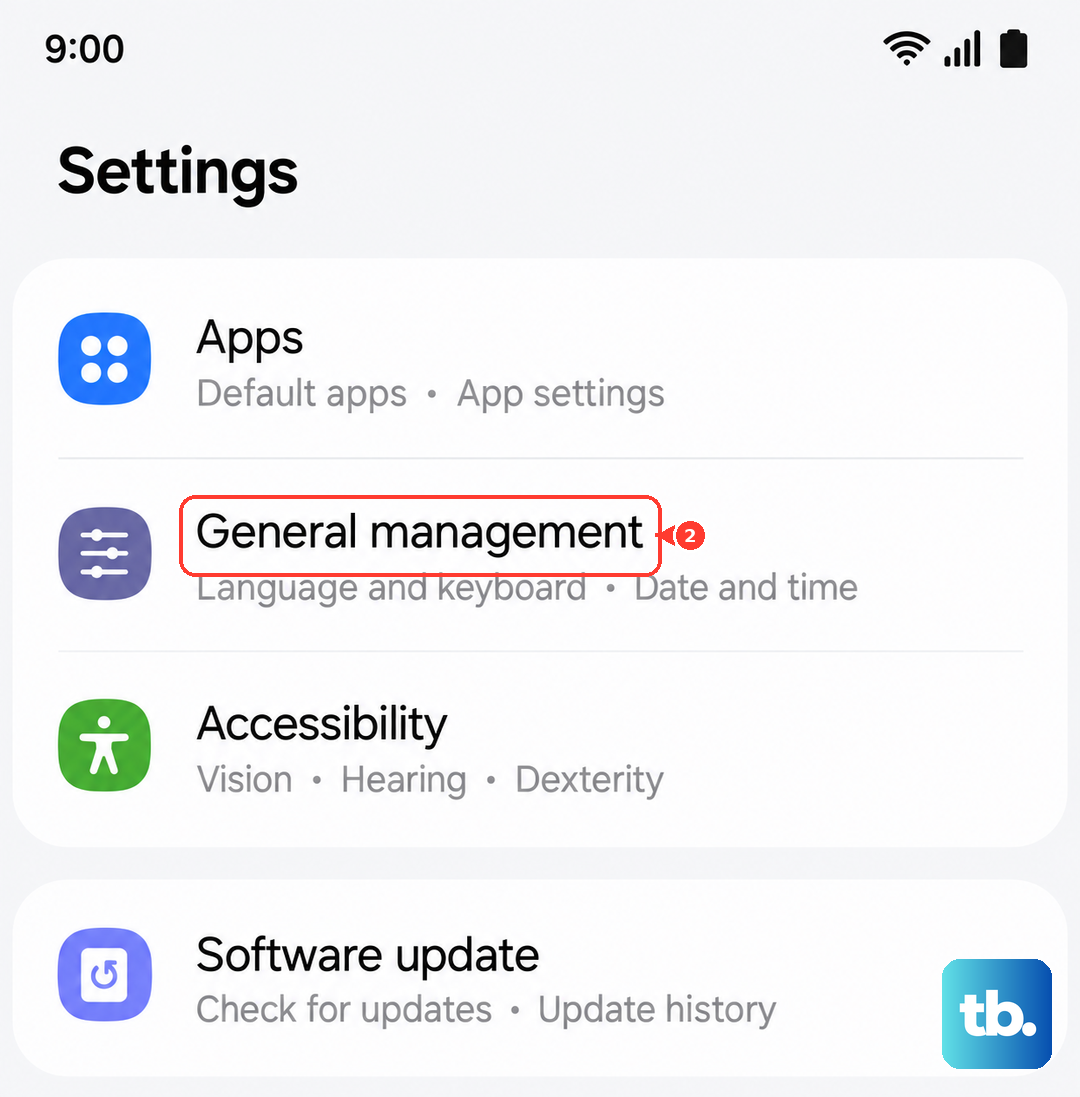
On your Z Flip 6, go to Settings > General management. Tap Reset and then select Reset network settings. Confirm the action and enter your PIN if prompted. After the phone restarts, set up your Bluetooth connections from scratch.
Check for Flex Mode Interference
Since the Z Flip 6 is a foldable, it's worth considering the hinge position. Some users have reported that being in Flex Mode (partially folded) can occasionally affect antenna performance or cause software confusion.
If you're having trouble, try ensuring the phone is fully open or fully closed during the pairing process. Once the connection is stable, you can then use Flex Mode as intended for hands-free video calls.
Address Persistent Car Bluetooth Problems
Car systems are notoriously finicky. For a stubborn car connection, you need to clear the pairing from both sides. First, forget the car on your Z Flip 6 using the steps above.
Then, use your car's infotainment system menu to delete your phone from its memory. The exact steps vary by manufacturer, so you might need to consult your car's manual. With both devices cleared, initiate pairing from your car's system first, then approve it on your phone.